> This is part 1 of 4 of the full documentation (pages 1–100 of 356).
> The content is paginated: fetch every part to see all of it.
> Next part: https://docs.satisfilabs.com/resource-center/llms-full.txt/1
> Page index: https://docs.satisfilabs.com/resource-center/llms.txt

# Welcome

## Explore Article Sections

<table data-card-size="large" data-column-title-hidden data-view="cards" data-full-width="true"><thead><tr><th align="center"></th><th data-hidden data-card-cover data-type="files"></th><th data-hidden data-card-target data-type="content-ref"></th></tr></thead><tbody><tr><td align="center"><strong>AI Agent Engine</strong></td><td><a href="https://167344003-files.gitbook.io/~/files/v0/b/gitbook-x-prod.appspot.com/o/spaces%2FsxN9AGLZMIc5C8dx3zU7%2Fuploads%2FtU6Ua5uzhhSsbKsQk2WW%2FCustomer%20Journey%20(3).png?alt=media&amp;token=cc63450e-eb93-4312-90e0-34383f975c0b">Customer Journey (3).png</a></td><td><a href="/resource-center/ai-agent-engine/ai-agent-engine-basics/get-to-know-your-ai-agent">Get to Know Your AI Agent</a></td></tr><tr><td align="center"><strong>Marketing Engine</strong></td><td><a href="https://167344003-files.gitbook.io/~/files/v0/b/gitbook-x-prod.appspot.com/o/spaces%2FsxN9AGLZMIc5C8dx3zU7%2Fuploads%2F4C1cb3ilTr6S9JNIyLQP%2FCustomer%20Journey.png?alt=media&amp;token=eac59709-3ca2-4aa7-969e-7b47bbaa1fdc">Customer Journey.png</a></td><td><a href="/resource-center/marketing-engine/marketing-engine-basics/get-to-know-your-marketing-engine">Get to Know Your Marketing Engine</a></td></tr><tr><td align="center"><strong>Live Agent Engine</strong></td><td><a href="https://167344003-files.gitbook.io/~/files/v0/b/gitbook-x-prod.appspot.com/o/spaces%2FsxN9AGLZMIc5C8dx3zU7%2Fuploads%2FqO4nTeGRZkPacy33eF87%2FCustomer%20Journey%20(2).png?alt=media&amp;token=eac9259c-8db0-4e20-9369-c857c74e2727">Customer Journey (2).png</a></td><td><a href="/resource-center/live-agent-engine/get-to-know-your-live-agent-engine">Get to Know Your Live Agent Engine</a></td></tr><tr><td align="center"><strong>Help Center</strong></td><td><a href="https://167344003-files.gitbook.io/~/files/v0/b/gitbook-x-prod.appspot.com/o/spaces%2FsxN9AGLZMIc5C8dx3zU7%2Fuploads%2FNONOLKwi4q6CRMKBn4Mr%2Fai%20agent%20engine%20header.jpg?alt=media&amp;token=865593bb-f947-4c5b-be96-4b53df7b0053">ai agent engine header.jpg</a></td><td><a href="/resource-center/system-updates-and-support/help-center">Help Center</a></td></tr></tbody></table>

## Popular Articles

<table data-view="cards"><thead><tr><th></th><th align="center"></th><th align="center"></th><th data-hidden data-card-cover data-type="files"></th><th data-hidden data-card-target data-type="content-ref"></th></tr></thead><tbody><tr><td></td><td align="center"><strong>Multi-Language Functionality</strong></td><td align="center"><strong>(AI Agent Engine)</strong></td><td><a href="https://167344003-files.gitbook.io/~/files/v0/b/gitbook-x-prod.appspot.com/o/spaces%2FsxN9AGLZMIc5C8dx3zU7%2Fuploads%2FIKsj10KLweuSBJV48OHB%2Flanguage%20header.jpg?alt=media&amp;token=6e609b2a-6496-4fe2-bb5e-e8a8ff75062e">language header.jpg</a></td><td><a href="/resource-center/ai-agent-engine/features-and-integrations/features/multi-language-functionality">Multi-Language Functionality</a></td></tr><tr><td></td><td align="center"><strong>Get to Know Your Marketing Engine</strong></td><td align="center"><strong>(Marketing Engine)</strong></td><td><a href="https://167344003-files.gitbook.io/~/files/v0/b/gitbook-x-prod.appspot.com/o/spaces%2FsxN9AGLZMIc5C8dx3zU7%2Fuploads%2F57fwWLqBO1UENHYxfCUC%2Fmarketing%20engine%20header.jpg?alt=media&amp;token=7982b4ff-6165-4e09-8463-8736e32d5cb2">marketing engine header.jpg</a></td><td><a href="/resource-center/marketing-engine/marketing-engine-basics/get-to-know-your-marketing-engine">Get to Know Your Marketing Engine</a></td></tr><tr><td></td><td align="center"><strong>Sponsorship Inclusion</strong></td><td align="center"><strong>(AI Agent Engine)</strong></td><td><a href="https://167344003-files.gitbook.io/~/files/v0/b/gitbook-x-prod.appspot.com/o/spaces%2FsxN9AGLZMIc5C8dx3zU7%2Fuploads%2FQzMcFNaQT1lO27Haeomh%2Fsponsorship%20inclsuion.jpg?alt=media&amp;token=7502c3c8-49fc-4bbc-bbca-e9e180e611bc">sponsorship inclsuion.jpg</a></td><td><a href="/resource-center/ai-agent-engine/enhance-the-chat-experience/sponsor-inclusion">Sponsor Inclusion</a></td></tr><tr><td></td><td align="center"><strong>Response Types</strong></td><td align="center">  <strong>(AI Agent Engine)</strong></td><td><a href="https://167344003-files.gitbook.io/~/files/v0/b/gitbook-x-prod.appspot.com/o/spaces%2FsxN9AGLZMIc5C8dx3zU7%2Fuploads%2F8dgVycJAJEo12IUG8mPp%2Fresponse%20typer%20banner.jpg?alt=media&amp;token=cf859020-4178-45ef-af8d-8d14fec77818">response typer banner.jpg</a></td><td><a href="/resource-center/ai-agent-engine/manage-your-content/response-types">Response Types</a></td></tr><tr><td></td><td align="center"><strong>Escalation Schedule</strong></td><td align="center"> <strong>(Live Agent Engine)</strong></td><td><a href="https://167344003-files.gitbook.io/~/files/v0/b/gitbook-x-prod.appspot.com/o/spaces%2FsxN9AGLZMIc5C8dx3zU7%2Fuploads%2F6Wj6kXzCcBw3QA4Bezqh%2Fbridge%20basics%203.png?alt=media&amp;token=68802be1-690c-4818-87c8-d4a6385273c4">bridge basics 3.png</a></td><td><a href="/resource-center/live-agent-engine/system-configuration/escalation-schedule">Escalation Schedule</a></td></tr><tr><td></td><td align="center"><strong>Ticketing Integrations</strong></td><td align="center"><strong>(Marketing Engine)</strong></td><td><a href="https://167344003-files.gitbook.io/~/files/v0/b/gitbook-x-prod.appspot.com/o/spaces%2FsxN9AGLZMIc5C8dx3zU7%2Fuploads%2F1XeA5CAExJ0bumpcI21V%2Fticketing%20integration%20header.jpg?alt=media&amp;token=7a762027-ca08-42da-b8b3-8626bb24b51a">ticketing integration header.jpg</a></td><td><a href="/resource-center/marketing-engine/settings-and-integrations/integrations/ticketing-integrations">Ticketing Integrations</a></td></tr></tbody></table>


# Who We Are

Satisfi Labs’ Conversational Experience Platform empowers brands to transform customer interactions by delivering personalized, efficient, and relationship-driven experiences across every touchpoint. Our technology moves beyond merely answering questions to making user journeys seamless and meaningful—whether it’s finding information, completing tasks, or engaging through multiple channels like chatbots, messaging platforms, and email.&#x20;

Our platform features three powerful engines:&#x20;

* **AI Agent Engine:** Build and deploy AI agents that autonomously manage customer conversations, delivering personalized support and driving actions across multiple channels.&#x20;
* **Marketing Engine:** A comprehensive marketing automation platform that simplifies outbound campaigns, managing email, SMS, WhatsApp, etc. in a seamless workflow for enhanced customer outreach.&#x20;
* **Live Agent Engine:** An advanced live chat solution that bridges AI and human support, allowing seamless escalation to live agents when needed.

{% embed url="<https://vimeo.com/832711919>" %}

Most notably backed by Google, Major League Baseball, TechStars, and Florida Funders; Satisfi Labs allows for two-way conversations that collect unique data about each user’s needs and wants - thus enabling improved customer service. Tap a button below to learn more!

<table data-view="cards"><thead><tr><th></th><th align="center"></th><th></th><th data-hidden data-card-cover data-type="files"></th><th data-hidden data-card-target data-type="content-ref"></th></tr></thead><tbody><tr><td></td><td align="center"><strong>Industries We Serve</strong></td><td></td><td><a href="https://167344003-files.gitbook.io/~/files/v0/b/gitbook-x-prod.appspot.com/o/spaces%2FsxN9AGLZMIc5C8dx3zU7%2Fuploads%2F4wWbT6egJz1fcMmwV5TR%2Famustment%20logo.png?alt=media&amp;token=d023342a-73b0-4c1b-807b-715d55d32ee2">amustment logo.png</a></td><td><a href="https://satisfilabs.com/industries-we-serve/">https://satisfilabs.com/industries-we-serve/</a></td></tr><tr><td></td><td align="center"><strong>Case Studies</strong></td><td></td><td><a href="https://167344003-files.gitbook.io/~/files/v0/b/gitbook-x-prod.appspot.com/o/spaces%2FsxN9AGLZMIc5C8dx3zU7%2Fuploads%2FV2oo3YXarfpYn4aZ3QMB%2Fcase%20studies.png?alt=media&amp;token=add21636-19c9-4ee6-923c-702b13a596d0">case studies.png</a></td><td><a href="https://satisfilabs.com/case-studies/">https://satisfilabs.com/case-studies/</a></td></tr><tr><td></td><td align="center"><strong>Blog</strong></td><td></td><td><a href="https://167344003-files.gitbook.io/~/files/v0/b/gitbook-x-prod.appspot.com/o/spaces%2FsxN9AGLZMIc5C8dx3zU7%2Fuploads%2FcMVa45a17lz82jN8F4mn%2FBlog.png?alt=media&amp;token=3d3b97e5-b884-4726-b198-3b7ecad27d6f">Blog.png</a></td><td><a href="https://satisfilabs.com/blog/">https://satisfilabs.com/blog/</a></td></tr></tbody></table>


# Our Product

Satisfi Labs is a premier conversational experience platform for destinations and experiences. Experts in developing and deploying chat software, Satisfi Labs powers seamless, two-way interactions through AI agents, live chat, and marketing automation technology that work together in real time to convert interest into action.

## AI Agent Engine Overview

AI Agent Engine is designed to comprehend and respond instantly to highly specific questions using a combination of advanced natural language processing (NLP) and generative AI capabilities. It utilizes large language models (LLMs) for flexibility and efficiency, ensuring effective communication with users while maintaining brand control.

{% embed url="<https://youtu.be/kxogDPZ2MKc>" %}

<figure><img src="https://167344003-files.gitbook.io/~/files/v0/b/gitbook-x-prod.appspot.com/o/spaces%2FsxN9AGLZMIc5C8dx3zU7%2Fuploads%2F20ZCS7GkBlFije7lIGo9%2FAnswer%20Engine%20Flow-selection.png?alt=media&amp;token=1bb75896-38d4-4c39-b1e9-6d15ff641c78" alt=""><figcaption><p><em>The infrastructure of our Answer Engine</em></p></figcaption></figure>

### How the AI Agent Engine Works

1. The user initiates the conversation by sending a message.
2. Our platform employs vigilant moderation for 11 categories of inappropriate inputs, including those related to violence, harassment, and hate speech.
3. Our platform analyzes the user intent and directs the message to one of four possible response types:
   * [**Generated Responses**](https://docs.satisfilabs.com/resource-center/manage-your-content/response-types/generated-responses)
     * Answers that are generated by the LLM model using data from your website, documents, or feeds.
     * Generated Responses will be moderated for offensive language and hallucinations.
   * [**Prewritten Responses**](https://docs.satisfilabs.com/resource-center/manage-your-content/response-types/prewritten-responses)
     * Prewritten answers are written in advance by you and surfaced to the user exactly as written.&#x20;
     * Prewritten answers take precedence over generated responses.
   * [**Live Agent**](https://docs.satisfilabs.com/resource-center/bridge-live-chat/get-to-know-bridge)
     * For intents that require a live agent, users can escalate their conversation to a live chat agent, which routes directly to your Live Agent Engine.&#x20;
   * **Security Alerts**
     * When offensive content is flagged, you can provide a custom-prewritten answer or a silent response.
     * In the event that a direct threat is detected, the system triggers an email alert to your chat's admins.
4. The response is sent to the user.

## Live Agent Engine Overview

Satisfi Live Agent Engine is the place where our AI agents and human staff come together to manage online conversations. Seamlessly transition conversations between AI agents and live agents and let your live support team focus on handling more complex conversations that drive revenue and increase customer satisfaction.

{% content-ref url="/pages/eW4Ly4FRmCQ7Dqks72yo" %}
[Get to Know Your Live Agent Engine](/resource-center/live-agent-engine/get-to-know-your-live-agent-engine)
{% endcontent-ref %}

<figure><img src="https://167344003-files.gitbook.io/~/files/v0/b/gitbook-x-prod.appspot.com/o/spaces%2FsxN9AGLZMIc5C8dx3zU7%2Fuploads%2FYljKdLYltjsUf6ifO4gd%2FScreen%20Shot%202024-01-16%20at%201.42.14%20PM.png?alt=media&amp;token=bf1d73d9-fc11-4189-9bf8-d19919b70440" alt=""><figcaption></figcaption></figure>

## **Marketing Engine Overview**

Marketing Engine is a marketing automation platform that empowers Marketing Teams to manage outbound campaigns, including email, SMS, WhatsApp, and other channels, through a seamless workflow. It offers capabilities such as triggered campaigns, journey management, and multi-channel campaign execution, making it an ideal solution for teams looking to enhance their marketing efforts.

<figure><img src="https://167344003-files.gitbook.io/~/files/v0/b/gitbook-x-prod.appspot.com/o/spaces%2FsxN9AGLZMIc5C8dx3zU7%2Fuploads%2FcZf0f97zqk9gtQXAZFjI%2FScreenshot%202024-11-08%20at%207.00.23%E2%80%AFPM.png?alt=media&amp;token=7fa989d3-2872-48ce-b70b-5c6526d1d51a" alt=""><figcaption></figcaption></figure>


# Implementation

## Implementation Timeline

<table data-header-hidden><thead><tr><th width="131.3333740234375"></th><th width="79.333251953125"></th><th width="226.3331298828125"></th><th width="162.6666259765625"></th><th width="159.0001220703125"></th></tr></thead><tbody><tr><td><strong>Phase</strong></td><td><strong>Time</strong></td><td><strong>Description</strong></td><td><strong>Key Activities</strong></td><td><strong>Resource Allocation</strong></td></tr><tr><td>1. Kickoff Call</td><td>Day 1</td><td><strong>Call 1:</strong> You’ll receive a product overview followed by a detailed outline of the onboarding process to launch in 30 days. This is where you will receive your initial test link to provide feedback.</td><td><p>Product overview.</p><p>Project Plan timeline.</p><p>Testing and feedback process.</p></td><td><p><strong>Satisfi Labs:</strong></p><p>2 hours of configuration</p><p></p><p><strong>Both:</strong> </p><p>30-minute call</p></td></tr><tr><td>2. Platform Management Training</td><td>Day 7</td><td><strong>Call 2:</strong> Receive an overview of how the product works, initiate a thorough review of content management, and assign tasks accordingly.</td><td><p>Initial testing feedback.</p><p>Dashboard overview.</p><p>Content management.</p></td><td><p><strong>Client:</strong> </p><p>1 hour in QA<br></p><p><strong>Both:</strong> </p><p>30-minute call</p></td></tr><tr><td>3. Deployment and Testing</td><td>Day 14</td><td><strong>Call 3:</strong> Stage elements for deployment, conduct comprehensive QA testing, and ensure smooth operations before official launch. Review web snippet placement. </td><td><p>Stage elements (popup, theme, branding).</p><p>Satisfi Labs team to finalize feedback. Determine launch date.</p><p><br></p></td><td><p><strong>Client:</strong> </p><p>15 minutes to confirm branding</p><p>1 hour in QA</p><p></p><p><strong>Satisfi Labs:</strong> </p><p>1.5 hours in QA Review</p><p></p><p><strong>Both:</strong> </p><p>30-minute call</p></td></tr><tr><td>4. Go Live</td><td>Day 21</td><td><strong>Task:</strong> Launch the AI Agent Engine and mark the beginning of our review phase.</td><td><p>Implement AI Agent Engine. </p><p>Enable Analytics. </p><p>Go-live support.</p></td><td><p><strong>Client:</strong> </p><p>10 minutes</p></td></tr><tr><td>5. Post Review</td><td>Day 35</td><td><strong>Call 4:</strong> ~2 weeks post-launch, we will review initial findings and available reporting, meet your account manager, review product support resources, and flag any gaps in content based on live data.</td><td><p>Performance analysis. </p><p>Review content gaps.</p><p>Establish a call cadence with your Account Manager.</p><p>Review support options.</p></td><td><p><strong>Satisfi Labs:</strong> </p><p>30-minute content analysis</p><p></p><p><strong>Both:</strong> </p><p>30-minute call</p></td></tr></tbody></table>

## How To Get Started

You’ll be able to determine when the best time is for you to start the project. Your virtual assistant is expected to launch within 21 days, so we advise selecting a start date where you can meet the implementation deadlines outlined in the table above.<br>

* **Kick-off Sign Up:** You’ll receive a link to sign up for a kick-off call with the Satisfi Labs Implementation team after the contract has been executed.
* **Requirements Gathering:** When signing up for your kick-off, you’ll be able to provide some key objectives you’re looking to accomplish through the chat. Your Satisfi Labs implementation manager will use this data during their initial build process to ensure we’re building a customized solution to match your outcomes.

## Your Implementation Responsibilities

Below is an outline of the various aspects of the implementation process that you will be responsible for over the 30-day window.<br>

* **Key Objectives:**&#x20;
  * When signing up for your kickoff call, you’ll be responsible for providing a few key business objectives you’re looking to achieve through your agent. This information will be leveraged by the Satisfi Labs team during the initial build.
* **Testing & Feedback:**&#x20;
  * After the initial kickoff, you’ll be provided with a test link built by your implementation manager, leveraging the key objectives listed.
  * Over the next 7 days, we’ll be looking for you and your team to test and provide feedback directly in the chat. Additional information on how this works can be found [here](https://docs.satisfilabs.com/resource-center/ai-agent-engine/manage-your-content/upgrade-to-context-llm#test-your-chat).
  * We also ask you to review the theme your implementation manager created and provide updated graphics, hex colors, and branding where applicable. You can view the preferred image specs [here](https://docs.satisfilabs.com/resource-center/ai-agent-engine/manage-your-content/enrichments/images-and-gifs#image-specs).
* **Implement Your Web Snippet:**
  * After the initial kickoff call, your implementation manager will provide the web snippet and installation guidelines. This should be added ASAP to ensure there are no issues that could potentially delay your launch. Despite the web snippet being added to your website, the chat won’t appear until the implementation project has been completed and we receive the green light to activate the chat. The popup will be hidden on the Satisfi Labs end, so nothing will appear for users until the launch date.

## Deployment & Launch

What you can expect in the week leading up to your launch date:&#x20;

* **Satisfi Team (3-7 days prior):**&#x20;
  * During the final pre-launch implementation call, we will run through any final questions and show the available resources within the dashboard as a future resource (chat with a live agent, submitting a ticket, 1:1 product training sessions). Your implementation manager will continue to support you through the post-launch call.
* **Client Requirement (3-7 days prior):**&#x20;
  * Confirm the desired launch date and time for your implementation manager to unhide the popup and push the chat live.
* **Satisfi Team (launch day):**&#x20;
  * Satisfi will mark the page live. This allows us to begin recording data and analytics once the popup has been unhidden.
* **Satisfi Team (launch day):**&#x20;
  * Your implementation manager will reach out to confirm the chat is now live and provide additional resources available within the dashboard.
* **Satisfi Team (post launch):**&#x20;
  * We will be monitoring the data during the two-week post-launch period to start to identify trends, topics, areas of improvement, and overall traffic.
* **Satisfi Team & Client Requirement:**&#x20;
  * Roughly two weeks after launch, we will meet as a group to discuss our findings during the two-week post-launch review and provide recommendations on how we would adjust certain topics. We will provide additional best practices around content management and placement.
* **Satisfi Team:**&#x20;
  * Your Account Manager will be in attendance for this call and will schedule a time for monthly cadence and check-in calls. At this point, your assigned Account Manager will become your main point of contact. We will cover the tools to use for any ongoing support needs.&#x20;

## Ongoing Support & Optimization

After your post-launch call, you still have plenty of resources available to get the most out of the platform.<br>

* **Account Manager:**&#x20;
  * You will be provided with a dedicated account manager who will be available for strategy, planning, activation & optimization, industry-wide initiatives to ensure your agent is continuously evolving.&#x20;
* **Live Agent Support:**&#x20;
  * You will have direct access to speak with a member of the Satisfi Labs Support team through our live chat functionality between the hours of 4am - 5pm EST. This will be your quickest method to reach out to our team for assistance or questions.
* **Virtual Agent Support Chat:**&#x20;
  * We have built our own agent leveraging all the available data in our resource center. This is a great option for you to ask questions on issues you may be having, and receive direct responses to quickly assist. Tickets can be submitted to our request portal through the support chat or by emailing <support@satisfilabs.com>.
* **1:1 Product Training:**
  * Whenever you feel a technical training session may be needed to cover certain items of content, analytics, data reports, or bring additional team members up to speed, you can sign up for a 1:1 training session with the Satisfi Labs Product Support team. During these training sessions, we’ll be able to cover any items you need additional support or guidance with.<br>

## Tips for a Successful Launch<br>

* Satisfi Labs will build your initial content repository. The included content should contain information-rich pages or data sources that focus on objective information, product details, services, FAQs, or support information. To begin, we recommend scraping no more than 25 pages.&#x20;
* Prioritize testing and feedback on heavily trafficked questions that your company typically hears on a daily basis. Our team will help you identify nuanced trends during the post-launch review process to ensure that you are only managing content for data-driven topics. We find the best results include 2-3 people testing the bot for about 20 minutes each.
* Add the script for the hidden popup immediately following your kickoff call. Our team will help you craft 2-3 unique welcome messages to personalize the chat on heavily trafficked web pages. Don’t be afraid to give your bot a brand personality!


# Satisfi Forward

Our new forward deployed engineering practice led by Satisfi Labs co-founder Randy Newman.

## Overview

Satisfi Forward is a forward deployed engineering practice that adapts our Agents to how you operate. We build the integrations, workflows, and tailored AI solutions that connect your Agents to your systems, your data, and your business. Forward is led by Satisfi Labs co-founder Randy Newman and gives you direct access to the engineers behind the platform your Agents already run on.

{% embed url="<https://vimeo.com/1217708910/ff639f3ce2?fe=ci&fl=sv&share=copy>" %}

### How is Forward different from what my subscription already covers?

Your subscription covers the Satisfi platform, your Agents and Campaigns, standard configuration, analytics, and ongoing support. Forward is engineering work designed and built specifically for your organization: a unique integration, a new workflow, or a build that does not exist on the product roadmap. If something you need falls into that second category, Forward is how it gets built. Let your account manager know about a project idea so we can help evaluate which it is.

### What kinds of projects does Forward take on?

Most engagements fall into a few categories:

* Integrations connecting your Agents to ticketing, CRM, CMS, POS, loyalty, data and partner systems
* Unique Campaign builds designed around a specific goal, audience, or set of business rules
* Agent workflow tailored to your systems
* Channel and entry point specific builds

If your idea is not on this list, it is still worth a conversation. The list reflects where we have done the most work, not the limits of what we will consider.

### Do I need to have the project fully defined before we start?

No. Most organizations come to us with a problem rather than a specification, and that is the right place to start. Forward engagements begin with an assessment where we look at the outcome you want and the systems involved, then define the first project together. You are not expected to arrive with a scope document.

### How is Forward priced?

Forward is not sold off a price list, because the work is specific to your systems and your goals. You can purchase credits toward Forward work and draw against them as projects are scoped and committed, which means you can get started without a defined project in hand. As your priorities shift, you decide where that capacity goes. Your Satisfi account team can walk you through how credits are structured and sized.

### What are the Forward credits?

Credits are how Forward capacity is purchased and tracked. You buy a credit package alongside your Agent subscription, and each project draws credits from your balance when its statement of work is signed, so you always know what is committed and what remains. Credit packages run for an annual term with your existing agreement. Larger packages include bonus credits and scheduling priority. Your account team can walk you through package sizes and what your credits translate into in practice.

### Will Forward work with the systems and vendors we already use?

We work in the live experience ecosystem every day: ticketing, CRM, CMS, POS, loyalty, and partner platforms. Because our engineers build for sports, entertainment, attractions, and destinations, they already understand these systems and the workflows around them. Whether we can integrate with a specific vendor depends on the APIs and access that vendor provides, and we confirm that before committing to a project.

### How does an engagement start, and how long does it take?

It starts with a conversation about what you are trying to solve. From there we assess the systems involved and what they make available, then come back with a defined project, a sequence, and a timeline. Duration depends more on the systems in play than on the size of the idea. A well documented integration moves quickly. Work that depends on a third party exposing something new takes longer. We will tell you which one you are looking at before you commit.

### Will this pull attention away from the Agents we run today?

No. Forward is a dedicated practice. Your existing Agents, your support, and the product roadmap you are already counting on are unaffected. Forward exists to take on the work that sits outside all of that.

### How do we get started?

Tell us what you are working on. It does not need to be a finished idea. An integration you have been putting off, a workflow you have discussed for months, or a voice experience you are curious about are all useful starting points. Reach out to your Satisfi account team and we will set up time with the Forward team.

\
\ <br>

\ <br>


# AI Agent Engine Basics


# Get to Know Your AI Agent

## AI Agent Overview

Agentic Platform is designed to comprehend and respond instantly to highly specific questions using a combination of advanced natural language processing (NLP) and generative AI capabilities. It utilizes large language models (LLMs) for flexibility and efficiency, ensuring effective communication with users while maintaining brand control.

{% embed url="<https://youtu.be/kxogDPZ2MKc>" fullWidth="true" %}

<figure><img src="https://167344003-files.gitbook.io/~/files/v0/b/gitbook-x-prod.appspot.com/o/spaces%2FsxN9AGLZMIc5C8dx3zU7%2Fuploads%2FNkG8Frtv8hsr7DQDJDkq%2FAnswer%20Engine%20Flow-selection.png?alt=media&amp;token=73691c42-d9b8-47b2-ba71-a2c62cb56ece" alt=""><figcaption><p>The infrastructure of your AI Agent Engine</p></figcaption></figure>

### How the AI Agents Work

1. The user initiates the conversation by sending a message.
2. Our platform employs vigilant moderation for 11 categories of inappropriate inputs, including those related to violence, harassment, and hate speech.
3. The Agent analyzes the user intent and directs the message to one of four possible response types:
   * [**Generated Responses**](https://docs.satisfilabs.com/resource-center/manage-your-content/response-types/generated-responses)
     * Answers that are generated by the LLM model using data from your website, documents, or feeds.
     * Generated Responses will be moderated for offensive language and hallucinations.
   * [**Prewritten Responses**](https://docs.satisfilabs.com/resource-center/manage-your-content/response-types/prewritten-responses)
     * Prewritten answers are written in advance by you and surfaced to the user exactly as written.&#x20;
     * Prewritten answers take precedence over generated responses.
   * [**Live Agent**](https://docs.satisfilabs.com/resource-center/bridge-live-chat/get-to-know-bridge)
     * For intents that require a live agent, users can escalate their conversation via the Live Agent.
   * **Security Alerts**
     * When offensive content is flagged, you can provide a custom-prewritten answer or a silent response.
     * In the event that a direct threat is detected, the system triggers an email alert to your chat's admins.
4. The response is sent to the user.


# Glossary

<table data-full-width="true"><thead><tr><th>Term</th><th>Definition</th></tr></thead><tbody><tr><td><strong>Agentic Platform</strong></td><td>The name of Satisfi Labs’ conversational AI platform. Major components include response moderation, intent understanding, response enrichment, and more.</td></tr><tr><td><strong>Agent Performance Console</strong></td><td>A management platform designed to help you manage your AI agents the way you'd manage employees, with clear performance expectations, measurable objectives, and transparent accountability.</td></tr><tr><td><strong>Agent Campaign</strong></td><td><p></p><p>An AI-driven “mission” designed to accomplish a business goal. Similar to a marketing campaign, each one has:</p><ul><li>Defined outcomes</li><li>Defined key results</li><li>Integrations &#x26; Analytics</li><li>Journey workflows</li></ul></td></tr><tr><td><strong>AI Agent</strong></td><td>A digital staff member with a specific role (e.g., Guest Experience Agent, F&#x26;B Agent, Ticketing Agent).</td></tr><tr><td><strong>Enrichment</strong></td><td>Actionable items that can be added to the text response, such as buttons, images, videos, and quick replies.</td></tr><tr><td><strong>Fallback Responses</strong></td><td>This response is triggered when the system fails to match the user's query with a relevant predefined response or lacks the necessary data to generate an appropriate reply.</td></tr><tr><td><strong>Generated Responses</strong></td><td>Answers that are generated by the LLM model using your scraped website pages, feeds or documented source data.</td></tr><tr><td><strong>Intent Understanding</strong></td><td>Advanced capability of our AI Chat to comprehend and categorize customers' inquiries thoroughly, maintaining context throughout the conversation.</td></tr><tr><td><strong>Journey Workflow</strong></td><td>Journey Workflows are tactical playbooks nested within campaigns that define how customer interactions unfold.</td></tr><tr><td><strong>Large Language Models (LLMs)</strong></td><td>Advanced computer programs that can understand and generate human-like text based on patterns they've learned from vast amounts of data. Examples are GPT and Bard.</td></tr><tr><td><strong>Link Buttons</strong></td><td>Buttons that are living within a response, linking users to other topics within your chat or to external pages.</td></tr><tr><td><strong>Natural Language Processing (NLP)</strong></td><td>An area of artificial intelligence dedicated to comprehending and manipulating human language.</td></tr><tr><td><strong>OKRs (Objectives and Key Results)</strong></td><td><p>OKRs are a goal-setting framework that helps organizations define what they want to achieve (the Objective) and how they’ll measure success (the Key Results). </p><p>The Objective is a clear, qualitative outcome, while Key Results are specific, measurable targets that prove progress toward that outcome. When applying OKRs to <strong>AI Agents</strong>, the <strong>Objective</strong> defines the business outcome the agent should drive (e.g., faster resolutions), and the <strong>Key Results</strong> quantify the agent’s performance and impact (e.g., accuracy, time saved, and successful task completion rate). They align teams around priorities, improve focus and accountability, and make it easier to track performance over a set time period.</p></td></tr><tr><td><strong>Paths</strong></td><td>Included in prewritten responses, paths help guide users to action through pre-designated flows. This includes Ticket E-Commerce, Guides, Live Agent Engine, PII Collection Features (Knowtifi/Feedback).</td></tr><tr><td><strong>Pop-Up Button</strong></td><td>The overlay button placed on your website/app that opens your chat.</td></tr><tr><td><strong>Prewritten Responses</strong></td><td>Answers that are written in advance and surfaced to the user exactly as written. Will be prioritized over Generated Responses. Can include enrichments as well. </td></tr><tr><td><strong>Prompt Bubble</strong></td><td>A text bubble that opens after a set period of time next to your pop-up button, encouraging web/app users to start a chat.</td></tr><tr><td><strong>Quick Reply</strong></td><td>A secondary button in a response that assists in guiding the user in gaining more information about the topic they are asking about, as well as further their discovery of different topics, information, and events.</td></tr><tr><td><strong>Response Moderator</strong></td><td>Part of the Answer Engine, the response moderator reviews a generated answer to ensure it complies with Satisfi’s standards. For example, it ensures foul language is not included in the response.</td></tr><tr><td><strong>Snippet</strong></td><td>A concise set of embedded HTML, CSS, and JavaScript codes for creating an interactive chat window on a website, handling functions like opening the chat, messaging, and displaying responses.</td></tr><tr><td><strong>Welcome Message</strong></td><td>A welcome message serves as the initial greeting in your AI Chat, setting a positive tone for user interactions.</td></tr></tbody></table>


# Dashboard Overview

{% embed url="<https://files.gitbook.com/v0/b/gitbook-x-prod.appspot.com/o/spaces%2FsxN9AGLZMIc5C8dx3zU7%2Fuploads%2Fc3qXyAbnUYor1dwt3D6g%2FDashboard%20Overview%20-%20Made%20with%20Clipchamp.mp4?alt=media&token=bf13c849-4229-4cab-934a-8ec2d51168c1>" fullWidth="true" %}

{% content-ref url="/pages/5QhPhlSQSBPxukbBZyfV" %}
[Reporting & Analytics](/resource-center/ai-agent-engine/reporting-and-analytics)
{% endcontent-ref %}

{% content-ref url="/pages/EK2UwgCcW9XWTJacTKQ6" %}
[Pages](/resource-center/ai-agent-engine/enhance-the-chat-experience/pages)
{% endcontent-ref %}

{% content-ref url="/pages/P8dqvMspZQmSitPj8r0e" %}
[Popups](/resource-center/ai-agent-engine/enhance-the-chat-experience/popups)
{% endcontent-ref %}

{% content-ref url="/pages/gIM6JiSUBDUCGZ81k2f3" %}
[Images & GIFs](/resource-center/ai-agent-engine/manage-your-content/response-types/prewritten-plus-responses/enrichments/images-and-gifs)
{% endcontent-ref %}

{% content-ref url="/pages/7SXoUrt3V2rBey3TpUQ6" %}
[Content Groups](/resource-center/ai-agent-engine/manage-your-content/best-practices/content-groups)
{% endcontent-ref %}

{% content-ref url="/pages/ERXpoXmGBF9PTMPxqZEt" %}
[Manage Your Content](/resource-center/ai-agent-engine/manage-your-content)
{% endcontent-ref %}

{% content-ref url="/pages/jwjH7RmKEMV41CiJoEhi" %}
[Data Reports](/resource-center/ai-agent-engine/reporting-and-analytics/data-reports)
{% endcontent-ref %}

{% content-ref url="/pages/kLlGsDTjOUKmqzekTqzi" %}
[User Management](/resource-center/ai-agent-engine/user-management)
{% endcontent-ref %}


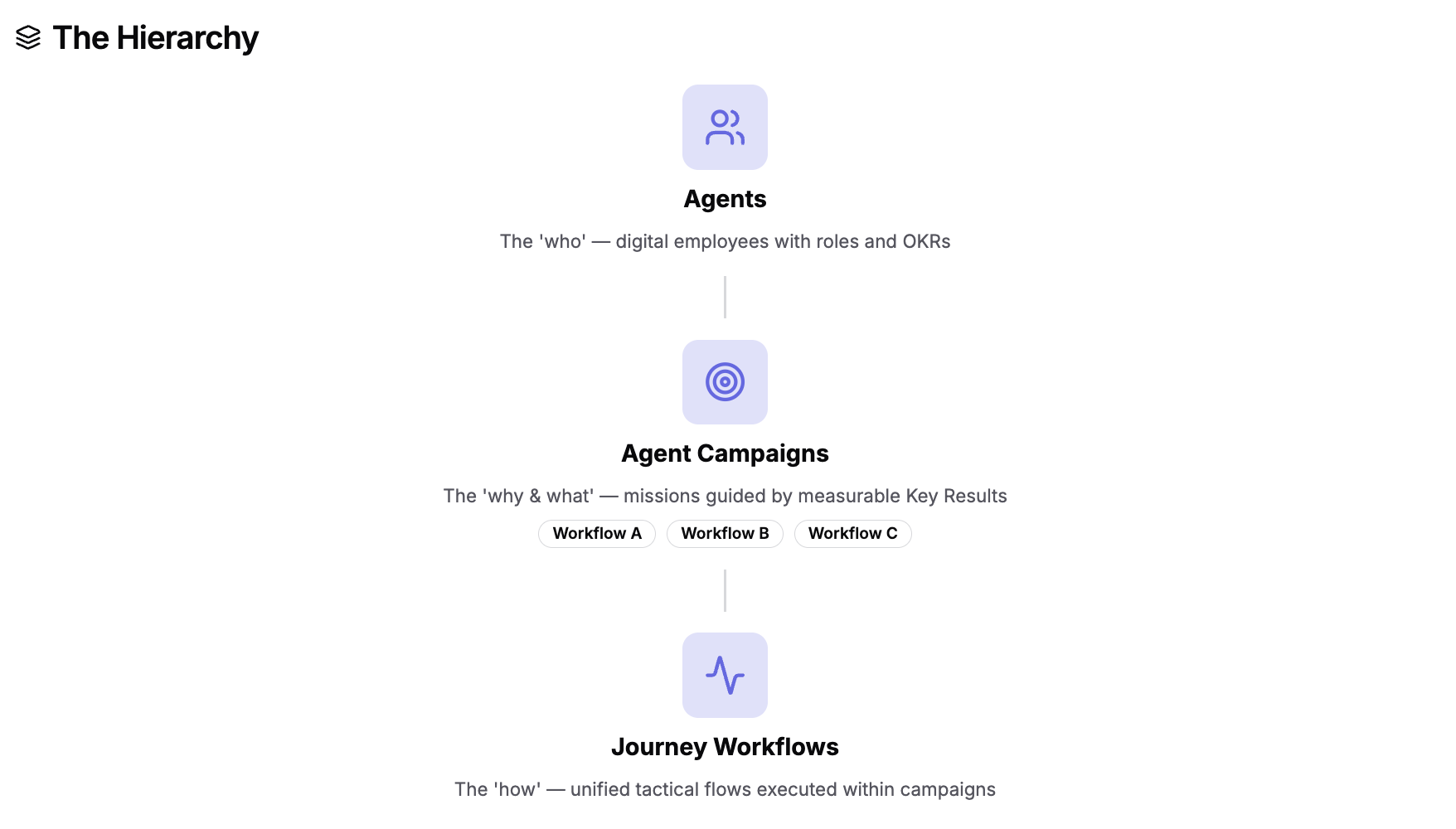
# Agent Performance Console Overview

The Agent Performance Console is an AI agent monitoring and insights platform that answers the question every business leader is asking: "Are my AI agents actually delivering business outcomes?"

It's not a traditional analytics tool. It's a management platform designed to help you manage your AI agents the way you'd manage employees, with clear performance expectations, measurable objectives, and transparent accountability.

{% embed url="<https://vimeo.com/1171090864/829c578dad?fe=ci&fl=sv&share=copy>" %}

The Console Includes:

1. [An analytics dashboard](https://docs.satisfilabs.com/resource-center/ai-agent-engine/reporting-and-analytics/agent-performance-console/dashboard) that covers high-level AI Agent volume metrics and a summary view of each Agent’s OKR performance.
2. [Profile pages](https://docs.satisfilabs.com/resource-center/ai-agent-engine/reporting-and-analytics/agent-performance-console/agent-profiles) per AI Agent with a detailed view of OKR performance.
3. [AI Agent chats](https://docs.satisfilabs.com/resource-center/ai-agent-engine/reporting-and-analytics/agent-performance-console/agent-chat) are accessible from each profile page and can answer natural language data questions and provide qualitative insights and recommendations.
4. [Why we built the Console](https://agent.satis.fi/our-why). This section walks through the core concepts behind the Console, including key definitions, system architecture, and real-world agent examples. We highly recommend starting here to understand the purpose of the Console and how it’s designed to be used.

## Core Definitions

### Objectives & Key Results (OKRs)

OKRs (Objectives and Key Results) are a goal-setting framework that helps organizations define what they want to achieve (the Objective) and how they’ll measure success (the Key Results). The Objective is a clear, qualitative outcome, while Key Results are specific, measurable targets that prove progress toward that outcome. When applying OKRs to **AI Agents**, the **Objective** defines the business outcome the agent should drive (e.g., faster resolutions), and the **Key Results** quantify the agent’s performance and impact (e.g., accuracy, time saved, and successful task completion rate). They align teams around priorities, improve focus and accountability, and make it easier to track performance over a set time period.

<figure><img src="https://167344003-files.gitbook.io/~/files/v0/b/gitbook-x-prod.appspot.com/o/spaces%2FsxN9AGLZMIc5C8dx3zU7%2Fuploads%2FGZwQwByoWJ9nVRi9Ejru%2Fimage.png?alt=media&amp;token=9a6a57f6-403c-4b6e-9458-f3d67c9e0c7f" alt=""><figcaption></figcaption></figure>

### Agents

Agents are digital staff members modeled after real-world operational roles (e.g., Ticketing Agent, Food & Beverage Manager, Guest Experience Host).

* Defined OKRs guide their responsibilities
* Success metrics and daily actions
* Enterprise system integrations

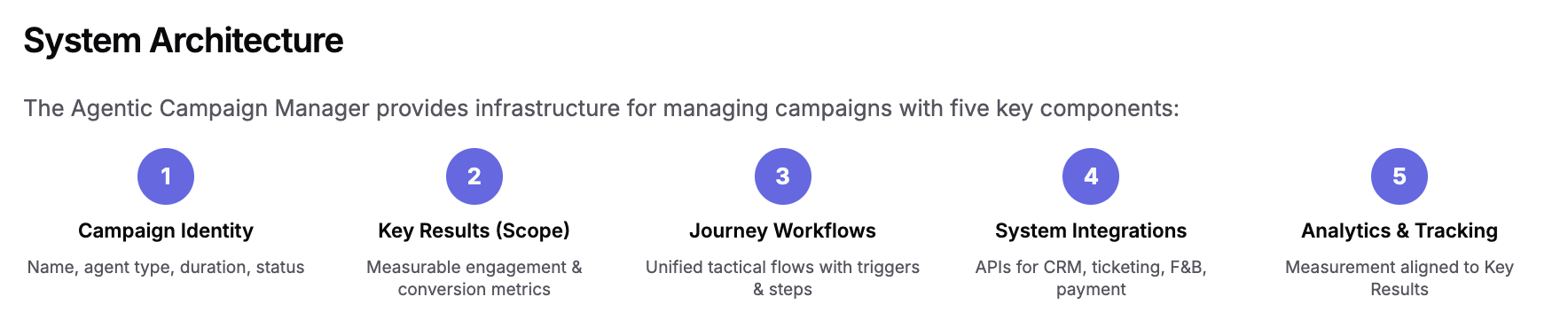
### Agent Campaigns

Agent Campaigns are structured, AI-driven missions assigned to individual agents that align behavior with strategic business outcomes.

* Campaign Identity & Duration
* Measurable Key Results
* Journey Workflows
* System Integrations & Analytics

### Journey Workflows

Journey Workflows are tactical playbooks nested within campaigns that define how customer interactions unfold.

* Triggers & Sequential Steps
* Multi-channel Execution
* Branching Logic & Upsells
* Agent CTAs

<figure><img src="https://167344003-files.gitbook.io/~/files/v0/b/gitbook-x-prod.appspot.com/o/spaces%2FsxN9AGLZMIc5C8dx3zU7%2Fuploads%2Fj6QnVZkalDjOjNl87eDJ%2Fimage.png?alt=media&amp;token=e8f6c6d1-e455-4662-bdea-b0122f65a82e" alt=""><figcaption></figcaption></figure>

<figure><img src="https://167344003-files.gitbook.io/~/files/v0/b/gitbook-x-prod.appspot.com/o/spaces%2FsxN9AGLZMIc5C8dx3zU7%2Fuploads%2F016EyvmWvoLcH1np8ZVX%2Fimage.png?alt=media&amp;token=fe27bae0-be31-4882-bf08-7445926a19b2" alt=""><figcaption></figcaption></figure>


# Manage Your Content

test

{% embed url="<https://youtu.be/bI9txfIxN3Q>" %}


# Response Types

{% embed url="<https://files.gitbook.com/v0/b/gitbook-x-prod.appspot.com/o/spaces%2FsxN9AGLZMIc5C8dx3zU7%2Fuploads%2FJ5Yza15C66UQKbq3Zbp0%2FResponse%20Type-%20V2.mp4?alt=media&token=d0a0a514-319b-4fa5-80c9-1f7beb66a253>" fullWidth="true" %}
**Watch the Video to Better Understand Your Chat's Response Types!**
{% endembed %}

## Prewritten

Responses written and trained in advance using Input Director. They are surfaced to users exactly as they are written. Content is not leveraged for generative responses.

## Prewritten Plus

Responses written and trained in advance using Input Director. These responses are shown to users exactly as written when triggered by trained inputs. Additionally, their content (including images and URL buttons) can be leveraged for generative responses when no relevant training set exists, providing seamless and accurate coverage for untrained visitor questions.

{% hint style="warning" %}
A majority of your prewritten responses will be marked as "Prewritten Plus"; however, there are instances where you'll see responses still assigned to the "Prewritten" content type. These include:

* No\_Response
* Welcome\_Message
* Any Bot Basic Response (Ex. Hello)
  {% endhint %}

<details>

<summary>Example</summary>

![](https://167344003-files.gitbook.io/~/files/v0/b/gitbook-x-prod.appspot.com/o/spaces%2FsxN9AGLZMIc5C8dx3zU7%2Fuploads%2FGB3QPIdg9o4cB59ElOYG%2FGus-%20Gif.gif?alt=media\&token=847eaffa-7795-4b12-9fdd-962ba62ebbd9)

</details>

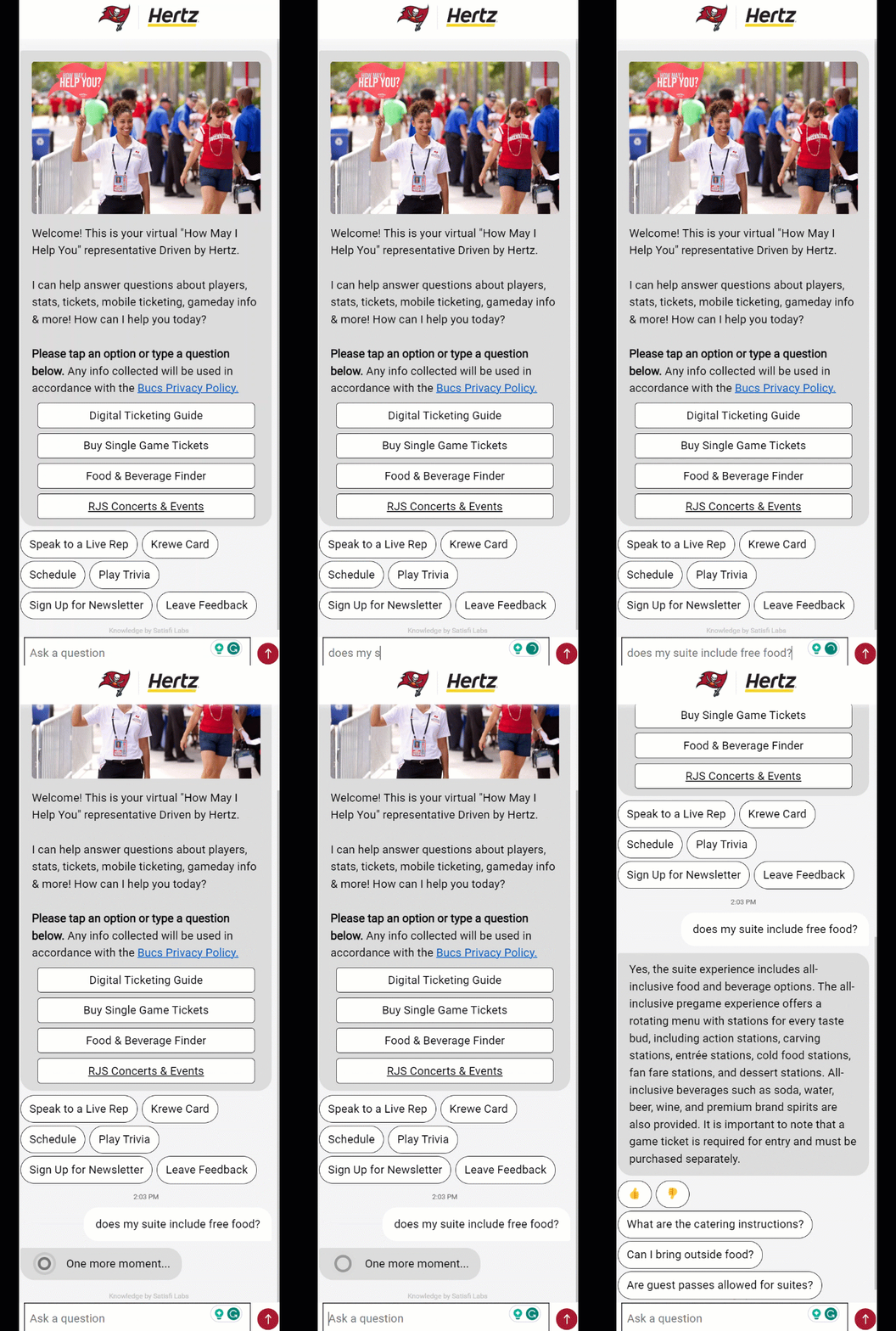
## Generated

Text responses created by the LLM model using your website and documented source data. The actual wording of responses may differ based on the user's specific question and aims to provide a more humanized response than prewritten responses.

<details>

<summary>Example</summary>

<img src="https://167344003-files.gitbook.io/~/files/v0/b/gitbook-x-prod.appspot.com/o/spaces%2FsxN9AGLZMIc5C8dx3zU7%2Fuploads%2FMomectVKn3UxpzD5wkQP%2FGenerated%20Gif.gif?alt=media&amp;token=87668bd8-dbbe-48e4-8427-e82b5f2094ba" alt="" data-size="original">

</details>

### Documented Data

Content that is not tied to any specific questions or intents. This content is used as a source for generative responses, helping the system craft informative answers dynamically.

### Web-Imported Data

A web extraction/scrape utilized as a content source for generative responses.

### Feed Import Data

A feed import utilized as a content source for generative responses.

Buttons, quick replies, and multimedia elements (images, videos) that are added to generated responses, prompting users to take action.

{% hint style="info" %}
Want to understand better how you can add responses or update your content? Explore the specific response-type pages to learn more!
{% endhint %}

***

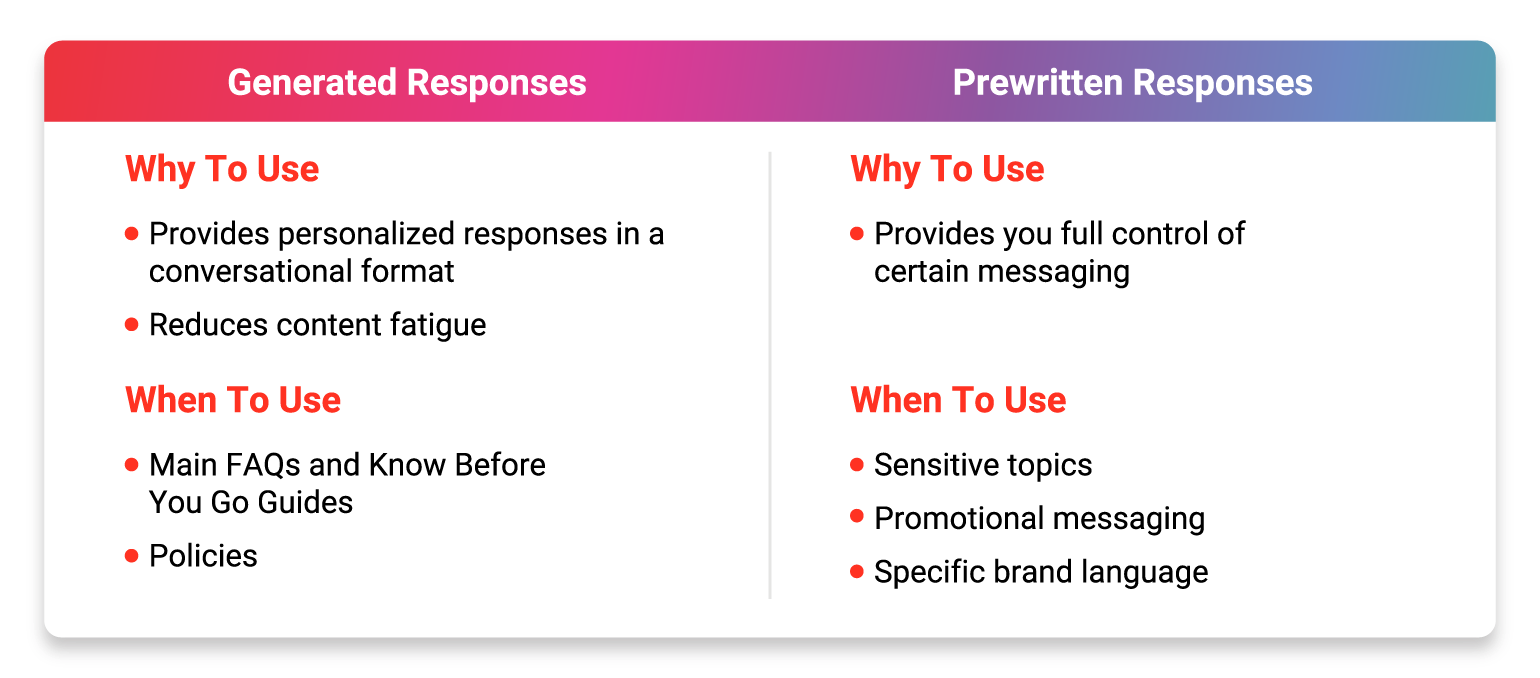
## Which Response Type to Use?

<figure><img src="https://167344003-files.gitbook.io/~/files/v0/b/gitbook-x-prod.appspot.com/o/spaces%2FsxN9AGLZMIc5C8dx3zU7%2Fuploads%2FYroI2apa9CLTsLrnmXtE%2Fimage.png?alt=media&amp;token=30678505-bc8c-479b-ac1e-e7b60edfde26" alt=""><figcaption></figcaption></figure>

{% embed url="<https://www.canva.com/design/DAGOm6kNR5g/_i0qqlNI6wBHf8BdCWrVaQ/view?utm_campaign=designshare&utm_content=DAGOm6kNR5g&utm_medium=link&utm_source=editor>" %}


# Generated Responses

## Overview

#### What are Generated Responses?

Responses created by the LLM model using your website, feeds, or documented source data.

## Key Things to Know

* Since responses are generated, you no longer need to craft text responses yourself; however, you will need to ensure that provided data remains up-to-date and relevant&#x20;
* Each response is pre-moderated on offensive language or hallucinations
* Enrichments cannot be added directly to documented or web-scraped data that creates generated responses

## Create/Update Generated Responses

To learn more about creating/updating generated responses, click one of the cards below to get started!

<table data-view="cards"><thead><tr><th></th><th align="center"></th><th align="center"></th><th data-hidden data-card-cover data-type="files"></th><th data-hidden data-card-target data-type="content-ref"></th></tr></thead><tbody><tr><td></td><td align="center"><strong>Web-Scraped Data</strong></td><td align="center">Data pulled from your website through our web-scraping tool to generate responses</td><td><a href="https://167344003-files.gitbook.io/~/files/v0/b/gitbook-x-prod.appspot.com/o/spaces%2FsxN9AGLZMIc5C8dx3zU7%2Fuploads%2FbgkJO8X5ITcWaTAy6wuR%2Fweb%20scraped%20header.png?alt=media&amp;token=db508c49-e418-411d-996c-d412bd8cf0b6">web scraped header.png</a></td><td><a href="/resource-center/ai-agent-engine/manage-your-content/response-types/generated-responses/web-scraped-data">Web-Scraped Data</a></td></tr><tr><td></td><td align="center"><strong>Documented Data</strong></td><td align="center">Data pulled from uploaded documents in the dashboard to generate responses</td><td><a href="https://167344003-files.gitbook.io/~/files/v0/b/gitbook-x-prod.appspot.com/o/spaces%2FsxN9AGLZMIc5C8dx3zU7%2Fuploads%2F5AlICKYppVJRFBknA4w1%2Fdoc%20data%20header.png?alt=media&amp;token=c8cbea51-ffa7-4cbb-b8dd-1d93ca757cfd">doc data header.png</a></td><td><a href="/resource-center/ai-agent-engine/manage-your-content/response-types/generated-responses/documented-data">Documented Data</a></td></tr><tr><td></td><td align="center"><strong>Enrich Responses</strong></td><td align="center">Enrich your generated responses with buttons, quick replies or images</td><td><a href="https://167344003-files.gitbook.io/~/files/v0/b/gitbook-x-prod.appspot.com/o/spaces%2FsxN9AGLZMIc5C8dx3zU7%2Fuploads%2Fpq9n1SUcjwzM5Ja1CeKR%2FGenerated%20Responses-%20Header.png?alt=media&amp;token=a4aa29b5-69b3-448c-8087-823ef5fc7760">Generated Responses- Header.png</a></td><td><a href="/resource-center/ai-agent-engine/manage-your-content/response-types/generated-responses/enrich-generated-responses">Enrich Generated Responses</a></td></tr></tbody></table>


# Web-Scraped Data

Learn how you can generate responses with the data pulled from your website through our web-scraping tool!

{% embed url="<https://files.gitbook.com/v0/b/gitbook-x-prod.appspot.com/o/spaces%2FDIgXBUNMjWTWYHAjiHv5%2Fuploads%2FFnNVpIC9SXv2lTQK87j3%2FAdd%20Update%20Delete%20Webscraped%20Data-%20V2.mp4?alt=media&token=00a2a05f-369d-45fe-a3b6-f3636ddd20bf>" fullWidth="true" %}
How to Add, Update and Delete Web-Scraped Data
{% endembed %}

## How to Use the Web Scraping Tool

To add new web-scraped data, follow the steps below:

1. Open your AI Chat
2. Login using **!login** command
3. Click 'Get Started'
4. Click Commands 'Add this URL' or 'Add new URL'
5. Go to **Studio -> NLP Manager -> Responses** to ensure the data is carried over and formatted correctly.

***

## Edit/Delete Web-Scraped Data

### **Update** Web-Scraped Data

{% embed url="<https://files.gitbook.com/v0/b/gitbook-x-prod.appspot.com/o/spaces%2FsxN9AGLZMIc5C8dx3zU7%2Fuploads%2F5qcaH7Tug2vwtqzzhPep%2Fedit%20scraped%20data%20-%20Made%20with%20Clipchamp.mp4?alt=media&token=e6a43631-1d43-4876-99c2-eaecf5d12f31>" fullWidth="true" %}
Update Web-Imported Data
{% endembed %}

There are two ways to **update** web-scraped data:

#### Rescrape Your Webpage

1. Open your AI Chat
2. Login using **!login** command
3. Hit 'Get Started'
4. Click **Add this URL** or **Add New URL** to rescrape the page with the updated information
5. Go to **Studio -> NLP Manager -> Responses** to ensure the data is carried over and formatted correctly

#### Manually Update Your Content

1. While in the [Satisfi Dashboard](https://dashboard.satis.fi/Users/Login), go to Studio -> NLP Manager -> Responses
2. Locate the response you'd like to edit
3. Once you click on the response name, select the three dots in the right-hand corner of the window
4. Uncheck the box next to **Content Subscription.**
5. Click the pencil icon
6. Make any necessary edits
7. Hit **Save and Publish** or just **Save** to keep your changes in draft mode

{% hint style="warning" %}
**Why Would You Manually Update Scraped Data?**

* Add Topic Headers (ex. Topic: Group Ticket Perks)
* Update information that hasn't been updated on your website yet
* Improve the chunking of data
* Removing unnecessary scraped data (webpage alerts, footer text, etc.)
* Adding redacted information such as emails/phone numbers when applicable&#x20;
  {% endhint %}

### D**elete** Web-Scraped Data

1. While in the [Satisfi Dashboard](https://dashboard.satis.fi/Users/Login), go to Studio -> NLP Manager -> Responses
2. Locate the response you'd like to delete
3. Click the delete button (trash can icon)

***

## Our Recommendations

### Create Hidden Webpages

Utilize the power of our web scraping tool without having to surface information publicly on your website. By creating hidden pages on your website, you create a controlled environment that serves as a great data resource for your AI Chat to train from and curate content.

Real-World Examples: [**Tampa Bay Buccaneers**](https://www.buccaneers.com/chatbot), [**The Jockey Club**](https://www.thejockeyclub.co.uk/sandown/chat-bot/)

### Create a List of Your URLs&#x20;

We suggest making a list of the URLs you want to scrape and train in advance. Once you locate the popup on the first URL, keep your list handy and add more URLs by clicking the 'Add new URL' button. This way, you won't need to switch between pages and have complete control over the URLs you've already scraped.

### Focus on What is Important

Don't attempt to scrape every web page you have! Focus your scraping efforts on web pages where your customers typically learn key information such as A-Z Guides, Things to Do, Directories, etc.&#x20;

### What to Avoid&#x20;

Avoid scraping:

* Web pages that are frequently updated (schedules, rosters, stats, etc.). In these cases, we recommend using a prewritten response.&#x20;
* Any third-party web pages you do not manage.&#x20;
* Web pages lacking rich content such as image-heavy pages, landing pages, etc.&#x20;

### Inspect for Quality

We always recommend that you not only review results from our scraping tool within the response library but also see how responses are generated and exposed within your chat.&#x20;

{% hint style="danger" %}
If the information you scraped into the dashboard is not being understood by the LLM, this may be due to poor formatting within the response. To fix this:

* Find the corresponding URL labeled response in the library (usually named after the web page it was scraped from)
* Click **Edit**&#x20;
* Ensure that:

  * &#x20;There is a header description related to the data's topic in each section
  * All sections are separated by a 5 “-----”
  * No section is very short or extremely long

  **Note:** Manual edits can be made within web-scraped data responses in the dashboard. However, if a page is rescraped, those manual edits will be overwritten.&#x20;
  {% endhint %}

## FAQs

<details>

<summary>I'm not seeing my scraped responses and/or LLM volume in the dashboard</summary>

In the responses library, ensure that the filter is set to “*company name* LLM.” From there, data should change and reflect everything within the new experience

</details>

<details>

<summary>Is there any specific formatting required for emails/phone numbers in scraped data?</summary>

No! If your contact information is in a text format and written clearly (ex. <email@email.com> or #-###-###-####) it will be surfaced to users in generated responses.&#x20;

</details>

<details>

<summary>Can I scrape text from PDFs, images and/or web banners?</summary>

Unfortunately, this content cannot be scraped. If you'd like to include this data to create generated responses, we suggest creating a documented response

</details>

<details>

<summary>Can multiple people from my team scrape the website using the same popup?</summary>

Yes! If the page is already scraped, a message will trigger that it’s already listed, and a page refresh will be triggered

</details>

<details>

<summary>How many pages can I scrape?</summary>

You can scrape as many web pages as you need; however, we typically recommend scraping between 10-30 total depending on your website

</details>

<details>

<summary>Does the chat ever pull in information from beyond our scraped webpages? </summary>

No! Responses are only generated from information scraped from websites by you

</details>

<details>

<summary>Can I scrape any webpage I want?</summary>

Avoid scraping web pages that you do not manage, as their information may go against your organization's policies and procedures

</details>

<details>

<summary>My chat is not prompting me to login when I enter !login</summary>

You may already be logged in! Check for the asterisk in your chat's text container. If it's there, that means you're logged in. Type **!commands** and continue scraping.

If you still experience an issue logging into admin mode, reach out to our Product Support team by clicking the **Click Here For More Support** button in the header and asking for a live agent!

![](https://167344003-files.gitbook.io/~/files/v0/b/gitbook-x-prod.appspot.com/o/spaces%2FsxN9AGLZMIc5C8dx3zU7%2Fuploads%2FIDUqRTgLb2jSo2gLLngi%2Falrady%20logged%20in.png?alt=media\&token=552e25cc-6d4d-43c6-816b-0d8ee1c36967)

</details>

<details>

<summary>The popup doesn’t load on a page I'm trying to scrape</summary>

Load the popup on a different page and perform the “Add New URL” command instead and enter the URL

</details>

<details>

<summary>I'm unable to scan my web page because the URL is not reachable</summary>

No worries! Submit a service request and we can assist!

</details>

<details>

<summary>If my website is updated, will it automatically update my scraped response?</summary>

As the information on your website changes, this is not automatically reflected in your scraped data. Rescrape the updated webpage to ensure your chat is properly trained and creating up-to-date responses for users

</details>

<details>

<summary>What if I have pages on other languages, should I scrape them?</summary>

No, you need to only scrape pages in English language. If you have other languages as add-ons, we will make sure to set the content in the second language for you

</details>

<details>

<summary>How can I check the exact URL the content is scraped from?</summary>

Locate the url\_ response and click on **Notes** button

![](https://167344003-files.gitbook.io/~/files/v0/b/gitbook-x-prod.appspot.com/o/spaces%2FsxN9AGLZMIc5C8dx3zU7%2Fuploads%2Ft4s0bDbmYQ2nHFm3hzLN%2Fnotes%20button.png?alt=media\&token=faf1555c-29f5-440a-b07f-e6273837cb5c)

</details>

<details>

<summary>When I try to scrape my website, I get an http 500 error</summary>

No worries! Submit a service request and we can assist!

</details>


# Troubleshooting

## Overview

Every time you add new imported data, we always recommend that you review results from our scraping tool within the response library. This is to ensure that:

* The formatting of the content is readable by the LLM
* The irrelevant page content isn't being scraped (ex. cookie policy, headers/footers, etc.)
* Data is grouped and labeled correctly with a topic header

{% hint style="danger" %}
If you neglect any QA process of checking your data or testing it in your chat, you risk your chat providing users with wrong information. &#x20;
{% endhint %}

## Troubleshooting Scraped Data Scenarios

{% tabs %}
{% tab title="Issue" %}
**My chat is firing a prewritten response, but I want to use my web-imported data instead to generate a response.**
{% endtab %}

{% tab title="Solution" %}
Prewritten responses will **ALWAYS** fire before generating a response! To generate responses using your data, you will need to delete the existing prewritten response associated with that topic.&#x20;

In this example, a user is wanting to know the price of valet parking:

**Before: When Using a Prewritten Response**

<figure><img src="https://167344003-files.gitbook.io/~/files/v0/b/gitbook-x-prod.appspot.com/o/spaces%2FsxN9AGLZMIc5C8dx3zU7%2Fuploads%2F5MVP4e2Kgdopz6f4YKxq%2Fimage.png?alt=media&amp;token=2829ff50-4315-4e57-91ef-07cb2e4c3cc4" alt="" width="375"><figcaption><p>Prewritten Response about Parking</p></figcaption></figure>

**After: Deleted the Prewritten Response and Generated a Response**

<figure><img src="https://167344003-files.gitbook.io/~/files/v0/b/gitbook-x-prod.appspot.com/o/spaces%2FsxN9AGLZMIc5C8dx3zU7%2Fuploads%2FgpjNsGlb9Ets1P6IjfAs%2Fimage.png?alt=media&amp;token=c1f0d8db-629d-427d-ba70-cbbd5e5a4f6c" alt="" width="375"><figcaption><p>Generated Response with Enrichment</p></figcaption></figure>
{% endtab %}
{% endtabs %}

{% tabs %}
{% tab title="Issue" %}
**My web-imported data looks correct in my dashboard, but it is providing users with an incorrect answer.**
{% endtab %}

{% tab title="Solution" %}
There are a few things to review:

* Ensure that you are not providing overlapping data in another response name.&#x20;
  * **For example:** If you scraped a webpage where it stated that RV parking was $35, but you have outdated data in another response name stating that it's $25, it will confuse your chat and potentially fire an incorrect answer. Delete the outdated, overlapping information.&#x20;
* Make sure your data has appropriate topic headers to help direct your chat to generate responses.&#x20;
  * **For example:** You scraped the following data from a school fundraising event page- "Any school that wishes to participate must email no later than August 30 with the school name and fundraising coordinator’s name/email address". Without a topic header, the system has no idea what this is for (school field trips, special events, etc.). Fix this by adding a topic header as shown below:

<figure><img src="https://167344003-files.gitbook.io/~/files/v0/b/gitbook-x-prod.appspot.com/o/spaces%2FsxN9AGLZMIc5C8dx3zU7%2Fuploads%2F9Ofdgud5BrsWdofcgWtl%2Fimage.png?alt=media&amp;token=185ced6e-e405-4eb6-ad21-1d7dae506f3a" alt=""><figcaption><p>Chunked Data with a Topic Header</p></figcaption></figure>

* Edit scraped data and add additional context as needed within the Response Library.&#x20;
  * **For example:** You scraped the following data from your parking and transportation page- "Small portable electric generators (600W or less) are permitted". Within your response library that data may look ok; however, without further clarification, the system doesn't know where generators are permitted. In this case, the system would assume because generators are permitted, they are permitted everywhere including inside the stadium. Edit this data in your response library to include more details like: "Small portable electric generators (600W or less) are permitted in parking lots. Generators will not be permitted inside the stadium."

<figure><img src="https://167344003-files.gitbook.io/~/files/v0/b/gitbook-x-prod.appspot.com/o/spaces%2FsxN9AGLZMIc5C8dx3zU7%2Fuploads%2FBFZyJl5fSL5Mpb1xwKJe%2Fimage.png?alt=media&amp;token=3108b5fa-cbd7-491a-9e37-eb767a729ab3" alt="" width="351"><figcaption></figcaption></figure>
{% endtab %}
{% endtabs %}

{% tabs %}
{% tab title="Issue" %}
**The scraped data from my website is wrong. How can I determine which webpage it's from?**
{% endtab %}

{% tab title="Solution" %}

1. Go to Studio -> NLP Manager -> Responses
2. Search for the wrong data using keyword phrases in the Response Library as shown below:

{% content-ref url="/pages/28fafvzgyRE8XcFmJkn4" %}
[Locate Responses/Data](/resource-center/ai-agent-engine/manage-your-content/best-practices/locate-responses-data)
{% endcontent-ref %}

3. Once in the response, click the three dots in the top right-hand corner and then click **Notes**

<figure><img src="https://167344003-files.gitbook.io/~/files/v0/b/gitbook-x-prod.appspot.com/o/spaces%2FsxN9AGLZMIc5C8dx3zU7%2Fuploads%2FIQeXPxS2ShH0bwtISAhF%2Fimage.png?alt=media&amp;token=aec1d2cd-6e34-4f2a-8386-9ba0e27c2ecc" alt=""><figcaption></figcaption></figure>

4. Within the notes section, you will see when the page was last scraped and the URL!
   {% endtab %}
   {% endtabs %}

{% tabs %}
{% tab title="Issue" %}
**My website content was just updated. Is my previously scraped data updated as well?**
{% endtab %}

{% tab title="Solution" %}
No, you will need to scrape the page again to update your data in the response library.&#x20;

**Note:** Manual edits can be made within web-scraped data responses in the dashboard. However, if a page is rescraped, those manual edits will be overwritten.&#x20;
{% endtab %}
{% endtabs %}

{% tabs %}
{% tab title="Issue" %}
**How do I determine if my data is useful or not?**
{% endtab %}

{% tab title="Solution" %}
Ensure the following when reviewing your data:

**Unnecessary Data:** You may scrape data like privacy overviews, dynamic content, or other information that is not needed to generate responses. We recommend deleting this data or deleting the entire response name.&#x20;

<figure><img src="https://167344003-files.gitbook.io/~/files/v0/b/gitbook-x-prod.appspot.com/o/spaces%2FsxN9AGLZMIc5C8dx3zU7%2Fuploads%2FXRSZCGtBCZrydaYvzUJu%2Fimage.png?alt=media&amp;token=40000457-a2a3-4c89-a47f-5dd271f670be" alt="" width="375"><figcaption><p>Data That's Not Helpful When Building Responses</p></figcaption></figure>

**Bad Chunking:** Data like "Tickets are $15 for the show" may make sense to you, but not to your chat. Your chat wants to know as much context as possible like which show in particular is $15, when is it, when do tickets go on sale, is there kids pricing, etc.&#x20;

<figure><img src="https://167344003-files.gitbook.io/~/files/v0/b/gitbook-x-prod.appspot.com/o/spaces%2FsxN9AGLZMIc5C8dx3zU7%2Fuploads%2FZkeyJgDtrhOLZahpanU4%2Fimage.png?alt=media&amp;token=c29f7e0e-0cac-4b0e-9a53-31cad4902799" alt=""><figcaption><p>Example of Bad Chunking</p></figcaption></figure>

<figure><img src="https://167344003-files.gitbook.io/~/files/v0/b/gitbook-x-prod.appspot.com/o/spaces%2FsxN9AGLZMIc5C8dx3zU7%2Fuploads%2FMLQ3oA35dx8n2v5qUete%2Fimage.png?alt=media&amp;token=f7ef1d07-8d53-45f0-a048-6a455ce36eec" alt=""><figcaption><p>Example of Good Chunking</p></figcaption></figure>
{% endtab %}
{% endtabs %}


# Documented Data

Learn how to generate responses with your own provided data not found on your website!

## Overview

#### Why Use Documented Data?

If you'd like to use generated answers, but critical data is missing from your website and/or in a format that cannot be read by our web-scraping tool (PDFs, images, videos), then you will want to create a documented response!&#x20;

Documented data is pulled from uploaded documents in the dashboard and it reads the same way as scraped URL data. This data can be adjusted directly within the dashboard.&#x20;

## Add New Documented Data

{% embed url="<https://files.gitbook.com/v0/b/gitbook-x-prod.appspot.com/o/spaces%2FDIgXBUNMjWTWYHAjiHv5%2Fuploads%2FWEUoihIqozzdOgNnOJQC%2FAdd%20Doc%20Response.mp4?alt=media&token=c9d0ba2a-2846-4f4b-88a1-0c5fd5a67e4e>" fullWidth="true" %}
How to Add Documented Data
{% endembed %}

To add new documented data, follow the steps below:

1. While in the [Satisfi Dashboard](https://dashboard.satis.fi/Users/Login), go to Studio -> NLP Manager -> Responses
2. Under LLM Content Group, find and Open the "**doc\_sample\_response**" name
3. Click on the Clone button
4. Create a new response name using doc\_\[topic]
5. Follow the guidelines specified for adding content, such as:
   * Add the topic header
   * Add relevant content
   * Use a 5-dash separator between topics if multiple topics are within one response
6. Hit Publish
7. Training will automatically occur to update your chat

{% hint style="info" %}
You can have any number of cloned doc\_responses divided by categories of content, like policies, tickets, kids, food, and much more
{% endhint %}

***

## Update/Delete Existing Documented Data

{% embed url="<https://files.gitbook.com/v0/b/gitbook-x-prod.appspot.com/o/spaces%2FDIgXBUNMjWTWYHAjiHv5%2Fuploads%2FTZ76kghPePqrEHjE7VDu%2FEdit%20and%20Delete%20Doc%20Response-%20V2.mp4?alt=media&token=cca9e3d6-0c30-417b-beba-1a7753b2e2a4>" fullWidth="true" %}
How to Edit and Delete Documented Data
{% endembed %}

To update documented data, follow the steps below:

1. While in the [Satisfi Dashboard](https://dashboard.satis.fi/Users/Login), go to **Studio -> NLP Manager -> Responses**
2. Locate the corresponding response labeled as “doc\_” and click on it
3. Hit **Edit** and update the response
4. When done, press **Ready to Publish -> Publish**

To delete documented data, follow the steps below:

1. While in the [Satisfi Dashboard](https://dashboard.satis.fi/Users/Login), go to Studio -> NLP Manager -> Responses
2. Locate the corresponding response labeled as “doc\_” and click on it
3. Click the trash can icon and confirm

***

## Our Recommendations

### Enrich Your Responses

Since documented data is used to create generated responses, you are unable to add enrichments directly in documented data. To learn how to add enrichments to generated responses, click the link below!

{% content-ref url="/pages/0ld8C9DWQ4BRd2RlU1tZ" %}
[Enrich Generated Responses](/resource-center/ai-agent-engine/manage-your-content/response-types/generated-responses/enrich-generated-responses)
{% endcontent-ref %}

### Check Your Format

We provide a sample of how your documented data should be formatted in your LLM volume. You can find the example in your library under the response name "doc\_sample\_response". Below are a few formats we recommend when adding documented data:

*-----*

*The following inputs are related to buying tickets:*\
*How do I buy tickets?*\
*Can I purchase tickets?*\
*Are tickets available?*\
*Answer:*\
*Yes, tickets are available for purchase on the website.*

*-----*

*Season Tickets:*\
*When do single-game tickets go on sale?*\
*Answer:*\
*Single-game tickets go on sale at the beginning of the season.*

*-----*

*Parking Information:*

*Parking lots open four hours before the first pitch Parking is first come, first serve and is subject to availability. Parking is $15 in all lots.*

{% hint style="info" %}
When cloning the sample documented response name (doc\_sample\_response), be sure to remove any sample information listed and review your data before publishing!
{% endhint %}

### Inspect for Quality

We always recommend that you review responses that are generated and exposed within your chat.&#x20;

{% hint style="danger" %}
If your documented data is not being understood by the LLM, this may be due to poor formatting within the response. To fix this:

* Find the corresponding labeled response in the library
* Click **Edit**&#x20;
* Ensure that:
  * &#x20;There is a header description related to the data's topic
  * All sections are separated by a 5 “-----”
  * No section is very short or extremely long
    {% endhint %}


# Enrich Generated Responses

## **Enrich Generated Responses**

There are two ways to enrich your generative responses with images, buttons, quick replies, and more.&#x20;

[#add-enrichments-using-input-director](#add-enrichments-using-input-director "mention")

[#add-enrichments-using-documented-data](#add-enrichments-using-documented-data "mention")

Use one option based on the type of content you want to enrich:

<table data-view="cards"><thead><tr><th></th><th></th><th></th></tr></thead><tbody><tr><td><p><strong>Input Director</strong> </p><p></p><p>Perfect for adding enrichments to <strong>web-scraped / feed content</strong></p><p></p><p>If you need to add training for very specific user inputs</p></td><td></td><td></td></tr><tr><td><p><strong>Document</strong></p><p></p><p>Ideal for incorporating content that is <strong>not available</strong> on your website / feed</p></td><td></td><td></td></tr></tbody></table>

## **Add Enrichments Using Input Director**

{% embed url="<https://files.gitbook.com/v0/b/gitbook-x-prod.appspot.com/o/spaces%2FsxN9AGLZMIc5C8dx3zU7%2Fuploads%2FwzolOnjA4ITdbQddQe7H%2Fenrich%20video%20-%20Made%20with%20Clipchamp.mp4?alt=media&token=374d2f81-b389-4cde-8134-53f960e71aa9>" fullWidth="true" %}

To add a new enrichment for a **generated** response using Input Director, follow the steps below:

1. In the Satisfi Labs dashboard, go to **Studio -> NLP Manager -> Responses**
2. Click "+" in the top right of the Responses Dashboard.
3. Create your new enrichment by adding the following fields:

<table><thead><tr><th width="424">Field</th><th>Details</th></tr></thead><tbody><tr><td>Volume Name</td><td>Your Volume Name.</td></tr><tr><td>Channel Name</td><td>If the volume name is not selected first, no channels will appear. </td></tr><tr><td>Language</td><td>English is the only supported language at this time.</td></tr><tr><td>Response Name</td><td>Response Names should be all lowercase, with no spaces or special characters except for underscores. Example: enrichment_add_new_user </td></tr><tr><td>Content Group</td><td>The default group is <strong>General</strong>; however, you can use this field to help organize your responses in whatever works best for you.</td></tr><tr><td>Content Type</td><td>Select <strong>Enrichment</strong></td></tr></tbody></table>

4. Add the enrichments including any relevant buttons, quick replies, or rich media.

{% hint style="warning" %}
Don't add any text copy when you add enrichments using the Input Director. Our platform will use already scraped web import or feed import copy to generate responses.
{% endhint %}

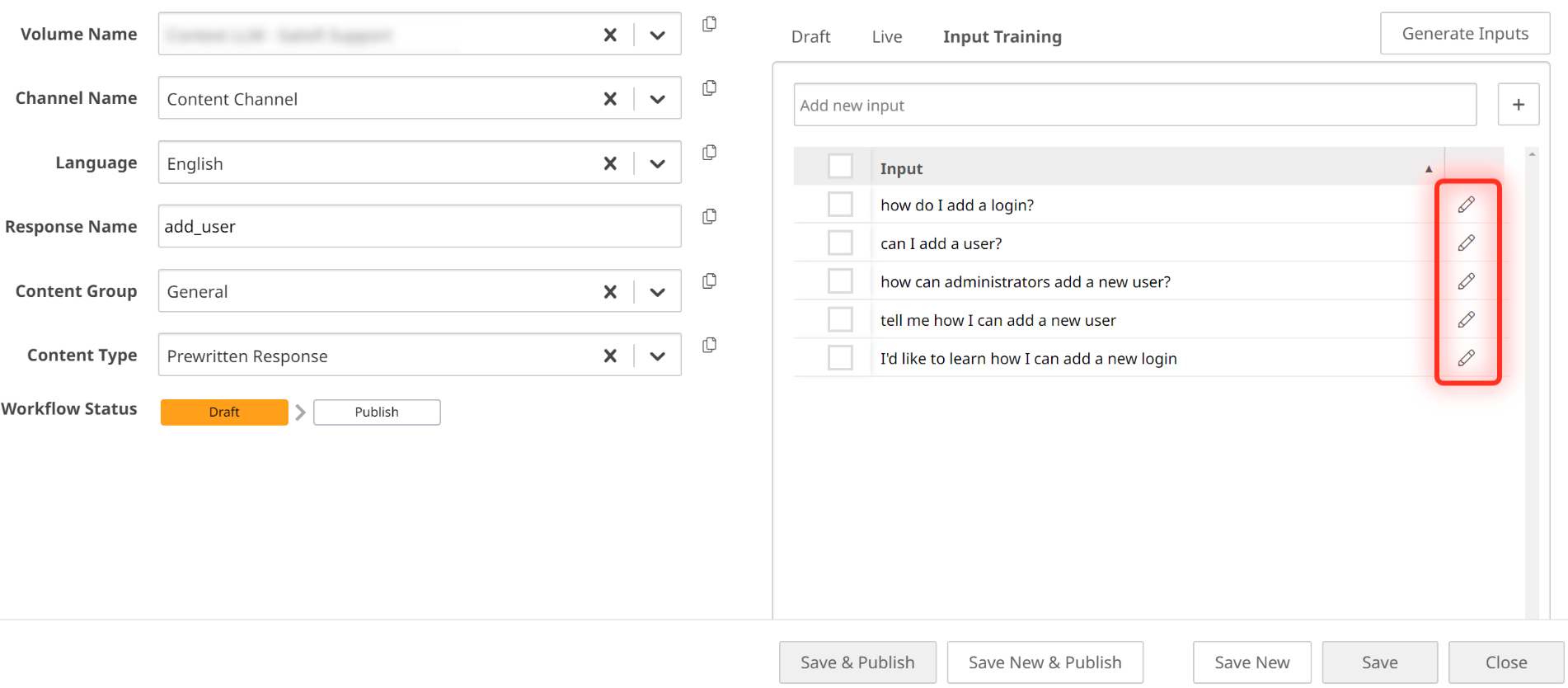
5. Select the toggle labeled **Input Training** and begin adding sample inputs (minimum three).&#x20;

{% hint style="warning" %}
Input Training is **VERY** important. The quality and breadth of your inputs will determine how well training works for your enrichment. &#x20;

* We recommend having a total of **10-15 inputs** per Enrichment. You must manually write at least 3 chat-like inputs before generating additional inputs.
* Add full sentences/questions for Input Training
  {% endhint %}

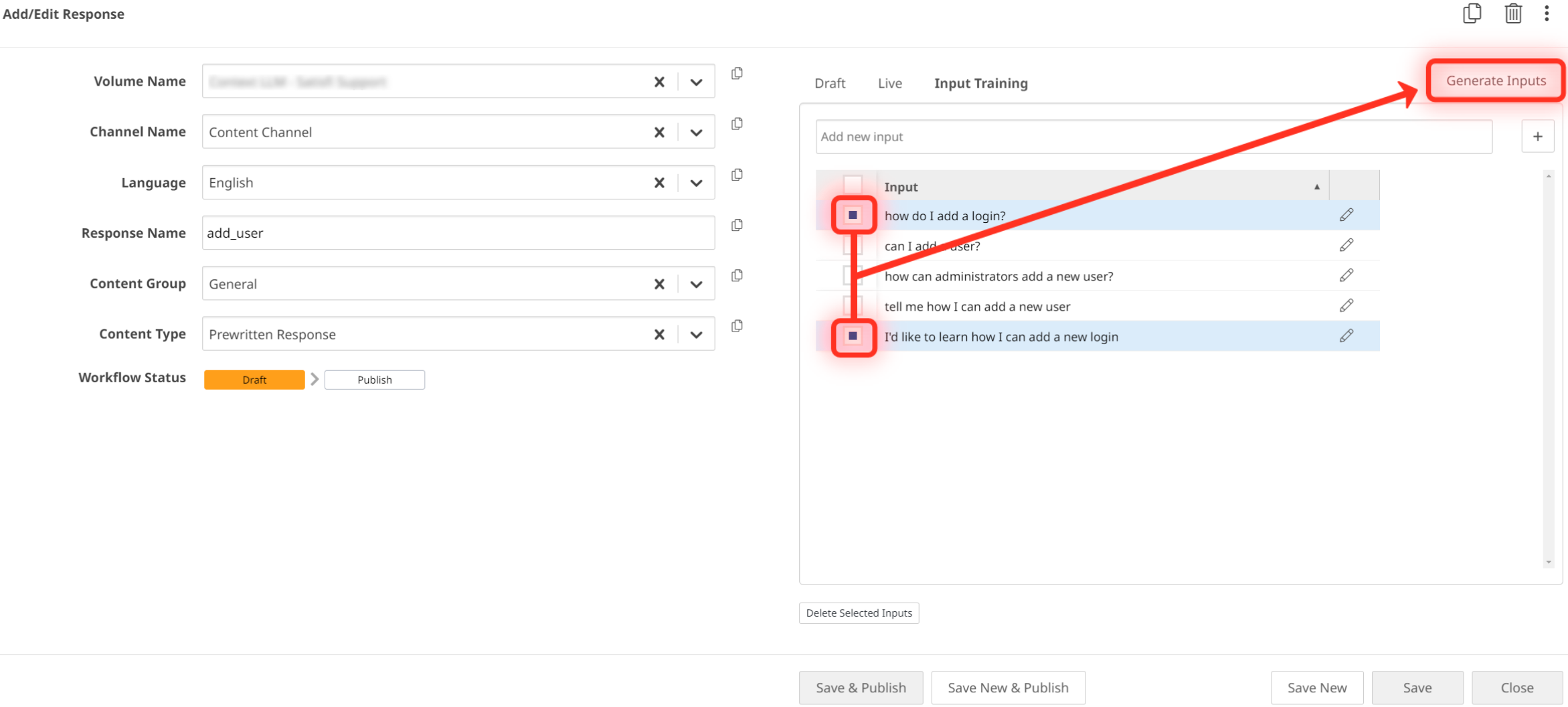
6. Select the **Generate Inputs** button to add additional training.
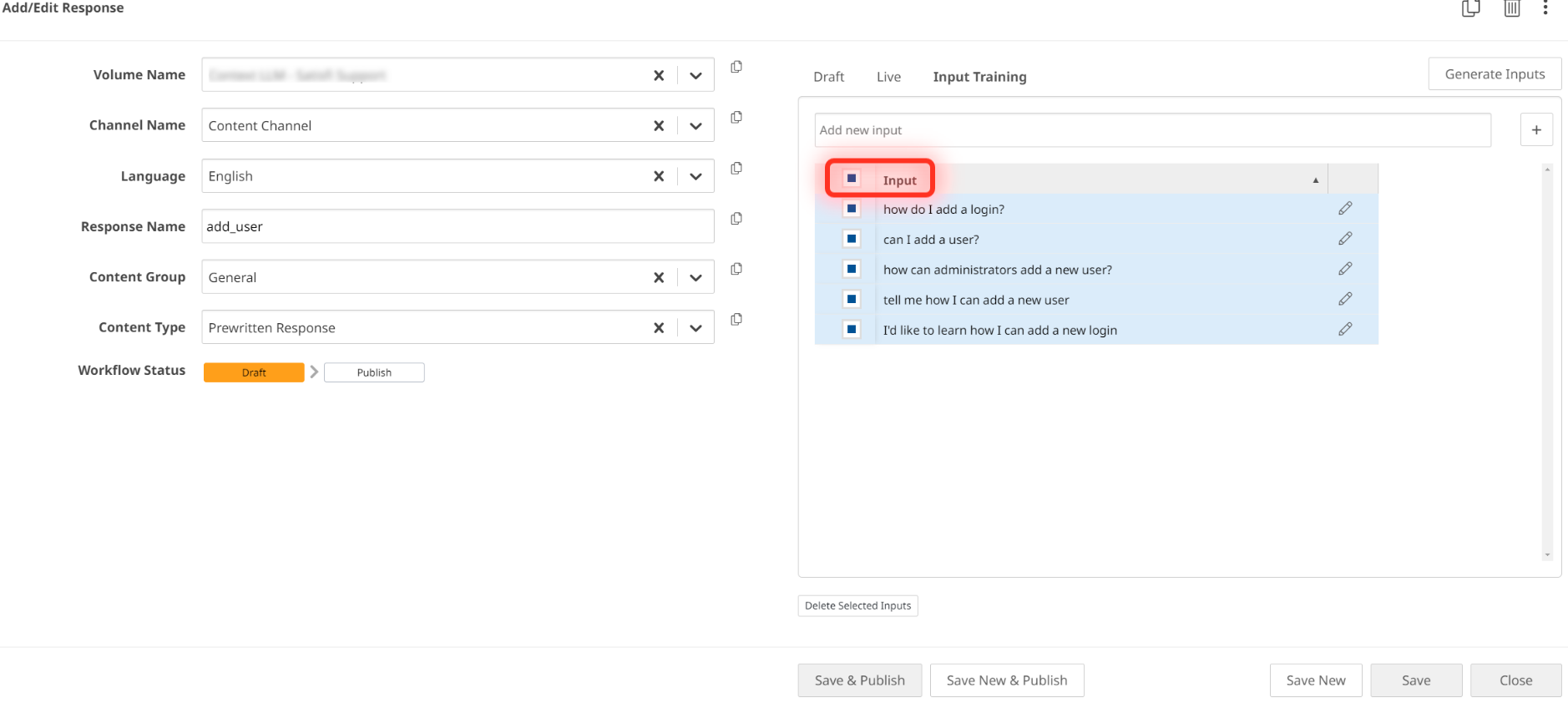
7. Delete any undesired sample inputs by selecting the toggle to the left of the input and clicking **Delete Selected Inputs**.
8. Press **Save New & Publish** and test the new enrichment.&#x20;

***

## Add Enrichments Using Documented Data

{% embed url="<https://files.gitbook.com/v0/b/gitbook-x-prod.appspot.com/o/spaces%2FsxN9AGLZMIc5C8dx3zU7%2Fuploads%2F5DJxUJ3OjyBT2YMogcb0%2Fenrich%20video-%20part%202%20-%20Made%20with%20Clipchamp.mp4?alt=media&token=1e14fa8e-67c1-4761-b92d-6a563c0fd4d5>" fullWidth="true" %}

In addition to adding a new enrichment response name, you can also add enrichments directly to documented data! To add a generative enrichment to an existing document response:

1. While in the [Satisfi Dashboard](https://dashboard.satis.fi/Users/Login), go to Studio -> NLP Manager -> Responses
2. Locate the document data you'd like to add an enrichment to
3. Click the pencil icon to start editing content
4. Add the desired enrichment using the following instructions:

{% tabs %}
{% tab title="Add Buttons" %}

<figure><img src="https://167344003-files.gitbook.io/~/files/v0/b/gitbook-x-prod.appspot.com/o/spaces%2FsxN9AGLZMIc5C8dx3zU7%2Fuploads%2FpU3Twf9HHP8MUdK5jpaJ%2Fimage.png?alt=media&amp;token=08ba0a26-c868-466e-bf30-92ad22629224" alt=""><figcaption><p>Example of a Button Enrichment Added Directly in Documented Data</p></figcaption></figure>

Below the content where you want to show the button, add an optional button label and the URL.&#x20;

**Example:**

```
Label: Learn More!
URL: https://www.satisfilabs.com
```

{% hint style="warning" %}
If no button label accompanies a URL, your system will generate a relevant button label!

For a URL, please include "https\://" before the desired URL link.&#x20;
{% endhint %}
{% endtab %}

{% tab title="Add Images" %}

<figure><img src="https://167344003-files.gitbook.io/~/files/v0/b/gitbook-x-prod.appspot.com/o/spaces%2FsxN9AGLZMIc5C8dx3zU7%2Fuploads%2FQInbKRR8amxc2EwwkkWe%2Fimage.png?alt=media&amp;token=2904fdab-14c5-4174-882b-3d576b29bb3b" alt=""><figcaption><p>Example of an Image Enrichment Added Directly in Documented Data</p></figcaption></figure>

First, you need to obtain the URL link for your desired image:

1. While in the [Satisfi Dashboard](https://dashboard.satis.fi/Users/Login), go to Studio -> Images
2. Upload or find an image already in your library and select it
3. Copy the URL found in the image window as shown below:

<figure><img src="https://167344003-files.gitbook.io/~/files/v0/b/gitbook-x-prod.appspot.com/o/spaces%2FsxN9AGLZMIc5C8dx3zU7%2Fuploads%2FXPDvI5oBCCi7ATURF3TF%2Fimage.png?alt=media&amp;token=84cd0792-dd67-4bd4-bb36-ffe266ea4772" alt="" width="563"><figcaption><p>URL Image in Your Image Library</p></figcaption></figure>

4. Go back to your documented data where you'd like to apply the image and click Edit
5. Below the content where you want to show the button, add an optional button label and the URL.&#x20;

**Example:**

{% code overflow="wrap" %}

```
Image URL: https://prod-satisfilabs-resources-gcs.satis.fi/1/TEST.jpg
```

{% endcode %}
{% endtab %}
{% endtabs %}

***

## Add Inline Click Actions in Documented Data

Inline Click Actions are designed to make conversational flows cleaner and more interactive. This tool gives you the ability to embed clickable links inside messages that trigger actions and messages.

Clicking an inline link instantly sends a predefined message to the bot, just like a typed response. This is great for surfacing FAQs, creating dynamic responses, or routing within a generative response without the need for buttons.

{% tabs %}
{% tab title="View in Dashboard" %}

<figure><img src="https://167344003-files.gitbook.io/~/files/v0/b/gitbook-x-prod.appspot.com/o/spaces%2FsxN9AGLZMIc5C8dx3zU7%2Fuploads%2FVmFL6anstfR9sk40adX6%2Fimage.png?alt=media&amp;token=263a3cc7-8979-4c91-b6a8-fef81ce17282" alt=""><figcaption></figcaption></figure>
{% endtab %}

{% tab title="View In Chat" %}

<figure><img src="https://167344003-files.gitbook.io/~/files/v0/b/gitbook-x-prod.appspot.com/o/spaces%2FsxN9AGLZMIc5C8dx3zU7%2Fuploads%2FVojIv5QOLyfcZIALnh2i%2Fimage.png?alt=media&amp;token=013170b3-c852-4194-98f6-f46d01763cfa" alt=""><figcaption></figcaption></figure>
{% endtab %}
{% endtabs %}

### How to Use <a href="#how-to-use" id="how-to-use"></a>

Inline Click Actions are powered by a special URL with three parameters:

{% stepper %}
{% step %}

### Create a URL

Inline Click Actions are powered by a special URL with three parameters:

#### Base URL

```
Example: https://satis.fi/action/
```

This is the static endpoint used to process the action. This text will NOT change.

#### **Name**

```
Example: ?name=submit_ticket
```

A unique ID for the click action. This helps track usage or group-related actions.

#### **Postback**

Defines what the system should send when the link is clicked. There are two options:

* Prewritten Response: Points link to a specific prewritten response record.

```
Example: &postback=response_name=buy_tickets
```

* Free Text: Acts like input text and may trigger prewritten or generated responses.

```
Example: &postback=I+want+to+buy+tickets
```

#### **Reply Text**

```
Example: reply_text=Submit+Ticket!
```

<figure><img src="https://167344003-files.gitbook.io/~/files/v0/b/gitbook-x-prod.appspot.com/o/spaces%2FsxN9AGLZMIc5C8dx3zU7%2Fuploads%2FF4yczxE6r6IYu8723hrP%2Fimage.png?alt=media&amp;token=5b3c8f9d-90c4-4db1-95dd-1eb79405af14" alt=""><figcaption></figcaption></figure>

The message shown in the user chat window when they click the link.
{% endstep %}

{% step %}

#### Apply the URL to Documented Data <a href="#apply-the-url-to-documented-data" id="apply-the-url-to-documented-data"></a>

<figure><img src="https://167344003-files.gitbook.io/~/files/v0/b/gitbook-x-prod.appspot.com/o/spaces%2FsxN9AGLZMIc5C8dx3zU7%2Fuploads%2FibgY70PjvocyduEjvmiD%2Fimage.png?alt=media&amp;token=373ceae0-ff26-4de3-9c5d-ada357eede27" alt=""><figcaption></figcaption></figure>

Add the URL to your documented data within the relevant data chunk!
{% endstep %}
{% endstepper %}

***

## FAQs

<details>

<summary>If I add a button directly in documented data and I don't add a label, what does the button say?</summary>

If no button label accompanies a URL, your system will generate a relevant button label!

</details>

<details>

<summary>When should I use Input Director vs Documents when adding new enrichments?</summary>

**Input Director:**&#x20;

* Allows you to add buttons, quick replies, images, and gifs
* Use Input Director to add enrichments to **web-scraped / feed content**
* Training for specific user inputs
* If the topic is very broad and lots of different generative content could be used to answer it

**Document:**&#x20;

* Allows you to add buttons, images, gifs
* Ideal for incorporating content that is **not available on your website / feed**
* Takes less time to add an enrichment when adding content in a documented format

</details>

<details>

<summary>Do I need to put generative enrichments in documented data next to the relevant content? Or can I add it anywhere in the response name's data?</summary>

It is important that generative enrichments always appear alongside the content where the user wants them to appear. URLs without any generative content may not be surfaced.

</details>


# Prewritten Plus Responses

## Overview

#### What are Prewritten Plus Responses?

Responses that are written and trained in advance using Input Director. These responses are shown to users exactly as written when triggered by your trained sample inputs.&#x20;

Additionally, Prewritten Plus content (including images and URL buttons) can be leveraged for generative responses when no relevant training set exists, providing seamless and accurate coverage for untrained visitor questions. This will help reduce the number of no\_match responses sent to end users.&#x20;

### **Prewritten vs. Prewritten Plus**

{% embed url="<https://www.youtube.com/watch?v=pwZIv5P6Cv0>" fullWidth="true" %}

{% hint style="warning" %}
A majority of your prewritten responses will be marked as "Prewritten Plus"; however, there are instances where you'll see responses still assigned to the "Prewritten" content type. These include:

* No\_Response
* Welcome\_Message
* Any Bot Basic Response (Ex. Hello)

Additionally, any highly sensitive responses that should not be managed by LLMs—can be specifically configured in the dashboard by changing the content type to "Prewritten".
{% endhint %}

## Key Things to Know

* Prewritten responses always take precedence over generated responses
* You can fully control how your answer engine handles user questions&#x20;
* You will need to manage prewritten responses and make edits in the dashboard when updates are necessary&#x20;
* You can add enrichments, like images or buttons, directly in a selected prewritten response in the dashboard, as shown below:

<div data-full-width="true"><figure><img src="https://167344003-files.gitbook.io/~/files/v0/b/gitbook-x-prod.appspot.com/o/spaces%2FsxN9AGLZMIc5C8dx3zU7%2Fuploads%2F6SGOuOpSDmes3n6MLxG0%2FAFC%20Rich%20Prewritten.png?alt=media&amp;token=c9c32a3b-e078-4789-8ec4-1f2399c090b3" alt=""><figcaption><p>Add Enrichments (Buttons, Quick Replies, Images/Videos) Directly to Prewritten Responses</p></figcaption></figure></div>

{% hint style="warning" %}
Not sure when to use a Prewritten Response vs. a Generated Response? Click the link to learn more: [Response Types](/resource-center/ai-agent-engine/manage-your-content/response-types#which-response-type-to-use)
{% endhint %}

## **Best Practices**

Now, let's explore some tailored best practices for leveraging Prewritten Responses effectively in your specific industry:

### **Control Specific Topics**

{% tabs %}
{% tab title="Promotional Messaging" %}
Craft prewritten responses for new seasonal promotions or annual events, ensuring consistent on-brand messaging. Don't forget to delete these prewritten responses when the promotion / event ends.

**Examples:**&#x20;

* Develop responses for the annual "Summer Music Festival" event promotion to influence revenue.
* Develop responses for the new selling offers, such as new membership package or new ticket option.
* Develop responses for seasonal promotions, such as "Spring Promotion", "Christmas Deals", or "*Brand* Promo"

<figure><img src="https://167344003-files.gitbook.io/~/files/v0/b/gitbook-x-prod.appspot.com/o/spaces%2FsxN9AGLZMIc5C8dx3zU7%2Fuploads%2FL3pZ6mpujbBRukPx6DCe%2FScreen%20Shot%202024-04-18%20at%2011.22.32%20AM.png?alt=media&amp;token=d05cb8e5-9791-4ed7-a6cb-c379fc1478c7" alt="" width="259"><figcaption></figcaption></figure>
{% endtab %}

{% tab title="Sensitive Topics" %}
Create precise responses for handling sensitive issues such as complaints or refunds, demonstrating empathy and accuracy.&#x20;

**Examples:**&#x20;

* Develop responses for managing customer complaints to uphold high standards of customer care.
* Develop responses for new verbiage if important policies such as cancellations are changing.

<figure><img src="https://167344003-files.gitbook.io/~/files/v0/b/gitbook-x-prod.appspot.com/o/spaces%2FsxN9AGLZMIc5C8dx3zU7%2Fuploads%2Flcsj2yghFkPnVv5Wlo6m%2FScreen%20Shot%202024-04-18%20at%2010.54.08%20AM.png?alt=media&amp;token=5b1d30c4-2b3a-44a8-a654-ab522428f969" alt="" width="252"><figcaption></figcaption></figure>
{% endtab %}
{% endtabs %}

### **Time-Sensitive Updates**

{% tabs %}
{% tab title="Last-Minute On-Sale" %}
Quickly communicate last-minute sales or promotions to customers, maximizing engagement and sales opportunities.&#x20;

**Example:**&#x20;

* Notify customers of a flash sale for concert tickets, ensuring timely communication to capitalize on limited-time offers.
  {% endtab %}

{% tab title="Emergency Updates" %}
Provide clear instructions during unforeseen circumstances such as event cancellations, minimizing confusion and maintaining trust.&#x20;

**Example:**&#x20;

* Notify customers of a venue closure due to inclement weather, providing guidance for ticket refunds or rescheduling.
  {% endtab %}
  {% endtabs %}

### **Brand Language**

{% tabs %}
{% tab title="Brand Messaging" %}
Reinforce key brand messaging during customer interactions, enhancing brand identity and customer engagement.&#x20;

**Example:**&#x20;

* Create responses to reinforce brand values and identity during customer inquiries.
* Create specific brand language to improve customer engagement and satisfaction

<figure><img src="https://167344003-files.gitbook.io/~/files/v0/b/gitbook-x-prod.appspot.com/o/spaces%2FsxN9AGLZMIc5C8dx3zU7%2Fuploads%2F7Oi9P0YXbJVssZUBuPsp%2Fimage.png?alt=media&amp;token=396c7692-a409-418e-b697-c7d60ce1977c" alt="" width="258"><figcaption></figcaption></figure>
{% endtab %}
{% endtabs %}

***

## FAQs

<details>

<summary>Can I add a bullet point to a response?</summary>

Yes! In prewritten responses, you can add bullet points and emojis.

</details>

<details>

<summary>Is it possible to not use any generated responses and only use prewritten responses?</summary>

Yes, you always have the option to only use prewritten responses for all intents; however, keep in mind that the text of the response for a specific intent will always be the same no matter how the user asks the question.&#x20;

</details>

<details>

<summary>How do I find a specific prewritten response?</summary>

There are a few different ways to search for specific responses within the response library:

* In the search bar within the response library, click the drop-down and select "response name". Search a keyword of the topic you're searching for (ex. map, parking, etc.) to expose relevant response names
* In the search bar within the response library, click the drop-down and select "live content". Search a keyword of the topic you're searching for (ex. map, parking, etc.) to expose relevant response names
* In the search bar within the response library, click the drop-down and select "input". Search as if you're asking the chat a question (ex. where can I find a map of the venue?) to expose relevant responses/data

Note: If you know that the response you are looking for is prewritten, you can filter the response library to only show prewritten responses in your view

</details>

<details>

<summary>How many pre-written responses can I have?</summary>

You can use as many as you need! However, we highly recommend that:

* You use a healthy mix of both generated and prewritten responses to ensure the highest quality chat experience for your users
* Prewritten responses are only added based on user data (are your users asking about this topic) or are necessary due to a need for an exact response

</details>

<details>

<summary>Can I still use prewritten responses within the web and app channels?</summary>

Yes! If your response to a question is dependent on if the user is on web or app, you can utilize the corresponding web and app channels in the dashboard to create custom responses.&#x20;

</details>

<details>

<summary>Am I able to update my welcome message?</summary>

Welcome messages are prewritten responses that can be adjusted by you at any time!

</details>


# Add New Prewritten Responses

## Before Getting Started <a href="#our-recommendations" id="our-recommendations"></a>

{% hint style="danger" %}
Input Training is **VERY** important. The quality and breadth of your inputs will determine how well training works for your Prewritten Response.&#x20;
{% endhint %}

{% hint style="danger" %}
Always double-check that you don't already have an existing response for a specific topic before creating a new one! To check, you can do the following:

* Filter the response library to "All" and search topic keywords&#x20;
* Filter the response library to "Response Name" and search topic keywords&#x20;
* Filter the response library to "Content" and search topic keywords&#x20;
  {% endhint %}

## Add a New Prewritten Response <a href="#add-a-new-prewritten-response" id="add-a-new-prewritten-response"></a>

{% embed url="<https://files.gitbook.com/v0/b/gitbook-x-prod.appspot.com/o/spaces%2FsxN9AGLZMIc5C8dx3zU7%2Fuploads%2FmbYJp4mgcC9tppIDUhcy%2Fadd%20prewritten%20v3.mp4?alt=media&token=077c72ab-10cf-411a-94f6-d442c37e9360>" fullWidth="true" %}
How to Add a New Prewritten Response
{% endembed %}

1. In the Satisfi Labs dashboard, go to **Studio -> NLP Manager -> Responses**
2. Click "+" in the top right of the Responses Dashboard.
3. Ensure that your new response has the following fields completed:

<table><thead><tr><th width="424">Field</th><th>Details</th></tr></thead><tbody><tr><td>Volume Name</td><td>Your Volume Name.</td></tr><tr><td>Channel Name</td><td>If the volume name is not selected first, no channels will appear. The typical default channel is your Content Channel.</td></tr><tr><td>Language</td><td>English is the only supported language at this time.</td></tr><tr><td>Response Name</td><td>Response Names should be all lowercase, with no spaces or special characters except for underscores. Example: add_new_user </td></tr><tr><td>Content Group</td><td>The default group is <strong>General</strong>; however, you can use this field to help organize your responses in whatever works best for you.</td></tr><tr><td>Content Type</td><td>Select <strong>Prewritten Plus</strong></td></tr></tbody></table>

{% hint style="info" %}
![](https://167344003-files.gitbook.io/~/files/v0/b/gitbook-x-prod.appspot.com/o/spaces%2FsxN9AGLZMIc5C8dx3zU7%2Fuploads%2Fdkvreu3lY9YIE8lPwSuk%2Fimage.png?alt=media\&token=02e59e6b-4158-4325-95e5-53085f4d3199) &#x20;

Speed up the process by cloning an existing prewritten plus response! Simply click the clone icon and update the response name, text, and enrichments.&#x20;
{% endhint %}

4. Add the response including any relevant buttons, quick replies, or rich media.
5. Hit **Save New**
6. Select the toggle labeled **Input Training** and begin adding sample inputs. These should be questions end users would ask to trigger this response.&#x20;

{% tabs %}
{% tab title="Number of Sample Inputs" %}
We recommend having a total of **10-15 inputs** per Prewritten Response. You must manually write at least 3 chat-like inputs before generating additional inputs; however, if users prefer, you can manually write out all inputs instead of using the Generate Inputs feature.
{% endtab %}

{% tab title="Length of Sample Inputs" %}
One-word inputs will be treated **ONLY** as a keyword exact match. Input Training functionality uses a semantic similarity search, which means full sentences/questions for the inputs work best.

**Example Topic:** Users are looking for more information about the Satisfi Labs Conference

<table><thead><tr><th width="415">Good Sample Inputs 🤩</th><th>Why We Love It</th></tr></thead><tbody><tr><td>I’d like to learn about the Satisfi Labs Conference</td><td>Full Statement</td></tr><tr><td>When is the the Satisfi Labs Conference?</td><td>Full Question with ‘?’</td></tr><tr><td>How do I get tickets for the Satisfi Labs Conference? / Tell me about the admission cost for the Satisfi Labs Conference</td><td>Variety in Manually Written Inputs</td></tr></tbody></table>

| Bad Sample Inputs 😕                                                                                                | Where Improvement Can Be Made                   |
| ------------------------------------------------------------------------------------------------------------------- | ----------------------------------------------- |
| Satisfi Conference                                                                                                  | Only Two Words/Not a Full Statement or Question |
| How to buy Satisfi Labs Conference tickets? / How to buy tickets for Satisfi Labs Conference? / How to buy tickets? | Lack of Variety in Manually Written Inputs      |
| {% endtab %}                                                                                                        |                                                 |

{% tab title="Helpful Hints" %}
Learn more about the Input Director tool and helpful hints here: [Input Director](/resource-center/ai-agent-engine/manage-your-content/response-types/prewritten-plus-responses/input-director#what-is-the-input-training-tool)
{% endtab %}
{% endtabs %}

7. Select the **Generate Inputs** button to add additional training.
8. Delete any undesired sample inputs by selecting the toggle to the left of the input and clicking **Delete Selected Inputs**.
9. Press **Publish** and test the new response.

{% hint style="warning" %}
In certain prewritten responses, you might find it necessary to suppress the thumbs up/down feature. Please review the instructions here to learn more: [Suppress Thumbs Up/Down](/resource-center/ai-agent-engine/manage-your-content/best-practices/suppress-thumbs-up-down)
{% endhint %}


# Edit Prewritten Responses

{% embed url="<https://files.gitbook.com/v0/b/gitbook-x-prod.appspot.com/o/spaces%2FsxN9AGLZMIc5C8dx3zU7%2Fuploads%2FHmS81R6DHHBFauBrtBrc%2Fedit%20prewritten%20v3.mp4?alt=media&token=44c9f7c5-8bc2-465f-9e21-5fe800b3365d>" fullWidth="true" %}
How to Update a Prewritten Response
{% endembed %}

1. In the Satisfi Labs dashboard, go to **Studio -> NLP Manager -> Responses**
2. Open up your desired response and click the pencil icon.
3. Adjust the response text including any relevant buttons, quick replies, or rich media if applicable.
4. Select the toggle labeled **Input Training** and add/edit your Input samples.&#x20;
5. Press **Save & Publish** and test any new sample inputs. Note that all existing training will continue to work for the Prewritten Response.

{% hint style="warning" %}
In certain prewritten responses, you might find it necessary to suppress the thumbs up/down feature. Please review the instructions here to learn more: [Suppress Thumbs Up/Down](/resource-center/ai-agent-engine/manage-your-content/best-practices/suppress-thumbs-up-down)
{% endhint %}

{% hint style="warning" %}
&#x20;Are you struggling to find the prewritten response you want to update? Check for the following:

* Toggle the Response Library search bar to "All" and search topic keywords&#x20;
* Toggle the Response Library search bar to "Response Name" and search topic keywords&#x20;
* Toggle the Response Library search bar to "Content" and search topic keywords&#x20;
* Check your filters to ensure that you are in the correct volume and channel
* Filter the content group to see only "Prewritten" or "Prewritten Plus"
* Toggle the Response Library search bar to "Live Content" and search keywords

![](https://167344003-files.gitbook.io/~/files/v0/b/gitbook-x-prod.appspot.com/o/spaces%2FsxN9AGLZMIc5C8dx3zU7%2Fuploads%2FHAam3LFDp7mvYGBgGDEY%2Fimage.png?alt=media\&token=0df85c4a-97ea-4a8d-ae46-3a18d10d94ca)
{% endhint %}


# Enrich Prewritten Responses

## **Add Enrichments in Prewritten Responses**

{% embed url="<https://files.gitbook.com/v0/b/gitbook-x-prod.appspot.com/o/spaces%2FDIgXBUNMjWTWYHAjiHv5%2Fuploads%2Fk4EZvZovVVCeNhfwAyab%2FUpdate%20an%20Enrichment%20V2.mp4?alt=media&token=327a4e1e-5fb9-4774-85f5-083fbfdbca13>" fullWidth="true" %}
Learn How You Can Add & Update an Enrichment
{% endembed %}

To add or update an existing enrichment for a prewritten or prewritten plus response, follow the steps below:

1. While in the [Satisfi Dashboard](https://dashboard.satis.fi/Users/Login), go to Studio -> NLP Manager -> Responses.
2. Locate the response you'd like to edit.
3. Once clicked into the response name, add enrichments such as buttons/quick replies.
4. Hit **Save and Publish** once complete.

{% hint style="warning" %}
If you'd like to learn more about the specific enrichment types like embedding a video or image, check out this section here: [Enrichments](/resource-center/ai-agent-engine/manage-your-content/response-types/prewritten-plus-responses/enrichments)
{% endhint %}

## FAQs

<details>

<summary>Do I need to create a ticket to add an enrichment to a prewritten response?</summary>

No! You can add buttons, images, quick replies, etc. directly in the prewritten response within the dashboard

</details>

<details>

<summary>When I create a button/quick reply in a prewritten response, should I tie it to a response name or input text?</summary>

Unless you want to redirect a user directly to a specific path (live chat, ticket purchase, feedback), we highly recommend utilizing the "input text" selection. Once selected, you can type out a question/keyword to indicate where you'd like to navigate the user

</details>

<details>

<summary>When adding a button/quick reply, how should I format input text?</summary>

When adding input text as an action for a button/quick reply, you should always check that it provides the appropriate answer for the button label. For example, if the button is labeled "Where can I buy tickets?", you could add input text like "Where is the ticket office" or "Buy tickets".&#x20;

**Please note that you cannot include the "?" symbol within your input text! You can include the "?" symbol within the button/quick reply label.**&#x20;

</details>

<details>

<summary>Are the quick reply prompts generated? Can I customize quick replies?</summary>

Quick replies can be generated! You can construct your quick replies one of three ways:

1. All quick replies can be generated by the LLM (submit a service request if this is your desired path)
2. You can have static quick replies for all responses (unless overwritten by an enrichment)
3. No quick replies at all

</details>


# Response Refiner

## Overview

Response Refiner powered by ChatGPT, enables you to quickly adjust existing responses for simplicity, tone, and response length quickly and easily using predetermined prompts. Users have the option to modify returned responses as needed before deciding to approve or reject them.

<div data-full-width="true"><figure><img src="https://167344003-files.gitbook.io/~/files/v0/b/gitbook-x-prod.appspot.com/o/spaces%2FsxN9AGLZMIc5C8dx3zU7%2Fuploads%2FME1Jg0G4RHJKAzLGLiah%2Fresponse%20refiner%20v1.gif?alt=media&amp;token=1025c901-fcc1-4ecc-ab94-7e0a11ed25ee" alt=""><figcaption><p>How to Use the Response Refiner</p></figcaption></figure></div>

## Benefits

<table data-view="cards"><thead><tr><th align="center"></th><th align="center"></th><th></th></tr></thead><tbody><tr><td align="center"><strong>Adjust Content Quickly</strong></td><td align="center">Save time rewriting existing content for simplicity, tone and response length</td><td></td></tr><tr><td align="center"><strong>No Prompting Needed</strong></td><td align="center">Use predetermined prompts to help quickly try different text views in seconds</td><td></td></tr><tr><td align="center"><strong>Edit Returned Responses</strong></td><td align="center">Returned responses can be further adjusted and then approved or rejected in the response editor.</td><td></td></tr></tbody></table>

## Functionality

You can choose four different options that will help improve your response:

<table data-card-size="large" data-view="cards"><thead><tr><th align="center"></th><th align="center"></th><th></th></tr></thead><tbody><tr><td align="center"><strong>Improve Clarity</strong></td><td align="center">Streamlining text improves clarity and effectiveness by eliminating redundancy, simplifying sentences, and clarifying technical terms.</td><td></td></tr><tr><td align="center"><strong>Shorten Text</strong></td><td align="center">Shortening text involves condensing it without losing its essence, useful for clarity and conciseness. We recommend using 300 characters or less to eliminate excess user scrolling.</td><td></td></tr><tr><td align="center"><strong>Adjust Tone: Friendly</strong></td><td align="center">Rewrite your response to make it sound more approachable and friendly. By using a friendly tone, the message can feel more personal and welcoming, improving engagement and creating a better overall experience for the user.</td><td></td></tr><tr><td align="center"><strong>Adjust Tone: Persuasive</strong></td><td align="center">Employing a persuasive tone enhances the impact of your message, making it more compelling and influential for your audience. Through the artful use of language, your narrative gains the power to sway decisions effectively.</td><td></td></tr></tbody></table>


# Enrichments

## Overview

Enrichments are interactive elements added to text responses, including images, videos, buttons, and quick replies. They serve two primary purposes:

1. Enhance user engagement: By providing visual and interactive content, enrichments make conversations more dynamic and interesting, improving the overall user experience.
2. Facilitate user actions: These elements streamline user interactions by offering clear, clickable options or additional information, guiding users towards specific actions or choices.

Enrichments can be added to prewritten responses or generative data.&#x20;

{% content-ref url="/pages/xvHVbSxMKZh03aSOI43p" %}
[Enrich Prewritten Responses](/resource-center/ai-agent-engine/manage-your-content/response-types/prewritten-plus-responses/enrich-prewritten-responses)
{% endcontent-ref %}

To learn more about the type of enrichments available to you, click the link below!

{% content-ref url="/pages/Fy8CBNKLR99z2loivzj5" %}
[Buttons](/resource-center/ai-agent-engine/manage-your-content/response-types/prewritten-plus-responses/enrichments/buttons)
{% endcontent-ref %}

{% content-ref url="/pages/3Z77vSNib1UFaKzWbVRP" %}
[Quick Replies](/resource-center/ai-agent-engine/manage-your-content/response-types/prewritten-plus-responses/enrichments/quick-replies)
{% endcontent-ref %}

{% content-ref url="/pages/Qjr2EOA8BU5jGlwBKYsS" %}
[Videos](/resource-center/ai-agent-engine/manage-your-content/response-types/prewritten-plus-responses/enrichments/videos)
{% endcontent-ref %}

{% content-ref url="/pages/gIM6JiSUBDUCGZ81k2f3" %}
[Images & GIFs](/resource-center/ai-agent-engine/manage-your-content/response-types/prewritten-plus-responses/enrichments/images-and-gifs)
{% endcontent-ref %}


# Buttons

## Overview&#x20;

A button is an interactive response element that allows users to trigger specific actions related to their requested topic. A button's actions may include: Opening a relevant URL link, firing a corresponding response name, loading an i-framed form within the chat, or generating a related topic response.&#x20;

<figure><img src="https://lh5.googleusercontent.com/dKwO4zvN3RovkqPTul4zcOEDevYFvoVmki_2Sz5sNr3ZlCrOefnvmRiquL5UVEf8Wp2wmAN-j5r4rmYaDFuTQNMWkWALDlqvm6dd9BF1sRkN7BaM84TdaHzQwU_VTYwx0M1Nw35DVW7O7FUysVl2RUw" alt=""><figcaption><p>Example of a Button within a Response</p></figcaption></figure>

## Add/Edit a Button

Before adding a button, it's important to understand the type of actions your button can take:

<figure><img src="https://167344003-files.gitbook.io/~/files/v0/b/gitbook-x-prod.appspot.com/o/spaces%2FsxN9AGLZMIc5C8dx3zU7%2Fuploads%2FYpNCA6rxUEAYxhlRdwMn%2Fimage.png?alt=media&amp;token=fc4f52d6-2305-44a2-bd16-eb7ccd33de8b" alt=""><figcaption><p>Examples of Actions Buttons Can Take</p></figcaption></figure>

| Action Types       | Definition                                                                                                                                                                                                                     |
| ------------------ | ------------------------------------------------------------------------------------------------------------------------------------------------------------------------------------------------------------------------------ |
| **Response Name**  | Directly links to a specific response name.                                                                                                                                                                                    |
| **Input Text**     | In addition to directing users to a specific prewritten response, you can include input text to generate responses.                                                                                                            |
| **URL (Default)**  | Default method to linking users to a URL.                                                                                                                                                                                      |
| **URL (Same Tab)** | Only to be applied when overriding default settings and having the link open in the same window.                                                                                                                               |
| **URL (New Tab)**  | Only to be applied when overriding default settings and having the link open in a new window.                                                                                                                                  |
| **URL (iFrame)**   | Used when you’d like to iFrame a website within your chat. This allows users to view this webpage, complete a form, etc. without leaving the chat. It is important to test this feature, as not all websites format correctly. |

{% hint style="danger" %}
**If using Input Text, be sure to NOT INCLUDE the "?" at the end of your sentence!! If you include a "?", your button will not work!**
{% endhint %}

### Prewritten Responses

{% embed url="<https://www.loom.com/share/15f536c4c9ff4244b5093b3e4c36bb70>" %}

To add a button to a prewritten response, follow the steps below:

1. Locate the response you wish to update and select the pencil icon in the top right corner.
2. Locate the “Buttons” area within the response window. You can select “Add Button…” to add a new one.

<figure><img src="https://lh4.googleusercontent.com/wxD--dGcQ4P8vBLR1djAn1Lihqk6tdXBYgzFBtPhSNIoMWeAjYeHGc3CvGZczYv12DPyC065GvvKAxSau3gJG7unv-qiGwLfBkK3mJKKxzQEBPbfJ1XOBeo99Nnf8Su6rrUXrWY5oEXEX5TR4QuqFOA" alt=""><figcaption></figcaption></figure>

3. Next, add a button label. This will be visible to your end user. We recommend using a call to action as often as possible.&#x20;
4. Select what type of action you'd like the button to take. Review the action types in the previous section.&#x20;
5. Add your button's action:
   1. **Response Name:** Select the prewritten written response name that you’d like to populate when the button is selected. You can find the response names in the “Response Name” column of the Response Library. The button label should always relate to the subject of the response you’re linking.
   2. **Input Text:** Copy and paste in the quick reply label text, but be sure to exclude the "?".&#x20;
   3. URL: Enter the URL. Note that the URL must begin with https\:// or http\://.

<figure><img src="https://lh4.googleusercontent.com/-MeMOqYu5Omxn9-lEvDrv8oxRAQ7urfZhZkVDmLgC26Ol-czTKftMs0FgPT4jUmg0kDythpFuhDYXZGc3EJQVtlGnNK9KLu8nsBPvndL0LmzzsYeZrBgPQlLoKVd_RvMlvMc4tO3pNjs_mKNK-SXB-A" alt=""><figcaption></figcaption></figure>

6. To add another button, go back to Step 2 and follow the same steps.
7. Publish the response once complete.&#x20;

### Generated Response

If you want to add or edit a button to a generated response, follow the steps below:

{% content-ref url="/pages/0ld8C9DWQ4BRd2RlU1tZ" %}
[Enrich Generated Responses](/resource-center/ai-agent-engine/manage-your-content/response-types/generated-responses/enrich-generated-responses)
{% endcontent-ref %}

***

## Our Recommendations

* The button label should be a call to action. For example:

{% tabs %}
{% tab title="Purchase Tickets" %}
Within a ticket\_buy response, a button linking to a ticket provider page helps users quickly navigate to where they can complete the transaction.&#x20;

If you have the in-chat Ticket Commerce feature enabled, this button will prompt the start of the purchase within the chat.
{% endtab %}

{% tab title="Learn More" %}
A button pointing to a more detailed webpage from your response helps users find more information quickly.&#x20;
{% endtab %}

{% tab title="Contact Us" %}
A "Contact Us" button might direct users in a variety of different ways:

* Connects the user with a specific Live Chat team.

* Exposes an i-framed contact collection form.

* Fires the contact\_us response so users can find emails or phone numbers.
  {% endtab %}
  {% endtabs %}

* The button label should always be related to the subject of the response you are linking to.&#x20;
  * Example: “View the Schedule” should provide a schedule response or link to the schedule webpage.

* Buttons should be used as supporting information. The user should be able to receive the majority of details or information from the response copy.&#x20;

* The URL must begin with https\:// or http\://.&#x20;

* We recommend starting with no more than three buttons per response; however, you can use up to seven.&#x20;

* The Facebook Channel can support a maximum of 3 buttons.


# Quick Replies

## Overview

Quick replies are added to each response to encourage continued engagement from the user. Not only do the users remain engaged, but they are also prompted to view information on a specific subject you have chosen. Typically, quick replies are the next 2-3 most commonly asked questions for each response or encouraging users to learn more about suggested topics.

<figure><img src="https://167344003-files.gitbook.io/~/files/v0/b/gitbook-x-prod.appspot.com/o/spaces%2FsxN9AGLZMIc5C8dx3zU7%2Fuploads%2FKQGs017hbroMvE4MRcoJ%2Fimage.png?alt=media&amp;token=69e2ec40-c66b-4745-a536-63d56e7db1cb" alt=""><figcaption></figcaption></figure>

***

## **Add/Edit a Quick Reply**

### **Prewritten Response**

{% embed url="<https://www.loom.com/share/80e511db3c4f4967863bbf1ad5b8962c>" %}
How to Add A Quick Reply
{% endembed %}

To add a new quick reply to a prewritten response, follow the steps below:

1. Locate the response you wish to update and select the pencil icon in the top right corner.
2. Locate the “Quick Replies” area within the response window. You can either select “Add Quick Reply…” to add a new one or edit an existing quick reply.&#x20;

<figure><img src="https://lh5.googleusercontent.com/22umQNAinbs-nsUHgrDKGnkvzxUK-r1tWp8pz_j5LjK9KQdugrhudOifFJ5FKfw3HmszF70A3zxl4zzFolJqYT6FwQYGS6X1T6UOyXQa8XuBgDQt_LUPbX4riWFgo6dfCLR39XBZNZ6yCo4QV_iccVA" alt=""><figcaption></figcaption></figure>

3. Add a quick reply label. This will be visible to your end user. We recommend writing it in question format for web or app channels or as a short label for a Facebook channel.
4. Select “Response Name” or "Input Text" as the type.
5. Add your button's action.&#x20;

{% hint style="info" %}
**Response Name:** Select the prewritten written response name that you’d like to populate when the button is selected.

**Input Text:** Copy and paste in the quick reply label text, but be sure to exclude the "?".&#x20;
{% endhint %}

6. To add another quick reply, go back to Step 2 and follow the same steps.

### Generated Response

If you want to add a quick reply to a generated response, follow the steps below:

{% content-ref url="/pages/0ld8C9DWQ4BRd2RlU1tZ" %}
[Enrich Generated Responses](/resource-center/ai-agent-engine/manage-your-content/response-types/generated-responses/enrich-generated-responses)
{% endcontent-ref %}

***

## Our Recommendations

* All responses should contain 2-3 quick reply options
* Quick replies should be written in question format
* Review and adjust your quick replies throughout the year to recommend popular topics or 'need to know' information to your clients
* **`HELP`, `NO MATCH`  and `TLDR`**&#x73;hould always have quick reply responses created to address common user inquiries
* Due to limitations in Facebook, we recommend using short labels within this channel.&#x20;
  * On Facebook, the quick reply label character limit is 20
* The quick reply label name should be directly related to the linked response copy
* Quick replies should never link to a URL. If you’d like to include a URL, please add this as a button
* The quick reply label should be short enough that it doesn’t extend to multiple lines for the end user:

![](https://lh6.googleusercontent.com/F-yCX6otczsqx6Lq4gqw1wTmgak4GipPOy4a-PxPjG1eL5JCoCdGUPcnNw5H__ukwiKpRqwFywjbYcBlWtG57I8PQ3Luv-MkLMd2zMCkTbCoNw_oxhk6PcYnYn10JbwiiObJwLU86tdzzt__tkwOAyY)

***

## FAQs

<details>

<summary>When adding a quick reply, should I select a Response Name or add Input Text?</summary>

You can choose based on which works best for your desired action:

**Input Text:** This is a great way to redirect to topics where you have no prewritten responses. By adding input text, it will be as if the user typed that exact text and it will generate a response. With Input Text, depending on the input you place in the quick reply, it might point to a prewritten response anyway. Just ensure there are no “?” in the container

**Response Name:** Method to quickly direct a user to the prewritten response you want.

</details>

<details>

<summary>Can I link out to a URL from a quick reply?</summary>

No, you can only link out to a URL from a button or hyperlink.

</details>


# Videos

## Embed a Video

{% embed url="<https://files.gitbook.com/v0/b/gitbook-x-prod.appspot.com/o/spaces%2FsxN9AGLZMIc5C8dx3zU7%2Fuploads%2FIdV5AvRmKrBU54FCgp4v%2Fembed%20video.mp4?alt=media&token=66f2fae5-c221-4f7e-8866-6dea28b416b7>" fullWidth="true" %}

1. In the Satisfi Labs dashboard, go to **Studio -> NLP Manager -> Responses**
2. Click the response you wish to update and select the pencil icon
3. Switch to **Code View**
4. Add the following line and hit enter:

```
#HTML
```

5. Copy and paste your desired video's embed code into your response. For example:

{% code overflow="wrap" %}

```
<iframe width="315" height="200" src="https://www.youtube.com/embed/XBPQE84h1mI" title="Learn more about Bridge Live Chat" frameborder="0" allow="accelerometer; autoplay; clipboard-write; encrypted-media; gyroscope; picture-in-picture; web-share" referrerpolicy="strict-origin-when-cross-origin" allowfullscreen></iframe>
```

{% endcode %}

To find your video's embed code, use the instructions in the table below:

{% tabs %}
{% tab title="YouTube" %}

<div data-full-width="true"><figure><img src="https://167344003-files.gitbook.io/~/files/v0/b/gitbook-x-prod.appspot.com/o/spaces%2FsxN9AGLZMIc5C8dx3zU7%2Fuploads%2FMU5Xlkva9t7jJFPY9sW3%2Fimage.png?alt=media&amp;token=ad9e709c-c14b-4d6f-a11e-95b8fc2bed93" alt=""><figcaption></figcaption></figure></div>

1. Find your desired video
2. Right-click the video and select Copy Embed Code
   {% endtab %}

{% tab title="Vimeo" %}

<figure><img src="https://167344003-files.gitbook.io/~/files/v0/b/gitbook-x-prod.appspot.com/o/spaces%2FsxN9AGLZMIc5C8dx3zU7%2Fuploads%2FwWiSIyN4KHRKcx0LhpvJ%2FVimeo%20Embed%20Code.gif?alt=media&amp;token=1bf48ad5-f7be-47bb-906f-36ed522df261" alt=""><figcaption></figcaption></figure>

1. Find your desired video
2. Click on **Share**
3. Copy the embed code
   {% endtab %}

{% tab title="Other Sources" %}
For video files hosted on other sites, you can use the code below to host your video within a response. You will need to swap out the URL and title placeholders. Note that certain video permissions and policy guidelines may restrict you from iframing a video.

{% code overflow="wrap" %}

```
<iframe width="315" height="200" src="YOUR VIDEO URL" title="VIDEO TITLE" frameborder="0" allow="accelerometer; clipboard-write; encrypted-media; gyroscope; picture-in-picture; web-share" referrerpolicy="strict-origin-when-cross-origin" allowfullscreen></iframe>
```

{% endcode %}
{% endtab %}
{% endtabs %}

{% hint style="warning" %}
Note that you cannot host videos on your dashboard. Only image and GIF files are supported within the image library.
{% endhint %}

6. Adjust the embed code as needed and add response text:

{% tabs %}
{% tab title="Adjust Size" %}
There is no set video width and height we recommend, as chat containers vary in size. We recommend adjusting the width to 315 and the height to 200 to start; however, test the video response in your chat and make further adjustments as needed. &#x20;
{% endtab %}

{% tab title="Autoplay" %}
We recommend removing autoplay from the embed code; however, you can choose to keep it if you'd like.
{% endtab %}

{% tab title="Response Text" %}
Don't forget to add text to your response! After your embed code, write your response as shown in the example below:

{% code overflow="wrap" %}

```
<iframe width="315" height="200" src="YOUR VIDEO URL" title="VIDEO TITLE" frameborder="0" allow="accelerometer; clipboard-write; encrypted-media; gyroscope; picture-in-picture; web-share" referrerpolicy="strict-origin-when-cross-origin" allowfullscreen></iframe> ADD YOUR RESPONSE TEXT HERE. THIS WILL APPEAR IN ADDITION WITH THE VIDEO!
```

{% endcode %}
{% endtab %}
{% endtabs %}

7. Publish your response and test it in your chat. You may need to resize the iframe to ensure the video is not cut off.&#x20;

## **Best Practices**

### **Keep Users Engaged**

{% tabs %}
{% tab title="Why it Helps" %}
Including videos can make the chatbot interface more appealing and retain user attention compared to text. A visually captivating chatbot can enhance the overall user experience, making interactions more pleasant and memorable.
{% endtab %}

{% tab title="Examples" %}
&#x20; ![](https://167344003-files.gitbook.io/~/files/v0/b/gitbook-x-prod.appspot.com/o/spaces%2FsxN9AGLZMIc5C8dx3zU7%2Fuploads%2FUmW8gva1AfFmhTrxDvwF%2Fimage.png?alt=media\&token=fda64783-7c0b-451c-a0f7-93b138d4a459)  ![](https://167344003-files.gitbook.io/~/files/v0/b/gitbook-x-prod.appspot.com/o/spaces%2FsxN9AGLZMIc5C8dx3zU7%2Fuploads%2Fx6Pk19fiQdjb2a5WkjhZ%2Fimage.png?alt=media\&token=3da790a0-f268-4840-9d20-2018c76aa3c2)
{% endtab %}
{% endtabs %}

### **Connect Emotionally**&#x20;

{% tabs %}
{% tab title="Why it Helps" %}
Videos have the power to evoke emotions. By choosing the right visuals, your chatbot can connect on a more personal level with users.
{% endtab %}

{% tab title="Example" %}

<figure><img src="https://167344003-files.gitbook.io/~/files/v0/b/gitbook-x-prod.appspot.com/o/spaces%2FsxN9AGLZMIc5C8dx3zU7%2Fuploads%2FQdxmzVtrzOooLO16LRg9%2Fimage.png?alt=media&amp;token=d5d51658-43a0-4f4f-910e-64b44f2614f9" alt="" width="375"><figcaption><p>A Sizzle Reel or Promotional Video Can Invoke Strong Fan Emotions and Promote Sales</p></figcaption></figure>
{% endtab %}
{% endtabs %}

### **Assist Visual Learners**

{% tabs %}
{% tab title="Why it Helps" %}
Videos can play a functional role by guiding users through complex instructions, such as downloading an app or accessing their event tickets.&#x20;
{% endtab %}

{% tab title="Example" %}

<figure><img src="https://167344003-files.gitbook.io/~/files/v0/b/gitbook-x-prod.appspot.com/o/spaces%2FsxN9AGLZMIc5C8dx3zU7%2Fuploads%2F9TqItxHQ8r6dCWLLyD12%2Fimage.png?alt=media&amp;token=0ca951b4-56c7-4681-9ce8-d49dea0d2abd" alt="" width="323"><figcaption><p>Video Walkthrough of How to Download the App</p></figcaption></figure>
{% endtab %}
{% endtabs %}


# Images & GIFs

## Add an Image/GIF

### Prewritten Response

{% embed url="<https://files.gitbook.com/v0/b/gitbook-x-prod.appspot.com/o/spaces%2FsxN9AGLZMIc5C8dx3zU7%2Fuploads%2FHCyRnZIHEoGSXShHGF2R%2Fadd%20image%20v1.mp4?alt=media&token=46cf248b-f703-4e4a-bf7d-09ac4b054b05>" fullWidth="true" %}

1. In the Satisfi Labs dashboard, go to **Studio -> NLP Manager -> Responses**
2. Click the response you wish to update and select the pencil icon
3. Within Form View, scroll to the **Image** section and select **Add Image...**
4. Select **Browse**
5. Upload your new image by selecting the upload icon in the bottom left corner
6. Hover over the image you wish to include and click the **Select** button
7. Publish your response updates

### Generated Responses

If you want to add an image to a generated response, follow the steps below:

{% content-ref url="/pages/0ld8C9DWQ4BRd2RlU1tZ" %}
[Enrich Generated Responses](/resource-center/ai-agent-engine/manage-your-content/response-types/generated-responses/enrich-generated-responses)
{% endcontent-ref %}

***

## Our Recommendations

### Image Linkouts

Explore how you can allow users to expand images in new tabs and redirect them to other web pages.

{% tabs %}
{% tab title="Redirect to Another Page" %}

<figure><img src="https://167344003-files.gitbook.io/~/files/v0/b/gitbook-x-prod.appspot.com/o/spaces%2FsxN9AGLZMIc5C8dx3zU7%2Fuploads%2F6DcZQp4G2YtRRC4227xn%2Fimage.png?alt=media&amp;token=c9de2863-993c-453f-ac38-1778b2736d41" alt=""><figcaption></figcaption></figure>

Utilize images as buttons! If a user selects the image, they will be sent to a designated link. Once you've added your image to the response, add the URL before publishing the response.&#x20;

{% hint style="danger" %}
The URL must begin with https\:// or http\://
{% endhint %}
{% endtab %}

{% tab title="Expand the Image" %}

<figure><img src="https://167344003-files.gitbook.io/~/files/v0/b/gitbook-x-prod.appspot.com/o/spaces%2FsxN9AGLZMIc5C8dx3zU7%2Fuploads%2FC4VhGSQsW6WhDO4i8Z10%2Fimage.png?alt=media&amp;token=3b3eddf8-262d-447b-840b-de5fe64da188" alt=""><figcaption></figcaption></figure>

If you’d like a user to view the image in a larger window, you’ll want to provide an image URL link hosted within our dashboard. To find this:

1. While in the Image Library, click on an image (note: click the actual image, not **Select**)
2. Copy the URL provided at the bottom of the image
3. Once copied, close the popup&#x20;
4. Paste this into the URL field to the right of the image within the response editor view
5. Publish the response
   {% endtab %}
   {% endtabs %}

## Image Specs

We can support JPG, GIF, PNG, or SVG files. The following specs are recommended based on what we have found to be considered best practice.

### Header/Banner Ad: Logo Only

{% tabs %}
{% tab title="Specs" %}

* Size: 234x60
* Recommend File Type: PNG, GIF or SVG
* An image file of around 100 KB is recommended. The file should not exceed 200 KB.
* Horizontal logos with transparent backgrounds are strongly preferred

  The width of the header image will automatically be resized to fit within the boundaries of the header. However, we recommend that the header image is scaled such that the pixel height does not exceed 150 px.

{% hint style="danger" %}
If the user is linked out to a URL by clicking the chat header image, be sure to include the link in the correct format to ensure tracking occurs. Click the link [here](https://docs.satisfilabs.com/resource-center/ai-agent-engine/enhance-the-chat-experience/sponsor-inclusion#header-a-d-placement) for more information.&#x20;
{% endhint %}
{% endtab %}

{% tab title="Examples" %}

<div><figure><img src="https://167344003-files.gitbook.io/~/files/v0/b/gitbook-x-prod.appspot.com/o/spaces%2FsxN9AGLZMIc5C8dx3zU7%2Fuploads%2FvRwn8Ye7GILleuFNyWEO%2Ffw%20example.png?alt=media&amp;token=a0fc1762-edd8-4899-a7ef-2997c6ea3d2e" alt="" width="375"><figcaption><p>Example Header with a Logo Only (In Red)</p></figcaption></figure> <figure><img src="https://167344003-files.gitbook.io/~/files/v0/b/gitbook-x-prod.appspot.com/o/spaces%2FsxN9AGLZMIc5C8dx3zU7%2Fuploads%2FtuS5wY6VMxgl8uYpqL8a%2Fcoop%20header%20.gif?alt=media&amp;token=017f13a7-270e-4310-93a2-3559ce3169cd" alt="" width="354"><figcaption><p>Example Header with Logo GIF</p></figcaption></figure></div>
{% endtab %}
{% endtabs %}

### Header/Banner Ad: Full Banner

{% tabs %}
{% tab title="Specs" %}

* Size: 5x1 ratio, 750x150
* Supported File Types: PNG or SVG
* An image file of around 100 KB is recommended. The file should not exceed 200 KB.
* The width of the header image will automatically be resized to fit within the boundaries of the header. However, we recommend that the header image is scaled such that the pixel height does not exceed 150 px.
  {% endtab %}

{% tab title="Examples" %}

<figure><img src="https://167344003-files.gitbook.io/~/files/v0/b/gitbook-x-prod.appspot.com/o/spaces%2FsxN9AGLZMIc5C8dx3zU7%2Fuploads%2FFLbxq7BnGPESSO6QU13B%2Fmarlins%20highlighted.png?alt=media&amp;token=5643ace0-d06b-48a2-bee6-34bf81141266" alt="" width="375"><figcaption><p>Highlighted In Red</p></figcaption></figure>
{% endtab %}
{% endtabs %}

### Response Images

{% tabs %}
{% tab title="Specs" %}

* Size: 2x1 ratio, 800x400 is preferred
* Supported File Types: PNG, GIF or SVG
* An image file of around 100 KB is recommended. The file should not exceed 200 KB.
* If needed, your Account Manager can assist with recommendations on which Response IDs to include images on.&#x20;

{% hint style="warning" %}
**Welcome Message**

If you’d like for your welcome message image to expand across the chat container (recommended for welcome messages in web/app channels), please switch to code view and add the following to the bottom of the card:&#x20;

```
#SETTINGS
[display_type](card)
```

Please note that images are always rendered at the top of a response and we can only support one image per response.&#x20;
{% endhint %}
{% endtab %}

{% tab title="Examples" %}

<div><figure><img src="https://167344003-files.gitbook.io/~/files/v0/b/gitbook-x-prod.appspot.com/o/spaces%2FsxN9AGLZMIc5C8dx3zU7%2Fuploads%2Fq2jV3Q2tnyAbcJvbqg6Y%2Ftango.gif?alt=media&amp;token=dc1171dd-af9a-4d1c-861f-9ddbcddd9ca5" alt="" width="365"><figcaption><p>Example GIF in a Welcome Message</p></figcaption></figure> <figure><img src="https://167344003-files.gitbook.io/~/files/v0/b/gitbook-x-prod.appspot.com/o/spaces%2FsxN9AGLZMIc5C8dx3zU7%2Fuploads%2F8eXrHcFp7NOY30NEe5vb%2Fastros%20highlighted.png?alt=media&amp;token=741f57de-08fa-4264-9929-b03ed7451bbb" alt="" width="375"><figcaption><p> Branded Image (Coca-Cola) Related to User's Questions</p></figcaption></figure></div>
{% endtab %}
{% endtabs %}

### Background Skin

{% tabs %}
{% tab title="Specs" %}

* Size: 375x600
* Supported File Types: PNG or SVG
* An image file of around 100 KB is recommended. The file should not exceed 200 KB.
* The chat will render on multiple devices like desktop, mobile, tablet, etc. so if the image contains verbiage, we'll want to ensure during testing that it displays appropriately on each device.
  {% endtab %}

{% tab title="Examples" %}

<figure><img src="https://167344003-files.gitbook.io/~/files/v0/b/gitbook-x-prod.appspot.com/o/spaces%2FsxN9AGLZMIc5C8dx3zU7%2Fuploads%2F0f6SOpe2YF5N0tOHlbsp%2Fwatermark.png?alt=media&amp;token=68f56d1e-2254-44db-80b3-e29ec5fa11f4" alt=""><figcaption><p>Highlighted In Red</p></figcaption></figure>
{% endtab %}
{% endtabs %}

### Avatars

{% tabs %}
{% tab title="Specs" %}

* Size: 200x200
* Supported File Types: PNG or SVG files are preferred
* An image file of around 100 KB is recommended. The file should not exceed 200 KB.
* Provide high-quality, clear image files. Transparent background is strongly recommended.
  {% endtab %}

{% tab title="Examples" %}

<div><figure><img src="https://167344003-files.gitbook.io/~/files/v0/b/gitbook-x-prod.appspot.com/o/spaces%2FsxN9AGLZMIc5C8dx3zU7%2Fuploads%2F3ieE1BqqlQYwOoePqJhq%2Fwranglers%20avatar.png?alt=media&amp;token=5044ac63-6d4d-4f80-9cc6-b5dfa277bd54" alt="" width="355"><figcaption><p>Use a Mascot as an Avatar</p></figcaption></figure> <figure><img src="https://167344003-files.gitbook.io/~/files/v0/b/gitbook-x-prod.appspot.com/o/spaces%2FsxN9AGLZMIc5C8dx3zU7%2Fuploads%2FpjtUmuSnG2s1DL08byFo%2Fsaddledome%20avatar.png?alt=media&amp;token=452aafc8-79b4-48fe-9fd0-47792ed1a111" alt="" width="354"><figcaption><p>Create Your Own Character, Use Your Logo, Etc.</p></figcaption></figure></div>
{% endtab %}
{% endtabs %}

### Custom Pop-Up Image

{% tabs %}
{% tab title="Specs" %}

* Size: The image file will be added with the exact dimensions of the image provided (a 50x50 px image will render a 50x50 px popup)
* Supported File Types: PNG, JPG, or SVG
* An image file of around 100 KB is recommended. The file should not exceed 200 KB.
* For brand consistency, we strongly recommend utilizing your creative team in order to meet website requirements.
  {% endtab %}

{% tab title="Examples" %}

<div><figure><img src="https://167344003-files.gitbook.io/~/files/v0/b/gitbook-x-prod.appspot.com/o/spaces%2FsxN9AGLZMIc5C8dx3zU7%2Fuploads%2FKELxc3DA5263liCcjQmM%2Fflames-%20popup%20icon.png?alt=media&amp;token=6c59ef0f-4b20-4bb0-a2f1-ff70d145e55f" alt="" width="161"><figcaption><p>Include a Prompt Bubble with Your Pop-Up Image</p></figcaption></figure> <figure><img src="https://167344003-files.gitbook.io/~/files/v0/b/gitbook-x-prod.appspot.com/o/spaces%2FsxN9AGLZMIc5C8dx3zU7%2Fuploads%2Fgehzs2rUTsDONMwuHsWL%2Fmountain%20creek.png?alt=media&amp;token=881cb3d2-274d-409b-af42-7137cbbd98e7" alt="" width="375"><figcaption><p>Create an Image That Includes Text</p></figcaption></figure></div>
{% endtab %}
{% endtabs %}


# Best Practices

## **Our Recommendations**

### **Keep Users Engaged**

{% tabs %}
{% tab title="Why it Helps" %}
Including images can make the chatbot interface more appealing and retain user attention compared to text. A visually captivating chatbot can enhance the overall user experience, making interactions more pleasant and memorable.
{% endtab %}

{% tab title="Examples" %}
![](https://167344003-files.gitbook.io/~/files/v0/b/gitbook-x-prod.appspot.com/o/spaces%2FsxN9AGLZMIc5C8dx3zU7%2Fuploads%2F9F1Icr5aK6NCMhnyIQOl%2FTSS%20gif.gif?alt=media\&token=544747da-dc9b-4d34-a835-85dddfebee2a)     ![](https://167344003-files.gitbook.io/~/files/v0/b/gitbook-x-prod.appspot.com/o/spaces%2FsxN9AGLZMIc5C8dx3zU7%2Fuploads%2F0kMfpCI3ulV28Di9iwHZ%2Fimage.png?alt=media\&token=f10ecef8-7c76-4056-8307-7ff0993654c2)
{% endtab %}
{% endtabs %}

### **Connect Emotionally**&#x20;

{% tabs %}
{% tab title="Why it Helps" %}
Images have the power to evoke emotions. By choosing the right visuals, your chatbot can connect on a more personal level with users.
{% endtab %}

{% tab title="Examples" %}
&#x20; ![](https://167344003-files.gitbook.io/~/files/v0/b/gitbook-x-prod.appspot.com/o/spaces%2FsxN9AGLZMIc5C8dx3zU7%2Fuploads%2FsRPOMHAJfrDuq8ho7X3j%2Fimage.png?alt=media\&token=12f67689-467c-45e6-89ec-fda74d8a3db1)     ![](https://167344003-files.gitbook.io/~/files/v0/b/gitbook-x-prod.appspot.com/o/spaces%2FsxN9AGLZMIc5C8dx3zU7%2Fuploads%2FLHeogwnDBSWf7z8ruba1%2Fimage.png?alt=media\&token=a7cf65a3-ec8c-4b7a-8543-90b0ae543a93)
{% endtab %}
{% endtabs %}

### **Diversify Content Representation**

{% tabs %}
{% tab title="Why it Helps" %}
Some information is inherently visual, such as maps, charts, or product images. Displaying this content through images can make your chatbot more informative and helpful.
{% endtab %}

{% tab title="Examples" %}
![](https://167344003-files.gitbook.io/~/files/v0/b/gitbook-x-prod.appspot.com/o/spaces%2FsxN9AGLZMIc5C8dx3zU7%2Fuploads%2Fp4Sbq55hCuj0GUniXTeK%2Frockies%20hat.png?alt=media\&token=3b195bbd-98ba-46fc-84d4-c7af3bf16c56)     ![](https://167344003-files.gitbook.io/~/files/v0/b/gitbook-x-prod.appspot.com/o/spaces%2FsxN9AGLZMIc5C8dx3zU7%2Fuploads%2FKkyvbiyxb9c1Vx3292CL%2Fimage.png?alt=media\&token=91e82b8e-da9b-4550-a9f7-5d74f266c114)
{% endtab %}
{% endtabs %}

### **Assist Visual Learners**

{% tabs %}
{% tab title="Why it Helps" %}
Visuals can play a functional role by guiding users through complex instructions, such as taking advantage of an offer or accessing their event tickets.&#x20;
{% endtab %}

{% tab title="Examples" %}
&#x20;<img src="https://167344003-files.gitbook.io/~/files/v0/b/gitbook-x-prod.appspot.com/o/spaces%2FsxN9AGLZMIc5C8dx3zU7%2Fuploads%2FnSOTvcJd6YvRx8pogrJj%2Foffer%20image.png?alt=media&amp;token=acf40ff4-df79-41e5-9ae3-5fb6067081a6" alt="" data-size="original">   ![](https://167344003-files.gitbook.io/~/files/v0/b/gitbook-x-prod.appspot.com/o/spaces%2FsxN9AGLZMIc5C8dx3zU7%2Fuploads%2Fb1XKoLdAmstUkjBS48m9%2Fadd%20user%20gif.gif?alt=media\&token=e77a3b5a-85fb-4694-a233-ff2ee1ed2acb)
{% endtab %}
{% endtabs %}

### **Add Personality**

{% tabs %}
{% tab title="Why it Helps" %}
Create a voice for your chat! Organizations have used mascots, created fictional characters, and images of real people to make the chat experience feel more humanized. We recommend that the same brand voice is carried out throughout the chat experience (images, text, etc.)

Images don't only have to be used to provide information. Add fun, engaging rich media to create your distinct brand voice in the chat.&#x20;
{% endtab %}

{% tab title="Examples" %}
![](https://167344003-files.gitbook.io/~/files/v0/b/gitbook-x-prod.appspot.com/o/spaces%2FsxN9AGLZMIc5C8dx3zU7%2Fuploads%2FO7sRWXqsTex4fdv0isGM%2Fimage.png?alt=media\&token=dd99b4f0-5da5-4beb-b326-6d65dd0ff26a)     ![](https://167344003-files.gitbook.io/~/files/v0/b/gitbook-x-prod.appspot.com/o/spaces%2FsxN9AGLZMIc5C8dx3zU7%2Fuploads%2FwtrUiNKl3bKt1TGGvAka%2Fimage.png?alt=media\&token=a9b351c0-7a68-48c3-be9d-5284a74eea96) ![](https://167344003-files.gitbook.io/~/files/v0/b/gitbook-x-prod.appspot.com/o/spaces%2FsxN9AGLZMIc5C8dx3zU7%2Fuploads%2F7zUs955ieTMFYVm0bQ6y%2Fcfp%20gif.gif?alt=media\&token=d791430d-ffe2-43b9-8aef-4c5ea7f5431d)     ![](https://167344003-files.gitbook.io/~/files/v0/b/gitbook-x-prod.appspot.com/o/spaces%2FsxN9AGLZMIc5C8dx3zU7%2Fuploads%2F4jNKZg3gUgP0R06L1thU%2Fokc%20thunder%20no%20response.gif?alt=media\&token=e0f62a0b-0dc7-454e-8a5d-191a7478d53d)

{% endtab %}
{% endtabs %}

### **Highlight Your Sponsors & Promotions**

{% tabs %}
{% tab title="Why it Helps" %}
Highlighting sponsors in images enhances your brand's credibility and provides valuable exposure for sponsors. Don't forget to highlight your own promotions and products to help increase revenue opportunities.
{% endtab %}

{% tab title="Examples" %}
&#x20;![](https://167344003-files.gitbook.io/~/files/v0/b/gitbook-x-prod.appspot.com/o/spaces%2FsxN9AGLZMIc5C8dx3zU7%2Fuploads%2FcMeeXqrqHo6YRXBtTovU%2Fimage.png?alt=media\&token=5cb7c006-1a2d-4f60-8166-37c7c395a593)     ![](https://167344003-files.gitbook.io/~/files/v0/b/gitbook-x-prod.appspot.com/o/spaces%2FsxN9AGLZMIc5C8dx3zU7%2Fuploads%2F1472dZ6cvYlpktB39xwt%2Fimage.png?alt=media\&token=4c48345e-7a14-4d56-a89f-a8ba2904d623)
{% endtab %}
{% endtabs %}


# Input Director

## Overview <a href="#what-is-the-input-training-tool" id="what-is-the-input-training-tool"></a>

The Input Director empowers you to create and train prewritten or enrichment responses, giving you complete control of the conversations. With this tool, you have the power to effortlessly manage responses without waiting for our team's support.

{% embed url="<https://files.gitbook.com/v0/b/gitbook-x-prod.appspot.com/o/spaces%2FsxN9AGLZMIc5C8dx3zU7%2Fuploads%2FmbYJp4mgcC9tppIDUhcy%2Fadd%20prewritten%20v3.mp4?alt=media&token=077c72ab-10cf-411a-94f6-d442c37e9360>" fullWidth="true" %}

## Benefits <a href="#what-are-the-main-talking-points" id="what-are-the-main-talking-points"></a>

There are three main reasons why Input Director is a valuable addition to your toolkit:

<table data-view="cards"><thead><tr><th></th><th></th><th></th></tr></thead><tbody><tr><td><strong>Control Specific Topics</strong></td><td>Input Director allows you to control specific topics, ensuring your messaging remains on-brand and consistent. Whether you're promoting new events, handling sensitive topics, or reinforcing legal language, the Input Director puts you in the driver's seat.</td><td></td></tr><tr><td><strong>Time-Sensitive Updates</strong></td><td>It's crucial to communicate time-sensitive updates quickly and accurately. Input Director enables you to create and adjust responses on the fly, ensuring that your customers receive timely information, whether it's a last-minute sale or an emergency update.</td><td></td></tr><tr><td><strong>Brand Language Consistency</strong></td><td>Your brand's language is a vital part of your identity. With Input Director, you can maintain consistency in brand messaging across specific customer interactions, strengthening the connection between your brand and your audience.</td><td></td></tr></tbody></table>

## Functionality <a href="#whats-new" id="whats-new"></a>

With the release of the Input Director, several new capabilities have become possible, enhancing the efficiency and user experience when managing content. Administrators now can:

* **Add New Prewritten Responses**
* **Update Existing Prewritten Training**

## How to Use <a href="#whats-new" id="whats-new"></a>

To learn how to add or edit sample inputs within Prewritten or Enrichment Responses, click the links below:

{% content-ref url="/pages/50GX0RBb9JsDxWaPECf1" %}
[Add New Prewritten Responses](/resource-center/ai-agent-engine/manage-your-content/response-types/prewritten-plus-responses/add-new-prewritten-responses)
{% endcontent-ref %}

{% content-ref url="/pages/W1AMmSiTnJ2Sci83JjJ1" %}
[Edit Prewritten Responses](/resource-center/ai-agent-engine/manage-your-content/response-types/prewritten-plus-responses/edit-prewritten-responses)
{% endcontent-ref %}

## Helpful Hints <a href="#channel-specific-prewritten-responses" id="channel-specific-prewritten-responses"></a>

{% tabs %}
{% tab title="Edit Sample Inputs" %}

<div data-full-width="true"><figure><img src="https://167344003-files.gitbook.io/~/files/v0/b/gitbook-x-prod.appspot.com/o/spaces%2FsxN9AGLZMIc5C8dx3zU7%2Fuploads%2FLFfNmxFWWS1PvbCiC0w1%2Fedit%20sample%20v2.png?alt=media&amp;token=cb322017-b31d-4914-aebc-a5eddc52f5d0" alt=""><figcaption><p>How to Edit Sample Inputs</p></figcaption></figure></div>

You can edit inputs by clicking directly on the text or clicking the pencil icon.
{% endtab %}

{% tab title="Select All Sample Inputs" %}

<div data-full-width="true"><figure><img src="https://167344003-files.gitbook.io/~/files/v0/b/gitbook-x-prod.appspot.com/o/spaces%2FsxN9AGLZMIc5C8dx3zU7%2Fuploads%2FRNEbI8La2tj4EaHhV0N8%2Fselect%20all%20v2.png?alt=media&amp;token=34053450-1837-42b7-9dcb-c3c08c805cfb" alt=""><figcaption><p>How to Quickly Select All Sample Inputs</p></figcaption></figure></div>

To select all current inputs, click the top square next to **Input**.
{% endtab %}

{% tab title="Generate with Select Inputs" %}

<div data-full-width="true"><figure><img src="https://167344003-files.gitbook.io/~/files/v0/b/gitbook-x-prod.appspot.com/o/spaces%2FsxN9AGLZMIc5C8dx3zU7%2Fuploads%2FWHK5MWpU4NAHmgIjp5tI%2Fcertain%20v2.png?alt=media&amp;token=e56f4e61-f81e-425e-bb75-248494129a46" alt=""><figcaption><p>Generate Additional Inputs with Select Inputs</p></figcaption></figure></div>

You can generate sample inputs similar to select inputs rather than ALL inputs if preferred!

To do so, select the inputs you want to use before clicking the **Generate Inputs** button.

{% hint style="info" %}
If no inputs are selected, all existing samples will be used by default.
{% endhint %}
{% endtab %}
{% endtabs %}


# Copy & Paste Input Training

Company Administrators now have the ability to copy and paste input samples from a list into the response editor. This functionality supports multiple lines, making bulk entry faster than ever before.&#x20;

## Instructions

1. Copy a list of inputs from a text file or spreadsheet to the clipboard.
2. Open a Prewritten/Prewritten Plus Response or Enrichment.
3. Tap the edit icon to begin editing the record.
4. Select the Input Training tab.
5. Tap the paste button that lives on the upper right near the + button.
6. The system will add the inputs to the response list.

<div data-full-width="true"><figure><img src="https://lh7-rt.googleusercontent.com/docsz/AD_4nXdDzkMIqBGZ_2YvLOFIRN8l-vfgvntQ3oL1n-Mr_2HreUgbHGwsVX5bCqwkjaUk6-bIe34jkglpjtZ9pf4p9JcWOEMKzqeXY0h1gF_2k4BycgkWgbduYyB5nKtk6LY_QsRCY4Armw?key=AI_MjeslG_Qhcwp5Uk_epNsS" alt=""><figcaption></figcaption></figure></div>

## FAQs

<details>

<summary>What if there are duplicate samples in the list?</summary>

Duplicates will be excluded automatically.

</details>

<details>

<summary>Can I copy inputs from another response?</summary>

Yes! You can select the inputs you want to copy and press the \[Copy Selected Inputs] button.

<figure><img src="https://lh7-rt.googleusercontent.com/docsz/AD_4nXf3Y2o2FBrlb_LTHqqzCOWBjLs8xvR8QLx1yNj2HXymNduC3GhEOApaouE7qIx2mLIQIBQTNsOkOolwEvQX4eUrjXwTWg6ATHj6uMsYRHgPDxSS_ysdA2T77d4OjlVSw_ocp0CCow?key=AI_MjeslG_Qhcwp5Uk_epNsS" alt=""><figcaption></figcaption></figure>

</details>


# Fallback Responses

## Overview

#### What are Fallback Responses?

These are responses triggered when the system fails to match the user's query with a predefined response or lacks the necessary data to generate an appropriate reply.

If we don't have a specific answer, the system will respond with one of two options:

* If the question is vague/unclear or there is no closely related information, we will send back *no\_response.*&#x20;
* If the question is understood and there is closely related information, we will send back a generated response.&#x20;

{% tabs %}
{% tab title="Generated Response with Related Information" %}

<figure><img src="https://167344003-files.gitbook.io/~/files/v0/b/gitbook-x-prod.appspot.com/o/spaces%2FsxN9AGLZMIc5C8dx3zU7%2Fuploads%2F9qOmp765WSamvWX5T2Of%2Fimage.png?alt=media&amp;token=3f1507ec-5082-4445-8e1b-cbe559a3d1b3" alt="" width="375"><figcaption><p>Generated Response with Related Information</p></figcaption></figure>
{% endtab %}

{% tab title="No\_Response" %}

<figure><img src="https://167344003-files.gitbook.io/~/files/v0/b/gitbook-x-prod.appspot.com/o/spaces%2FsxN9AGLZMIc5C8dx3zU7%2Fuploads%2FI9Ar7v99LJmoTitJMMhk%2Fimage.png?alt=media&amp;token=f385941d-56ac-45cf-8d9b-6fb5f180011d" alt="" width="375"><figcaption><p>No_Response</p></figcaption></figure>
{% endtab %}
{% endtabs %}

## FAQs

<details>

<summary>Can I edit my <em>no_response</em>?</summary>

Yes! This is a prewritten response available to you in the response library. Note that if the system find relevant information,&#x20;

</details>

<details>

<summary>Can I redirect the LLM myself to show other information I feel is more relevant vs. what the system chooses?</summary>

No; however, you can add relevant docs or web imports to your volume to change the behavior.

</details>


# Best Practices


# Locate Responses/Data

There are several ways to locate a response within the dashboard. The most commonly used options are as follows:

## Search Bar Selection Fields&#x20;

<figure><img src="https://167344003-files.gitbook.io/~/files/v0/b/gitbook-x-prod.appspot.com/o/spaces%2FsxN9AGLZMIc5C8dx3zU7%2Fuploads%2FqTP1Ux8sIM7WHazCsx1F%2Fimage.png?alt=media&amp;token=16788c47-09f9-439a-aa77-f1e5d31a1f2d" alt=""><figcaption><p>How to Locate the Search Bar in the Response Library</p></figcaption></figure>

While within the Response Library, you can find desired responses or data while using the provided search bar. In your dashboard, go to **Studio -> NLP Manager -> Responses**. Navigate to the search bar at the top of the page and select the dropdown to see available fields. We recommend using the following fields:

{% tabs %}
{% tab title="Search by "All"" %}

<figure><img src="https://167344003-files.gitbook.io/~/files/v0/b/gitbook-x-prod.appspot.com/o/spaces%2FsxN9AGLZMIc5C8dx3zU7%2Fuploads%2FsaBhqVMMhe36t26OQnWb%2Fimage.png?alt=media&amp;token=7355b6c0-1d9c-489e-809f-a848c23026be" alt=""><figcaption></figcaption></figure>

When adding or editing responses, you may not know the response name that you are looking for and instead will want to search by a simple keyword. For example, you want to find all responses that include a keyword like "welcome". While viewing the Response Library's search bar, click the dropdown and select 'All', and type in the keyword. Hit Enter on your keyboard or select the search button.&#x20;

Note that this will surface all keywords found in all columns.&#x20;
{% endtab %}

{% tab title="Search by "Content"" %}

<figure><img src="https://167344003-files.gitbook.io/~/files/v0/b/gitbook-x-prod.appspot.com/o/spaces%2FsxN9AGLZMIc5C8dx3zU7%2Fuploads%2FjUXSAC04CGWlMelrNr7e%2Fimage.png?alt=media&amp;token=8539d6b1-1f89-4250-82a9-3d237cc3e7fd" alt=""><figcaption></figcaption></figure>

Very similar search field as "All"; however, this search is exclusive to only the live and draft content columns.&#x20;
{% endtab %}

{% tab title="Search by "Response Name"" %}

<figure><img src="https://167344003-files.gitbook.io/~/files/v0/b/gitbook-x-prod.appspot.com/o/spaces%2FsxN9AGLZMIc5C8dx3zU7%2Fuploads%2FHxcJCdsCZtf4Rh6EeaNY%2Fimage.png?alt=media&amp;token=f8466b46-eec4-47d6-b077-0dcd5f04db04" alt=""><figcaption></figcaption></figure>

Very similar search field as "All"; however, this search is exclusive to only for the keyword within the response name column.

{% hint style="info" %}
To locate your welcome message, update the dropdown to search for 'response name'. Then type *Welcome\_Message* into the search bar.
{% endhint %}
{% endtab %}

{% tab title="Search by "Live Content"" %}

<figure><img src="https://167344003-files.gitbook.io/~/files/v0/b/gitbook-x-prod.appspot.com/o/spaces%2FsxN9AGLZMIc5C8dx3zU7%2Fuploads%2Fi8SuKsCfLPE03R0Ple9k%2Fimage.png?alt=media&amp;token=2759db51-bbfd-483d-9cb6-6cdcba290d0b" alt=""><figcaption></figcaption></figure>

Very similar search field as "All"; however, this search is exclusive to only for the keyword within the live content column.
{% endtab %}

{% tab title="Other Fields" %}
Other fields you can search for include:

* Content Type
* Channel Name
* Volume Name
* Live or Draft Content
* Content Group

{% hint style="info" %}
If you only want to view responses within specific channels, volumes or content types, we recommend using the filters instead!
{% endhint %}

{% hint style="warning" %}
At this time, you are unable to search by input or end user questions. Please reach out to Product Support if you have any questions on your upgrade status.
{% endhint %}
{% endtab %}
{% endtabs %}

## Response Library Filters

Utilize the Response Library filters when you need to review responses or corresponding data within a specific volume, channel, content type, or language. We recommend using the following fields when filtering:

{% tabs %}
{% tab title="Content Type" %}

<figure><img src="https://167344003-files.gitbook.io/~/files/v0/b/gitbook-x-prod.appspot.com/o/spaces%2FsxN9AGLZMIc5C8dx3zU7%2Fuploads%2FrEG1o5CbSd9yE9Ir4B9k%2Fimage.png?alt=media&amp;token=2855fbf6-6757-4bc7-a7b1-05360e4aae14" alt="" width="563"><figcaption></figcaption></figure>

There are three content types we suggest filtering by:

* **Web Import:** This content type houses all of your web-scraped data [Web-Scraped Data](/resource-center/ai-agent-engine/manage-your-content/response-types/generated-responses/web-scraped-data)
* **Document:** Supplementary data that was added directly to your dashboard (not web-scraped) [Documented Data](/resource-center/ai-agent-engine/manage-your-content/response-types/generated-responses/documented-data)
* **Prewritten Response:** All of the prewritten responses within your dashboard [Prewritten Plus Responses](/resource-center/ai-agent-engine/manage-your-content/response-types/prewritten-plus-responses)
  {% endtab %}

{% tab title="Volume" %}

<figure><img src="https://167344003-files.gitbook.io/~/files/v0/b/gitbook-x-prod.appspot.com/o/spaces%2FsxN9AGLZMIc5C8dx3zU7%2Fuploads%2FymJRZzUVCEfoP5QEhMio%2Fimage.png?alt=media&amp;token=58b83248-a308-4f2d-a531-edd121f6f2f5" alt=""><figcaption></figcaption></figure>

Most clients typically have one or two volumes; however, others have more or less depending on their system setup. If you are currently in the upgrade process, you may see two volumes labeled with NLP or LLM. This will designate your content on your current chat experience vs. your newly upgrade one!
{% endtab %}

{% tab title="Channel" %}

<figure><img src="https://167344003-files.gitbook.io/~/files/v0/b/gitbook-x-prod.appspot.com/o/spaces%2FsxN9AGLZMIc5C8dx3zU7%2Fuploads%2FG2DRsudTfGWjZAidzyMZ%2Fimage.png?alt=media&amp;token=7280cac9-8a7e-4402-8d96-05396edb168a" alt=""><figcaption></figcaption></figure>

This filter would allow you to filter by your available channels. These may include web-only, inApp only, SMS, Facebook or your Content Channel.&#x20;
{% endtab %}

{% tab title="Language" %}

<figure><img src="https://167344003-files.gitbook.io/~/files/v0/b/gitbook-x-prod.appspot.com/o/spaces%2FsxN9AGLZMIc5C8dx3zU7%2Fuploads%2FRhgE1cjsW0Ym6HE1jSFm%2Fimage.png?alt=media&amp;token=ac505f10-488f-4616-ac1d-52fb3862da3c" alt="" width="563"><figcaption></figcaption></figure>

If applicable, you can sort by responses' languages!
{% endtab %}
{% endtabs %}

## Sort Columns

{% embed url="<https://files.gitbook.com/v0/b/gitbook-x-prod.appspot.com/o/spaces%2FsxN9AGLZMIc5C8dx3zU7%2Fuploads%2FSQyPgpg0ATcQEK95EtLj%2Fadjust%20columns.mp4?alt=media&token=e92242ef-6a5e-43ea-a772-87db294847f2>" %}

You can alphabetize any of the columns by selecting the column name. You can also resize the width of columns by clicking the end of a column and moving in either direction. Note that you are unable to shift the positioning of your columns within your dashboard.&#x20;


# Revise Responses

## Overview

To ensure that your organization provides an exceptional chat experience for your customers, we always recommend that you review generated and prewritten responses regularly. In addition, it's critical that your URL links, imagery, and branding remain up to date.&#x20;

<figure><img src="https://167344003-files.gitbook.io/~/files/v0/b/gitbook-x-prod.appspot.com/o/spaces%2FsxN9AGLZMIc5C8dx3zU7%2Fuploads%2F34HYuvVDywNYwRmvoZp9%2FUntitled%20design%20(2).png?alt=media&amp;token=63b2d3ea-a4b3-4b08-88ee-c599981b8740" alt=""><figcaption></figcaption></figure>

## Determine the Response Type

In instances where you've found outdated or incorrect information you'd like to change, you will first need to determine the response type providing the incorrect information. You can do so using either of the two options:

#### **Option 1**

Review the AI Resolutions Log report under Tools -> Data. More information on the report can be found here: [AI Resolutions Log](/resource-center/ai-agent-engine/reporting-and-analytics/data-reports/ai-resolutions-log)

#### **Option 2**

Retype the question in chat and if there is more than one phrase like “let me check”, ‘’one moment please’’, or ‘’checking’’ before a response, that means it was generated. It is a prewritten response if there is only one of those phrases followed by an ellipsis (...).

***

## Make Response Adjustments

Once you determined the response type, follow the steps below to determine what actions must be taken to update the response.

### Prewritten Responses

{% tabs %}
{% tab title="Content/Enrichments Are Incorrect" %}
If you're seeing the following within a prewritten response:

* An image is outdated
* The response content is incorrect
* Links within buttons/quick replies need adjustment

Follow the instructions below to make updates to your content!

{% content-ref url="/pages/W1AMmSiTnJ2Sci83JjJ1" %}
[Edit Prewritten Responses](/resource-center/ai-agent-engine/manage-your-content/response-types/prewritten-plus-responses/edit-prewritten-responses)
{% endcontent-ref %}
{% endtab %}

{% tab title="Input is Not Firing the Correct Prewritten Response" %}
Once you have found the corresponding response, determine the following:

* Are the trained input samples conflicting with another response name? This may prevent the system from firing the correct response. You can either condense similar prewritten responses into one response or generate responses with data for more accurate replies.&#x20;
* Check that you've trained the corresponding response name correctly! Add additional input samples and ensure they are formatted correctly. More information: [Add New Prewritten Responses](/resource-center/ai-agent-engine/manage-your-content/response-types/prewritten-plus-responses/add-new-prewritten-responses#our-recommendations)
  {% endtab %}
  {% endtabs %}

### Generated Responses

{% tabs %}
{% tab title="The Wrong Information is Being Generated" %}
Search for the wrong info using keyword phrases in the Response Library as shown below:

{% content-ref url="/pages/28fafvzgyRE8XcFmJkn4" %}
[Locate Responses/Data](/resource-center/ai-agent-engine/manage-your-content/best-practices/locate-responses-data)
{% endcontent-ref %}

Once you have found the incorrect data, determine if it's data scraped from your website or from a documented data response (the content type field will tell you either "Document" or "Web Import"). Follow the instructions below to make updates to your content!

[Documented Data](/resource-center/ai-agent-engine/manage-your-content/response-types/generated-responses/documented-data#update-delete-existing-documented-data)

[Web-Scraped Data](/resource-center/ai-agent-engine/manage-your-content/response-types/generated-responses/web-scraped-data#update-delete-existing-web-scraped-data)

{% hint style="warning" %}
Note that if the information you scraped on your website is wrong, your scraped data will be incorrect as well! We recommend data that share similar keywords or topics be direct and well laid out so it's easier to read by the LLM. For example:

**Bad Data:** Price - $15 (price for what?)

**Better Data:** GA Price - $15, Seniors Price- $10, Parking Price $5 (clear what the price is and what you're paying for)
{% endhint %}
{% endtab %}

{% tab title="Information is Correct, Don't Like Answer" %}
Search for keyword phrases in the Response Library as shown below:

{% content-ref url="/pages/28fafvzgyRE8XcFmJkn4" %}
[Locate Responses/Data](/resource-center/ai-agent-engine/manage-your-content/best-practices/locate-responses-data)
{% endcontent-ref %}

Once you have found the corresponding data, determine the following:

* If the data is imported from your website, is there enough information provided to generate responses based on end-user questions?&#x20;
* If you want to provide more data than what's provided on your website, we recommend adding documented data using the instructions here: [Documented Data](/resource-center/ai-agent-engine/manage-your-content/response-types/generated-responses/documented-data#add-new-documented-data)
* If you want more control of the messaging, we recommend adding a new prewritten response using the instructions here: [Add New Prewritten Responses](/resource-center/ai-agent-engine/manage-your-content/response-types/prewritten-plus-responses/add-new-prewritten-responses#add-a-new-prewritten-response)
  {% endtab %}

{% tab title="Enrichments Are Missing" %}
Learn how to add or edit generative enrichments by clicking the link below:

{% content-ref url="/pages/0ld8C9DWQ4BRd2RlU1tZ" %}
[Enrich Generated Responses](/resource-center/ai-agent-engine/manage-your-content/response-types/generated-responses/enrich-generated-responses)
{% endcontent-ref %}
{% endtab %}
{% endtabs %}

### "No Info" Responses

{% tabs %}
{% tab title="I Don't Know if I'm Providing an Answer" %}
Search for keyword phrases in the Response Library as shown below:

{% content-ref url="/pages/28fafvzgyRE8XcFmJkn4" %}
[Locate Responses/Data](/resource-center/ai-agent-engine/manage-your-content/best-practices/locate-responses-data)
{% endcontent-ref %}

If no data or responses are found, either:

[Add New Prewritten Responses](/resource-center/ai-agent-engine/manage-your-content/response-types/prewritten-plus-responses/add-new-prewritten-responses#add-a-new-prewritten-response)

[Documented Data](/resource-center/ai-agent-engine/manage-your-content/response-types/generated-responses/documented-data#add-new-documented-data)

[Web-Scraped Data](/resource-center/ai-agent-engine/manage-your-content/response-types/generated-responses/web-scraped-data)
{% endtab %}

{% tab title="I Know I'm Providing an Answer" %}
Search for keyword phrases in the Response Library as shown below:

{% content-ref url="/pages/28fafvzgyRE8XcFmJkn4" %}
[Locate Responses/Data](/resource-center/ai-agent-engine/manage-your-content/best-practices/locate-responses-data)
{% endcontent-ref %}

Once you have found the corresponding data, determine the following:

* If the data is imported from your website or in documented data, is there enough information provided to generate responses based on end-user questions?&#x20;
* Confirm that your prewritten response is trained correctly! If you do not have input samples for prewritten responses that are similar to end-user questions, the system may not know to fire that specific response.&#x20;
  {% endtab %}
  {% endtabs %}

{% hint style="info" %}
To see this information in a flowchart format, click the link below! <https://acrobat.adobe.com/id/urn:aaid:sc:va6c2:9d9ab59a-c14b-4822-9feb-271f2c93471e>
{% endhint %}


# Unpublish Responses

## Overview

As your information changes, you might find it necessary to remove either prewritten responses or data used to generate responses from your chat's knowledge volume. If you prefer not to delete your responses or data, you can unpublish them using the instructions below.

## Unpublish Prewritten Responses/Documented Data

{% embed url="<https://files.gitbook.com/v0/b/gitbook-x-prod.appspot.com/o/spaces%2FsxN9AGLZMIc5C8dx3zU7%2Fuploads%2FLmpeqSUHfqwQ6g1IdwX4%2Funpublish%20response-%20pw%20-%20Made%20with%20Clipchamp.mp4?alt=media&token=f05e0c6f-1d30-453f-99a0-fb05c4de25b6>" fullWidth="true" %}
Unpublish Prewritten Responses/Documented Data
{% endembed %}

To unpublish a ***prewritten*** **response or documented data**, follow the steps below:

1. While in the [Satisfi Dashboard](https://dashboard.satis.fi/Users/Login), go to Studio -> NLP Manager -> Responses.
2. Locate the response you'd like to unpublish.
3. Once you click on the response name, select the three dots in the right-hand corner of the window.
4. Select **Unpublish** and confirm when prompted.&#x20;

{% hint style="danger" %}
If the unpublish option is not listed after selecting the three dots, check the **Response is not in Draft Mode.** Users are unable to unpublish a response in draft status. You will need to either delete or publish the draft before unpublishing the live content.&#x20;
{% endhint %}

5. Hit **Close** once complete.

## Unpublish Web-Imported Data

{% embed url="<https://files.gitbook.com/v0/b/gitbook-x-prod.appspot.com/o/spaces%2FsxN9AGLZMIc5C8dx3zU7%2Fuploads%2FKpMFA2q3YcMebfDhPBEt%2Funpublish-%20web%20imported%20-%20Made%20with%20Clipchamp.mp4?alt=media&token=daa20f49-eb87-4a9d-900a-f9127937da64>" fullWidth="true" %}
Unpublish Web-Imported Data
{% endembed %}

To unpublish ***web-imported*** data, follow the steps below:

1. While in the [Satisfi Dashboard](https://dashboard.satis.fi/Users/Login), go to Studio -> NLP Manager -> Responses.
2. Locate the response you'd like to unpublish.
3. Once you click on the response name, select the three dots in the right-hand corner of the window.
4. Uncheck the box next to **Content Subscription.**

{% hint style="warning" %}
If you unpublish the response before removing the content subscription, it will prevent you from republishing later on. If you do unpublish first, be sure to remove the content subscription when ready to republish.
{% endhint %}

5. Select **Unpublish** and confirm when prompted.&#x20;

{% hint style="danger" %}
If the unpublish option is not listed after selecting the three dots, check the **Response is not in Draft Mode.** Users are unable to unpublish a response in draft status. You will need to either delete or publish the draft before unpublishing the live content.&#x20;
{% endhint %}

6. Hit **Close** once complete.


# Content Formatting

## General Formatting

With any formatting need (paragraph breaks, bold, etc.) use `#MARKDOWN` for the best presentation. To format content, you will need to work in code view. Always review your updates once published to your chat.

{% tabs %}
{% tab title="Font Size" %}
If you'd like to adjust the font size in all or a portion of a specific response, apply the following in code view:

{% code overflow="wrap" %}

```
<span style="font-size: 12px;">YOUR TEXT</span>
```

{% endcode %}
{% endtab %}

{% tab title="Example" %}

<figure><img src="https://167344003-files.gitbook.io/~/files/v0/b/gitbook-x-prod.appspot.com/o/spaces%2FsxN9AGLZMIc5C8dx3zU7%2Fuploads%2FfPUZF0rBObfeFlCBCLA6%2Fimage.png?alt=media&amp;token=bb50ce42-d57b-469f-8e0c-0a8439028c88" alt="" width="563"><figcaption><p>Code View</p></figcaption></figure>

<figure><img src="https://167344003-files.gitbook.io/~/files/v0/b/gitbook-x-prod.appspot.com/o/spaces%2FsxN9AGLZMIc5C8dx3zU7%2Fuploads%2FemXlVVAJnCFqOwRIDzW8%2Fimage.png?alt=media&amp;token=fd24771d-d02f-4608-937b-bb5ff5602193" alt="" width="370"><figcaption><p>Response View</p></figcaption></figure>
{% endtab %}
{% endtabs %}

{% tabs %}
{% tab title="Line Breaks" %}
Add spacing by using the <mark style="background-color:blue;">`enter`</mark> key.&#x20;
{% endtab %}

{% tab title="Example" %}

<figure><img src="https://167344003-files.gitbook.io/~/files/v0/b/gitbook-x-prod.appspot.com/o/spaces%2FsxN9AGLZMIc5C8dx3zU7%2Fuploads%2F9suZZqp6Gy6iRQkknw4b%2Fimage.png?alt=media&amp;token=08954a5c-0796-4eff-9cf4-7db3eb907386" alt="" width="556"><figcaption><p>Code View</p></figcaption></figure>

<figure><img src="https://167344003-files.gitbook.io/~/files/v0/b/gitbook-x-prod.appspot.com/o/spaces%2FsxN9AGLZMIc5C8dx3zU7%2Fuploads%2FgJiteCozoY2Fl8nIj6N0%2Fimage.png?alt=media&amp;token=b16c44cd-4f7c-4426-a1c4-ef359cc016a9" alt="" width="484"><figcaption><p>Response View</p></figcaption></figure>
{% endtab %}
{% endtabs %}

{% tabs %}
{% tab title="Center Text" %}
Add the following within a response to center your text:

```
<div align="center">
YOUR TEXT
</div>
```

{% endtab %}

{% tab title="Example" %}

<figure><img src="https://167344003-files.gitbook.io/~/files/v0/b/gitbook-x-prod.appspot.com/o/spaces%2FsxN9AGLZMIc5C8dx3zU7%2Fuploads%2FUgUdTERH1k6LBo7nSEXp%2Fimage.png?alt=media&amp;token=5df1ce5b-eaee-4c5f-be57-1a8ed53409d5" alt=""><figcaption><p>Code View</p></figcaption></figure>

<figure><img src="https://167344003-files.gitbook.io/~/files/v0/b/gitbook-x-prod.appspot.com/o/spaces%2FsxN9AGLZMIc5C8dx3zU7%2Fuploads%2FEyrmCbdb0UaOwgpRfVLo%2Fimage.png?alt=media&amp;token=01bd05f9-78cd-41e1-bc1f-5fa525f501b0" alt="" width="375"><figcaption><p>Response View</p></figcaption></figure>
{% endtab %}
{% endtabs %}

{% tabs %}
{% tab title="Length" %}
Limit responses to **3-4 sentences** so that the user can easily read the chat's responses.
{% endtab %}
{% endtabs %}

{% tabs %}
{% tab title="Character Limits" %}
There is no strict character limit; however, we recommend staying around **300** to eliminate excess scroll for the end user.
{% endtab %}
{% endtabs %}

{% tabs %}
{% tab title="Header" %}
Add the following within a response to create a response header:

```
<H2>HEADER TEXT</H2>
```

{% endtab %}

{% tab title="Example" %}

<figure><img src="https://167344003-files.gitbook.io/~/files/v0/b/gitbook-x-prod.appspot.com/o/spaces%2FsxN9AGLZMIc5C8dx3zU7%2Fuploads%2FOsZw5WxFCBm0gTlanNKp%2Fimage.png?alt=media&amp;token=168225e1-055b-4ea6-9e55-01b25b5df560" alt="" width="563"><figcaption><p>Code View</p></figcaption></figure>

<figure><img src="https://167344003-files.gitbook.io/~/files/v0/b/gitbook-x-prod.appspot.com/o/spaces%2FsxN9AGLZMIc5C8dx3zU7%2Fuploads%2FGNlNC3VZMxE0XTZK0Eiz%2Fimage.png?alt=media&amp;token=9504dea5-8bd5-4674-9ebc-66d85bc233d5" alt="" width="467"><figcaption><p>Resposne View</p></figcaption></figure>
{% endtab %}
{% endtabs %}

{% tabs %}
{% tab title="Bold" %}
Add `**`around the part of the sentence.&#x20;
{% endtab %}

{% tab title="Example" %}

<figure><img src="https://167344003-files.gitbook.io/~/files/v0/b/gitbook-x-prod.appspot.com/o/spaces%2FsxN9AGLZMIc5C8dx3zU7%2Fuploads%2FfoNUTWouBMQjDMYK7nBu%2Fimage.png?alt=media&amp;token=3297a103-1ec3-44df-beab-9485bab77bb2" alt="" width="563"><figcaption><p>Code View</p></figcaption></figure>

<figure><img src="https://167344003-files.gitbook.io/~/files/v0/b/gitbook-x-prod.appspot.com/o/spaces%2FsxN9AGLZMIc5C8dx3zU7%2Fuploads%2FzZ2Pz7KoMH30z8eusVg8%2Fimage.png?alt=media&amp;token=ec00bcb7-8457-4a97-bc68-bf2156fb4611" alt="" width="484"><figcaption><p>Response View</p></figcaption></figure>
{% endtab %}
{% endtabs %}

{% tabs %}
{% tab title="Italics" %}
Add \_ to the beginning of the text and to the end.
{% endtab %}

{% tab title="Example" %}

<figure><img src="https://167344003-files.gitbook.io/~/files/v0/b/gitbook-x-prod.appspot.com/o/spaces%2FsxN9AGLZMIc5C8dx3zU7%2Fuploads%2FdWfizGC6FjBy3DzGTqHh%2Fimage.png?alt=media&amp;token=3de6d482-bf3a-4b49-8770-8d7f3bb63ab3" alt="" width="554"><figcaption><p>Code View</p></figcaption></figure>

<figure><img src="https://167344003-files.gitbook.io/~/files/v0/b/gitbook-x-prod.appspot.com/o/spaces%2FsxN9AGLZMIc5C8dx3zU7%2Fuploads%2FaKC3l5UP1P6PShkRX8JE%2Fimage.png?alt=media&amp;token=810bc923-4a0f-4514-bd42-06b4a5f47fbd" alt="" width="494"><figcaption><p>Response View</p></figcaption></figure>
{% endtab %}
{% endtabs %}

{% tabs %}
{% tab title="Bold + Italics" %}
Add `***` around the part of the sentence.
{% endtab %}

{% tab title="Example" %}

<figure><img src="https://167344003-files.gitbook.io/~/files/v0/b/gitbook-x-prod.appspot.com/o/spaces%2FsxN9AGLZMIc5C8dx3zU7%2Fuploads%2FaNHrSrp11cmDhXYkQ5f4%2Fimage.png?alt=media&amp;token=7cfa8d2a-d75e-448d-b320-9ab1d7c695d2" alt="" width="548"><figcaption><p>Code View</p></figcaption></figure>

<figure><img src="https://167344003-files.gitbook.io/~/files/v0/b/gitbook-x-prod.appspot.com/o/spaces%2FsxN9AGLZMIc5C8dx3zU7%2Fuploads%2FuAcvpOdH8orZAGBXmaUS%2Fimage.png?alt=media&amp;token=d59f1b1e-25c0-4e87-ab5e-11d4caf0da46" alt="" width="488"><figcaption><p>Response View</p></figcaption></figure>
{% endtab %}
{% endtabs %}

{% tabs %}
{% tab title="Hyperlinks" %}
Ensure your content type is set to "MARKDOWN" and not "TEXT" or "HTML. Add the following formatting to your link \[Visit Google]\(<https://google.com>)

{% hint style="warning" %}
It is important to include the full link with "https\://" unless adding an app deep link.
{% endhint %}
{% endtab %}

{% tab title="Example" %}

<figure><img src="https://167344003-files.gitbook.io/~/files/v0/b/gitbook-x-prod.appspot.com/o/spaces%2FsxN9AGLZMIc5C8dx3zU7%2Fuploads%2F0q8zScpnTLZSoV7NJtvI%2Fimage.png?alt=media&amp;token=8b2e18ec-57ba-4473-8afd-cd4c2edb3ec8" alt=""><figcaption><p>Code View</p></figcaption></figure>

<figure><img src="https://167344003-files.gitbook.io/~/files/v0/b/gitbook-x-prod.appspot.com/o/spaces%2FsxN9AGLZMIc5C8dx3zU7%2Fuploads%2FQLk3lKOJ3pkvNKPr9VTU%2Fimage.png?alt=media&amp;token=15f95789-be13-443f-b133-2cd8f183c7a3" alt="" width="523"><figcaption><p>Response View</p></figcaption></figure>
{% endtab %}
{% endtabs %}

{% tabs %}
{% tab title="Phone Numbers" %}
Within the response copy's code view, you’ll format the contact information as follows:

```
[555-123-4567](tel:555-123-4567) 
[555-123-4567, option 2](tel:5551234567,2)
```

{% endtab %}

{% tab title="Example" %}

<figure><img src="https://167344003-files.gitbook.io/~/files/v0/b/gitbook-x-prod.appspot.com/o/spaces%2FsxN9AGLZMIc5C8dx3zU7%2Fuploads%2FXsoEpffterfjT2EGHlgq%2Fimage.png?alt=media&amp;token=821bd204-ad88-40ee-ad0f-fb6074ae8ada" alt="" width="563"><figcaption><p>Code View</p></figcaption></figure>

<figure><img src="https://167344003-files.gitbook.io/~/files/v0/b/gitbook-x-prod.appspot.com/o/spaces%2FsxN9AGLZMIc5C8dx3zU7%2Fuploads%2FYFHmZJQogy4TY18Il5j3%2Fimage.png?alt=media&amp;token=7e45369f-ce32-4b02-ba3a-199770900ff0" alt="" width="483"><figcaption><p>Response View</p></figcaption></figure>
{% endtab %}
{% endtabs %}

{% tabs %}
{% tab title="Emails" %}
Within the response copy's code view, you’ll format the contact information as follows:

```
[MyDragonisonFire@gmail.com](mailto:MyDragonisonFire@gmail.com)
```

{% endtab %}

{% tab title="Examples" %}

<figure><img src="https://167344003-files.gitbook.io/~/files/v0/b/gitbook-x-prod.appspot.com/o/spaces%2FsxN9AGLZMIc5C8dx3zU7%2Fuploads%2FIIaD3wrhzNp3lCSMY1hx%2Fimage.png?alt=media&amp;token=81483e8f-e0cd-4492-9e3b-fb9739d500a1" alt=""><figcaption><p>Code View</p></figcaption></figure>

<figure><img src="https://167344003-files.gitbook.io/~/files/v0/b/gitbook-x-prod.appspot.com/o/spaces%2FsxN9AGLZMIc5C8dx3zU7%2Fuploads%2FCJ6d4JmM7D7Uiz7dtzhP%2Fimage.png?alt=media&amp;token=b597e79d-5177-4a24-920f-42eba826e468" alt="" width="486"><figcaption><p>Response View</p></figcaption></figure>
{% endtab %}
{% endtabs %}

## **Facebook Messenger Formatting Requirements**

* The response copy must not exceed 600 characters.&#x20;
* A button name cannot be longer than 20 characters.&#x20;
* Facebook will only support up to 3 buttons in a single response.
* A quick reply name cannot be longer than 20 characters.
* Facebook will only support 10 quick replies in a single response.


# Suppress Thumbs Up/Down

In certain prewritten responses, you might find it necessary to suppress the thumbs up/down feature.

{% embed url="<https://files.gitbook.com/v0/b/gitbook-x-prod.appspot.com/o/spaces%2FsxN9AGLZMIc5C8dx3zU7%2Fuploads%2FVjqAfGAn2pFvcsP3nb1U%2Fthumbs_down_up%20(720p).mp4?alt=media&token=bbe47981-ab92-4cf4-9b0f-84705f4dee7e>" fullWidth="true" %}

1. In the Satisfi Labs dashboard, go to **Studio -> NLP Manager -> Responses**
2. Open up your desired response and click the pencil icon.
3. If in Form View, switch to Code View
4. Insert the following at the end of your response:

```
#SETTINGS
[suppress_thumbs_up_down](1)
```

{% hint style="info" %}
If this is for a response name such as *greeting*, we recommend you add in the following line to redirect users back to your welcome message:

```
#QUICK_REPLIES
[Start Over](response_name=welcome_message)
```

{% endhint %}

5. Press **Save & Publish** and test!

## Best Practices

We recommend adjusting the following response names using the instructions above:

| Response Name                                                                                                                                                | Why We Recommend It                                                |
| ------------------------------------------------------------------------------------------------------------------------------------------------------------ | ------------------------------------------------------------------ |
| <p>All Live Escalation Responses</p><p></p><p>(ex. live\_person\_off, live\_person trigger, live\_person\_unavailable, live\_person\_outside\_of\_hours)</p> | If agents are not available, users tend to tap thumbs down.        |
| Greeting, Welcome\_Message                                                                                                                                   | Allows users to ask a question first before providing any feedback |


# Content Groups

## Overview

Content Groups refer to predefined clusters or categories of related data topics or responses. These custom groups help you organize and manage your response data more efficiently by categorizing content according to specific themes or subjects.

## Manage Your Content Groups

{% embed url="<https://files.gitbook.com/v0/b/gitbook-x-prod.appspot.com/o/spaces%2FsxN9AGLZMIc5C8dx3zU7%2Fuploads%2FIGdNUPC3ouQKldFc5WRX%2Fcontent%20groups%20-%20Made%20with%20Clipchamp.mp4?alt=media&token=b002df40-9fab-427d-a71f-99405e50b511>" fullWidth="true" %}
Manage Your Content Groups
{% endembed %}

### Create a New Content Group

1. In the Satisfi Labs dashboard, go to **Studio -> NLP Manager -> Content Groups**
2. Click "+" in the top right corner
3. Select your volume and create a name for your new content group
4. Hit **Save New** and **Close**

### Add Responses to a Content Group

1. In the Satisfi Labs dashboard, go to **Studio -> NLP Manager -> Responses**
2. Select the response/data you'd like to add to that content group
3. Click the pencil icon
4. Click the Content Group dropdown field on the left side of the window and select the desired group
5. Hit **Save and Publish** and **Close**

### View Responses in a Content Group

1. In the Satisfi Labs dashboard, go to **Studio -> NLP Manager -> Responses**
2. Select the filter icon in the top right-hand corner
3. Click the Content Group dropdown field and select a desired group(s)
4. Hit **Apply**

## FAQs

<details>

<summary>Can I rename any of the existing content groups?</summary>

Not at this time! Please keep the existing content groups in place and do not rename them.

</details>

<details>

<summary>What names should I give my new content groups?</summary>

Anything you want! We recommend naming content groups based on how you want to organize your response content. For example:

* Offseason vs. In-Season
* Departments (F\&B, Ticketing, Guest Services, etc.)
* Specific Topics

</details>


# Upgrade to Context LLM

## Overview

### Why the Upgrade?

Our new Answer Engine combines our patent-pending Context NLP with Generative AI capabilities. From the start, our conversational AI platform was built to understand and answer hyper-specific questions from your guests. With the launch of GPT 3.5-4, PaLM, and other large language models (LLMs), we are expanding our platform to leverage generative AI features while still keeping control of your brand.

### What's the Difference?

* In our old platform, our Answer Engine used only pre-written responses that you or your staff created and kept updated in the dashboard. In the new system, we can generate the most specific answers by scraping your website and documentation.
* Your responses become more conversational and granular, as LLMs' main advantage is handling much larger quantities of data from different sources and generating human-like responses.
* There is no longer a need for your staff to keep all the dashboard responses up-to-date. Ensure your website content is accurate, and use the new scraping tool to update your AI Chat's knowledge volume in a click.

## Upgrade Process

1. To start the upgrade process, reach out to your Account Manager.
2. Our team will add your web-scraped content and prewritten responses to your new chat. You will have the opportunity to review and publish the responses before testing.&#x20;
3. Once you have the new chat link, you can test your chat experience using the instructions below before going live.&#x20;

## Test Your Chat

When you start testing your chat, ask as many questions as possible. We encourage sharing the link with your teammates so that we can gather more feedback.

1. Open your LLM chat
2. Type in common questions and review the responses given

{% hint style="info" %}
When testing your new chat, make sure to ask questions as if you're the end user! Not sure what to ask? Look at your top intents in your Analytics dashboard or escalated conversations in Bridge to see what your users have been asking. Avoid solely testing your chat through buttons and quick replies.&#x20;
{% endhint %}

1. During this upgrade process, use the <img src="https://lh6.googleusercontent.com/7VS5NVfKeZ3Y0GmAyI3k8CYevSlQJs6QuUPF_9ugqvoSJT3igIeyIxjAggRk_VKgsUd0Q2GleEBsM-ALXUnxLFuqzn1bJCl4yU4Eq5pNSKYjP4-6dtO0oSRFF5rS-og3wlXfqog6sbngF7bleCke8ig" alt="👍" data-size="line"><img src="https://lh5.googleusercontent.com/LAIp_I9obvDE4qjbGhRKED-Qv-PFmWSW5EnN9ALVk0IiIyk6gl8SMLxZXucwXUZsf35fGYEpvAarOIK9FPs9Vuzjo3RL3NKOe4-sihlC-nxeukhSOsv-shzOSfXLY_0deB3fgKi8C5pCQYOMGOidrSA" alt="👎" data-size="line"> on the responses for us to review. For any <img src="https://lh4.googleusercontent.com/COrJ7SWNlXu7sPyTTMX8qo3eo_IVrf1JUDSUZKLiGAWYWpU0Hxd-nP_be1YZX1FrcI7OuIbGnBsgVIoT0VWkwygZ0fsjHQ2PDAKVSIi7c6q-kKZi8NiukEGuq4D25YxLp_Yfw9K5ITS0i5dlqxhegOQ" alt="👎" data-size="line"> please provide a comment with the copy that should be used in its place

{% hint style="info" %}
When providing a comment on a <img src="https://lh4.googleusercontent.com/COrJ7SWNlXu7sPyTTMX8qo3eo_IVrf1JUDSUZKLiGAWYWpU0Hxd-nP_be1YZX1FrcI7OuIbGnBsgVIoT0VWkwygZ0fsjHQ2PDAKVSIi7c6q-kKZi8NiukEGuq4D25YxLp_Yfw9K5ITS0i5dlqxhegOQ" alt="👎" data-size="line"> response, include the following:

* Feedback should be as detailed as possible. Consider why the response was inaccurate
* If the response is missing a button, please add the URL link in the feedback
* If there is information in the response you'd like to exclude, please note in the feedback
  {% endhint %}

<figure><img src="https://167344003-files.gitbook.io/~/files/v0/b/gitbook-x-prod.appspot.com/o/spaces%2FsxN9AGLZMIc5C8dx3zU7%2Fuploads%2FuUPhMpqlc6gNgZBgjwC5%2FGif-%20Testing.gif?alt=media&amp;token=068ae673-c3de-43f7-9d17-b94a4dea3221" alt=""><figcaption></figcaption></figure>

## Upgrade FAQs

<details>

<summary>Do I still have access to my add-on features if I use Context LLM?</summary>

Yes! Regardless if you are using generated responses or not, you will still have access to your add-on features.&#x20;

</details>

<details>

<summary>Do any specific members of my organization need to be involved in this transition process?</summary>

We will work with the primary POC and the other members of your organization who have been participating in the meetings. No specific members are needed to work on upgrading your AI Chat. However, you can always invite additional members responsible for managing the content to the upgrading process.

</details>

<details>

<summary>What happens if I don't start the upgrade process?</summary>

Your existing chat experience will remain operational, but the portal will no longer accept training requests for the old platform.

</details>

<details>

<summary>What if I have questions about the process?</summary>

To speak to an agent, click the '?' icon in the top right corner of your dashboard or by selecting the **Click Here For More Support** button in the top right corner of this page.&#x20;

![](https://167344003-files.gitbook.io/~/files/v0/b/gitbook-x-prod.appspot.com/o/spaces%2FsxN9AGLZMIc5C8dx3zU7%2Fuploads%2FITyL7xaeQueisHMScPXJ%2FHelp%20Button.png?alt=media\&token=5205b5c8-8b65-489f-81da-79610c4a76db)

</details>

<details>

<summary>Do you offer office hours for additional upgrade support?</summary>

Yes! We host open office hours throughout the week. Tap [here](https://scheduler.zoom.us/product_support/satisfi-office-hours) to sign up.

</details>

<details>

<summary>How long will the upgrading process take?</summary>

It will take approximately 7-21 days. It will depend on how fast you can approve the final version of your upgraded AI Chat.

</details>

<details>

<summary>How do I know where wrong data came from in a generated response?</summary>

In the response library, toggle the search bar to "Live Content" and search a keyword word. For example, if a specific slope at a ski resort has been renamed, search the old slope name within the response library so you can identify which response name needs to be updated. This method is very helpful in finding outdated information such as partnerships, names, packages, POIs, and dates.

<img src="https://167344003-files.gitbook.io/~/files/v0/b/gitbook-x-prod.appspot.com/o/spaces%2FsxN9AGLZMIc5C8dx3zU7%2Fuploads%2F0nIxnJeWP2VyDxL3fsix%2Fimage.png?alt=media&amp;token=f4503e94-6341-4be5-9c14-f8b02ab8fd27" alt="" data-size="original"> Click the image to expand!

</details>

<details>

<summary>What if I find that an input is missing a response? How do I add it?</summary>

If you ask a question and it's missing a response, you can add it! Either scrape a missing webpage with relevant content, add the information as documented data or the Satisfi Labs team can create a prewritten for you.&#x20;

</details>

<details>

<summary>How do I view my Thumbs Up/Down results?</summary>

Under the Tools > Data section of your dashboard, you will have access to a report called **Get Thumbsdown Feedback.** This report will not only show you the feedback left by users testing your chat, but also will provide feedback when your users start using your new chat experience!

</details>

<details>

<summary>What do I do when I'm done testing?</summary>

When testing is complete, please respond in your LLM upgrade ticket that testing is complete and you're ready to push it live!

</details>

<details>

<summary>Once I complete the upgrade process, does the AI Generative Coverage percentage continue to be updated?</summary>

No, this is used to determine your coverage percentage during the upgrade process and is not updated once the process is complete.&#x20;

</details>


# Install Your Chat


# Web Installation

## How to Install

During onboarding, you should receive your chat script to ensure the popup renders correctly on your website. If you need to locate your chat script post-launch, follow the instructions below:

1. In the dashboard, go to **Studio -> Popups**
2. Once you've identified which popup you need, tap the chat script icon
3. Copy the script by tapping the copy icon

<figure><img src="https://167344003-files.gitbook.io/~/files/v0/b/gitbook-x-prod.appspot.com/o/spaces%2FsxN9AGLZMIc5C8dx3zU7%2Fuploads%2FC8pZJdAJdRnkGRHmCHdy%2FFind%20Your%20Snippet.gif?alt=media&amp;token=9cbb75cb-462b-4865-a4ef-0a9323eea504" alt=""><figcaption><p>How to Find Your Chat Script Within Your Dashboard</p></figcaption></figure>

**Sample Script:**&#x20;

{% code overflow="wrap" %}

```
<script id='satisfiScript' src='https://chat.satis.fi/popup/embedder?popupId=XXXX'></script>
```

{% endcode %}

Add your script to the end of the \<BODY> section of the website's HTML. If issues arise, the snippet can also be placed within the header."

<figure><img src="https://167344003-files.gitbook.io/~/files/v0/b/gitbook-x-prod.appspot.com/o/spaces%2FsxN9AGLZMIc5C8dx3zU7%2Fuploads%2FMjNTys7wywHfCs7ZEWVX%2Fweb%20install.png?alt=media&amp;token=6bc357d3-f8dc-45d0-adc6-df35abd128e4" alt=""><figcaption></figcaption></figure>

## Helpful Hints

* A member of your digital team will most likely be the best point of contact to assist with getting this added to your website.&#x20;
* Satisfi Labs does not support custom script adjustments. Please do not make any edits to the provided code.
* The Satisfi Labs snippet is typically supported on GTM (Google Tag Manager).
* Our website's popup has an optimized load time due to its placement on a high-speed Content Delivery Network (CDN) and gzip compression. Although the file size may vary slightly depending on configuration changes, it is typically under 2kb in total size.


# Advanced Pop-Up Options

## Using Your Own Button

If you have advanced pop-up specs, a need for custom branding, or unique automation it is possible to use your own creative.&#x20;

To do so, we will hide the button from displaying on the Satisfi Labs side. You will then load our standard snippet + an additional line of code as seen below that forces our popup to load on click.

See [here ](https://d2.satisfi6.com/html/essentials_hidden_button.html)+ view the page source for examples of how the below options function.

<figure><img src="https://167344003-files.gitbook.io/~/files/v0/b/gitbook-x-prod.appspot.com/o/spaces%2FsxN9AGLZMIc5C8dx3zU7%2Fuploads%2FHoMNd5Y4kBHMHDPNia15%2FAdvanced%20Settings%20GIF.gif?alt=media&amp;token=6213d055-54e2-4c3e-88d2-af765f6d6a56" alt=""><figcaption></figcaption></figure>

#### **Example Snippet**:

{% code overflow="wrap" %}

```javascript
<script id='satisfiScript' src='https://chat.satis.fi/popup/embedder?popupId=XXXX'></script>
```

{% endcode %}

#### **Open Popup:**

Force popup to fire on click as long as the example snippet is loaded onto the site

{% code overflow="wrap" %}

```javascript
 <input id="clickMe" type="button" value="Open Popup" onclick="SatisfiApp.Global.chatPopupOpen();" />
```

{% endcode %}

#### **Show Button:**

Upon website button click will allow the popup to show on the site

{% code overflow="wrap" %}

```
    <input id="clickMe" type="button" value="Show Button" onclick="SatisfiApp.Global.chatButtonShow();" />
```

{% endcode %}

#### **Hide Button:**

Upon website button click will force the button to no longer show on the site

{% code overflow="wrap" %}

```
   <input id="clickMe" type="button" value="Hide Button" onclick="SatisfiApp.Global.chatButtonHide();" />
```

{% endcode %}

**Close PopUp:**

Upon website button click will force the popup window to close

{% code overflow="wrap" %}

```
    <input id="clickMe" type="button" value="Close Popup" onclick="SatisfiApp.Global.chatPopupClose();" />
```

{% endcode %}

## Examples

{% tabs %}
{% tab title="Old Town Trolley" %}

<figure><img src="https://167344003-files.gitbook.io/~/files/v0/b/gitbook-x-prod.appspot.com/o/spaces%2FsxN9AGLZMIc5C8dx3zU7%2Fuploads%2FLrFx6RF7nGIcekOqpNbu%2Fimage.png?alt=media&amp;token=9cfbe2bb-82c6-4cb9-a20f-c2ae734bca72" alt="" width="369"><figcaption><p>In mobile view, this button forces the popup to fire on the user's click</p></figcaption></figure>
{% endtab %}

{% tab title="Madison Square Garden" %}

<figure><img src="https://167344003-files.gitbook.io/~/files/v0/b/gitbook-x-prod.appspot.com/o/spaces%2FsxN9AGLZMIc5C8dx3zU7%2Fuploads%2FZxBG0HGqWfUggycVScOp%2Fmsg%20chat%20open.gif?alt=media&amp;token=ed65bfe2-69f7-4aba-8494-107474aefc55" alt="" width="404"><figcaption><p>Give users the ability to open the chat through different graphics/links on your webpage</p></figcaption></figure>

**Engage Customers Where They Are:** It's important that you engage customers and offer assistance via chat through a variety of entry points. Verses relying on customers clicking the pop-up icon, users can open the chat through different graphics/links on your webpage.
{% endtab %}

{% tab title="Washington Nationals" %}

<figure><img src="https://167344003-files.gitbook.io/~/files/v0/b/gitbook-x-prod.appspot.com/o/spaces%2FsxN9AGLZMIc5C8dx3zU7%2Fuploads%2FYiiqOBd3r0mer8B2VOnm%2Fimage.png?alt=media&amp;token=7c3460a6-d32c-48b6-adb2-cfb97ad2f463" alt=""><figcaption><p>Launches the chat when the user clicks this button</p></figcaption></figure>
{% endtab %}
{% endtabs %}

## Need Help?

We are here to help you throughout the whole process!

* Location = You would need to submit a request through the request portal to change the settings on the display location. Please provide a visual of where you want it to be located.
* Image = You would provide us with an image using the request portal with the exact size and specs for how it should be displayed.


# InApp Webview Installation

## How to Install

Once your chat has been built, you will receive a page link (webview) from your Onboarding Specialist to add to your app.&#x20;

If you need to locate your page link post-launch, follow the instructions below:

1. In the dashboard, go to **Studio -> Pages**
2. Once you've identified which page you need, copy the URL

**Sample Page Link:**

```
https://chat.satis.fi/?pageID=XXXX
```

This link can be added as a webview behind a chat bubble, tile, or other navigation piece.&#x20;

![](https://167344003-files.gitbook.io/~/files/v0/b/gitbook-x-prod.appspot.com/o/spaces%2FsxN9AGLZMIc5C8dx3zU7%2Fuploads%2FwLXY43XnY0GXF2vZylTH%2FApp%20Images%203.png?alt=media\&token=2fddb005-3f63-4f4a-8fc1-404ea21b100d)

{% hint style="danger" %}
To ensure that your reporting data remains accurate, only add InApp-specific page links within the app. If you're unsure, tap the **Click Here For More Support** button in the top right corner of this page.
{% endhint %}


# App Provider Product Overview

The following document is intended for mobile app providers to further understand Satisfi Labs and communicate its high-level product offering as well as mobile app installation process. This document will outline the following:

* Overview of Satisfi Labs&#x20;
* App installation instructions
* Personalization
* Personal Identifiable Information (PII)
* Data Resource Overview
* Support

## Overview of Satisfi Labs &#x20;

Satisfi Labs provides conversational AI and Live Chat products that assist brands (“clients”) in maintaining accurate, continuous, and on-brand communication with their customers. These offerings provide a two-way chat solution throughout all stages of a user’s journey.<br>

Satisfi Labs provides in-depth intent, input, and volume reporting resources as part of its core product offering. All standard data resources are available for our app provider partners to ingest via API endpoint for use in additional data analysis and subsequently share with their clients that use Satisfi Labs. You can jump to an overview of these standard resources in this document by [clicking here](#data-resource-overview).&#x20;

A deeper overview of Satisfi’s product is [covered here](https://docs.satisfilabs.com/resource-center/get-started/our-product).&#x20;

## App Installations

Satisfi Labs supports two different “look and feel” options when installing an experience on mobile apps:

1. Chat link loaded into a mobile app webview, referred to as “InApp Webview” (most popular)
2. Native app chat integration with custom UI

Installation instructions vary slightly depending on the desired chat look and feel. Please review the following sections based on the intended design and installation option.&#x20;

### InApp Webview

The easiest way to install a Satisfi Labs chat experience is to load a chat page URL inside the mobile app’s webview. This installation method will load the Satisfi chat in the webview (with Satisfi’s page theme customized for the client).&#x20;

#### Installation Overview

Once a Satisfi Labs chat experience has been built, the client will receive a chat page link from a Satisfi Labs onboarding specialist for install. This chat page will be specified as an InApp Webview chat page for reporting purposes.&#x20;

NOTE: To ensure that your reporting data remains accurate, only add InApp-specific page links within the app. This can be verified with your Satisfi Labs onboarding specialist.&#x20;

If you need to request that an InApp page be created, please submit a [Partner Request support ticket](https://satisfi-labs.atlassian.net/servicedesk/customer/portal/10/group/47/create/157) through the Satisfi Labs request portal.&#x20;

Sample Page Link: <https://chat.satis.fi/?pageID=XXXX>

This link can be loaded within a webview behind a chat bubble, tile, or other navigation piece.&#x20;

<figure><img src="https://lh7-us.googleusercontent.com/rMAaG7xkD7AgebSC9HXWqVWXE5yUXQ86gobTZ1reENsH1q4md93LpzcIlz6j8FvPS9sL3yywTuyrDo1qPgtODkz9hL8c3haxOR5yqHl8h83BrLqvexypGdA8RRdAXOoFgqlppBtuyOMvQPznkHxXeYk" alt=""><figcaption><p>Select examples of chat promotion in app</p></figcaption></figure>

#### Advanced Installation Guides

For additional instruction, as well as methods of troubleshooting, please see the advanced installation guides for both iOS and Android mobile applications, linked below.&#x20;

[Advanced Installation guide for (iOS)](https://docs.satisfilabs.com/resource-center/install-your-chat/inapp-webview-installation/ios-advanced-install-guide)

[Advanced Installation guide (Android)](https://docs.satisfilabs.com/resource-center/install-your-chat/inapp-webview-installation/android-advanced-install-guide)

### Native App&#x20;

Some client users may prefer to develop their own custom UI for a Satisfi Labs chat experience within their mobile app. In these cases, app providers will need to coordinate with client users to design the UI and integrate with Satisfi Labs’ Chat API.&#x20;

[Click here](https://satisfilabs.docs.apiary.io/#/reference/0/satisfi-labs-chat-api) for Satisfi Labs’ Chat API documentation. If you need further assistance, please submit a [Partner Request support ticket](https://satisfi-labs.atlassian.net/servicedesk/customer/portal/10/group/47/create/157) through the Satisfi Labs request portal.&#x20;

## How to configure user profile variables

Satisfi Labs has two configuration methods, URL variables and header variables, that enable an app provider to pass user identifying variables to ingest and tie out to a user’s message data. By default, Satisfi supports four different variables to be stored to its user profiles:

* ClientEndUserId (i.e., okta, GUID, etc.) → defined as extid=\[value]
* Email → defined as em=\[value]
* Mobile Number → defined as mnum=\[value]
* Custom Field → defined as cf=\[value]

Note: While the variable will always be defined as cf=, the custom field variable can be further defined within the Satisfi Labs dashboard for reporting purposes. To adjust the label of “custom field” in conversation data, please submit a [Partner Request support ticket](https://satisfi-labs.atlassian.net/servicedesk/customer/portal/10/group/47/create/157) through the Satisfi Labs request portal.&#x20;

An app provider can send one variable or a combination of up to all four variables in order to be associated with the user’s submission data for reporting.&#x20;

The following sections provide more detail on how to configure an app installation of the chat experience such that user profile variables are included.&#x20;

### URL variables (preferred for InApp Webview)

The easiest method of providing an ClientEndUserId, email address, or phone number, or custom field to Satisfi Labs is to append the variables in the chat page link URL. When installing the Satisfi page link, append to the URL using the format &\[variable]=\[value], passing the user’s value in the URL. This will create a submission for the user with the variable and value saved.&#x20;

Sample page link: <https://chat.satisfi4.com/?pageID=\\[XXXX]\\&cf=\\[value]\\&em=\\[value]\\&mnum=\\[value]\\&extid=\\[value>]

### Header variables

An alternate configuration option for user variables requires passing header variables rather than appending variables to the chat URL. In these cases, it is best to work with Satisfi Labs’ development team to define the variables being passed and coordinate testing efforts.

To request that a chat experience be configured to use header variables for user profile information, please [submit a Partner Request ](https://satisfi-labs.atlassian.net/servicedesk/customer/portal/10/group/47/create/157)through the Satisfi Labs request portal.&#x20;

## Personalization&#x20;

At this time, no data (such as full name, email address, or purchase information) passed from an app provider to Satisfi Labs is used to personalize conversation content or bot messages.&#x20;

## Personal Identifiable Information (PII)&#x20;

In our standard experience, a user is considered anonymous. Satisfi Labs generates a customer code and submission code to track conversation data; however, no PII is collected unless specific features are installed.&#x20;

A number of feature add-ons (i.e., Live Agent Engine, Knowtifi) are available and can collect PII such as the user's full name, email address, and phone number. Typically, these features, once installed, include corresponding data resources for reporting that may be accessed via an API endpoint.

For more information on any features installed in a client’s app chat experience and the PII collected within these features, please [submit a Partner Request ](https://satisfi-labs.atlassian.net/servicedesk/customer/portal/10/group/47/create/157)through the Satisfi Labs request portal.

## Data Resource Overview

The following data resources are standard for Satisfi Labs chat experiences. &#x20;

| Conversation Transcripts      | Reviews all messages to and from bots/agents                            |
| ----------------------------- | ----------------------------------------------------------------------- |
| Context LLM Processing Log    | Reviews bot outcomes/performance                                        |
| Live Agent Engine Escalations | Reviews data per live escalation                                        |
| Ticket Commerce Orders        | Reviews search and purchase outcomes                                    |
| Customer Feedback             | Reviews customer satisfaction via CSAT submissions                      |
| Customer PII Records          | Collects customer PII (e.g Live Agent Engine, Knowtifi, etc)            |
| URL Link-Outs                 | Reviews how often bots are driving users to site pages, and which pages |

\
All data resources include a ClientEndUserId value when the install is configured to receive an app provider’s user identifier. Further, all data resources can be accessed via an API endpoint for easy import into data visualization software. Clients have access to these standard data resources within the Satisfi Dashboard and can retrieve the API endpoints to share with their App Provider for analysis at any time.&#x20;

Note: In cases where clients have custom features installed, additional data resources may be available.&#x20;

### API endpoints for data resources&#x20;

Each data resource has a corresponding API endpoint that can be used to generate a URL for export. Data resources can be exported as a file or viewed within a browser. The supported formats available are: Excel (file export only), CSV, JSON, Tab Delimited, or HTML. The generated URL can then be saved and called as needed. &#x20;

If at any point you need support in retrieving an API endpoint for data resources, please submit a [Partner Request ticket](https://satisfi-labs.atlassian.net/servicedesk/customer/portal/10/group/47) in the Satisfi Labs request portal.

## Support&#x20;

If at any point you need installation support or have a question, please submit a [Partner Request ticket](https://satisfi-labs.atlassian.net/servicedesk/customer/portal/10/group/47) in the Satisfi Labs request portal.<br>


# iOS Advanced Install Guide

## Purpose of this document

This document will serve as a guide to integrate a Satisfi Labs webview chat page into your IOS application. Along with this document, Satisfi Labs also provides a fully working sample IOS application and code available for download.&#x20;

The test application can be download from the Apple App Store: [https://apps.apple.com/us/app/satisfi-labs-webview-tester/id1556211591](<https://apps.apple.com/us/app/satisfi-labs-webview-tester/id1556211591 >)

The associated codebase can be downloaded here:&#x20;

<https://github.com/satisfi-github/SatisfiInAppWebviewIOS>

For an instance of a web chat URL, you can use the URL provided to you by your Satisfi Labs Customer success representative or you can use the following sample Url:&#x20;

<https://chat.satis.fi/?pageID=4398>

## Requirements&#x20;

IDE version: Xcode 11 or above&#x20;

Min Deployment Target: iOS 13.0&#x20;

Technology Required: Swift (5.0 or above)&#x20;

OS Required: MacOS 10.14. 4 (Mojave) or above&#x20;

Third party Libraries: None

## Sample Application Documentation

Satisfi Labs has created this sample webview application to both serve as a best practice guide for a successful install as well as to provide a testing platform to ensure that Satisfi Chat pages work properly in the most commonly used WebView schemas. While the application can accept any URL, it is designed specifically for Satisfi Labs InApp Chat urls.

The iOS Mobile Application lets the user to browse any website using two different types of webview schemes available:

1. WKWebView
2. Safari browser

<img src="https://lh3.googleusercontent.com/0HAxzqYaAWsiOA95hd3NPrCJWnoSaOK62tNcTRCYouQO7gvaPBRuB7ioD3R98jQeEZ6bYqyfya9KtwTio98MX8V_OS0NazOagyMxul9iSe9yr9YS1tmT18Gwt2AFkx8Fwp-SqceBdhKKshgHEA" alt="" data-size="original">

**Important Note**

{% hint style="info" %}
Since Apple recommends to use WKWebView for improved security and reliability, the apps that use UIWebView are longer accepted in the App Store. So UIWebView functionality is not added in the app but UIWebView support has been added in the Code base ( link mentioned above ) for reference.

WKWebView is improved and recommended, as the most common issues faced in UIWebView are fixed in WKWebView.
{% endhint %}

The webviews can be seen in two ways:

1. **Pushed in Navigation Controller**           &#x20;

![](https://lh3.googleusercontent.com/xQhcP-BVkgBK9PctWkU94C-BjFTiczaihj0TxUIjp25pAjK3UzWpks8IP1Lnviw3beJy4dkiCH_fKw4N_6bUjCFSL47kOCB7q8qu4PNNsIJ2reVTKaH2lxspGVkBvePK_9lYWQO9QLv_1qJOfA)

**2. Present Modally**

![](https://lh6.googleusercontent.com/lPxZG_T1XDLP4R20M1ZqD5Z95-GohSj6ux1VQ3rCGj3IdQWhVa_XvmiCAnkBgPK1HA-OH9qU9tR15xuN_iyv3iPb1uGRkz-GilOxq6QAXHrIOOgs18o5SCcumb4b-0GewVfiUKMELbURWayTEg)

There are options to hide the top header bar or bottom footer bar.

**Shows header bar on the webview**

![](https://lh4.googleusercontent.com/kM9Fau3tv7eg2W0KdasjwF1bUhcm6sPoSOpGOFfiaE9-S6TV0QiDys37pLb5PdOgqvMsOSFEVdtTkjF1jv6d6_SNsu14lgn2ok13-3Rnxg7qUSlZlavnogugUrKQwGxXxdXEWg54A82_tku32Q)

![](https://lh6.googleusercontent.com/tPyThc8iAHbbsQH75hSIU7tNfdTPVlmI5FiipZoh5QHtngp0SqVbVUbine78vlmFgA-ScRs54PNymFseX3XgHpkrGRViCkEuUoe3M0Dg193Ns-_q3CyAqPFBc2K67X3K8POUc8Nnx0E7oknuIQ)

**Shows footer bar on the webview**

![](https://lh3.googleusercontent.com/MXYgAVjCv7Kven84ioFUm6opKN2U9z97et17SiI1pbU45F0AnB-IpdwpT6D7hFPm_BIDFcToCsOCiUga-YWk8MrhQ7GWumV0WcgIsPEHUNz3CAV6wD9gjEfSbO-BHS4sZIag4Bz9Ke2CQXJPrg)

![](https://lh4.googleusercontent.com/PScnb8pmA1uIUmIj3xMg47S6LRHPrpercAr4bmiABd5-kVsp07FxYcucoCFMdWWCVA9dYApbQIxiB-hcidQZxTauaL7lXrBR-mS82uueHm0PtroJ89fb5VkDtehT_8Am2NjF13rNTPy98AhKLA)

## System Components

| Webview parameters | Type   | Description                                                                                                                                                                                                                   |
| ------------------ | ------ | ----------------------------------------------------------------------------------------------------------------------------------------------------------------------------------------------------------------------------- |
| `urlString`        | String | The URL is passed as a parameter to the desired Webview.                                                                                                                                                                      |
| `headerBarTitle`   | String | The title of the top header bar is shown on webview if showHeaderBar is true.                                                                                                                                                 |
| `showHeaderBar`    | Bool   | <p>ON: Displays header bar with Back button to return back to home/initial screen.</p><p>OFF: No header bar displayed. Users can return to the home/initial screen using the Left-Right swipe gesture.</p>                    |
| `showFooterBar`    | Bool   | <p>ON: Displays bottom footer bar with back, forward and refresh buttons to navigate between the web pages only.</p><p>OFF: Bottom footer bar is not displayed thus back, forward and refresh buttons are not accessible.</p> |

## Integration Instructions

### Step 1: Go to the code base and download repo (recommended)&#x20;

1. Download or clone the code base from the repo link shared above.&#x20;
2. Go to **WebView\_SatisfiLabs > Classes > ViewControllers > WebViews**&#x20;

   Or Access the files directly from the browser

### Step 2: Create new Xcode project&#x20;

1. Install the latest version **Xcode IDE** (skip if already installed)&#x20;
2. Open Xcode and **Create a new Xcode project.**&#x20;
3. Choose a template for a new project as an **App** and click **Next**.&#x20;
4. Assign \<Any Desired Name> to the **Product Name** and set following values.

![](https://lh5.googleusercontent.com/8MpraNqC4uhcY-qF-f0Xssy9c3Hl6_LPO8uA2MJmV_4t4oKNKb-H1cRdYVZ2rw4ZfAeZ_yBGpSDdtyCtlG3oZ6rs9s5ohet1nVpjl6XML38x265lEyo7gzn2Xdkup7CPH41DPvw6mW_V_lmPKg)

5\. Click Next and select the folder where the new project will be kept.&#x20;

6\. Click on Create and a new Xcode project is created.

### Step 3: Add the .swift file to your project&#x20;

Simply add the desired webview controller file to your project by drag & drop that was downloaded in Step-1 (either one or both \[recommended - WKWebViewController.swift] )&#x20;

[WKWebViewController.swift](https://bitbucket.org/satisfi/satisfiinappwebviewios/src/master/WebView_SatisfiLabs/Classes/ViewControllers/WebViews/WKWebViewController.swift)

[UIWebViewController.swift](https://bitbucket.org/satisfi/satisfiinappwebviewios/src/master/WebView_SatisfiLabs/Classes/ViewControllers/WebViews/UIWebViewController.swift)

File adding can be achieved as shown below.

{% hint style="info" %}
**Note**

To open the URL in Safari browser, no file needs to be added. Just add the following code.

**`if let url = URL(string: urlString) {`**\
`      `**`UIApplication.shared.open(url)`**\
**`}`**
{% endhint %}

### Step 4: There can be two cases mentioned below&#x20;

#### Case-1 `WKWebViewController.swift` is added&#x20;

1. Initialize the webview controller and set the system components values based on the preferred requirement. The following code can be added to the `viewDidLoad()` method of the default `ViewController.swift` file of the new project.

```
let wkWebView = WKWebViewController(with: urlString)
// optional wkWebView.headerBarTitle = "<Any Suitable Name"
wkWebView.showHeaderBar = true
wkWebView.showFooterBar = false
```

2\. Webview can be presented Modally (presentModally = true)&#x20;

Webview can be pushed to the navigation controller (presentModally = false)

```
let presentModally = true     // set false for pushing to navigation stack

if presentModally {

    let navC = UINavigationController(rootViewController: wkWebView)
    self.present(navC, animated: true, completion: nil)

} else {
   
    self.navigationController?.pushViewController(wkWebView, animated: true)

}
```

{% hint style="info" %}
**Note**\
Make sure that the current ViewController is embedded inside the Navigation controller in the storyboard. [Learn More](https://docs.google.com/document/d/1RRMv0kfudoKyzdcjwq3Q2JOcCDkhlW8asqEjc_9d8CM/edit#heading=h.a40juktppdh6)
{% endhint %}

#### Case-2 `UIWebViewController.swift` is added

1. Uncomment all the code in UIWebViewController.swift and Initialize the webview controller and set the system components values based on the preferred requirement. The following code can be added to the default `ViewController.swift` file of the new project.

```
let uiWebView = UIWebViewController(with: urlString)

// optional uiWebView.headerBarTitle = "<Any Suitable Name>"

uiWebView.showHeaderBar = true

uiWebView.showFooterBar = false
```

2\. Webview can be presented Modally (presentModally = true)&#x20;

Webview can be pushed to the navigation controller (presentModally = false)

```
let presentModally = true   // set false for pushing to navigation stack

if presentModally {

    let navC = UINavigationController(rootViewController: uiWebView)
    self.present(navC, animated: true, completion: nil)

} else {
   
    self.navigationController?.pushViewController(uiWebView, animated: true)

}

```

{% hint style="info" %}
**Note**\
Make sure that the current ViewController is embedded inside the Navigation controller in the storyboard. [Learn More](https://docs.google.com/document/d/1RRMv0kfudoKyzdcjwq3Q2JOcCDkhlW8asqEjc_9d8CM/edit#heading=h.a40juktppdh6)
{% endhint %}

### Step 5: Add the following code to the `Info.plist`

Add `NSAppTransportSecurity` key to the Info.plist file (required if http links are used)

Setting this value as true exempts your app’s web views from App Transport Security restrictions without affecting your URLSession connections.

```
<key>NSAppTransportSecurity</key>
	<dict>
		<key>NSAllowsArbitraryLoadsInWebContent</key>
		<true/>
	</dict>
```

Add `NSLocationWhenInUseUsageDescription` key to the Info.plist file (required if Location access is needed)

A message that tells the user why the app is requesting access to the user's location at all times.

```
<key>NSLocationWhenInUseUsageDescription</key>
    <string> The app uses your location to help you navigate on Webview </string>
```

## Troubleshooting Tips

#### Problem: WKWebview does not open links which it requires to “Open in new window”.

#### Solution:&#x20;

Cancel the navigation and load the request with `webview.load(request)`. It basically opens the new window in the current frame.

Step 1: Conform to `WKUIDelegate` protocol and following code to delegate method

```
extension WKWebViewController : WKUIDelegate {
    
    func webView(_ webView: WKWebView, createWebViewWith configuration: WKWebViewConfiguration, for navigationAction: WKNavigationAction, windowFeatures: WKWindowFeatures) -> WKWebView? {
        
        if (navigationAction.targetFrame?.isMainFrame == nil) {
            webView.load(navigationAction.request)
        }
        return nil;
    }
}
```

Step 2: Set delegate for wkWebView in `viewDidLoad()` method

```
override func viewDidLoad() {
	super.viewDidLoad()
	self.wkWebView.uiDelegate = self
}
```

#### Problem: WKWebView does not open the pop up windows.&#x20;

#### Solution:&#x20;

Everytime the webview wants to create a new window, we create a popup webview for that window and add it to the current view hierarchy.

Step 1: Conform to `WKUIDelegate` protocol and declare popupWebView variable as WKWebView type.

```
class WKWebViewController: UIViewController, WKUIDelegate { 
  var popupWebView : WKWebView?
}
```

Step 2: Add the following code to the delegate methods mentioned below.

```
func webView(_ webView: WKWebView, createWebViewWith configuration:    WKWebViewConfiguration, for navigationAction: WKNavigationAction,   windowFeatures: WKWindowFeatures) -> WKWebView? {

     popupWebView = WKWebView(frame: view.bounds, configuration: configuration)
     popupWebView!.autoresizingMask = [.flexibleWidth, .flexibleHeight]
     popupWebView!.navigationDelegate = self
     popupWebView!.uiDelegate = self

     view.addSubview(popupWebView!)
     return popupWebView!
}
```

Step 3: When the user closes the popup, we just have to remove the popup webview.

```
func webViewDidClose(_ webView: WKWebView) {
     webView.removeFromSuperview()
     popupWebview = nil
}
```

#### Problem: Keyboard covers the HTML input text field when the device is rotated.

#### Solution:&#x20;

Dismiss the keyboard whenever the device is rotated in `viewWillTransition()` method of UIViewController because the scrollview of Webview comes back to the default setting of the page i.e. the contentOffset of scrollView becomes zero on rotation. And adjusting the contentOffset may hinder the behaviour of Webview in some cases. So dismissing the keyboard is a best practice on rotation of the device.

```
override func viewWillTransition(to size: CGSize, with coordinator:   UIViewControllerTransitionCoordinator) {
        
    self.view.endEditing(true)
}
```

And then the user can simply tap on the input container to make the keyboard appear again

#### Problem: Zooming In of the screen when the keyboard is tapped or the view is looking bigger than it should be.

#### Solution:&#x20;

* This issue is mostly seen in UIWebView, so the first solution is to upgrade to WKWebView.&#x20;
* Follow the webview initial settings (as mentioned on the next page) , specially the contentMode of the webview should be scaleAspectFit .

#### Problem: Black and white space may appear under the webview while scrolling.

#### Solution:&#x20;

Turn the scrollview bounce off to avoid the inappropriate black or white space while scrolling.&#x20;

```
wkWebView.scrollView.bounces = false
```

### Webview Initial Settings&#x20;

```
private lazy var wkWebView: WKWebView = {
	let webConfiguration = WKWebViewConfiguration()
	let webView = WKWebView(frame: .zero, configuration: webConfiguration)


     webView.scrollView.isOpaque = true
      webView.translatesAutoresizingMaskIntoConstraints = false
      webView.contentMode = .scaleAspectFit

	return webView
}()

NSLayoutConstraint.activate([
     wkWebView.topAnchor.constraint(equalTo: self.view.safeAreaLayoutGuide.topAnchor),
     wkWebView.leftAnchor.constraint(equalTo: self.view.safeAreaLayoutGuide.leftAnchor),
     wkWebView.bottomAnchor.constraint(equalTo: self.view.safeAreaLayoutGuide.bottomAnchor),
     wkWebView.rightAnchor.constraint(equalTo: self.view.safeAreaLayoutGuide.rightAnchor)
])
```

### Embed ViewController inside Navigation Controller ()&#x20;

#### Points to remember&#x20;

1. To use the feature of pushing the Webview in the Navigation stack i.e when the toggle button of Modal is turned OFF, this step is mandatory.
2. Embedding the View Controller inside the Navigation Controller would not do any harm even when the toggle button of Modal is turned ON, simply this would be of no use.&#x20;

#### Conclusion&#x20;

Modal ON: Embedding not required&#x20;

Modal OFF: Embedding is mandatory

So it is better to Embed the ViewController inside the Navigation Controller to make the Modal functionality work in both cases.

#### Step 1: Open Storyboard&#x20;

Open `Main.storyboard` file of the project.

#### Step 2: Embed root view controller inside a navigation controller&#x20;

In your storyboard, select the initial view controller in your hierarchy. With this view controller selected, choose the menu item as follows:&#x20;

`Editor -> Embed In -> Navigation Controller`&#x20;

Step 3: Match attribute inspector&#x20;

Open Attribute inspector of the Navigation Controller and match for the selections as shown in the figure. Make sure to turn off both bar visibility options while selecting it as the Initial View Controller.

![](https://lh5.googleusercontent.com/fW1RROjUQkFKjW_RZQBFYlq_SqwxRz5JVf6w8HD_VmWjn2FXTgByWuPyKMG0E5zrSw-Isu0JJ7mX1iM7QvcozDQBCQteYMvvCE6YWGtu8L_s7IyAMh8dsWe5A1elS3WCOAuuYuWaOU0QpQbHhA)


# Android Advanced Install Guide

Satisfi Labs InApp Webview Chat Integration for Android

## Purpose of this document

This document will serve as a guide to integrate a Satisfi Labs webview chat page into your Android application. Along with this document, Satisfi Labs also provides a fully working sample Android application with code available for download.&#x20;

The test application can be downloaded from the google play store: <https://play.google.com/store/apps/details?id=com.satisfilabs.webclient>

The associated codebase can be downloaded from here:&#x20;

<https://github.com/satisfi-github/SatisfiInAppWebviewAndroid>

For an instance of a web chat URL, you can use the URL provided to you by your Satisfi Labs Customer success representative or you can use the following sample Url:&#x20;

<https://chat.satis.fi/?pageID=4398>

## **Prerequisites**

Min Deployment Target: API Level 21&#x20;

IDE: Android Studio Third Party&#x20;

Libraries: None

## Dependencies&#x20;

The minimum dependencies should involved in this project are,&#x20;

```
dependencies { 
implementation 'androidx.appcompat:appcompat:1.2.0' 
implementation 'androidx.constraintlayout:constraintlayout:2.0.4' 
}
```

These dependencies should be included in:&#x20;

Gradle Scripts > build.gradle (Module: yourApp)

(These dependencies may already exist in your project.)

## **Integration Steps**

1. Install the latest version Android studio&#x20;
2. **Create New Project** or open **Existing Project**
3. If new project is opened then,&#x20;
   1. In the **Select a Project Template** window, select **Empty Activity** and click **Next**.
   2. In the **Configure your project** window, complete the following:&#x20;
      1. Enter "Your App Name" in the **Name** field.&#x20;
      2. Enter "com.example.yourappname" in the **Package name** field.&#x20;
      3. If you'd like to place the project in a different folder, change its **Save** location.&#x20;
      4. Select **Java** from the **Language** drop-down menu.&#x20;
      5. Select the API 21: Android 5.0 (Lollipop) version of Android your app will support this version as **Minimum SDK** field.&#x20;
      6. Leave the other options as they are.&#x20;
      7. Click **Finish**.&#x20;
4. If Existing project is opened then,&#x20;
   1. Check whether the **Minimum SDK** is API 21 or not, if not then change it into API 21: Android 5.0 (Lollipop) version.&#x20;
   2. Check whether the **Language** of the Project is **Java** or not, if not create new project or **change the language of present project into java**
5. With the **Project** window open, select **View > Tool Windows > Project** and the Android view is selected from the drop-down list at the top of that window.
6. Add user permissions to the ManiFest file located: app > manifests > AndroidManifest.xml.

   &#x20;a. Internet Permissions

```
<uses-permission android:name="android.permission.ACCESS_WIFI_STATE"/>
<uses-permission android:name="android.permission.ACCESS_NETWORK_STATE"/>
<uses-permission android:name="android.permission.INTERNET"/>
```

&#x20;         b. Location Permissions

```
<uses-permission android:name="android.permission.ACCESS_FINE_LOCATION"/>
<uses-permission android:name="android.permission.ACCESS_COARSE_LOCATION"/>
```

&#x20;         c. Internal storage permissions for uploading images

```
<uses-permission android:name="android.permission.READ_EXTERNAL_STORAGE"/>
```

7\. Add the **Activity** tag under **application tag** in the **Manifest** file as shown below,

```
<activity
android:name=".WebContainerActivity"
android:configChanges="keyboard|keyboardHidden|orientation|screenLayout|
uiMode|screenSize|smallestScreenSize"/>
```

![](https://lh4.googleusercontent.com/btC1a1bTwuPh4wB_jQ9-aREgTnYFfDZLYB-PupSItJwwmeGbEUlI9QKM3hbJ2wdQdaJoiAre1uIYEcUhEtpU2B8G97hJf1VXMkTBAgSCq0ZGJ_mUhSpslaiCb-NZ5jtYaGpNTKstaW15BRyiOg)

8\. If you're working with the **Http** Url rather than Https, Then You need to add below line, in **Manifest File** file located: **app > manifests > AndroidManifest.xml**. Under **application tag**,

```
<application
	. . .
	android:usesCleartextTraffic="true"
	. . .
</application>
```

9\. Open the **Java folder** to copy Two Java files, which are located at the following url: <https://bitbucket.org/satisfi/satisfiinappwebviewandroid/src/master/satisfilabsandroid/app/src/main/java/com/satisfilabs/webclient/>

After opening the url, copy the two java files: **ConstantsUtility** and **WebContainerActivity** into the java folder on Android Studio. Java folder is located on **app > java > com.example.yourappname**

You should be able to paste the files into this folder.

10\. Open the folder Layout which is located on **app > res > layout.** Here you will need to paste one xml file i.e activity\_web\_container.xml which is located at the following url: [https://bitbucket.org/satisfi/satisfiinappwebviewandroid/src/master/satisfilabsandroid/app/src/main/res/layout/ Copy the file activity\_web\_container.xml and paste into the layout folder](https://bitbucket.org/satisfi/satisfiinappwebviewandroid/src/master/satisfilabsandroid/app/src/main/res/layout/)

Copy the file **activity\_web\_container.xml** and paste into the layout folder.

11\. Copy the images and respective xml files in the **Drawable** folder from following url:\
[https://bitbucket.org/satisfi/satisfiinappwebviewandroid/src/master/satisfilabsandroid/app/src/main/res/drawable/<br>](https://bitbucket.org/satisfi/satisfiinappwebviewandroid/src/master/satisfilabsandroid/app/src/main/res/drawable/)Open above link and copy the following files: **back.xml, exit.xml, refresh.xml and progressbar\_circular.xml** and paste into **app > res > drawable** folder.

12\. To include animation effects when moving from one activity to another activity, copy the anim folder from the link below to the **app > res** directory.

[https://bitbucket.org/satisfi/satisfiinappwebviewandroid/src/master/satisfilabsandroid/app/src/main/res/ ](<https://bitbucket.org/satisfi/satisfiinappwebviewandroid/src/master/satisfilabsandroid/app/src/main/res/ >)

{% hint style="info" %}
**Note** &#x20;

If animation effects are to be excluded you should remove the line **324** in **WebContainerActivity** java class and line **124** in **ConstantsUtility** java class.
{% endhint %}

13\. You're done with basic Requirements of the project. Next section will cover how to set up a call to a method to run the **Satisfi WebView**.

## Integrating WebView Classes

1. Call the following method from the ConstantsUtility class:
   1. openWebView(String baseUrl, String UrlParams, Context context, boolean openInWebView, boolean topBar, boolean bottomBar)

      For this method you’ll need to the following parameters:
   2. **baseUrl** - In this you need to pass the Url without parameters
   3. **UrlParams** - In this you need to pass the parameters of the url
   4. **Context** - In this you need to pass the Present Activity context,\
      For example - you're in MainActivity in your project, want to open a WebView Activity then you need to pass the context of MainActivity in the above method
   5. **Open In Webview** - In this you need to pass boolean value, if true has passed then it will open the url in webView. If false has passed then it will open the url in chrome browser.
   6. **Top Bar** - In this you need to pass boolean value, if true then top bar will be displayed only in webView only otherwise the top bar is hidden.
   7. **Bottom Bar** - In this you need to pass boolean value, if true then bottom bar will be displayed only in webView only otherwise the top bar is hidden.
2. Call Method “openWebView” from your Current Activity. \
   String **valueFromMethod** = \
   **ConstantsUtility.openWebView**("<https://chat.satis.fi/?pageID=>", "4398", CurrentActivity.this, true, true, true); \
   This method has a return type of a String. This method returns a string only when there is an error in the URL only, Otherwise it opens WebView Activity. If the URL has any error then the Method will returns,
   1. **“Zero”** - Which means the URL length is zero
   2. **“InvalidUrl”** - Which means the URL is not a valid one.
   3. **“noInternetConnection”** - Which means the user does not have Internet connectivity.

{% hint style="info" %}
**Note**&#x20;

This method should run in background only. If you want to show the user some action is done in the background then you can use ProgressBar.
{% endhint %}

## **Sample Code For Background Execution**

```
progressDialog.show();
new Thread(() -> {
   String error = ConstantsUtility.openWebView("https://chat.satisfitest.us/?pageID=1897", "",
YourActivity.this, true, true, true);
   runOnUiThread(() -> {
       switch (getError) {
           case ConstantsUtility.urlLength:	// If the url length is ‘0’ then this will be executed      
               progressDialog.dismiss();
               break;
           case ConstantsUtility.noInternet:	// If the user does not have internet this will be executed
               progressDialog.dismiss();
               break;
           case ConstantsUtility.inValidURL:	// If the user enter wrong url this will be executed
               progressDialog.dismiss();
               break;
           default:					// this is for dismissing the progress bar
               progressDialog.dismiss();
               break;
       }
   });
}).start();

```

## **Additional Recommendations**

1. Avoid loading the Chat Webview with modals on Android.\
   *This may cause undesired scrolling behavior and display issues when the keyboard is loaded.*
2. Avoid using the following setting: **android:windowSoftInputMode="adjustPan"** \
   *This may cause the input container to be hidden when the keyboard is loaded.*


# Passing Customer Identifiers

## Overview

When integrating Satisfi Labs as a web view inside your custom mobile application (App), you can pass your customer identifiers through. This identifier will be included in data transmissions and exports.

Satisfi Labs tracks activity anonymously by default. Including this identifier will enable you to associate this activity with a known user without asking again inside the chat conversation.

## How it Works

During the integration process, Satisfi Labs will provide you with a URL that is used to embed the chat experience as a web view inside of your App.  To pass your customer id to Satisfi Labs you can include an extid parameter on the URL.  The format of the URL is as follows:

{% code overflow="wrap" fullWidth="false" %}

```
https://chat.satis.fi/?pageID=YOUR_PAGE_ID&YOUR_USER_IDENTIFIER
```

{% endcode %}

{% hint style="info" %}
When invoking the web view, USER\_IDENTIFIER  should be replaced with your customer id.
{% endhint %}

## Helpful Hints

* Satisfi Labs enables data extracts through its Resources API. This value will be included on records associated with a particular customer.
* Satisfi Labs offers daily transcript transmissions via Zapier.  This identifier can be used to transmit data directly to the customer's account record inside your CRM. For more information on Zapier, click the link below:

{% content-ref url="/pages/pz24KP2rY0Xc5Au5anPk" %}
[Zapier](/resource-center/ai-agent-engine/features-and-integrations/integrations/zapier)
{% endcontent-ref %}


# Enhance the Chat Experience


# Pages


# Add/View Chat Pages

## Overview

A chat page is a dedicated webpage where your users can interact with the chatbot. Your pages are typically launched by users interacting with your chat popup directly on your website, but they can also be launched via QR codes or chat tiles. You may have multiple chat pages customized for specific purposes such as linking a page to a separate knowledge volume, chat functionality, unique welcome messages, or branding. A majority of your pages will pull from the same set of prewritten responses/data sources or page themes.

## Why Have Different Chat Pages?

The increased placement of your chat is fundamental to your success. This will ensure higher usage, more user data, and increased opportunities to drive revenue generation. Unique chat pages may live in both the virtual and physical worlds. Examples include:

* Email Campaigns
* QR Codes at Facilities
* Specific Website URLs
* Social Media Posts
* Website Banners&#x20;
* Know Before You Go Emails
* Business Cards
* And Many More!

With all of these placement options, you must understand where traffic is coming from and what types of questions users are asking at that specific location. For example, an organization may have the following chat pages:

**QR Code Launching the Chat at the Box Office:** This page may see extreme spikes in traffic during an event. There will be a higher number of questions about the event day experience, pre-arrival FAQs (can I bring in my bag?), ticketing assistance, and purchasing tickets.&#x20;

**QR Code Launching the Chat inside the Venue:** This page may see extreme spikes in traffic during an event as well. There will be fewer questions about purchasing tickets or help finding/transferring tickets, but about food and beverage offerings, venue maps, etc.&#x20;

**Chat Page Linked in a Membership Renewal Email:** This page will see very few questions about the event experience. Users will be asking about the renewal process, due dates, deposit requirements, and may escalate to a live agent.&#x20;

In all three of these instances, the pages are using the same knowledge volume and response library; however, all three should have a unique welcome message better catered to the user's needs. Because these are three different chat pages, you would be able to view individual page traffic and intent reporting by filtering your Analytics dashboard as shown below:

<figure><img src="https://167344003-files.gitbook.io/~/files/v0/b/gitbook-x-prod.appspot.com/o/spaces%2FsxN9AGLZMIc5C8dx3zU7%2Fuploads%2F4Q3vRXewMmuhPTQpE0oI%2Fimage.png?alt=media&amp;token=653e01c7-efab-4595-8d00-06239cb02e91" alt="" width="563"><figcaption><p>Example of Filtering your Dashboard By Chat Pages</p></figcaption></figure>

{% hint style="info" %}
When adding new chat pages, create a list of where those pages are placed. These could be specific email campaigns, the location of QR code signage, or the URL of web pages. This will help down the road when you review traffic or decide to make updates with placement.&#x20;
{% endhint %}

## Add a New Chat Page

To create a new page, submit a ticket to our support team [here](https://satisfi-labs.atlassian.net/servicedesk/customer/portal/10/group/39/create/158). Be sure to include a page title (Should reflect where this page is living. For example "QR Code- West Entrance") and any specific branding requests.&#x20;

## View Your Chat Pages

Follow the instructions below to view your current page list:

1. Login to the Satisfi Dashboard
2. Tap **Studio -> Pages**
3. You can view the chat page, check a page's status, and find the chat's corresponding URL

<div data-full-width="true"><figure><img src="https://167344003-files.gitbook.io/~/files/v0/b/gitbook-x-prod.appspot.com/o/spaces%2FsxN9AGLZMIc5C8dx3zU7%2Fuploads%2F6wyoG4xUId4q2pAZkET8%2Fimage.png?alt=media&amp;token=a5239481-6712-46b2-b05a-713858017e53" alt=""><figcaption></figcaption></figure></div>


# Maintain State

## Overview

When you enable "Maintain State" within your chat, you allow your end users to continue conversations from previous chat sessions. Instead of starting a new conversation each time an end user jumps to a different page or refreshes the browser, your system will carry over past messages to improve the conversation flow.

{% embed url="<https://files.gitbook.com/v0/b/gitbook-x-prod.appspot.com/o/spaces%2FsxN9AGLZMIc5C8dx3zU7%2Fuploads%2F0xopk8m8qmsRF1F2oRbZ%2Fmaintain%20state%20v2%20-%20Made%20with%20Clipchamp.mp4?alt=media&token=3a0d89b5-a2a0-419c-9666-fce4fe184337>" %}
Video Showcasing the Difference Between Maintain State Enabled and Disabled
{% endembed %}

## Enable Maintain State

To add "Maintain State" to your chat, submit a ticket to our support team. Be sure to indicate which page(s) you'd like this applied.&#x20;

{% hint style="warning" %}
**Don't Know How to See Your Chat Pages?**

Click the link to learn more: [Add/View Chat Pages](/resource-center/ai-agent-engine/enhance-the-chat-experience/pages/add-view-chat-pages)
{% endhint %}

## FAQs

<details>

<summary>Will "Maintain State" remember end user preferences or conversation context?</summary>

No, the chat won't remember specific user preferences or remember context from a past message.&#x20;

</details>

<details>

<summary>Will the conversation carry over if the end user jumps between two devices?</summary>

No, the conversation will not carry between devices. Previous messages will only carry over if the device is recognized.&#x20;

</details>

<details>

<summary>Why do I need to designate pages where I want "Maintain State" enabled?</summary>

In certain scenarios, you may want "Maintain State" enabled so end users can reference that information at a later date. For example, if an end-user was chatting with an agent about memberships, that user may want to revert back to that conversation in the future if they decided to go through with the purchase.

On the other hand, your chat living on a dynamic webpage like schedules or FAQs, you may not want the chat to reference older messages that are now outdated.

</details>


# Avatars

## Overview

When your assistant is typing back to fans, have you ever noticed the three dots that pop up before firing the response? In addition to those three dots, you can add an avatar! You can use your logo, a mascot, or create a fake agent/character to make the experience feel more humanized and help identify system responses vs. user messages.

<figure><img src="https://167344003-files.gitbook.io/~/files/v0/b/gitbook-x-prod.appspot.com/o/spaces%2FsxN9AGLZMIc5C8dx3zU7%2Fuploads%2FwQe0CNvT6p7BieKNyp00%2Fimage.png?alt=media&amp;token=24dc9511-2d7a-4450-83f1-725b67e47c68" alt="" width="276"><figcaption><p>Example of a Chat Avatar</p></figcaption></figure>

## Add Your Avatar

To add or adjust your avatar, submit a ticket to our support team. Be sure to include the image file and indicate which page(s) you'd like the header image applied.

{% hint style="warning" %}
Information on image specs can be found here: [Images & GIFs](/resource-center/ai-agent-engine/manage-your-content/response-types/prewritten-plus-responses/enrichments/images-and-gifs#image-specs)

Please Note:

* If you have multiple pages, the avatar will need to be added to each page!
* Avatars cannot be applied to the Facebook channel
  {% endhint %}

## Examples We Love

{% tabs %}
{% tab title="State Farm Arena" %}

<figure><img src="https://167344003-files.gitbook.io/~/files/v0/b/gitbook-x-prod.appspot.com/o/spaces%2FsxN9AGLZMIc5C8dx3zU7%2Fuploads%2FYejDcPbSlPUNHFJQHIVE%2Fsfa%20avatar.gif?alt=media&amp;token=8c34467d-6a2b-4328-b937-4b83a5569f3d" alt="" width="375"><figcaption></figcaption></figure>

**Why We Love It:** Use of Fictional Chat Persona

**Give Your Chat Personality:** You don't need a mascot to have an avatar in your chat! You can create a fictional character to make the chat feel more humanized.&#x20;
{% endtab %}

{% tab title="Orlando Magic" %}

<figure><img src="https://167344003-files.gitbook.io/~/files/v0/b/gitbook-x-prod.appspot.com/o/spaces%2FsxN9AGLZMIc5C8dx3zU7%2Fuploads%2FlZTy5ZvuLOecYFvNwYnJ%2Fstuff-%20avatar.gif?alt=media&amp;token=a8238f86-a3ad-45d6-87e2-329f7bbb9e56" alt="" width="277"><figcaption></figcaption></figure>

**Why We Love It:** Use of Mascot

**Add a Familiar Face:** Catch your fan's attention by having your mascot as your avatar! It's a great way to introduce users to your mascot and make the chat more engaging.&#x20;
{% endtab %}

{% tab title="AXS" %}

<figure><img src="https://167344003-files.gitbook.io/~/files/v0/b/gitbook-x-prod.appspot.com/o/spaces%2FsxN9AGLZMIc5C8dx3zU7%2Fuploads%2FTeso0hG1CIJE8d5qwMvv%2Faxs%20avatar.gif?alt=media&amp;token=c6cca13a-3e02-48db-a0ab-647093caa2e5" alt="" width="276"><figcaption></figcaption></figure>

**Why We Love It:** Use of Logo

**Boost Your Brand Recognition:** Having your logo as a chat avatar enhances brand recognition, making your business instantly identifiable to customers. It also promotes a professional and cohesive image, reinforcing trust and credibility in your communications.
{% endtab %}
{% endtabs %}


# Chat Header Image

## Overview

Your header image is a visual element placed at the top of your chat interface, typically used to set the tone or theme of the chat. It can serve as a welcoming image, providing users with a clear sense of the bot’s purpose or identity, often incorporating logos, colors, or imagery that aligns with the company or service.

<figure><img src="https://167344003-files.gitbook.io/~/files/v0/b/gitbook-x-prod.appspot.com/o/spaces%2FsxN9AGLZMIc5C8dx3zU7%2Fuploads%2FHZ7keRopAo9scYxh7LVA%2Fimage.png?alt=media&amp;token=c2f29d6b-c902-4125-9254-fede85eed378" alt="" width="332"><figcaption><p>Header Image Highlighted in Red</p></figcaption></figure>

## Add Your Header Image

To add or adjust your chat header image, submit a ticket to our support team. Be sure to include the image file and indicate which page(s) you'd like the header image applied. Information on image specs can be found below.

{% content-ref url="/pages/gIM6JiSUBDUCGZ81k2f3" %}
[Images & GIFs](/resource-center/ai-agent-engine/manage-your-content/response-types/prewritten-plus-responses/enrichments/images-and-gifs)
{% endcontent-ref %}

{% hint style="warning" %}
Please Note:

* If you have multiple chat pages, the image will need to be added to each page!
* Header images cannot be applied to the Facebook/SMS channel
* If the user is linked out to a URL by clicking the chat header image, be sure to include the link in the correct format to ensure tracking occurs. Click the link [here](https://docs.satisfilabs.com/resource-center/ai-agent-engine/enhance-the-chat-experience/sponsor-inclusion#header-a-d-placement) for more information.&#x20;
  {% endhint %}

## Examples We Love

{% tabs %}
{% tab title="Company Logo" %}

<figure><img src="https://167344003-files.gitbook.io/~/files/v0/b/gitbook-x-prod.appspot.com/o/spaces%2FsxN9AGLZMIc5C8dx3zU7%2Fuploads%2FKqlu4DZ1S8irYLZoh8p0%2Fimage.png?alt=media&amp;token=b2c6936d-1e73-48bf-a13b-871f5be2aaaf" alt="" width="369"><figcaption></figcaption></figure>

**Why We Love It:** Prime Use of the Company Logo
{% endtab %}

{% tab title="Sponsor Placement" %}

<figure><img src="https://167344003-files.gitbook.io/~/files/v0/b/gitbook-x-prod.appspot.com/o/spaces%2FsxN9AGLZMIc5C8dx3zU7%2Fuploads%2FSjtiaONBupZHt6QlaYSA%2Fimage.png?alt=media&amp;token=15daf2f9-e84b-4b81-946a-70dcce9f1a04" alt=""><figcaption></figcaption></figure>

**Why We Love It:** Place a sponsor's logo in the header image to include it throughout the user experience. The sponsor's logo will sit outside the conversation and will not be associated to a specific topic unless placed by you. Learn more below!

{% content-ref url="/pages/QjeobJVl6zt3mU0dLFYa" %}
[Sponsor Inclusion](/resource-center/ai-agent-engine/enhance-the-chat-experience/sponsor-inclusion)
{% endcontent-ref %}
{% endtab %}

{% tab title="URL Linkout" %}

<figure><img src="https://167344003-files.gitbook.io/~/files/v0/b/gitbook-x-prod.appspot.com/o/spaces%2FsxN9AGLZMIc5C8dx3zU7%2Fuploads%2FzIa3RR6PomjWICghwNlR%2Fimage.png?alt=media&amp;token=692f0399-53be-4d31-bc6e-f8a071b7de11" alt=""><figcaption></figcaption></figure>

**Why We Love It:** Make the header image clickable and link to an external page. The click-through traffic can be tracked when using the correct format. Click the link [here](https://docs.satisfilabs.com/resource-center/ai-agent-engine/enhance-the-chat-experience/sponsor-inclusion#header-a-d-placement) for more information.&#x20;
{% endtab %}
{% endtabs %}

## FAQs

<details>

<summary>Can I hide my chat header?</summary>

Yes! The header can be hidden from end users.&#x20;

</details>


# Input Container

## Overview

The input container is where users type inputs or questions into your chat. The input placeholder text presented to the user typically reads "Ask a question", but is fully customizable and can be unique for different chat pages. End users can hit "enter" to submit their message or click the "up" arrow to the right of the input container.

<figure><img src="https://167344003-files.gitbook.io/~/files/v0/b/gitbook-x-prod.appspot.com/o/spaces%2FsxN9AGLZMIc5C8dx3zU7%2Fuploads%2FUcotzt3oRQhk2UCeiuqO%2Fimage.png?alt=media&amp;token=f9d65587-7e23-4c91-ae5c-e7fb2cca53de" alt="" width="563"><figcaption><p>Example of the Input Container</p></figcaption></figure>

## Customize the Text

To adjust your input placeholder text, submit a ticket to our support team. Be sure to include the exact text you'd like to use and indicate which page(s) you'd like it applied.

## Hide the Input Container

If you'd like to hide the input container, submit a ticket to our support team. Please indicate which page(s) you'd like it applied.

<figure><img src="https://167344003-files.gitbook.io/~/files/v0/b/gitbook-x-prod.appspot.com/o/spaces%2FsxN9AGLZMIc5C8dx3zU7%2Fuploads%2FhvRJSTmYyzHeLWoZF7gR%2Fimage.png?alt=media&amp;token=f0277a95-cdeb-4d45-8bd3-85bf8082fc41" alt="" width="375"><figcaption><p>Example of a Chat With a Hidden Input Container</p></figcaption></figure>

{% hint style="info" %}
**Why Would I Hide the Input Container?**

In a majority of cases, you would not want to hide it. However, in certain scenarios where you want to control which responses are triggered and not allow users to ask open-ended questions, it may make sense:

* Limited Topic Conversation Flows
* Escalation-Only Chat Page
* Pre-Launch Starter Bot
  {% endhint %}

## FAQs

<details>

<summary>Can end users send attachments like pictures or videos?</summary>

End users are unable to send files such as PDFs, pictures, or videos.

</details>

<details>

<summary>Can you provide me other examples of input placeholder text?</summary>

Examples include:

* "How Can We Help?"
* "Get Started"
* "Chat with a Rep"

</details>

<details>

<summary>Are the colors of the input container and arrow icon customizable?</summary>

Yes! Reach out to our support team for assistance.

</details>


# Chat Background

## Overview

Including a background image in your chat window can enhance the user experience by creating a more visually engaging and personalized interface. Additionally, it may help set the tone of the conversation and better align with your brand aesthetics. You can decide to provide a background image with a design, a logo, a solid color, etc.&#x20;

<figure><img src="https://167344003-files.gitbook.io/~/files/v0/b/gitbook-x-prod.appspot.com/o/spaces%2FsxN9AGLZMIc5C8dx3zU7%2Fuploads%2Fh7dytZ9vm9CytzLGVFUI%2Fimage.png?alt=media&amp;token=6c52e582-9025-4f07-9bd2-12ab204036c9" alt="" width="375"><figcaption><p>Example of a Unique Chat Background (Purple)</p></figcaption></figure>

## Customize the Background

Be sure to include the image file and indicate which page(s) you'd like the background image applied. Information on image specs can be found below.

{% content-ref url="/pages/gIM6JiSUBDUCGZ81k2f3" %}
[Images & GIFs](/resource-center/ai-agent-engine/manage-your-content/response-types/prewritten-plus-responses/enrichments/images-and-gifs)
{% endcontent-ref %}

{% hint style="warning" %}
Please Note:

* If you have multiple chat pages, the image will need to be added to each page!
* Background images cannot be applied to the Facebook/SMS channel
  {% endhint %}

## Examples We Love

{% tabs %}
{% tab title="Brand Colors" %}

<figure><img src="https://167344003-files.gitbook.io/~/files/v0/b/gitbook-x-prod.appspot.com/o/spaces%2FsxN9AGLZMIc5C8dx3zU7%2Fuploads%2Fqa7ouRFWuGZWT3y4pyF3%2Fimage.png?alt=media&amp;token=708db46b-8351-4ca0-b17c-c0a18b2edaa9" alt="" width="552"><figcaption></figcaption></figure>

**Why We Love It:** Use your brand colors as your chat background
{% endtab %}

{% tab title="Sponsor Placement" %}

<figure><img src="https://167344003-files.gitbook.io/~/files/v0/b/gitbook-x-prod.appspot.com/o/spaces%2FsxN9AGLZMIc5C8dx3zU7%2Fuploads%2FfqOX3WVIWaT2ARnmBAxg%2Fimage.png?alt=media&amp;token=4e191b34-484d-4d89-a73e-a1796f06619e" alt=""><figcaption></figcaption></figure>

**Why We Love It:** Place a sponsor's logo in the background image to include it throughout the user experience. The sponsor's logo will sit outside the conversation and will not be associated with a specific topic unless placed by you. Learn more below!

{% content-ref url="/pages/QjeobJVl6zt3mU0dLFYa" %}
[Sponsor Inclusion](/resource-center/ai-agent-engine/enhance-the-chat-experience/sponsor-inclusion)
{% endcontent-ref %}
{% endtab %}
{% endtabs %}


# Popups

## Overview

Your popup's primary function is to provide a direct, real-time communication channel between your customers and your assistant/live agents. Users can initiate the chat session directly on the webpage by clicking on the chat button.&#x20;

<figure><img src="https://167344003-files.gitbook.io/~/files/v0/b/gitbook-x-prod.appspot.com/o/spaces%2FsxN9AGLZMIc5C8dx3zU7%2Fuploads%2FeZQvsm7bz5LjRwzeNVfD%2Fimage.png?alt=media&amp;token=e7904da9-f901-45c2-bdda-3964fd23ac02" alt=""><figcaption><p>Example of a Popup Button</p></figcaption></figure>

## View Your Popups

<div data-full-width="true"><figure><img src="https://167344003-files.gitbook.io/~/files/v0/b/gitbook-x-prod.appspot.com/o/spaces%2FsxN9AGLZMIc5C8dx3zU7%2Fuploads%2FaHqqgCE6qOlvHMC9SRVZ%2Fimage.png?alt=media&amp;token=a122f6da-cc77-48ff-86b0-891af9ab5f3d" alt=""><figcaption></figcaption></figure></div>

To view your existing popups in the dashboard, admins can go to **Studio** -> **Popups**. From this window, you can:

* Test the popup (click the popup's name)
* Copy the popup's embed code (Snippet icon)
* Launch the popup's editing window (Pencil icon)
* Clone an existing popup (Clone icon)
* Delete an existing popup (Trash can icon)
* Create a new popup (+ icon)

## FAQs

<details>

<summary>Why would I need multiple popups?</summary>

Some organizations like to have different popup settings for different web pages. For example:

The chat on your membership sales webpage might have the following settings:

* Chat auto-opens after 7 seconds
* Prompt bubble text says "Memberships are on sale now!"
* Your label text says "Speak to a Sales Rep"

The chat on your homepage might use these settings instead:

* Your chat will not auto-open
* Prompt bubble text says "Learn more about tickets, parking and more!"
* You have an image of your mascot vs. using the traditional "Chat with Us" bubble

Since your popups have different settings, this would require you to use two different popups.

</details>

<details>

<summary>How many popups can I use?</summary>

You can use as many as you need!

</details>

<details>

<summary>How can I switch out a popup on my webpage for another?</summary>

Remove the existing popup code snippet from your webpage and apply the new snippet.

</details>


# Editor Field Definitions

Before adding new popups or making edits, you must understand the available fields you can edit. Each popup can be edited in the Popup Editor window as shown in the example below.&#x20;

<figure><img src="https://167344003-files.gitbook.io/~/files/v0/b/gitbook-x-prod.appspot.com/o/spaces%2FsxN9AGLZMIc5C8dx3zU7%2Fuploads%2F0sh9HvXvy8acFDQvkRxy%2Fimage.png?alt=media&amp;token=a0a9433e-45d0-4695-b13d-2d273684e6ce" alt=""><figcaption><p>Example of the Popup Editor Window</p></figcaption></figure>

<table data-full-width="true"><thead><tr><th>Field</th><th>Description</th><th>Examples</th></tr></thead><tbody><tr><td>Popup Name</td><td>Adjust the popup name</td><td><img src="https://167344003-files.gitbook.io/~/files/v0/b/gitbook-x-prod.appspot.com/o/spaces%2FsxN9AGLZMIc5C8dx3zU7%2Fuploads%2FRH2rnKgsIiDKmbrzny2j%2Fimage.png?alt=media&amp;token=178607f6-f5eb-436f-b8b9-9833b0107f94" alt="" data-size="original"></td></tr><tr><td>Label (Desktop/Mobile)</td><td>If using the traditional chat button, this field determines what the button says. Common examples include: Chat with Us, Chat, Speak to an Agent, Ticket Help, etc. This label may be unique for web vs. app.  </td><td><img src="https://167344003-files.gitbook.io/~/files/v0/b/gitbook-x-prod.appspot.com/o/spaces%2FsxN9AGLZMIc5C8dx3zU7%2Fuploads%2FThiDPOEQcGXeefQ5s3HO%2Fimage.png?alt=media&amp;token=daf536ab-a94e-4f27-b8e2-610c17d7ddb6" alt="" data-size="original"></td></tr><tr><td>Prompt Bubble (Desktop/Mobile)</td><td>Admins can add or edit prompt bubbles for both web and app chat experiences. To learn more about prompt bubbles, review the following article: <a data-mention href="/resource-center/ai-agent-engine/enhance-the-chat-experience/popups/prompt-bubble">Prompt Bubble</a></td><td><img src="https://167344003-files.gitbook.io/~/files/v0/b/gitbook-x-prod.appspot.com/o/spaces%2FsxN9AGLZMIc5C8dx3zU7%2Fuploads%2FLLHBnDEn7oazyn6Rw8Ql%2Fimage.png?alt=media&amp;token=cd9b3659-2bda-4a01-ad7f-daeb27574b84" alt="" data-size="original"></td></tr><tr><td>Prompt After (Desktop/Mobile)</td><td>If you're using a prompt bubble, determine when you want that prompt to appear. For example, this admin wants the prompt to appear after 5 seconds. </td><td><img src="https://167344003-files.gitbook.io/~/files/v0/b/gitbook-x-prod.appspot.com/o/spaces%2FsxN9AGLZMIc5C8dx3zU7%2Fuploads%2FDdehtUJbGbLEEkg9vuWX%2Fimage.png?alt=media&amp;token=edb62f1b-a074-4a9c-9c0c-f75df53925b1" alt="" data-size="original"></td></tr><tr><td>Prompt Interval (Desktop/Mobile)</td><td>If desired, you can prevent the prompt bubble from reappearing to customers for a set period of time. For example, this prompt bubble will not reappear for 24 hours. </td><td><img src="https://167344003-files.gitbook.io/~/files/v0/b/gitbook-x-prod.appspot.com/o/spaces%2FsxN9AGLZMIc5C8dx3zU7%2Fuploads%2FHzHhY6umaY8I2yYs2LMI%2Fimage.png?alt=media&amp;token=8b8d3f0d-7f83-4d2a-ac1a-1bbfa4c32939" alt="" data-size="original"></td></tr><tr><td>Auto Open After (Desktop/Mobile)</td><td>Admins can set the chat to automatically open after a determined amount of time. For example, this chat will auto-open five seconds after loading. To learn more about the auto-open feature, review the following article: <a data-mention href="/resource-center/ai-agent-engine/enhance-the-chat-experience/popups/auto-open">Auto-Open</a></td><td><img src="https://167344003-files.gitbook.io/~/files/v0/b/gitbook-x-prod.appspot.com/o/spaces%2FsxN9AGLZMIc5C8dx3zU7%2Fuploads%2FDxSqxFC0LTyNjtNKEAro%2Fimage.png?alt=media&amp;token=71062eec-22ee-4ca8-92ba-520f6ddc08fd" alt="" data-size="original"></td></tr><tr><td>Auto-Open Interval (Desktop/Mobile)</td><td>If desired, you can prevent the chat from auto-opening on customers for a set period once it has already opened. For example, this chat will always auto-open since the interval is set at 0. </td><td><img src="https://167344003-files.gitbook.io/~/files/v0/b/gitbook-x-prod.appspot.com/o/spaces%2FsxN9AGLZMIc5C8dx3zU7%2Fuploads%2FVKBaHqFKlT50gr4asomc%2Fimage.png?alt=media&amp;token=d35a9a0a-2ffc-4fb8-ac42-b9a4f20955fa" alt="" data-size="original"></td></tr><tr><td>Hide Popup Button (Desktop/Mobile)</td><td>If you're using your own page elements to launch your chat, you can hide the popup. </td><td><img src="https://167344003-files.gitbook.io/~/files/v0/b/gitbook-x-prod.appspot.com/o/spaces%2FsxN9AGLZMIc5C8dx3zU7%2Fuploads%2FnuVd56bsGNEyoTZpNLl9%2Fimage.png?alt=media&amp;token=e8e9bc5a-ab26-4207-87f2-1f2f07782d70" alt="" data-size="original"></td></tr><tr><td>Add Image (Desktop/Mobile)</td><td>Verses using the traditional popup bubble, you can use your own image! To learn more, review the following article: <a data-mention href="/resource-center/ai-agent-engine/enhance-the-chat-experience/popups/popup-button-image">Popup Button Image</a></td><td><img src="https://167344003-files.gitbook.io/~/files/v0/b/gitbook-x-prod.appspot.com/o/spaces%2FsxN9AGLZMIc5C8dx3zU7%2Fuploads%2Fgp6MILJKP99fU1KYq3yi%2Fimage.png?alt=media&amp;token=567a2320-dd5a-4c7f-ab44-bc3b002c298a" alt="" data-size="original"></td></tr><tr><td>Adjust Custom CSS</td><td>Admins can apply additional custom CSS as needed. </td><td><img src="https://167344003-files.gitbook.io/~/files/v0/b/gitbook-x-prod.appspot.com/o/spaces%2FsxN9AGLZMIc5C8dx3zU7%2Fuploads%2F2Ys6ouN5GsecmWQbcWc3%2Fimage.png?alt=media&amp;token=c1bc17dd-c599-4f77-beb8-f7b9b808cddd" alt="" data-size="original"></td></tr><tr><td>Theme</td><td>Apply your applicable page theme here. To learn more, review the following article: <a data-mention href="/resource-center/ai-agent-engine/enhance-the-chat-experience/page-themes">Page Themes</a></td><td><img src="https://167344003-files.gitbook.io/~/files/v0/b/gitbook-x-prod.appspot.com/o/spaces%2FsxN9AGLZMIc5C8dx3zU7%2Fuploads%2FLjmWrbqJbBKwJr5RKbpF%2Fimage.png?alt=media&amp;token=a5395a02-1574-483e-9514-decd541d15e6" alt="" data-size="original"></td></tr><tr><td>Popup Rules</td><td>Apply rules to your popup so it's linked to the correct chat page. To learn more, review the following article: <a data-mention href="/resource-center/ai-agent-engine/enhance-the-chat-experience/popups/add-edit-popups#popup-rules">Add/Edit Popups</a></td><td><img src="https://167344003-files.gitbook.io/~/files/v0/b/gitbook-x-prod.appspot.com/o/spaces%2FsxN9AGLZMIc5C8dx3zU7%2Fuploads%2F9tDBzhvdGqAPxbCiWPtH%2Fimage.png?alt=media&amp;token=5a111f2c-093e-448f-abe7-e52fe0c26fea" alt="" data-size="original"></td></tr></tbody></table>


# Add/Edit Popups

## Before You Start

Please review the popup editor fields found below before adding/editing any popups!

{% content-ref url="/pages/GpoDB6rCEwyNQ8o7qUis" %}
[Editor Field Definitions](/resource-center/ai-agent-engine/enhance-the-chat-experience/popups/editor-field-definitions)
{% endcontent-ref %}

## Add/Edit Your Popups

{% tabs %}
{% tab title="Add a New Popup" %}
While in the popup window:

1. In your admin dashboard, go to **Studio -> Popups**
2. Click the "+" icon in the top right-hand corner of the screen.&#x20;
3. Name the popup and make any adjustments to the prompts, labels, theme, etc. before hitting "Save New". For more information on the available fields, review the article here: [Editor Field Definitions](/resource-center/ai-agent-engine/enhance-the-chat-experience/popups/editor-field-definitions)
4. Add the new Popup Rule by clicking the "+" in the bottom right-hand corner of the Popup Editor window. If you do not assign a page within this rule section, no chat will appear! Learn more about Popup Rules below.&#x20;
5. Hit **Save New**
6. To install the new popup on your website, follow the instructions found here:

{% content-ref url="/pages/po97NEYVQ4hqK7IBHdPZ" %}
[Install Your Chat](/resource-center/ai-agent-engine/install-your-chat)
{% endcontent-ref %}

{% hint style="warning" %}
If you prefer to utilize your own webpage elements for user actions such as:&#x20;

* Surfacing/Opening the Popup
* Close/Hide the Popup

Please use the advanced popup installation instructions here: [Advanced Pop-Up Options](/resource-center/ai-agent-engine/install-your-chat/web-installation/advanced-pop-up-options)
{% endhint %}
{% endtab %}

{% tab title="Edit An Existing Popup" %}
While in the popup window:

1. In your admin dashboard, go to **Studio -> Popups**
2. Click the pencil icon next to the popup you'd like to make adjustments for.&#x20;
3. Make any adjustments to the prompts, labels, theme, etc. before hitting "Save". For more information on the available fields, review the article here: [Editor Field Definitions](/resource-center/ai-agent-engine/enhance-the-chat-experience/popups/editor-field-definitions)
4. Adjust the Popup Rules if needed by clicking the pencil icon or by adding a new rule.
5. Hit **Save**
   {% endtab %}
   {% endtabs %}

### Add/Adjust Popup Rules

Each popup needs to have a rule tying it to a specific chat page. If you do not create a rule assigning a chat page to your popup, no chat will appear within the popup container.&#x20;

<figure><img src="https://167344003-files.gitbook.io/~/files/v0/b/gitbook-x-prod.appspot.com/o/spaces%2FsxN9AGLZMIc5C8dx3zU7%2Fuploads%2FyapT6KVIdoMUOZDaAtps%2Fimage.png?alt=media&amp;token=9a8674e8-d2fb-4440-9be5-daf5f8614347" alt=""><figcaption><p>Example of a Popup Rule</p></figcaption></figure>

1. Navigate to your popup's editor window
2. Add the new Popup Rule by clicking the "+" in the bottom right-hand corner or selecting the pencil icon to edit an existing rule.&#x20;
3. Update the following rule fields:

| Field      | Description                                                                                                                                                                                                                                                     |
| ---------- | --------------------------------------------------------------------------------------------------------------------------------------------------------------------------------------------------------------------------------------------------------------- |
| Priority   | Set the priority of a rule over other existing rules.                                                                                                                                                                                                           |
| Match Type | <p><strong>Default:</strong> Your new popup always defaults to use a particular chat page.</p><p></p><p><strong>Contains:</strong> If this popup's code snippet is placed on a webpage that contains certain text in the URL, it will override the default.</p> |
| Match Text | Not needed if using "Default" as match type. If using "Contains", "Starts/Ends With", or "Equals", add text to match up with this popup.                                                                                                                        |
| Page       | Apply the page you'd like to link to this popup.                                                                                                                                                                                                                |

4. Hit **Save**


# Auto-Open

## Overview

Having your chat automatically open proactively engages your end users, offers immediate assistance,  and allows you to steer the conversation to topics you'd like to discuss using rich media/enrichments. Auto-opening your chat is especially effective when directing users to speak to a live agent via Live Agent Engine to discuss revenue-generating opportunities. If users do not want to start chatting, they always have the option to minimize the chat until needed.

{% embed url="<https://files.gitbook.com/v0/b/gitbook-x-prod.appspot.com/o/spaces%2FsxN9AGLZMIc5C8dx3zU7%2Fuploads%2FaTFXTnzEmOPyqim8o5bF%2Fwicked%20autopen.mp4?alt=media&token=b8d9ae12-390b-4c30-94ba-210aee2565b1>" fullWidth="true" %}
Example of the Auto-Open Functionality
{% endembed %}

## Benefits

* **Increased Engagement**: Auto-opening your chat captures the end user's attention immediately, encouraging interaction and making them feel supported from the moment they land on the site.
* **More Chat Data:** Better understand your customer's behavior, common inquiries, and pain points by providing them an outlet to communicate directly with you.&#x20;

## How to Install

1. In your admin dashboard, go to **Studio -> Popups**
2. When you determine which popup you'd like to add auto-open for, click the corresponding pencil icon
3. Adjust the following fields:

| Field                                   | Description                                                                                                                                                                                                                                                                                                                                                                                                                                                                                                                                       |
| --------------------------------------- | ------------------------------------------------------------------------------------------------------------------------------------------------------------------------------------------------------------------------------------------------------------------------------------------------------------------------------------------------------------------------------------------------------------------------------------------------------------------------------------------------------------------------------------------------- |
| **Auto Open After (Desktop/Mobile)**    | Once a user arrives on a web page, determine how long the delay should be for the chat to auto-open. Typically we recommend 7-10 seconds for optimal engagement. Make sure to set it for both web and app experiences!                                                                                                                                                                                                                                                                                                                            |
| **Auto Open Interval (Desktop/Mobile)** | <p>If desired, you can prevent the chat from auto-opening on customers for a set period once it has already opened.</p><p></p><p>For example, if a chat is auto-opened for a user and they close it out, admins can prevent it from auto-opening again for 24 hours as shown in the example below.</p><p><img src="https://167344003-files.gitbook.io/~/files/v0/b/gitbook-x-prod.appspot.com/o/spaces%2FsxN9AGLZMIc5C8dx3zU7%2Fuploads%2FYTKTYDY5qWhPxhFgnYRn%2Fimage.png?alt=media&amp;token=217613c1-aef3-4aaf-aad5-19ed160458ac" alt=""> </p> |

4. Hit **Save**

## Our Recommendations

{% tabs %}
{% tab title="Auto-Open When Linking Directly to Agents" %}
When thinking about placing a button linking to live agents within your welcome message, especially in regards to revenue generation, we encourage the chat to be auto-opened.&#x20;

This not only catches the end user's attention but also prompts live escalations and allows the virtual agent to step out of the way quickly so agents can intervene.
{% endtab %}

{% tab title="✔️ Example" %}
{% embed url="<https://files.gitbook.com/v0/b/gitbook-x-prod.appspot.com/o/spaces%2FsxN9AGLZMIc5C8dx3zU7%2Fuploads%2FuwDBWb3vzbDklXu4Td3b%2Fauto%20open%20sales.mp4?alt=media&token=da17426b-5968-492a-a094-bade2a119ca2>" %}

This is an example of a chat on a ticket inquiry page. They include the option to speak directly to an agent regarding new ticket sales. Auto-opening this chat encourages users to quickly connect to an agent to initiate the selling process and capture the lead.&#x20;
{% endtab %}
{% endtabs %}

{% tabs %}
{% tab title="Auto-Open When Linking Specific Features" %}
Quickly expose important features like the Ticket Commerce feature on specific pages to boost traffic.&#x20;
{% endtab %}

{% tab title="✔️ Example" %}

<figure><img src="https://167344003-files.gitbook.io/~/files/v0/b/gitbook-x-prod.appspot.com/o/spaces%2FsxN9AGLZMIc5C8dx3zU7%2Fuploads%2FWpzM34sML7xUeuOw8CZV%2Fimage.png?alt=media&amp;token=8fb91244-bbe9-46bd-802b-4fde950bc977" alt="" width="375"><figcaption></figcaption></figure>
{% endtab %}
{% endtabs %}

## FAQs

<details>

<summary>Do I need a new popup if I want to add the auto-open feature?</summary>

No; however, you will need a new popup snippet if you do not want this feature or settings the same across all your pages. For example: if you want a chat to open after 5 seconds and another to not open at all, this would require a new popup snippet.&#x20;

</details>

<details>

<summary>Will the chat remain open?</summary>

Yes, until the user closes it.

</details>

<details>

<summary>Can the system remember the user and not auto open the chat again?</summary>

Yes! If your chat has already auto-opened and you want to prevent it from reopening again on the same user if they refresh the page/navigate to another page, can enable it.

</details>


# Prompt Bubble

## Overview

A prompt bubble is a visual cue that helps further encourage users to interact with your chat. This functionality can be applied to individual popups, and admins can control how quickly the prompt is surfaced/how often it is shown to your users. Your prompt text can:

* Suggest topics to help users develop questions to ask your virtual assistant
* Promote certain features, including Ticket Commerce and Live Agent Engine
* Advertise current promotions

<figure><img src="https://167344003-files.gitbook.io/~/files/v0/b/gitbook-x-prod.appspot.com/o/spaces%2FsxN9AGLZMIc5C8dx3zU7%2Fuploads%2FLLHBnDEn7oazyn6Rw8Ql%2Fimage.png?alt=media&amp;token=cd9b3659-2bda-4a01-ad7f-daeb27574b84" alt=""><figcaption></figcaption></figure>

## Benefits

* **Increased Engagement**: Prompt bubbles help capture the end user's attention without directly opening the chat automatically.
* **Suggest Topics You Want to Discuss:** Promote certain topics or promotions within your prompt bubble to further steer the conversation to topics your organization would like to discuss.&#x20;

## How to Install

1. In your admin dashboard, go to **Studio -> Popups**
2. When you determine which popup you'd like to add a prompt bubble for, click the corresponding pencil icon
3. Adjust the following fields:

| Field                                | Description                                                                                                                                                                                                                                                                                                                                                                                                                                                                                                                     |
| ------------------------------------ | ------------------------------------------------------------------------------------------------------------------------------------------------------------------------------------------------------------------------------------------------------------------------------------------------------------------------------------------------------------------------------------------------------------------------------------------------------------------------------------------------------------------------------- |
| **Prompt After (Desktop/Mobile)**    | Once a user arrives on a web page, determine how long the delay should be for the prompt bubble to appear. Typically we recommend 3-5 seconds for optimal engagement. Make sure to set it for both web and app experiences!                                                                                                                                                                                                                                                                                                     |
| **Prompt Interval (Desktop/Mobile)** | <p>If desired, you can prevent the prompt bubble from appearing for a set period once it has opened.</p><p></p><p>For example, if a prompt bubble is exposed to a user, admins can prevent it from showing again for 24 hours as shown in the example below.</p><p><img src="https://167344003-files.gitbook.io/~/files/v0/b/gitbook-x-prod.appspot.com/o/spaces%2FsxN9AGLZMIc5C8dx3zU7%2Fuploads%2F5jdqviSZQnlimOf2rjuo%2Fimage.png?alt=media&amp;token=4543b9c3-4184-4b71-b8d7-0f770d187034" alt="" data-size="original"></p> |

4. Hit **Save**

## Our Recommendations

{% tabs %}
{% tab title="Advertise a Promotion" %}

<figure><img src="https://167344003-files.gitbook.io/~/files/v0/b/gitbook-x-prod.appspot.com/o/spaces%2FsxN9AGLZMIc5C8dx3zU7%2Fuploads%2FHw9Am7QVgvfn68atMiug%2Fimage.png?alt=media&amp;token=3dc4893a-621e-4db3-a10a-2a0a1b9d59e2" alt=""><figcaption><p>Advertising a Promotion</p></figcaption></figure>
{% endtab %}

{% tab title="Speak with an Agent" %}

<figure><img src="https://167344003-files.gitbook.io/~/files/v0/b/gitbook-x-prod.appspot.com/o/spaces%2FsxN9AGLZMIc5C8dx3zU7%2Fuploads%2FVQ4ZUBxMErAOq3Ktj2lL%2Fimage.png?alt=media&amp;token=429d60ac-fbc3-4349-b89f-a5b8dff5506d" alt="" width="428"><figcaption><p>Encouraging Users to Speak with an Agent</p></figcaption></figure>
{% endtab %}

{% tab title="Purchase Tickets" %}

<figure><img src="https://167344003-files.gitbook.io/~/files/v0/b/gitbook-x-prod.appspot.com/o/spaces%2FsxN9AGLZMIc5C8dx3zU7%2Fuploads%2FEiaw1rozobS0e6Xe36AR%2Fimage.png?alt=media&amp;token=2a4b3fc1-ee84-4b76-b631-32c87c4a11c8" alt=""><figcaption><p>Encouraging Users to Purchase Tickets</p></figcaption></figure>
{% endtab %}
{% endtabs %}

## FAQs

<details>

<summary>Can prompt text updates be scheduled in advance?</summary>

No, updates can only be made in real-time and not be scheduled in advanced.

</details>


# Popup Button Image

## Get Started

The first step is to decide how you want to customize your button. You can take either of the following paths:

**Option 1:** Incorporate Both an Image and Label Text &#x20;

<figure><img src="https://167344003-files.gitbook.io/~/files/v0/b/gitbook-x-prod.appspot.com/o/spaces%2FsxN9AGLZMIc5C8dx3zU7%2Fuploads%2F8MwO5bVBgyNfbgzRoVNG%2Fimage.png?alt=media&amp;token=c7a6a6a0-7fe5-465b-b154-b85e052ed847" alt=""><figcaption><p>Using Both an Image and Label Text</p></figcaption></figure>

**Option 2:** Use Only an Image

<figure><img src="https://167344003-files.gitbook.io/~/files/v0/b/gitbook-x-prod.appspot.com/o/spaces%2FsxN9AGLZMIc5C8dx3zU7%2Fuploads%2FixZVYk9XJ70iPkvbX0JU%2Fimage.png?alt=media&amp;token=e1df9d60-c2bf-466a-bcb2-3ad22cf5b2e3" alt="" width="313"><figcaption><p>Using an Image Only</p></figcaption></figure>

## Add an Image as Your Popup Button

To replace your popup with an image, submit a ticket to our support team. Be sure to include the image file and indicate which popup(s) you'd like the image applied. Don't forget to mention if you are looking to incorporate both an image and text in your chat button or solely use the image!

{% hint style="warning" %}
Before submitting a ticket, review the custom pop-up image specs here: <https://docs.satisfilabs.com/resource-center/manage-your-content/enrichments/images-and-gifs#custom-pop-up-image>
{% endhint %}


# Best Practices

## Examples We Love

### Scotiabank Saddledome

<figure><img src="https://167344003-files.gitbook.io/~/files/v0/b/gitbook-x-prod.appspot.com/o/spaces%2FsxN9AGLZMIc5C8dx3zU7%2Fuploads%2F9eaK3VPQkPS2rpgGAkkQ%2Fimage.png?alt=media&amp;token=a0fcbbed-d56f-42d7-880e-22618cbdec6b" alt="" width="160"><figcaption></figcaption></figure>

**Give Your Chat Personality:** You don't need to be a professional sports team to have a mascot in your chat! You can create a fictional character to make the chat feel more humanized.&#x20;

**Format For Your Website/App:** When creating an image, make sure it pops off the page and grabs the attention of your customer! Avoid using image colors that blend into the webpage and ensure that any text is highlighted with a different background color vs. a transparent backdrop.

***

### Providence College Athletics

<figure><img src="https://167344003-files.gitbook.io/~/files/v0/b/gitbook-x-prod.appspot.com/o/spaces%2FsxN9AGLZMIc5C8dx3zU7%2Fuploads%2F95EjJTggombhQ87nBgeX%2Fprovidence%20athletics%20gif.gif?alt=media&amp;token=909ec61e-21ed-4d51-9448-60941042ca04" alt="" width="375"><figcaption><p>Bring Your Mascot to Life with a Prompt Bubble</p></figcaption></figure>

**Add a Familiar Face:** Catch your fan's attention by having your mascot as your pop-up icon! It's a great way to introduce users to your chat's persona before the conversation begins.&#x20;

**Encourage Engagement:** By adding a Prompt Bubble, we further promote interaction with the pop-up icon. Prompt bubbles can be used to give your image a voice like in the example above!

***

### New York Mets

<figure><img src="https://167344003-files.gitbook.io/~/files/v0/b/gitbook-x-prod.appspot.com/o/spaces%2FsxN9AGLZMIc5C8dx3zU7%2Fuploads%2Fg2yREkMpX4sg8a3YZ8B4%2Fimage.png?alt=media&amp;token=8a407bae-31bd-4327-bbfc-02186ee64f7b" alt="" width="305"><figcaption><p>Uses both image and popup button labels</p></figcaption></figure>

In the above example, the button utilizes the traditional popup button; however, an image is incorporated within the button as well.&#x20;

***

### Nashville Predators

<figure><img src="https://167344003-files.gitbook.io/~/files/v0/b/gitbook-x-prod.appspot.com/o/spaces%2FsxN9AGLZMIc5C8dx3zU7%2Fuploads%2F2fQNzpb5E8VlUyg8lhGw%2Fimage.png?alt=media&amp;token=d53047c6-3727-405f-809b-f1fc0953994a" alt="" width="309"><figcaption><p>Two Examples of Popup Button Labels</p></figcaption></figure>

**Messaging Matters:** In the above example, we see two buttons; however, both are used by one company. Verses opting to have the standard "Chat with Us" button on every webpage, they decided to replace it with a button with more relevant messaging for certain pages. This "Purchase Ticket" button has a direct call to action and boosts user engagement by encouraging customers to start the ticket purchase process or escalate a chat directly to a sales agent.&#x20;


# Page Themes


# Field Definitions

## Overview

This article identifies and explains ALL fields available in the Page Themes settings. Many of these fields do NOT have to be updated from the default theme value.

{% hint style="warning" %}
**NOTE:** Our themes accept many values (for example, if you are resizing the Chat Width, you could input a pixel value, percentage, an em value, etc.). Our best practice is to keep values consistent with how the default value is structured. That is, if a field in the default theme gives a pixel value (px), please keep your edits in pixels unless it is necessary to change.
{% endhint %}

{% hint style="warning" %}
If you do not have access to the **Page Themes section** of the dashboard, administrators can submit a ticket to request access is enabled. &#x20;
{% endhint %}

## Chat Fields <a href="#bot-fields" id="bot-fields"></a>

{% hint style="info" %}
Fields that control the POSITION of the chat can use “auto” in the value; in general, ONE horizontal position (left or right) should be AUTO and ONE vertical position (top or bottom) should be AUTO.
{% endhint %}

<div data-full-width="true"><figure><img src="https://167344003-files.gitbook.io/~/files/v0/b/gitbook-x-prod.appspot.com/o/spaces%2FsxN9AGLZMIc5C8dx3zU7%2Fuploads%2FkNNnHyZKUiqeHxSndmB9%2Fimage.png?alt=media&amp;token=df84e0ed-038f-4f4d-8e3c-e400c0cf0cb7" alt=""><figcaption></figcaption></figure></div>

<div data-full-width="true"><figure><img src="https://167344003-files.gitbook.io/~/files/v0/b/gitbook-x-prod.appspot.com/o/spaces%2FsxN9AGLZMIc5C8dx3zU7%2Fuploads%2FQThfsrxGaOTuKlwMziDZ%2Fimage.png?alt=media&amp;token=b06f88ea-d961-4872-8a3a-a3244d9d0a9b" alt=""><figcaption></figcaption></figure></div>

<div data-full-width="true"><figure><img src="https://167344003-files.gitbook.io/~/files/v0/b/gitbook-x-prod.appspot.com/o/spaces%2FsxN9AGLZMIc5C8dx3zU7%2Fuploads%2FhhTb18hEBBmrfI6DZj5o%2Fimage.png?alt=media&amp;token=b4a39a0a-0e35-439e-a0b0-6dd06ccb8692" alt=""><figcaption></figcaption></figure></div>

## Popup Button Fields <a href="#chat-popup-button" id="chat-popup-button"></a>

<figure><img src="https://docs.satisfilabs.com/~gitbook/image?url=https%3A%2F%2F2132801011-files.gitbook.io%2F%7E%2Ffiles%2Fv0%2Fb%2Fgitbook-x-prod.appspot.com%2Fo%2Fspaces%252FviVHrZubWM5sgkSBDohN%252Fuploads%252Fad5zLBkxUqxx9g1BCBeg%252FScreenshot%25202023-03-23%2520094329.png%3Falt%3Dmedia%26token%3Da694934e-cf75-4188-bd19-b8db6d39420a&#x26;width=768&#x26;dpr=4&#x26;quality=100&#x26;sign=ed3dcded0e4b243c5d2859f499d89194405ed89c8405b463f6157c6ea6897f00" alt=""><figcaption><p>Example of a Popup Button</p></figcaption></figure>

### Desktop <a href="#desktop" id="desktop"></a>

<table data-full-width="true"><thead><tr><th width="279">Field</th><th>Definition</th></tr></thead><tbody><tr><td><strong>chatButtonPositionLeft</strong> </td><td>Controls the position of the popup button with respect to the # of pixels from the LEFT edge of the webpage</td></tr><tr><td><strong>chatButtonPositionTop</strong></td><td>Controls the position of the popup button with respect to the # of pixels from the TOP edge of the webpage</td></tr><tr><td><strong>chatButtonPositionRight</strong></td><td>Controls the position of the popup button with respect to the # of pixels from the RIGHT edge of the webpage</td></tr><tr><td><strong>chatButtonPositionBottom</strong></td><td>Controls the position of the popup button with respect to the # of pixels from the BOTTOM edge of the webpage</td></tr><tr><td><strong>chatButtonFontSize</strong></td><td>Controls the font size of the chat popup button label</td></tr><tr><td><strong>chatButtonBackground</strong></td><td>Controls the chat popup button background color</td></tr><tr><td><strong>chatButtonFontColor</strong></td><td>Controls the font color of the chat popup button label</td></tr><tr><td><strong>chatButtonFontWeight</strong></td><td>Controls the font weight (e.g., normal, bold) of the chat popup button label</td></tr><tr><td><strong>chatButtonAnimation</strong></td><td>No value (set to none)</td></tr><tr><td><strong>chatButtonBoxShadow</strong></td><td>Controls the shadow around the popup button (can specify color of shadow, blur value, h-offset, and v-offset); h-offset is horizontal offset (negative value moves shadow to the left, positive values move shadow to the right); v-offset is vertical offset (negative value moves shadow above the box, positive value moves shadow below the box)</td></tr><tr><td><strong>chatButtonBoxShadowHover</strong></td><td>Controls the shadow around the popup button when the user has hovered over the button (can specify HEX color of shadow, blur value, h-offset, and v-offset)</td></tr><tr><td><strong>chatButtonBorderRadius</strong></td><td>Controls the border radius of the chat popup button (the larger the border radius, the more rounded the corners of the window are)</td></tr><tr><td><strong>chatButtonPadding</strong></td><td>Controls how large the button is around the text label (values correspond to top, right, bottom, left edges of the button)</td></tr><tr><td><strong>chatButtonBorder</strong></td><td>Controls the border around the chat button (pattern, pixel width, and color)</td></tr><tr><td><strong>chatButtonImageWidth</strong></td><td>Controls pixel width of the image included in the chat button (images are optional)</td></tr><tr><td><strong>chatButtonImageHeight</strong></td><td>Controls pixel height of the image included in the chat button (images are optional)</td></tr><tr><td><strong>chatButtonImageMargin</strong></td><td>Controls the distance between the image and text label and the button borders (values are top, right, bottom, left)</td></tr><tr><td><strong>chatButtonCustomFont</strong> </td><td>Controls custom font on the button label text only (typically set to no-custom)</td></tr></tbody></table>

### Mobile <a href="#desktop" id="desktop"></a>

<table data-full-width="true"><thead><tr><th width="317">Field</th><th>Definition</th><th data-hidden></th></tr></thead><tbody><tr><td><strong>chatButtonBackgroundMobile</strong> </td><td>Controls the chat popup button background color on mobile</td><td></td></tr><tr><td><strong>chatButtonPositionLeftMobile</strong></td><td>Controls the position of the popup button with respect to the # of pixels from the LEFT edge of the webpage on mobile</td><td></td></tr><tr><td><strong>chatButtonPositionTopMobile</strong></td><td>Controls the position of the popup button with respect to the # of pixels from the TOP edge of the webpage on mobile</td><td></td></tr><tr><td><strong>chatButtonPositionRightMobile</strong></td><td>Controls the position of the popup button with respect to the # of pixels from the RIGHT edge of the webpage on mobile</td><td></td></tr><tr><td><strong>chatButtonPositionBottomMobile</strong></td><td>Controls the position of the popup button with respect to the # of pixels from the BOTTOM edge of the webpage on mobile</td><td></td></tr><tr><td><strong>chatButtonFontSizeMobile</strong></td><td>Controls the font size of the chat popup button label on mobile</td><td></td></tr><tr><td><strong>chatButtonFontColorMobile</strong></td><td>Controls the font color of the chat popup button label on mobile</td><td></td></tr><tr><td><strong>chatButtonBackgroundColorMobile</strong></td><td>Controls the chat popup button background color on mobile</td><td></td></tr><tr><td><strong>chatButtonFontWeightMobile</strong></td><td>Controls the font weight (e.g., normal, bold) on mobile</td><td></td></tr><tr><td><strong>chatButtonBorderRadiusMobile</strong></td><td>Controls the border radius of the chat button on mobile (the larger the border radius, the more rounded the corners of the window are)</td><td></td></tr><tr><td><strong>chatButtonPaddingMobile</strong></td><td>Controls how large the button is around the text label (values correspond to top, right, bottom, left edges of the button) on mobile</td><td></td></tr><tr><td><strong>chatButtonImageWidthMobile</strong></td><td>Controls pixel width of the image included in the chat button on mobile (images are optional)</td><td></td></tr><tr><td><strong>chatButtonImageHeightMobile</strong></td><td>Controls pixel height of the image included in the chat button on mobile (images are optional)</td><td></td></tr><tr><td><strong>chatButtonImageMarginMobile</strong> </td><td>Controls the distance between the image and text label and the button borders on mobile (values are top, right, bottom, left)</td><td></td></tr></tbody></table>

## Chat Popup Prompt <a href="#chat-popup-prompt" id="chat-popup-prompt"></a>

<figure><img src="https://docs.satisfilabs.com/~gitbook/image?url=https%3A%2F%2F2132801011-files.gitbook.io%2F%7E%2Ffiles%2Fv0%2Fb%2Fgitbook-x-prod.appspot.com%2Fo%2Fspaces%252FviVHrZubWM5sgkSBDohN%252Fuploads%252FCmgrXtVhd3EHpD3cDxm0%252FScreenshot%25202023-03-23%2520094656.png%3Falt%3Dmedia%26token%3Ded8944ba-2395-49b9-8058-c0d3599db04c&#x26;width=768&#x26;dpr=4&#x26;quality=100&#x26;sign=94d5d91b53d15e889a113cbadee4030cea94debaf26f91b09a7936a98a34cb56" alt=""><figcaption><p>Example of the Prompt Bubble</p></figcaption></figure>

### Desktop <a href="#desktop-1" id="desktop-1"></a>

<table data-full-width="true"><thead><tr><th width="288">Field</th><th>Definition</th></tr></thead><tbody><tr><td><strong>promptPositionLeft</strong></td><td>Controls the position of the popup prompt with respect to the # of pixels from the LEFT edge of the webpage</td></tr><tr><td><strong>promptPositionTop</strong></td><td>Controls the position of the popup prompt with respect to the # of pixels from the TOP edge of the webpage</td></tr><tr><td><strong>promptPositionRight</strong> </td><td>Controls the position of the popup prompt with respect to the # of pixels from the RIGHT edge of the webpage</td></tr><tr><td><strong>promptPositionBottom</strong></td><td>Controls the position of the popup prompt with respect to the # of pixels from the BOTTOM edge of the webpage</td></tr><tr><td><strong>promptFontSize</strong></td><td>Controls the font size of the chat popup prompt text</td></tr><tr><td><strong>promptWidth</strong></td><td>Controls the width of the chat popup prompt</td></tr><tr><td><strong>promptheight</strong> </td><td>Controls the height of the chat popup prompt</td></tr></tbody></table>

### Mobile <a href="#mobile-1" id="mobile-1"></a>

<table data-full-width="true"><thead><tr><th width="295">Field</th><th>Definition</th></tr></thead><tbody><tr><td><strong>promptPositionLeftMobile</strong></td><td>Controls the position of the popup prompt with respect to the # of pixels from the LEFT edge of the webpage on mobile</td></tr><tr><td><strong>promptPositionTopMobile</strong></td><td>Controls the position of the popup prompt with respect to the # of pixels from the TOP edge of the webpage on mobile</td></tr><tr><td><strong>promptPositionRightMobile</strong></td><td>Controls the position of the popup prompt with respect to the # of pixels from the RIGHT edge of the webpage on mobile</td></tr><tr><td><strong>promptPositionBottomMobile</strong></td><td>Controls the position of the popup prompt with respect to the # of pixels from the BOTTOM edge of the webpage on mobile</td></tr><tr><td><strong>promptFontSizeMobile</strong></td><td>Controls the font size of the chat popup prompt text on mobile</td></tr><tr><td><strong>promptWidthMobile</strong></td><td>Controls the width of the chat popup prompt on mobile</td></tr><tr><td><strong>promptheightMobile</strong></td><td>Controls the height of the chat popup prompt on mobile</td></tr></tbody></table>


# Adjust Page Themes

## Adjust Chat Colors <a href="#step-1-add-the-logo-as-header-image" id="step-1-add-the-logo-as-header-image"></a>

To adjust your page header, submit a ticket to our support team. Be sure to include the color codes and indicate which page(s) you'd like the changes applied.&#x20;

In addition to reviewing the [Field Definitions](/resource-center/ai-agent-engine/enhance-the-chat-experience/page-themes/field-definitions),  we recommend looking at the commonly adjusted color fields below:

{% tabs %}
{% tab title="Primary Colors" %}

* headerBg
* buttonIconColorHover
* buttonPrimaryBgColorHover
* buttonSecondaryBgColorHover
* buttonLinkBgColorHover
* buttonQuickReplyBorderHover
* buttonQuickReplyTxtColorHover
* chatButtonBackground
* chatButtonBackgroundMobile
* chatButtonBackgroundColorMobile
  {% endtab %}

{% tab title="Buttons and Quick Replies Colors" %}

* buttonPrimaryTxtColor
* buttonPrimaryBgColor&#x20;
* buttonSecondaryTxtColor&#x20;
* buttonSecondaryBgColor
* buttonLinkTxtColor&#x20;
* buttonLinkBgColor&#x20;
  {% endtab %}

{% tab title="Contrast Colors" %}

* headerTextColor
* buttonPrimaryTxtColorHover
* buttonSecondaryTxtColorHover
* buttonLinkTxtColorHover
* buttonQuickReplyBgColorHover
* chatButtonFocusColor
* chatButtonFontColor
* chatButtonFontColorMobile
  {% endtab %}
  {% endtabs %}

## Variable Theme Settings <a href="#step-5-variable-theme-settings" id="step-5-variable-theme-settings"></a>

The following color fields apply to the chat's send button:

<figure><img src="https://167344003-files.gitbook.io/~/files/v0/b/gitbook-x-prod.appspot.com/o/spaces%2FsxN9AGLZMIc5C8dx3zU7%2Fuploads%2FvayWO9iUGKgYvwwSGth4%2Fsend%20message%20hover.gif?alt=media&amp;token=56fa6849-b268-47a8-bc50-fef66418a366" alt="" width="278"><figcaption><p>"Send" Button</p></figcaption></figure>

* buttonIconColor - typically looks best at the primary color
* buttonIconColorHover - typically looks best as a secondary color

The following colors apply to the chat's minimize button:

<figure><img src="https://167344003-files.gitbook.io/~/files/v0/b/gitbook-x-prod.appspot.com/o/spaces%2FsxN9AGLZMIc5C8dx3zU7%2Fuploads%2FjqaJKN24HNaXHgtsnIoE%2Fheader%20close%20chat.gif?alt=media&amp;token=e5c1d9e4-e9ed-432c-a2ff-51b27c3c410e" alt="" width="370"><figcaption><p>"Minimize" Header Icon</p></figcaption></figure>

* headerIconColor - typically looks best at the contrast color
* headerIconColorHover - typically looks best as a secondary color


# Copy of Adjust Page Themes

{% hint style="warning" %}
If you do not have access to the **Page Themes section** of the dashboard, administrators can submit a ticket to request access is enabled. &#x20;
{% endhint %}

## Adjust Header Image <a href="#step-1-add-the-logo-as-header-image" id="step-1-add-the-logo-as-header-image"></a>

To adjust your page header, submit a ticket to our support team. Be sure to include the image file and indicate which page(s) you'd like the header image applied.&#x20;

{% hint style="info" %}
Before submitting a ticket, ensure to review the image specs and example section here: [Images & GIFs](/resource-center/ai-agent-engine/manage-your-content/response-types/prewritten-plus-responses/enrichments/images-and-gifs#image-specs)
{% endhint %}

## Adjust Chat Colors <a href="#step-2-update-the-primary-color" id="step-2-update-the-primary-color"></a>

<div data-full-width="true"><figure><img src="https://167344003-files.gitbook.io/~/files/v0/b/gitbook-x-prod.appspot.com/o/spaces%2FsxN9AGLZMIc5C8dx3zU7%2Fuploads%2FwTIHJGli2Sssnx0UEpFD%2Fimage.png?alt=media&amp;token=3c0f0127-4ba1-40ed-9517-26cb148dea46" alt=""><figcaption><p>Page Theme Editor</p></figcaption></figure></div>

1. In the Satisfi Labs dashboard, go to **Studio -> Pages Themes**
2. Select the Chat Theme you wish to adjust
3. In addition to reviewing the [Field Definitions](/resource-center/ai-agent-engine/enhance-the-chat-experience/page-themes/field-definitions),  we recommend looking at the commonly adjusted color fields below:

{% tabs %}
{% tab title="Primary Colors" %}

* headerBg
* buttonIconColorHover
* buttonPrimaryBgColorHover
* buttonSecondaryBgColorHover
* buttonLinkBgColorHover
* buttonQuickReplyBorderHover
* buttonQuickReplyTxtColorHover
* chatButtonBackground
* chatButtonBackgroundMobile
* chatButtonBackgroundColorMobile
  {% endtab %}

{% tab title="Buttons and Quick Replies Colors" %}

* buttonPrimaryTxtColor
* buttonPrimaryBgColor&#x20;
* buttonSecondaryTxtColor&#x20;
* buttonSecondaryBgColor
* buttonLinkTxtColor&#x20;
* buttonLinkBgColor&#x20;
  {% endtab %}

{% tab title="Contrast Colors" %}

* headerTextColor
* buttonPrimaryTxtColorHover
* buttonSecondaryTxtColorHover
* buttonLinkTxtColorHover
* buttonQuickReplyBgColorHover
* chatButtonFocusColor
* chatButtonFontColor
* chatButtonFontColorMobile
  {% endtab %}
  {% endtabs %}

4. Click **Save** to apply the changes

## Variable Theme Settings <a href="#step-5-variable-theme-settings" id="step-5-variable-theme-settings"></a>

The following color fields apply to the chat's send button:

<figure><img src="https://167344003-files.gitbook.io/~/files/v0/b/gitbook-x-prod.appspot.com/o/spaces%2FsxN9AGLZMIc5C8dx3zU7%2Fuploads%2FvayWO9iUGKgYvwwSGth4%2Fsend%20message%20hover.gif?alt=media&amp;token=56fa6849-b268-47a8-bc50-fef66418a366" alt="" width="278"><figcaption><p>"Send" Button</p></figcaption></figure>

* buttonIconColor - typically looks best at the primary color
* buttonIconColorHover - typically looks best as a secondary color

The following colors apply to the chat's minimize button:

<figure><img src="https://167344003-files.gitbook.io/~/files/v0/b/gitbook-x-prod.appspot.com/o/spaces%2FsxN9AGLZMIc5C8dx3zU7%2Fuploads%2FjqaJKN24HNaXHgtsnIoE%2Fheader%20close%20chat.gif?alt=media&amp;token=e5c1d9e4-e9ed-432c-a2ff-51b27c3c410e" alt="" width="370"><figcaption><p>"Minimize" Header Icon</p></figcaption></figure>

* headerIconColor - typically looks best at the contrast color
* headerIconColorHover - typically looks best as a secondary color


# Custom CSS Requests

## Add a Full Banner/Header Image

1. In the Satisfi Labs dashboard, go to **Studio -> Page Themes**
2. Select the theme you'd like to edit
3. Upload the banner to the Satisfi Labs dashboard under **Images**
4. Copy the image URL for later use
5. Add the following CSS to the **Custom CSS** container

```
.satisfi_headerContainer{
background-image : url(INSERT IMAGE URL HERE);
height: 85px;
width: auto;
background-size : 100% 100%;
background-repeat : no-repeat;
}
```

6. Paste the image URL you copied in Step 4 into the area of code above (INSERT IMAGE URL HERE)
7. Find the headerTextColor field in the page theme settings and update the custom setting to transparent
8. Save the theme

{% hint style="info" %}
Confirm there is no header image uploaded within page settings!
{% endhint %}

***

## Adjust the Avatar Size

<figure><img src="https://167344003-files.gitbook.io/~/files/v0/b/gitbook-x-prod.appspot.com/o/spaces%2FsxN9AGLZMIc5C8dx3zU7%2Fuploads%2FMFhz5PGmEJxu0fhsYhfD%2Fimage.png?alt=media&amp;token=693e9450-78a0-41af-a09b-0c46b889db4a" alt="" width="375"><figcaption><p>Avatars Can Be Added in Page Settings</p></figcaption></figure>

1. In the Satisfi Labs dashboard, go to **Studio -> Page Themes**
2. Select the theme you'd like to edit
3. Add the following CSS to the **Custom CSS** container:

```
.satisfi_avatar{background-size: 3.5rem auto; padding-left: 3.75rem;}
```

4. You can adjust the size as needed by changing the 3.5 and 3.75 values above
5. Save the theme

{% hint style="info" %}
The avatar needs to be uploaded under page settings before completing these steps!
{% endhint %}

***

## Shift Input Container Text

<figure><img src="https://167344003-files.gitbook.io/~/files/v0/b/gitbook-x-prod.appspot.com/o/spaces%2FsxN9AGLZMIc5C8dx3zU7%2Fuploads%2FpHTtoek4KFeLYTpfn01Z%2Fimage.png?alt=media&amp;token=4873ab29-9222-41a0-abeb-24709084917f" alt="" width="375"><figcaption><p>"Ask a Question" was shifted to align on the right side vs. the traditional left side</p></figcaption></figure>

1. In the Satisfi Labs dashboard, go to **Studio -> Page Themes**
2. Select the theme you'd like to edit
3. Add the following CSS to the **Custom CSS** container:

```
.satisfi_textInput.satisfi_textAreaInput::placeholder {
    text-align: right !important;
}
```

4. **Save** the theme
5. Click on **Studio -> Pages**

{% hint style="info" %}
If you'd like to adjust this for only one page, duplicate the existing page theme and name it accordingly.&#x20;
{% endhint %}

***

## Custom Font Size <a href="#custom-font-size" id="custom-font-size"></a>

1. In the Satisfi Labs dashboard, go to **Studio -> Page Themes**
2. Select the theme you'd like to edit
3. Add the following CSS to the **Custom CSS** container:

```
.satisfi_headerContainer h1 {
border-bottom: 0px dotted #000066 !important;
}
.satisfi_chat {
font-size: 14px !important
}    
```

4. Adjust the font size next to the font family field
5. **Save** the theme

***

## Custom Popup Settings

1. In the Satisfi Labs dashboard, go to **Studio -> Page Themes**
2. Select the theme you'd like to edit
3. Add the following CSS to the **Custom CSS** container:

{% code overflow="wrap" %}

```
.satisfi_chat-button:hover{ background-color: var(--chatButtonBackground) !important; color: var(----chatButtonFontColorMobile) !important;  }
```

{% endcode %}

**For Simpleview Users:**

{% code overflow="wrap" %}

```
.satisfi_chat-button:hover { color: var(--chatButtonFontColor); padding: var(--chatButtonPadding); background-color: var(--chatButtonBackground); }
```

{% endcode %}

4. **Save** the theme


# Activation & Drivers


# Embed Webpages

## Overview

Embedding webpages into your chat involves integrating web content directly within the chat interface. This allows users to access relevant information, resources, or interactive elements without leaving the chat window.

## Benefits

* **Enhanced User Experience**: Users can view content or complete inquiry forms/surveys directly in the chat, reducing the need for external navigation.
* **Increased Engagement**: Keeping users within the chat interface can increase interaction rates and reduce drop-offs.

## How to Install

Typically when embedding a webpage, it will be linked directly from a button. Follow the instructions on the page below and be sure to select the "**URL (iFrame)"** option when adding your button.&#x20;

{% content-ref url="/pages/Fy8CBNKLR99z2loivzj5" %}
[Buttons](/resource-center/ai-agent-engine/manage-your-content/response-types/prewritten-plus-responses/enrichments/buttons)
{% endcontent-ref %}

{% hint style="danger" %}
**ALWAYS** test your button once published. Depending on the webpage, it may or may not format correctly in the iframe view.&#x20;
{% endhint %}

## Our Recommendations

{% tabs %}
{% tab title="Embed Data Collection Forms" %}
{% embed url="<https://files.gitbook.com/v0/b/gitbook-x-prod.appspot.com/o/spaces%2FsxN9AGLZMIc5C8dx3zU7%2Fuploads%2Fs2nWT4XpvIDLgUjI2M5s%2Fembed%20forms.mp4?alt=media&token=a207a362-b8f2-4880-bcb5-4940b0fed1b7>" %}
Example of an Embeded Form
{% endembed %}

Not only can you embed forms or signup surveys in specific responses, but include them as a way to collect leads in your live chat unavailable/out of office response!
{% endtab %}

{% tab title="Avoid "Chatception"" %}

<figure><img src="https://167344003-files.gitbook.io/~/files/v0/b/gitbook-x-prod.appspot.com/o/spaces%2FsxN9AGLZMIc5C8dx3zU7%2Fuploads%2FSxH3mymtIM9E94qDONEw%2Fimage.png?alt=media&amp;token=95458383-2131-49cf-a687-fdf567cc54da" alt="" width="265"><figcaption><p>Example of a "Chat in Chat"</p></figcaption></figure>

Always avoid embedding web pages where you have a chat popup placed! In the example above, a user already in chat was routed to a webpage that has the chat bubble present. If the user hits the chat bubble, it will open another chat on top of the existing one, creating an undesirable user experience.&#x20;
{% endtab %}
{% endtabs %}


# Link Other Chats

## Overview

Linking chats significantly enhances the user experience by fostering a more connected and informed community. By bridging different chats, users are empowered with a seamless flow of communication, reducing the time spent searching for information and increasing overall engagement within the platform.

{% embed url="<https://files.gitbook.com/v0/b/gitbook-x-prod.appspot.com/o/spaces%2FsxN9AGLZMIc5C8dx3zU7%2Fuploads%2FKk0lXIae8gsdkMz8qjk7%2Fchat%20switcher.mp4?alt=media&token=5e34f14a-924d-404d-b18e-8df83713fd1d>" fullWidth="true" %}

## Benefits

* **Enhanced User Experience**: By providing direct links between relevant chats, users can navigate effortlessly between discussions, minimizing the need to search for information and ensuring a more intuitive interaction with the platform.
* **Streamlined Communication:** Linking chats reduces the fragmentation of conversations. Users can easily transition from one topic to another, maintaining context and continuity in discussions, which leads to more cohesive and productive communication.

## How to Install

To link out another chat from your chat, please submit a ticket to our Support team. Be sure to include the URL of the chat you'd like to link to!

{% hint style="danger" %}
Before requesting to link to other chats, it's important to ensure you have proper permission! Reach out to our Product Support team if you have questions.&#x20;
{% endhint %}

## Examples We Love

{% tabs %}
{% tab title="Hockey 101 <--> Team Chats" %}
{% embed url="<https://files.gitbook.com/v0/b/gitbook-x-prod.appspot.com/o/spaces%2FsxN9AGLZMIc5C8dx3zU7%2Fuploads%2FWAm8T2NZUgznLMxLpc00%2Fpens%20to%20101.mp4?alt=media&token=9875ede8-8ba5-40ef-8ad2-878786b79502>" %}

Leagues or parent organizations may have their own chats that can link to specific teams or subsidiaries.&#x20;
{% endtab %}

{% tab title="Athletic Department <--> Specific Sports" %}
{% embed url="<https://files.gitbook.com/v0/b/gitbook-x-prod.appspot.com/o/spaces%2FsxN9AGLZMIc5C8dx3zU7%2Fuploads%2F6hPfn1YfsryOQPSZglzu%2FGT%20Switcher.mp4?alt=media&token=b51ff48a-b394-45a1-bf8d-2df3492b8271>" %}

There might be instances where teams like Football and Basketball have their own chats, which can be linked from a general athletic department chat!
{% endtab %}
{% endtabs %}


# Welcome Messages

## **Overview**

Your welcome message sets the tone for user interaction, making guests feel valued and engaged from the very beginning. A well-crafted welcome message can capture attention, provide essential information, and introduce customers to your brand. This initial engagement encourages users to explore different topics, thereby increasing the likelihood of achieving desired outcomes such as customer satisfaction, loyalty, and revenue generation.

## **Edit Your Welcome Message**

{% embed url="<https://files.gitbook.com/v0/b/gitbook-x-prod.appspot.com/o/spaces%2FsxN9AGLZMIc5C8dx3zU7%2Fuploads%2FTNEgWL40UkEHWdGOGWXL%2FEdit%20Your%20Welcome%20Message%20-%20Made%20with%20Clipchamp.mp4?alt=media&token=4afa0bd0-1a33-493b-9613-c692532e9073>" fullWidth="true" %}
Walkthrough Video on How to Edit Your Welcome Message
{% endembed %}

1. In the Satisfi Labs dashboard, go to **Studio -> NLP Manager -> Responses**
2. Find your desired response using one of two methods:

* **Search By Response Name:** Trying searching "Welcome" when the search bar is toggled to "Response Name"
* **Search By Live Content:** Trying searching by live content in your current welcome when the search bar is toggled to "Live Content"

3. Select the pencil icon.
4. Adjust the response text including any relevant buttons, quick replies, or rich media if applicable.
5. Publish and test!

{% hint style="info" %}
For more information on similar topics, check out the articles below:

[Edit Prewritten Responses](/resource-center/ai-agent-engine/manage-your-content/response-types/prewritten-plus-responses/edit-prewritten-responses)

[Enrich Prewritten Responses](/resource-center/ai-agent-engine/manage-your-content/response-types/prewritten-plus-responses/enrich-prewritten-responses)

[Image Specs](https://docs.satisfilabs.com/resource-center/manage-your-content/enrichments/images-and-gifs#response-images) (Welcome Message)
{% endhint %}

## **Our Recommendations**

{% tabs %}
{% tab title="Introduce Your Chat Persona" %}
Introduce your chat's persona in your welcome message to help set the tone and build rapport with the user, making the interaction feel more personal and engaging.
{% endtab %}

{% tab title="Examples" %}
![](https://167344003-files.gitbook.io/~/files/v0/b/gitbook-x-prod.appspot.com/o/spaces%2FsxN9AGLZMIc5C8dx3zU7%2Fuploads%2FwtrUiNKl3bKt1TGGvAka%2Fimage.png?alt=media\&token=a9b351c0-7a68-48c3-be9d-5284a74eea96)     ![](https://167344003-files.gitbook.io/~/files/v0/b/gitbook-x-prod.appspot.com/o/spaces%2FsxN9AGLZMIc5C8dx3zU7%2Fuploads%2F7zUs955ieTMFYVm0bQ6y%2Fcfp%20gif.gif?alt=media\&token=d791430d-ffe2-43b9-8aef-4c5ea7f5431d) ![](https://167344003-files.gitbook.io/~/files/v0/b/gitbook-x-prod.appspot.com/o/spaces%2FsxN9AGLZMIc5C8dx3zU7%2Fuploads%2FgnlmhSxNlz8iZrPMHTXP%2Fimage.png?alt=media\&token=7e03de72-78b5-49ec-9d23-ec804ebdfd5b)    ![](https://167344003-files.gitbook.io/~/files/v0/b/gitbook-x-prod.appspot.com/o/spaces%2FsxN9AGLZMIc5C8dx3zU7%2Fuploads%2Fotqw5qvRGn5Zd4HgHbCl%2Ffla%20aquarium.gif?alt=media\&token=bb433fd0-60a6-4130-a80d-bfebe756a85c)
{% endtab %}
{% endtabs %}

{% tabs %}
{% tab title="Images/GIFs/Videos" %}
Incorporating rich media in a chat's welcome message enhances user engagement by making the initial interaction visually appealing and interactive. It also helps convey important information quickly and effectively, improving the overall user experience and comprehension.

For more information on image specs and formatting, click the page link here: [Images & GIFs](/resource-center/ai-agent-engine/manage-your-content/response-types/prewritten-plus-responses/enrichments/images-and-gifs#response-images)
{% endtab %}

{% tab title="Examples" %}
![](https://167344003-files.gitbook.io/~/files/v0/b/gitbook-x-prod.appspot.com/o/spaces%2FsxN9AGLZMIc5C8dx3zU7%2Fuploads%2FUmW8gva1AfFmhTrxDvwF%2Fimage.png?alt=media\&token=fda64783-7c0b-451c-a0f7-93b138d4a459)     ![](https://167344003-files.gitbook.io/~/files/v0/b/gitbook-x-prod.appspot.com/o/spaces%2FsxN9AGLZMIc5C8dx3zU7%2Fuploads%2FKYsdCXCTHAQ9lLfvkjif%2Fimage.png?alt=media\&token=c89af22f-d0bd-4f63-b37d-52577faac41b)
{% endtab %}
{% endtabs %}

{% tabs %}
{% tab title="Provide Guidance" %}
Including a brief description in the welcome message that encourages users to ask questions about different topics promotes active engagement and exploration, making users feel comfortable and supported. This approach also helps users understand the breadth of the chatbot's capabilities, leading to more meaningful and productive interactions.
{% endtab %}

{% tab title="Example" %}

<figure><img src="https://167344003-files.gitbook.io/~/files/v0/b/gitbook-x-prod.appspot.com/o/spaces%2FsxN9AGLZMIc5C8dx3zU7%2Fuploads%2Fehgg8NB2UY61gJi2Vv9x%2Fimage.png?alt=media&amp;token=9c0f8e4c-962a-4746-9793-8fc8af031051" alt="" width="299"><figcaption><p>Encourage Users to Ask Questions in the Description</p></figcaption></figure>
{% endtab %}
{% endtabs %}

{% tabs %}
{% tab title="Promote Feature Use" %}
Incorporating features in your chat's welcome message streamlines the user experience by providing immediate access to essential services, increasing convenience and satisfaction. It also demonstrates the chatbot's utility and relevance, encouraging users to engage further and rely on it for their needs. Features can be launched via buttons or quick replies.&#x20;
{% endtab %}

{% tab title="Example" %}
&#x20;   ![](https://167344003-files.gitbook.io/~/files/v0/b/gitbook-x-prod.appspot.com/o/spaces%2FsxN9AGLZMIc5C8dx3zU7%2Fuploads%2FJWWKSSnb9tnq1DJ3h7Zt%2Fimage.png?alt=media\&token=3c054bfe-efc1-4303-9e65-a57ba2f55bb0)     ![](https://167344003-files.gitbook.io/~/files/v0/b/gitbook-x-prod.appspot.com/o/spaces%2FsxN9AGLZMIc5C8dx3zU7%2Fuploads%2FCmWUoYYxyDLkouTDEAYA%2Fimage.png?alt=media\&token=a91b76d1-80ab-4040-aee6-00594f5c2c4c)&#x20;

![](https://167344003-files.gitbook.io/~/files/v0/b/gitbook-x-prod.appspot.com/o/spaces%2FsxN9AGLZMIc5C8dx3zU7%2Fuploads%2FKtGwrsNrKVBw63Z5DSU4%2Fimage.png?alt=media\&token=9080e8e0-4657-4db3-8178-bf5c0c74b503)        ![](https://167344003-files.gitbook.io/~/files/v0/b/gitbook-x-prod.appspot.com/o/spaces%2FsxN9AGLZMIc5C8dx3zU7%2Fuploads%2FzQsmCRGhTPgdJ0bBXZ3U%2Fimage.png?alt=media\&token=971aecb1-d300-4efe-b058-82e69d4db279)
{% endtab %}
{% endtabs %}

{% tabs %}
{% tab title="Introduce New Topics" %}
We recommend offering 1-2 buttons and 2-4 quick replies in your welcome message. Use them as launch pads to topics that are important to your organization or frequently asked.&#x20;
{% endtab %}

{% tab title="Example" %}

<div align="center"><figure><img src="https://167344003-files.gitbook.io/~/files/v0/b/gitbook-x-prod.appspot.com/o/spaces%2FsxN9AGLZMIc5C8dx3zU7%2Fuploads%2FIZKK5bWQI2Cr1y5lyrKb%2FLA%20Zoo.png?alt=media&amp;token=3be4db7e-47cc-4924-b83a-250f8765fe75" alt="" width="349"><figcaption><p>This Example Includes 1 Button and 3 Quick Replies</p></figcaption></figure></div>
{% endtab %}
{% endtabs %}

{% tabs %}
{% tab title="Avoid Linkouts" %}
Avoid link-outs to URLs in the welcome message of your chat for the following reasons:

* Keeps users focused on the current interaction and allows you to surface topics your company would like to discuss
* Allows users to fully engage with the chatbot's features and services
* Increases your ability to collect data including intent detections (understanding the types of questions your users are asking)
* Avoids diluting the total number of end-user conversations
  {% endtab %}

{% tab title="✔️ Do This" %}

<figure><img src="https://167344003-files.gitbook.io/~/files/v0/b/gitbook-x-prod.appspot.com/o/spaces%2FsxN9AGLZMIc5C8dx3zU7%2Fuploads%2FnvuPTr7zhNFP5YXghPWo%2Fimage.png?alt=media&amp;token=dd5cd8f7-64fe-4b13-8ae5-51bea5e60e9f" alt="" width="276"><figcaption><p>Buttons in the Welcome Message are Directing to Prewritten or Generated Responses</p></figcaption></figure>
{% endtab %}

{% tab title="❌ Don't Do This " %}

<figure><img src="https://167344003-files.gitbook.io/~/files/v0/b/gitbook-x-prod.appspot.com/o/spaces%2FsxN9AGLZMIc5C8dx3zU7%2Fuploads%2F4oxLZVxUYoK4eSlWJKDk%2Fimage.png?alt=media&amp;token=14b5bd7c-408c-4060-a298-3ed18ad30890" alt="" width="305"><figcaption><p>Buttons Linking Out to External Links in the Welcome Message</p></figcaption></figure>
{% endtab %}
{% endtabs %}

{% tabs %}
{% tab title="When to Link to Live Agents" %}
When thinking about placing a button linking to live agents within your welcome message, there are a few things to consider:

* **What types of questions will users ask on this web page?** If you link to agents directly in the welcome message on a chat living on your homepage, users will escalate a wide variety of questions to agents without trying to ask the virtual assistant. We recommend that you allow the virtual assistant to do its job and answer questions that you have responses for. On average, we see virtual assistants answering between 90-95% of user's questions without requiring live agent intervention.
* **When do I want users to escalate to agents directly from a welcome message?** There are certain scenarios where you want the virtual agents out of the way so agents can intervene with users quickly. Those scenarios may include:
  * Chat pages living on revenue-generating pages (membership sales/group sales/premium sales/renewals/etc.)
  * Chat pages living on Contact Us pages&#x20;
    {% endtab %}

{% tab title="✔️ Do This" %}
![](https://167344003-files.gitbook.io/~/files/v0/b/gitbook-x-prod.appspot.com/o/spaces%2FsxN9AGLZMIc5C8dx3zU7%2Fuploads%2FsVj8dLbNiDZWMUJeBqA2%2Fmembers%20TFC%20end%20point.png?alt=media\&token=ff300b02-847a-46f1-a46a-8aeb5a2ebaa0)        ![](https://167344003-files.gitbook.io/~/files/v0/b/gitbook-x-prod.appspot.com/o/spaces%2FsxN9AGLZMIc5C8dx3zU7%2Fuploads%2F5FQqTYIBhRSwEsHWxbU6%2Fwelcome%20page%20tfc.png?alt=media\&token=3fedc3c7-b82b-4fdf-9d9f-e11d65dbbd4e)

See the example above of one team having two chat pages on two different web pages. The image to the left is the chat welcome message on their existing member's page. They include the option to speak directly to an agent regarding account services and membership renewals from the welcome message.

In the image on the right, there is no button directly linking users to speak with an agent. This is because this chat page lives on their homepage. They want to ensure that the virtual assistant has a chance to answer fan questions first, but the user always has the option to request an agent and escalate their conversation.  &#x20;
{% endtab %}

{% tab title="❌ Don't Do This " %}

<figure><img src="https://167344003-files.gitbook.io/~/files/v0/b/gitbook-x-prod.appspot.com/o/spaces%2FsxN9AGLZMIc5C8dx3zU7%2Fuploads%2FKRiItVvegWiwOn860BvW%2Fimage.png?alt=media&amp;token=39737763-a3d9-4071-9444-6c2322df6d2c" alt=""><figcaption><p>On This Homepage, the Chat Offers Three Buttons All Directing to Live Agents</p></figcaption></figure>
{% endtab %}
{% endtabs %}

{% tabs %}
{% tab title="Utilize Multiple Welcome Messages" %}
Having different endpoints and welcome messages for your chat on different web pages ensures that the interaction is contextually relevant, and tailored to the specific needs and expectations of users on each page. This approach enhances user experience by providing personalized assistance and improving engagement through targeted messaging.
{% endtab %}

{% tab title="Examples" %}
Tailoring your welcome message to the web page's subject is critical. See below how one team created unique welcome messages for different web pages to ensure they provided relevant information.&#x20;

Row 1 (left to right): Website Homepage, B2B Web Page

![](https://167344003-files.gitbook.io/~/files/v0/b/gitbook-x-prod.appspot.com/o/spaces%2FsxN9AGLZMIc5C8dx3zU7%2Fuploads%2F6kSiFIB5g9aoDGF3MKpC%2Fhomepage%20preds.png?alt=media\&token=47c91b64-9b64-413b-83f0-36ef6600b322)         ![](https://167344003-files.gitbook.io/~/files/v0/b/gitbook-x-prod.appspot.com/o/spaces%2FsxN9AGLZMIc5C8dx3zU7%2Fuploads%2Fv3yP0R47xmNSTLYIvynJ%2Fpreds%20b2b.png?alt=media\&token=3574854a-f70c-4c0c-85e1-4668de452d51)&#x20;

Row 2: Season Membership Renewals

![](https://167344003-files.gitbook.io/~/files/v0/b/gitbook-x-prod.appspot.com/o/spaces%2FsxN9AGLZMIc5C8dx3zU7%2Fuploads%2FQdxmzVtrzOooLO16LRg9%2Fimage.png?alt=media\&token=d5d51658-43a0-4f4f-910e-64b44f2614f9)        ![](https://167344003-files.gitbook.io/~/files/v0/b/gitbook-x-prod.appspot.com/o/spaces%2FsxN9AGLZMIc5C8dx3zU7%2Fuploads%2Fu5gy7fN37iQ87zzeCKxH%2Fmembership%20renewal.png?alt=media\&token=e645bb4a-7e2e-4225-8057-f0bc20a15465)

Row 3: New Season Membership Sales

![](https://167344003-files.gitbook.io/~/files/v0/b/gitbook-x-prod.appspot.com/o/spaces%2FsxN9AGLZMIc5C8dx3zU7%2Fuploads%2FVyhVHeSRfxqQA705XZVt%2Floyalty%20program.png?alt=media\&token=e5fac923-0323-4591-85ed-1478499f0793)        ![](https://167344003-files.gitbook.io/~/files/v0/b/gitbook-x-prod.appspot.com/o/spaces%2FsxN9AGLZMIc5C8dx3zU7%2Fuploads%2Fg6lj8Zpc7iju4mEcvsfW%2Fimage.png?alt=media\&token=2539495b-0138-4629-ac7d-0c953dbfdcf3)
{% endtab %}
{% endtabs %}

## FAQs

<details>

<summary>How many pages and unique welcome messages am I allocated?</summary>

We can create as many as you need!

</details>

<details>

<summary>Do I need to replace the existing chat code script if I want a new page? </summary>

No! The only times you would need to apply a new code script are:

* The web page has no chat code script there currently
* You want a unique pop-up experience (auto-open, different header, etc.)

</details>

<details>

<summary>How can I make new pages and the corresponding welcome messages?</summary>

Please submit a ticket through the request portal and our team can assist.

</details>

<details>

<summary>How can I determine what chat pages I already have built?</summary>

Check out the article here for more information: [Add/View Chat Pages](/resource-center/ai-agent-engine/enhance-the-chat-experience/pages/add-view-chat-pages)

</details>

<details>

<summary>Do new chat pages and their welcome messages use my same knowledge volume?</summary>

Yes! All the data documented/scraped and prewritten responses feed every page version of your chats.

</details>


# Placement


# Digital Placement

## **Our Recommendations**&#x20;

{% tabs %}
{% tab title="Chat Tile" %}
An alternative way to connect with guests outside of the traditional icon, especially when directing fans to specific features like F\&B Finder, Mobile Ticketing Guides, etc. You can embed your tile directly over standard communication points. Click the link below to learn more:

{% content-ref url="/pages/Tb7hUI5M6mz46VtaUVgI" %}
[Chat Tile](/resource-center/ai-agent-engine/enhance-the-chat-experience/placement/digital-placement/chat-tile)
{% endcontent-ref %}
{% endtab %}

{% tab title="Example" %}

<figure><img src="https://167344003-files.gitbook.io/~/files/v0/b/gitbook-x-prod.appspot.com/o/spaces%2FsxN9AGLZMIc5C8dx3zU7%2Fuploads%2FFsKN7PQJ4pHk8ZiuJgc8%2FGiants%20Tiles.png?alt=media&amp;token=c5e14806-c91f-4ad7-a9e8-75ac746038d4" alt=""><figcaption><p>Adding tiles to your contact page is a great way to ensure that your customers are able to get in contact with your team.</p></figcaption></figure>
{% endtab %}
{% endtabs %}

{% tabs %}
{% tab title="Social Feeds" %}
Promotion on X, Facebook, Instagram, etc.&#x20;
{% endtab %}

{% tab title="Examples" %}

<div align="left"><figure><img src="https://167344003-files.gitbook.io/~/files/v0/b/gitbook-x-prod.appspot.com/o/spaces%2FsxN9AGLZMIc5C8dx3zU7%2Fuploads%2FhA6IRaV0WLPOpi5sJXx6%2FTennis%20TV.png?alt=media&amp;token=0b0c90f6-98ea-4c9e-a229-b2746e191aab" alt="" width="296"><figcaption></figcaption></figure> <figure><img src="https://167344003-files.gitbook.io/~/files/v0/b/gitbook-x-prod.appspot.com/o/spaces%2FsxN9AGLZMIc5C8dx3zU7%2Fuploads%2FpeEIMaWiVcQdrVLkjRjH%2Fimage.png?alt=media&amp;token=1dc44b1e-561c-4075-85ce-613cc5e348d3" alt="" width="350"><figcaption></figcaption></figure> <figure><img src="https://167344003-files.gitbook.io/~/files/v0/b/gitbook-x-prod.appspot.com/o/spaces%2FsxN9AGLZMIc5C8dx3zU7%2Fuploads%2Ft8pSjTgmzvM1y8zppgwT%2Fimage.png?alt=media&amp;token=b7081595-fafe-4688-987b-209e8dd4a4d5" alt="" width="324"><figcaption></figcaption></figure></div>
{% endtab %}
{% endtabs %}

{% tabs %}
{% tab title="Emails Banners/Buttons" %}
Engage consumers through an email header or button.
{% endtab %}

{% tab title="Examples" %}

<figure><img src="https://167344003-files.gitbook.io/~/files/v0/b/gitbook-x-prod.appspot.com/o/spaces%2FsxN9AGLZMIc5C8dx3zU7%2Fuploads%2FTeSeyWZScQQoW4hXJCGW%2Fbanners.png?alt=media&amp;token=e64ddbb2-5659-48fb-a0e0-ae27fbb7ca10" alt="" width="375"><figcaption><p>Banner example</p></figcaption></figure>

<figure><img src="https://167344003-files.gitbook.io/~/files/v0/b/gitbook-x-prod.appspot.com/o/spaces%2FsxN9AGLZMIc5C8dx3zU7%2Fuploads%2FJCeeIBv7FqyTW6SlffDW%2Fimage.png?alt=media&amp;token=d382f9d6-0ef4-4e24-be0d-91bd5b31c61f" alt="" width="375"><figcaption></figcaption></figure>

<figure><img src="https://167344003-files.gitbook.io/~/files/v0/b/gitbook-x-prod.appspot.com/o/spaces%2FsxN9AGLZMIc5C8dx3zU7%2Fuploads%2FpiE6fzit0K4RfGmiy0ag%2Fimage.png?alt=media&amp;token=c18cc5b4-e093-4b86-9a36-3a11e94c858c" alt="" width="375"><figcaption></figcaption></figure>
{% endtab %}
{% endtabs %}

{% tabs %}
{% tab title=""Know Before You Go" Emails" %}
Promote the chat in your "Know Before You Go" emails.
{% endtab %}

{% tab title="Examples" %}

<figure><img src="https://167344003-files.gitbook.io/~/files/v0/b/gitbook-x-prod.appspot.com/o/spaces%2FsxN9AGLZMIc5C8dx3zU7%2Fuploads%2FBN2yWXqAkZBUA7DEqjnp%2Fimage.png?alt=media&amp;token=efa1e534-a270-41e1-a776-76f5fc4feb3a" alt="" width="375"><figcaption></figcaption></figure>

<figure><img src="https://167344003-files.gitbook.io/~/files/v0/b/gitbook-x-prod.appspot.com/o/spaces%2FsxN9AGLZMIc5C8dx3zU7%2Fuploads%2FgEhCqO1SXIL5yPsMeiKA%2Fimage.png?alt=media&amp;token=24b204b5-94e8-48a9-aef6-b3abab04e045" alt="" width="468"><figcaption></figcaption></figure>

<figure><img src="https://167344003-files.gitbook.io/~/files/v0/b/gitbook-x-prod.appspot.com/o/spaces%2FsxN9AGLZMIc5C8dx3zU7%2Fuploads%2F4aR2HkSKFomrbbq2OwYx%2Fimage.png?alt=media&amp;token=74064b02-c1e3-4c5f-91da-3427943bad8a" alt="" width="375"><figcaption></figcaption></figure>
{% endtab %}
{% endtabs %}

{% tabs %}
{% tab title="Clickable Website Chat Links" %}
Allow end users to access your chat outside of the traditional chat popup button.
{% endtab %}

{% tab title="Examples" %}

<figure><img src="https://167344003-files.gitbook.io/~/files/v0/b/gitbook-x-prod.appspot.com/o/spaces%2FsxN9AGLZMIc5C8dx3zU7%2Fuploads%2FSikRN0CiPbOwNfYK95vn%2Fimage.png?alt=media&amp;token=f30ae9b8-fac6-4b05-9ecd-65fd58fd039e" alt=""><figcaption></figcaption></figure>

<figure><img src="https://167344003-files.gitbook.io/~/files/v0/b/gitbook-x-prod.appspot.com/o/spaces%2FsxN9AGLZMIc5C8dx3zU7%2Fuploads%2FFMcltl0IwtBrMbIIizC4%2Fimage.png?alt=media&amp;token=0467de23-b6ab-4a08-bee8-0beeff0c70c0" alt=""><figcaption></figcaption></figure>

<figure><img src="https://167344003-files.gitbook.io/~/files/v0/b/gitbook-x-prod.appspot.com/o/spaces%2FsxN9AGLZMIc5C8dx3zU7%2Fuploads%2FYH2EThy8s7q2pUBYysm6%2Fimage.png?alt=media&amp;token=2a65bf3e-0a22-49a2-aa00-47be075f789f" alt="" width="375"><figcaption></figcaption></figure>
{% endtab %}
{% endtabs %}

{% tabs %}
{% tab title="App Placement" %}
Create unique endpoints for key topics (Food & Beverage Finder, Ticket Purchasing, Live Chat) throughout the app experience.&#x20;
{% endtab %}

{% tab title="Examples" %}

<figure><img src="https://167344003-files.gitbook.io/~/files/v0/b/gitbook-x-prod.appspot.com/o/spaces%2FsxN9AGLZMIc5C8dx3zU7%2Fuploads%2FMh2sXrWIpxopHYASbT5f%2Fimage.png?alt=media&amp;token=df8dca78-0459-49ce-80ba-0451b75d8dec" alt=""><figcaption><p>Highlighted in Red are All Possible Chat Entry Points with Unique Welcome Messages</p></figcaption></figure>
{% endtab %}
{% endtabs %}

{% tabs %}
{% tab title="Acount Manager (Ticketmaster)" %}
Having a link to a chatbot on your Ticketmaster Account Manager page provides instant, 24/7 customer support.
{% endtab %}

{% tab title="Example" %}

<figure><img src="https://167344003-files.gitbook.io/~/files/v0/b/gitbook-x-prod.appspot.com/o/spaces%2FsxN9AGLZMIc5C8dx3zU7%2Fuploads%2Frv4kr2MQKsnLDNuWlVEE%2Fimage.png?alt=media&amp;token=6c6ad8e6-bcb1-4414-8d16-fb9ba12adc6f" alt=""><figcaption></figcaption></figure>
{% endtab %}
{% endtabs %}


# Chat Tile

## Overview

Offered as an alternative to traditional popups, embedded chat titles are a great way to promote the chat on important web pages. This placement allows users to quickly see the chat by having it framed directly on the page.

<div data-full-width="true"><figure><img src="https://167344003-files.gitbook.io/~/files/v0/b/gitbook-x-prod.appspot.com/o/spaces%2FsxN9AGLZMIc5C8dx3zU7%2Fuploads%2FZmt7lSfdSis8dkEOSblL%2Fimage.png?alt=media&amp;token=dc1e25c8-3d7d-4094-bdf7-379a6d6cd06f" alt=""><figcaption><p>Example of a Chat Tile</p></figcaption></figure></div>

## Functionality & Benefits

* Provides an additional, easy-to-see entry point for users on important web pages.
* You can customize your welcome image, buttons, and text directly in the Response Library.
* You have the ability to embed a tile directly into the website without using third-party code.

## How to Install

To create a new chat tile, you will need to submit a ticket with the following information:

* **Header Image File:** Recommended image file under 200kb. Horizontal logos are preferred.
* **Welcome Message Image File:** 16:9 or 4:3 Ratio Recommend. File Size of 200kb or smaller.
* **Text:** Text that appears above the buttons. Recommend short text similar or identical to the welcome message.
* **Button Options:**
  * Submit button name + associated response name.
  * Up to three options are allowed. Tapping an option will start the chat and send the user to a desired response.
  * We recommend the first option, "Ask a Question" to open the general welcome message.
* **Embed iFrame:**
  * Width - Add either a blank module or another module (such as an image or an ad) next to our tile to prevent it from stretching across the page.
  * Height - Should be reduced so the full chat window appears above the fold

Example:

{% code overflow="wrap" %}

```
// <iframe allow='geolocation' src='https://chat.satis.fi/inline/embedder?id=XXXXX' frameBorder='0' style='height:80vh; width:96%; margin-left:auto; margin-right:auto; display:block; border: 1px solid #EEEEEE; border-radius: 5px;'></iframe>
```

{% endcode %}

## Our Recommendations

{% tabs %}
{% tab title="Add to Contact Us Pages" %}

<figure><img src="https://167344003-files.gitbook.io/~/files/v0/b/gitbook-x-prod.appspot.com/o/spaces%2FsxN9AGLZMIc5C8dx3zU7%2Fuploads%2Fid6ccFrVX1ptX5HaipMq%2Fimage.png?alt=media&amp;token=85066041-c3a0-4df1-b160-cd79e71f7151" alt=""><figcaption></figcaption></figure>

This is an example of the chat tile living within the Contact Us page! The chat tile makes it simple for users to scroll the page and look for information while surfacing the chat for extra support.
{% endtab %}

{% tab title="Link to Specific Features" %}

<figure><img src="https://167344003-files.gitbook.io/~/files/v0/b/gitbook-x-prod.appspot.com/o/spaces%2FsxN9AGLZMIc5C8dx3zU7%2Fuploads%2FkiZC49mhbXYkYXPUA4oi%2Fimage.png?alt=media&amp;token=017aef9c-5945-46bb-8ac6-d362435441e4" alt=""><figcaption></figcaption></figure>

Direct users to specific features like F\&B Finder, Mobile Ticketing Guide, Parking Guide, and Ticket Commerce.
{% endtab %}

{% tab title="Standalone Landing Page" %}

<figure><img src="https://167344003-files.gitbook.io/~/files/v0/b/gitbook-x-prod.appspot.com/o/spaces%2FsxN9AGLZMIc5C8dx3zU7%2Fuploads%2FrqJk3oAhXcFbLsLYKz4a%2Fimage.png?alt=media&amp;token=e8fde61f-500d-4d9f-8f67-ffbed007654d" alt=""><figcaption></figcaption></figure>

Add as a standalone landing page for high-traffic events such as ticket sales.
{% endtab %}
{% endtabs %}


# Chat in Chat

## Overview

Elevate your customer experience with *Chat in Chat*, a dynamic feature that seamlessly connects multiple brands partnered with Satisfi Labs within a single conversation. Whether it’s linking a sports team’s chat to their stadium or a city’s destination marketing organization to a local attraction like a zoo or museum, this integration enables users to transition effortlessly between chats.

<figure><img src="https://167344003-files.gitbook.io/~/files/v0/b/gitbook-x-prod.appspot.com/o/spaces%2FsxN9AGLZMIc5C8dx3zU7%2Fuploads%2FnVJpJkWQkMr0krWdzBRJ%2FNumbers%20(1).gif?alt=media&amp;token=e818d829-7bac-47d9-88ab-0679b94e193b" alt=""><figcaption><p>Kia Center partners with Orlando Magic</p></figcaption></figure>

## Benefits

<table data-view="cards"><thead><tr><th></th><th></th><th></th></tr></thead><tbody><tr><td>Keep users engaged by offering direct access to partner information within the same experience.</td><td></td><td></td></tr><tr><td>Provide quick answers across brands without requiring users to navigate multiple platforms.</td><td></td><td></td></tr><tr><td>Showcase collaborative brand experiences that drive mutual growth and visibility.</td><td></td><td></td></tr><tr><td>Track your chat’s performance and data, even when accessed through a partner chat.</td><td></td><td></td></tr></tbody></table>

<figure><img src="https://167344003-files.gitbook.io/~/files/v0/b/gitbook-x-prod.appspot.com/o/spaces%2FsxN9AGLZMIc5C8dx3zU7%2Fuploads%2Fas7N6C12xvKlbCtIBmxj%2FNumbers.gif?alt=media&amp;token=f30c887c-0f53-40ac-b063-5f37bafeca1b" alt=""><figcaption><p>Chicago Cubs promotes NHL Winter Classic</p></figcaption></figure>

## Items to Consider

* Ensure partner chat content aligns with your brand’s standards, as you won’t directly control its accuracy or updates.
* Collaborate with partners to ensure the accuracy and quality of shared content.

## How to Install

Reach out to your Account Manager to learn more about the Chat in Chat feature.


# In-Person Placement

## **Overview**&#x20;

On-site promotion of your chat increases awareness of this tool and helps boost your traffic. We recommend fans access your virtual assistant on-site via QR codes and/or SMS. This allows end users to engage with your chat during their experience and be prompted to chat about content relevant to their location.

## **Our Recommendations**

{% tabs %}
{% tab title="Digital Walkway Signage" %}
Include QR codes linking out the chat on guest-facing digital display boards.
{% endtab %}

{% tab title="Example" %}

<figure><img src="https://167344003-files.gitbook.io/~/files/v0/b/gitbook-x-prod.appspot.com/o/spaces%2FsxN9AGLZMIc5C8dx3zU7%2Fuploads%2F1LSbuTDXFERtKYFnJik0%2Fimage.png?alt=media&amp;token=46d9df58-1eac-4860-8355-2a2bdac2b6e8" alt=""><figcaption></figcaption></figure>
{% endtab %}
{% endtabs %}

{% tabs %}
{% tab title="Physical Walkway Signage" %}
Traditional signage throughout your facility helps fans connect to your chat via a QR code.
{% endtab %}

{% tab title="Examples" %}

<figure><img src="https://167344003-files.gitbook.io/~/files/v0/b/gitbook-x-prod.appspot.com/o/spaces%2FsxN9AGLZMIc5C8dx3zU7%2Fuploads%2Fm1F7eVRXEopJF8vtCXZV%2Fimage.png?alt=media&amp;token=f2920105-7078-4cff-81cc-5a6507b36b8f" alt="" width="375"><figcaption></figcaption></figure>

<figure><img src="https://167344003-files.gitbook.io/~/files/v0/b/gitbook-x-prod.appspot.com/o/spaces%2FsxN9AGLZMIc5C8dx3zU7%2Fuploads%2F38kYbbRpW4LCEqCoIACt%2Fimage.png?alt=media&amp;token=840c1c7f-0736-46a5-a61d-d6b19337c2f7" alt="" width="375"><figcaption></figcaption></figure>
{% endtab %}
{% endtabs %}

{% tabs %}
{% tab title="Guest Service Desks" %}
Help reduce the line at your help desks and encourage self-service through the chat, launched directly from a QR code.&#x20;
{% endtab %}

{% tab title="Examples" %}

<figure><img src="https://167344003-files.gitbook.io/~/files/v0/b/gitbook-x-prod.appspot.com/o/spaces%2FsxN9AGLZMIc5C8dx3zU7%2Fuploads%2FXTfZgaQmJ43ptEcibQmm%2Fimage.png?alt=media&amp;token=5e0d2281-4f3a-465d-b757-e632b7d398f7" alt="" width="375"><figcaption></figcaption></figure>

<figure><img src="https://167344003-files.gitbook.io/~/files/v0/b/gitbook-x-prod.appspot.com/o/spaces%2FsxN9AGLZMIc5C8dx3zU7%2Fuploads%2F5Pu7nZR0sWBALVUBgddJ%2Fimage.png?alt=media&amp;token=2e7e92de-05b0-41ba-98de-3fff8ab7d968" alt="" width="375"><figcaption></figcaption></figure>

<figure><img src="https://167344003-files.gitbook.io/~/files/v0/b/gitbook-x-prod.appspot.com/o/spaces%2FsxN9AGLZMIc5C8dx3zU7%2Fuploads%2Fz4veqNO7ChDJy0c74Bzj%2Fimage.png?alt=media&amp;token=f2aa4e0c-2de3-40b7-8467-dc41a1ceef18" alt="" width="243"><figcaption></figcaption></figure>
{% endtab %}
{% endtabs %}

{% tabs %}
{% tab title="Video Board Signage" %}
Promote your chat during the event directly on your in-stadium video board.&#x20;
{% endtab %}

{% tab title="Example" %}

<figure><img src="https://167344003-files.gitbook.io/~/files/v0/b/gitbook-x-prod.appspot.com/o/spaces%2FsxN9AGLZMIc5C8dx3zU7%2Fuploads%2FNmyn7i5DowPYKdSlbv5M%2Fimage.png?alt=media&amp;token=f40fba71-8682-4f7e-b0e1-8b13da43db98" alt="" width="375"><figcaption></figcaption></figure>
{% endtab %}
{% endtabs %}

{% tabs %}
{% tab title="Ticket Office" %}
Assist guests who have questions about purchasing tickets and/or general pre-entry FAQs
{% endtab %}

{% tab title="Examples" %}

<figure><img src="https://167344003-files.gitbook.io/~/files/v0/b/gitbook-x-prod.appspot.com/o/spaces%2FsxN9AGLZMIc5C8dx3zU7%2Fuploads%2FBnUkuVg91EdRSsUWionk%2Fimage.png?alt=media&amp;token=9b6c6074-9390-44ae-b2ee-fa05f1d8dbe4" alt="" width="375"><figcaption></figcaption></figure>

<figure><img src="https://167344003-files.gitbook.io/~/files/v0/b/gitbook-x-prod.appspot.com/o/spaces%2FsxN9AGLZMIc5C8dx3zU7%2Fuploads%2FJdtIoqc5dnjyTAwhxDKt%2Fimage.png?alt=media&amp;token=b00d2d7d-2e13-478e-8d21-e45d2e24cad7" alt="" width="375"><figcaption></figcaption></figure>
{% endtab %}
{% endtabs %}

{% tabs %}
{% tab title="Printed Material" %}
QR codes linking unique chat page URLs not only help users access the chat while onsite but also help you better understand what users are asking while visiting.&#x20;
{% endtab %}

{% tab title="Examples" %}

<figure><img src="https://167344003-files.gitbook.io/~/files/v0/b/gitbook-x-prod.appspot.com/o/spaces%2FsxN9AGLZMIc5C8dx3zU7%2Fuploads%2FvGYiRM7Rggj45wSuQb33%2Fimage.png?alt=media&amp;token=56af768a-33b4-4051-b570-9de39fc21aad" alt=""><figcaption></figcaption></figure>

<figure><img src="https://167344003-files.gitbook.io/~/files/v0/b/gitbook-x-prod.appspot.com/o/spaces%2FsxN9AGLZMIc5C8dx3zU7%2Fuploads%2Fx1mCYoJQTSXcp2sNc96i%2Fimage.png?alt=media&amp;token=6eb724a4-59b4-43fe-b8c2-6cc1aece16e4" alt=""><figcaption><p>Have a QR code specifically for employees in manuals or on IDs to better understand the questions they have and improve future trainings!</p></figcaption></figure>
{% endtab %}
{% endtabs %}


# Sponsor Inclusion

## **Our Recommendation**

We recommend incorporating an organizational sponsor(s) throughout the virtual assistant with creative assets to increase their presence and overall partnership. When implemented correctly, engagement metrics are available to the sponsor to demonstrate their value.

## Examples We Love

### Header Ad Placement&#x20;

{% tabs %}
{% tab title="Value of a Header Ad Placement" %}

* Your chat's header can include a sponsor's logo throughout the user experience.
* The sponsor's logo will sit outside the conversation and will not be associated to a specific topic.
* The header can be clickable and link to a sponsor page.

{% hint style="warning" %}
If the user is linked out to a URL by clicking the chat header image, be sure to include the link in the following format to ensure tracking occurs:

{% code overflow="wrap" %}

```
https://satisfi2.com/ebm/go?company_id=YOUR COMPANY ID&asset_id=PAGE ID&asset_type_id=14&metadata_group=url_click_tracking&metadata_key=chat_page_header&url=YOUR SPONSOR URL
```

{% endcode %}

If you need assistance identifying your company ID or page ID let us know! Feel free to use your own UTMs too if preferred.&#x20;
{% endhint %}
{% endtab %}

{% tab title="Examples" %}

<figure><img src="https://167344003-files.gitbook.io/~/files/v0/b/gitbook-x-prod.appspot.com/o/spaces%2FsxN9AGLZMIc5C8dx3zU7%2Fuploads%2Fqkz1SuARkdByU1A9p4Kv%2Fimage.png?alt=media&amp;token=18714414-79d4-4aa4-b9fa-3cd6c2215450" alt="" width="298"><figcaption></figcaption></figure>

<div align="center"><figure><img src="https://167344003-files.gitbook.io/~/files/v0/b/gitbook-x-prod.appspot.com/o/spaces%2FsxN9AGLZMIc5C8dx3zU7%2Fuploads%2FjWDz4spqPvGm6uS055Xy%2FHertz.png?alt=media&amp;token=55c3bbb2-6943-4261-bb3f-3c799b9da828" alt="" width="287"><figcaption></figcaption></figure></div>

{% endtab %}
{% endtabs %}

### Welcome Message Ad Placement

{% tabs %}
{% tab title="Value of a Welcome Message Ad Placement" %}

* You are able to promote a sponsor directly in your welcome message. This could include text or a media asset.&#x20;
* Button and quick reply options are available to further promote sponsored activities.
  {% endtab %}

{% tab title="Examples" %}

<div align="center"><figure><img src="https://167344003-files.gitbook.io/~/files/v0/b/gitbook-x-prod.appspot.com/o/spaces%2FsxN9AGLZMIc5C8dx3zU7%2Fuploads%2FLPhp56FKrVgjbNgYEBA2%2FHammock%20Coast.jpeg?alt=media&amp;token=fe3e0326-440f-4b2b-bfd5-d5e818d75d00" alt=""><figcaption></figcaption></figure></div>

<figure><img src="https://167344003-files.gitbook.io/~/files/v0/b/gitbook-x-prod.appspot.com/o/spaces%2FsxN9AGLZMIc5C8dx3zU7%2Fuploads%2F9RXdc8k0SBYGNkkWtJbd%2Fimage.png?alt=media&amp;token=c0e776eb-b310-4e60-bd45-6c1c16c62058" alt="" width="338"><figcaption></figcaption></figure>
{% endtab %}
{% endtabs %}

### Response Ad Placement

{% tabs %}
{% tab title="Value of an Answer Ad Placement" %}

* You can mention your Partners or Sponsors in any number of chat responses.
* A response can include either a static image or video asset if needed.
* The image can link out to sponsored content.
  {% endtab %}

{% tab title="Example" %}

<div align="center"><figure><img src="https://167344003-files.gitbook.io/~/files/v0/b/gitbook-x-prod.appspot.com/o/spaces%2FsxN9AGLZMIc5C8dx3zU7%2Fuploads%2FxRi2gOWvS04Aw2jkyU4x%2FCoke%20Zero.jpeg?alt=media&amp;token=3ad00b8f-2931-42b0-b917-b39fe0fb0116" alt=""><figcaption></figcaption></figure></div>
{% endtab %}
{% endtabs %}

### Background Skin Placement

{% tabs %}
{% tab title="Value of a Background Skin Placement" %}

* This background skin shows prominently at the chat opening.
* The skin will be present throughout the experience.
* You can use either a static image or gif.
  {% endtab %}

{% tab title="Example" %}

<figure><img src="https://167344003-files.gitbook.io/~/files/v0/b/gitbook-x-prod.appspot.com/o/spaces%2FsxN9AGLZMIc5C8dx3zU7%2Fuploads%2FE0l6XTVzKvC8vIs45iCE%2Fimage.png?alt=media&amp;token=4d9b00c9-0659-47c8-8fae-2fda017157c3" alt="" width="363"><figcaption></figcaption></figure>
{% endtab %}
{% endtabs %}

### Trivia Correct Answer Placement

{% tabs %}
{% tab title="Value of a Correct Answer Placement" %}

* This would be visible on all questions.
* This would be present throughout the trivia experience!
* You can use either a static image or gif, as well as text.
  {% endtab %}

{% tab title="Example" %}

<div align="center"><figure><img src="https://167344003-files.gitbook.io/~/files/v0/b/gitbook-x-prod.appspot.com/o/spaces%2FsxN9AGLZMIc5C8dx3zU7%2Fuploads%2F9XZWtqv38CdOVTk8LxPn%2Ftriviaadplacement.jpeg?alt=media&amp;token=a63b0217-0f98-4972-b20a-707496fc7e2d" alt=""><figcaption></figcaption></figure></div>
{% endtab %}
{% endtabs %}

## FAQs

<details>

<summary>Can I create custom responses for our sponsors?</summary>

You can; however, users aren't typically looking for information on sponsors within chat experiences (ex. tell me about XYZ company). A better opportunity to showcase sponsors would be to add content in relevant responses.&#x20;

For example, when users ask about premium club space rentals during team home games, it provides a relevant response about the club space AND showcases the XYZ company logo. Link out the sponsor's website via a photo or button and those website clicks can be tracked in your data.&#x20;

</details>

<details>

<summary>How can I provide projected traffic numbers to potential sponsors?</summary>

If you are linking out a sponsor's website via a button/quick reply, you can track traffic to those pages in the URL Link-Outs report.&#x20;

If the user is linked out to a URL by clicking the chat header image, be sure to include the link in the following format to ensure tracking occurs:

{% code overflow="wrap" %}

```
https://satisfi2.com/ebm/go?company_id=YOUR COMPANY ID&asset_id=PAGE ID&asset_type_id=14&metadata_group=url_click_tracking&metadata_key=chat_page_header&url=YOUR SPONSOR URL
```

{% endcode %}

If you need assistance identifying your company ID or page ID let us know! Feel free to use your own UTMs too if preferred.&#x20;

</details>

<details>

<summary>How do I determine where I should incorporate sponsors in the chat?</summary>

If you've identified key sponsor prospects, find high-trafficked responses associated with that brand within your data.&#x20;

For example, if you were pursuing a sponsorship deal with a soda company, you could have sponsored content not only in a soda response but also in all F\&B responses/welcome messages/etc. to boost views. Once you've selected responses to target, you can measure future traffic estimates based on past data.

For bigger partners, you might want to incorporate them in the header, welcome message or background skin.&#x20;

</details>


# Features & Integrations


# Channels


# Facebook Messenger

## Overview

Facebook Messenger is a messaging platform owned by Facebook, with over 2.8 billion active users worldwide. It allows individuals and businesses to communicate in real-time through text, voice, images, and video. With its widespread adoption and seamless user experience, Facebook Messenger has become a vital channel for businesses to engage with their customers.

<figure><img src="https://167344003-files.gitbook.io/~/files/v0/b/gitbook-x-prod.appspot.com/o/spaces%2FsxN9AGLZMIc5C8dx3zU7%2Fuploads%2Fj1n5SpNm45NmXaHUjg51%2FUntitled%20design%20(1).png?alt=media&amp;token=089e3246-2e8d-4ae3-852c-b74087b575bf" alt=""><figcaption></figcaption></figure>

## Why Use Facebook Messenger Integration for AI Chat?

<table data-card-size="large" data-view="cards"><thead><tr><th></th><th></th><th></th></tr></thead><tbody><tr><td><p><strong>Maximize Customer Reach</strong></p><p></p><p>Integrating AI Chat allows you to connect with your audience where they are already engaged. By meeting customers on their preferred channel, you can enhance accessibility and drive deeper engagement.</p></td><td></td><td></td></tr><tr><td><p><strong>24/7 Support Availability</strong></p><p></p><p>Imagine providing round-the-clock support to your customers, even when your team is offline. With AI Chat handling inquiries on Facebook Messenger, you ensure that customers receive timely responses, leading to increased satisfaction and loyalty.</p></td><td></td><td></td></tr><tr><td><p><strong>Efficient Operations</strong></p><p></p><p>We recognize the challenges of managing increasing customer inquiries while balancing resource constraints. By automating responses to common queries, AI Chat streamlines your customer service operations, freeing your team to focus on more complex issues and strategic initiatives.</p></td><td></td><td></td></tr><tr><td><p><strong>Advanced Analytics</strong></p><p></p><p>Gain valuable insights into customer behavior, preferences, and pain points with advanced analytics. By analyzing interactions on Facebook Messenger, you can uncover trends, identify areas for improvement, and make data-driven decisions to enhance your customer experience further.</p></td><td></td><td></td></tr></tbody></table>

## Best Use Cases

#### Consider integrating AI Chat with Facebook Messenger if:

* You have an active presence on Facebook and want to leverage it as a customer service channel.
* Your customers frequently use Facebook Messenger to interact with your brand or seek support.
* You aim to streamline your customer service operations, reduce response times, and enhance overall efficiency.
* Personalization and scalability are essential to your customer engagement strategy.
* You seek to drive deeper engagement, satisfaction, and loyalty among your customer base.

## Pricing

Reach out to your Account Manager to get the latest offer on integrating Facebook Messenger.


# Maintenance & Best Practices

## How to Install <a href="#how-to-install" id="how-to-install"></a>

If you'd like to install this feature, please contact your Account Manager! They will walk you through best practices before submitting a ticket on your behalf.

## Maintenance

### Content Management

This process is almost identical to editing a response within other channels aside from a few minor formatting differences. To learn more about how to update Facebook content, please click the link below:

{% content-ref url="/pages/E6ZMThp3VgiGbR265x0F" %}
[Prewritten Plus Responses](/resource-center/ai-agent-engine/manage-your-content/response-types/prewritten-plus-responses)
{% endcontent-ref %}

{% content-ref url="/pages/4MGAtVWLAntcp2F1QwP9" %}
[Content Formatting](/resource-center/ai-agent-engine/manage-your-content/best-practices/content-formatting)
{% endcontent-ref %}

### Reverify Your Business

Meta will periodically require re-verification of your Facebook business account. The frequency of these re-verifications are dependent on certain actions such as changes in your business account, discrepancies in details between your Facebook and linked accounts, or security issues.&#x20;

We highly recommend that your organization's Facebook administrator checks your business account regularly and ensure your business maintains a verified status. Satisfi Labs is unable to verify your business on behalf of your organization.&#x20;

{% hint style="warning" %}
Please note that in the event your business account is unverified, your chat will no longer work within the Facebook channel. Reach out to our support team if you have any questions.
{% endhint %}

## Best Practices

Reach out to your Account Manager to learn more about this feature's best practices!

![](https://167344003-files.gitbook.io/~/files/v0/b/gitbook-x-prod.appspot.com/o/spaces%2FsxN9AGLZMIc5C8dx3zU7%2Fuploads%2FKQeZTgMiYksuyMAAQ1Az%2Fimage.png?alt=media\&token=740cc401-06cd-4e9c-887f-4beefb3589ec)    ![](https://167344003-files.gitbook.io/~/files/v0/b/gitbook-x-prod.appspot.com/o/spaces%2FsxN9AGLZMIc5C8dx3zU7%2Fuploads%2FiXMPNZ9kL2l2DgRV0pGA%2Fimage.png?alt=media\&token=c832487d-e8c6-432f-96d5-53402b011758)&#x20;

## FAQS

<details>

<summary>Can end users escalate a conversation to an agent through Facebook chat?</summary>

Yes! Users are able to escalate their conversations as normal.

</details>

<details>

<summary>Do my other features works within the Facebook channel?</summary>

Certain features like the Food & Beverage Finder and the Live Agent Engine can live within your Facebook channel; however, others like Ticket Commerce cannot. Reach out to our support team for more information on your specific needs.&#x20;

</details>


# Inbound SMS

## Overview

Integrate SMS channel with AI Chat, empowering customers to ask questions and engage in dynamic conversations, all through the convenience of text messaging.&#x20;

Choose whether you want to have **native SMS conversations** or seamlessly **transition users to the** **webchat** with the advanced functionality.

[#native-sms-ai-chat](#native-sms-ai-chat "mention")

[#linking-to-webchat](#linking-to-webchat "mention")

**Benefits**

<table data-view="cards"><thead><tr><th></th><th></th><th></th></tr></thead><tbody><tr><td><strong>Increase traffic by engaging with users through their preferred communication channel</strong></td><td></td><td></td></tr><tr><td><p><strong>Help onsite guest support by sending SMS messages, making it effortless to access event schedules, ticket availability, and more</strong></p><p><br></p></td><td></td><td></td></tr><tr><td><strong>Drive higher conversion rates by leveraging SMS for marketing, ticket sales, and donations, due to its higher open rates compared to other channels</strong></td><td></td><td></td></tr></tbody></table>

## Native SMS AI Chat

Integrate SMS channel with an AI Chat, enabling customers to ask questions and engage in dynamic conversations, all through the convenience of text messaging

* Native SMS AI Chat doesn't require an internet connection
* Native to device and no channel switching is required

<figure><img src="https://167344003-files.gitbook.io/~/files/v0/b/gitbook-x-prod.appspot.com/o/spaces%2FsxN9AGLZMIc5C8dx3zU7%2Fuploads%2FkHzEblydSHEWTA3LxaWP%2Fimage.png?alt=media&amp;token=77035245-a3c9-4e60-bd3d-ba7ce4be21e1" alt="" width="375"><figcaption><p>Native SMS chat</p></figcaption></figure>

{% hint style="info" %}
**Native SMS Channel Limitations:**

* Limited interactive tools: no support for images, videos, buttons, and quick replies.
* Features requiring rich formatting (e.g., ticket e-commerce) must link out to web chat.
* Custom guides and keyword-triggered flows (e.g., Mobile Ticket Guide) are possible but need additional content development.
  {% endhint %}

## Linking to Webchat

Utilize SMS by enabling users to text a keyword as a discovery for AI Chat. Use SMS to deep link into different parts of the knowledge volume, depending on the keyword typed.

* Access to webchat with the advanced functionality, including buttons, quick replies, interactive responses, ticket commerce, and more
* Allows customers to begin a conversation on one channel and seamlessly transition to another

<figure><img src="https://167344003-files.gitbook.io/~/files/v0/b/gitbook-x-prod.appspot.com/o/spaces%2FsxN9AGLZMIc5C8dx3zU7%2Fuploads%2FYIJQZUZkPctfc4W9jsZY%2Fimage.png?alt=media&amp;token=b471e8e4-9232-49e9-9f10-4bbaa5d71052" alt="" width="282"><figcaption><p>Text with the Link to Webchat</p></figcaption></figure>

## How to Install?

Reach out to your Account Manager to learn more about the SMS channel.


# Integrations


# Ticket Commerce Integrations


# In-Chat Ticket Commerce


# Overview

## Overview

The Ticket Commerce feature enables users to seamlessly purchase single game/event tickets directly within the chat interface. This feature not only enhances the user chat experience but also opens up a new revenue channel for businesses. In-Chat Ticket Commerce maximizes ticket exposure and boosts overall sales by facilitating direct ticket purchases and capturing valuable buyer data. Ticket Providers we work with include:

* Ticketmaster
* Tickets.com
* Ingresso
* Telecharge

<div data-full-width="true"><figure><img src="https://167344003-files.gitbook.io/~/files/v0/b/gitbook-x-prod.appspot.com/o/spaces%2FsxN9AGLZMIc5C8dx3zU7%2Fuploads%2FqpEu0eht3Uo6yoF8wtS6%2FUntitled%20design%20(10).gif?alt=media&amp;token=79d8585d-0252-4486-9d7f-22faf0da2373" alt=""><figcaption></figcaption></figure></div>

## Feature Benefits

<table data-card-size="large" data-view="cards" data-full-width="false"><thead><tr><th align="center"></th><th align="center"></th><th></th></tr></thead><tbody><tr><td align="center"><strong>New Revenue Stream</strong></td><td align="center">Enable direct ticket purchases within the chat interface, increasing ticket sales and revenue.</td><td></td></tr><tr><td align="center"><strong>Upsell Opportunities</strong></td><td align="center">Provide customers with a convenient, conversational, and visually appealing way to purchase premium tickets with the help of UX design, improving satisfaction and engagement.</td><td></td></tr><tr><td align="center"><strong>Real-Time Data</strong></td><td align="center">Pull ticket data in real-time, ensuring users have access to the latest event information and ticket availability.</td><td></td></tr><tr><td align="center"><strong>Personalized Purchase Experience</strong></td><td align="center">Allow users to choose the date, budget, and number of tickets, tailoring the purchase process to their preferences.</td><td></td></tr></tbody></table>

## Feature Functionality

* Integration with Ticketmaster, Ingresso, Tickets.com, and Telecharge.
* Data is pulled in real time.
* Assists with purchasing single-game tickets or event tickets directly in chat.
* Gives users the ability to choose tickets by date, upcoming events, opponents, price range, and the number of tickets needed.&#x20;


# Installation/Maintenance

## How to Install

If you'd like to install this feature, please contact your Account Manager! They will walk you through best practices before submitting a ticket on your behalf.

## Maintenance

### Ticket Availability

<table data-card-size="large" data-view="cards" data-full-width="true"><thead><tr><th align="center"></th><th></th><th></th></tr></thead><tbody><tr><td align="center"><strong>Year-Round Ticket Availability</strong></td><td><p>If your single game/event ticket inventory is available all year round, no seasonal updates are required by you. </p><p></p><p>We always recommend reviewing the Ticket Commerce purchasing flow regularly to ensure a frictionless experience for users.</p></td><td></td></tr><tr><td align="center"><strong>Seasonal Availability</strong></td><td><p>When single game/event tickets go on sale or the season concludes, notify your Account Manager to ensure the following:</p><ul><li>The Ticket Commerce feature is visible/hidden to users asking to purchase tickets.</li><li>Any single game/event ticket URL link is replaced with the Ticket Commerce feature in pre-season and Ticket Commerce buttons/quick replies are replaced with a single game/event ticket URL link during the off-season. </li></ul></td><td></td></tr></tbody></table>

### Resale Tickets

If your organization is selling out tickets for games/events, we recommend that you enable the chat to surface resale tickets in addition to your primary ticket inventory. This is to ensure that your Ticket Commerce feature can present a variety of ticket options to your users, especially if inventory is limited.

If you already have the Ticket Commerce feature installed and would like resale ticket inventory included, please submit a ticket by hovering over the **Click Here For More Support** button in the top right corner of this page.

{% hint style="warning" %}
Ticketmaster is currently the only provider that allows for resale ticket inventory to be surfaced.&#x20;
{% endhint %}

## FAQs

<details>

<summary>My Ticket Commerce says "There was a problem finding or reserving tickets."</summary>

This error message means that there is no inventory available matching the user's request. We recommend that if this message appears, you submit a ticket in our request portal to switch on resale tickets to ensure there is inventory available.

</details>

<details>

<summary>Can I surface primary inventory first before exposing any resale tickets?</summary>

Yes! We can enable your Ticket Commerce feature to surface primary inventory first, followed by resale inventory without the user tapping any additional options.

</details>

<details>

<summary>Where can I find the Ticket Commerce's reporting?</summary>

This feature's reporting is available to all company administrators and can be found in the Satisfi Labs dashboard under Tools > Data.

</details>

<details>

<summary>Can resale inventory only be surfaced for certain games/events?</summary>

Unfortunately no. Resale inventory will either be surfaced for all events or none.

</details>


# Best Practices

To maximize the benefits of In-Chat Ticket Commerce, consider implementing the following strategies:

## Promote In-Chat

Drive traffic to your Ticket Commerce feature by utilizing buttons and quick replies to increase visibility. For example, adding a "Buy Tickets" button/quick reply to the welcome message prompts users to explore ticket options, including single event/game tickets.

![](https://167344003-files.gitbook.io/~/files/v0/b/gitbook-x-prod.appspot.com/o/spaces%2FsxN9AGLZMIc5C8dx3zU7%2Fuploads%2Fq1Ls2uM115VySqj2abk6%2Fimage.png?alt=media\&token=bc123ec9-d1c7-473b-8131-78abe03253d1)                     ![](https://167344003-files.gitbook.io/~/files/v0/b/gitbook-x-prod.appspot.com/o/spaces%2FsxN9AGLZMIc5C8dx3zU7%2Fuploads%2FJsKj4D56XgIm7tpe73Lr%2Fimage.png?alt=media\&token=b28c7d90-b868-42ed-9d86-53b3345f3fb5)

## In-Person Placement

Increase feature visibility by adding on-site signage to direct visitors to the ticket purchase flow. Signage outside entry points and the venue will help reduce staffing needs and long ticket purchase lines at the box office.&#x20;

<figure><img src="https://167344003-files.gitbook.io/~/files/v0/b/gitbook-x-prod.appspot.com/o/spaces%2FsxN9AGLZMIc5C8dx3zU7%2Fuploads%2FgEl7NG0TydB2tmipEnAL%2Fimage.png?alt=media&amp;token=d41feb36-b52f-44b6-9b98-724c33618f95" alt=""><figcaption><p>Ticket Commerce Feature Accessed Through SMS and a QR Code Outside the Stadium</p></figcaption></figure>

## Custom Pop-Up Button & Prompt Bubble

Redesign your pop-up button to promote your Ticket Commerce feature! Including a prompt bubble to further encourage interaction.&#x20;

<figure><img src="https://167344003-files.gitbook.io/~/files/v0/b/gitbook-x-prod.appspot.com/o/spaces%2FsxN9AGLZMIc5C8dx3zU7%2Fuploads%2FtIMmQU7hv9fYDmmnNIqF%2Fimage.png?alt=media&amp;token=69354302-ffd6-49e0-a9ed-6bba4dfdb50e" alt="" width="563"><figcaption><p>Customize Your Pop-Up Button &#x26; Add a Prompt Bubble to Encourage Engagement</p></figcaption></figure>

## Offer the Best Ticket Options

Include a "Best Available" or "Premium" ticket sales option to encourage users to purchase premium tickets.

![](https://167344003-files.gitbook.io/~/files/v0/b/gitbook-x-prod.appspot.com/o/spaces%2FsxN9AGLZMIc5C8dx3zU7%2Fuploads%2F1pP8kt2QkUenY589fEd4%2Fimage.png?alt=media\&token=6ef2e525-f76d-4841-b2f5-ea8026812d17)               ![](https://167344003-files.gitbook.io/~/files/v0/b/gitbook-x-prod.appspot.com/o/spaces%2FsxN9AGLZMIc5C8dx3zU7%2Fuploads%2FEamHxRx1607Arh5bouRA%2Fimage.png?alt=media\&token=c4e6653c-2746-4f83-8c2d-cdc84aca78dd)


# SMS Ticket Commerce

## Overview

Satisfi Labs is unlocking a new era of ticket sales through SMS. With SMS Ticket Commerce, teams, colleges, venues, and attractions can now run powerful, targeted campaigns that drive guests directly into a ticket purchase flow within the SMS channel.

This capability combines the reach and immediacy of SMS (with its unmatched open and click-through rates) with the power of our goal-oriented AI agents and ticketing integrations with ticket vendors like Ticketmaster.&#x20;

The result: businesses can promote, sell, and confirm tickets in the same conversation: no redirects, no app switching, no unnecessary drop-offs.

<figure><img src="https://167344003-files.gitbook.io/~/files/v0/b/gitbook-x-prod.appspot.com/o/spaces%2FsxN9AGLZMIc5C8dx3zU7%2Fuploads%2F9UH1GzMV0bvtn0JUNKNu%2Fhorizontal.jpg?alt=media&amp;token=a18e7d1c-d8ae-4f1e-8a3b-c17a80a08546" alt=""><figcaption></figcaption></figure>

## Benefits

<table data-view="cards"><thead><tr><th></th></tr></thead><tbody><tr><td><p><strong>Sell tickets via SMS</strong> </p><p></p><p>Fans select and purchase tickets without ever leaving the text conversation.</p></td></tr><tr><td><p><strong>Unlock a new revenue channel</strong> </p><p></p><p>Combine AI-driven personalization with SMS immediacy to maximize conversions.</p></td></tr><tr><td><p><strong>Run targeted campaigns</strong></p><p></p><p>Run last-minute ticket drops, marquee player promotions, or themed event pushes tied to SMS ticket flows.</p></td></tr></tbody></table>

## Partners

**Attentive**

Attentive is the AI marketing platform for leading brands, driving personalized interactions through SMS and email. The platform empowers businesses of all sizes to cultivate deeper relationships with their customers, increase revenue, and build brand loyalty. Attentive helps brands create meaningful conversations with their audiences, leveraging AI-powered tools, a mobile-first approach, and two-way messaging to optimize message performance and deliver impactful commerce experiences.&#x20;

[Learn more](https://docs.satisfilabs.com/resource-center/ai-agent-engine/features-and-integrations/integrations/ticket-commerce-integrations/sms-ticket-commerce/attentive)

## Use Cases Available with Ticketmaster

Available Ticket Flow Options:

{% tabs %}
{% tab title="By Price" %}
SMS promotes and searches for a specific publicly available price

* **Last-Minute Ticket Push:** “$29 Pre-Season Tickets – Available Now!”
* **Price-Point Marketing:** “Tickets under $79 – Limited Quantity!”
  {% endtab %}

{% tab title="By Section" %}
SMS promotes and searches for a specific publicly available section

* **Section-Specific Offers**: “Pepsi Porch Tickets – Only a Few Left!”
  {% endtab %}

{% tab title="By Date" %}
SMS promoted and searches for tickets for a specific date or event

* **Special Promotions**: “Bobblehead Night – Reserve Your Seats!”
* **Specific Player Campaigns**: “See Zion at the Home Opener – Limited Availability!”
* **Theme Nights & Special Events**: “Join us for Pride Night – Get Your Tickets Today!”
  {% endtab %}
  {% endtabs %}

## SMS Ticket Commerce Best Practices

<details>

<summary>Know Your Audience</summary>

* Every SMS ticket commerce campaign should be tailored to a specific audience segment to maximize conversions. Align the offer with your campaign goal and fan profile. Examples:
  * **Price-based offers:** Disengaged fans or users who previously purchased <$100 tickets
  * **Section-specific offers:** Season ticket holders or premium seating buyers
  * **Date-based promotions:** Fans who purchased for similar dates in the pas

</details>

<details>

<summary>Keep Messages Clear and Action-Oriented</summary>

SMS is short-form by nature. Use concise, direct language with a single, strong call-to-action that drives fans straight into the ticket flow.

</details>

<details>

<summary>Create Urgency Without Overuse</summary>

Phrases like “Limited Availability,” “On Sale Now,” or “Last Chance” can boost conversions. Use sparingly to maintain trust and credibility.

</details>

<details>

<summary>Optimize Timing</summary>

Send campaigns when fans are most likely to act: consider game-day mornings, evenings before a weekend, or last-minute pushes within 24–48 hours of the event. Avoid oversending to reduce fatigue.

</details>

<details>

<summary>Integrate With Other Channels</summary>

Use SMS alongside email, push, and in-app messaging. Reinforce urgency across channels while keeping SMS focused on direct, revenue-driving actions.

</details>

## Implementation

Reach out to Account Manager to learn more about SMS Ticket Commerce.


# Attentive

## **Integration Overview**

The Satisfi Labs + Attentive integration connects your AI agents with Ticketmaster integration directly to a powerful SMS marketing platform, creating a seamless bridge between conversational engagement and personalized text message campaigns. With this integration, you can capture audience data from chat, deliver ticket offers via SMS, and enable fans to complete purchases entirely through mobile messaging.

Ideal for sports, entertainment, and live experience businesses, this integration opens a direct-to-fan sales and engagement channel that is fast, convenient, and measurable.

#### **About Attentive**

Attentive is the AI marketing platform for leading brands, driving personalized interactions through SMS and email. The platform empowers businesses of all sizes to cultivate deeper relationships with their customers, increase revenue, and build brand loyalty. Attentive helps brands create meaningful conversations with their audiences, leveraging AI-powered tools, a mobile-first approach, and two-way messaging to optimize message performance and deliver impactful commerce experiences.

[Learn More](https://www.attentive.com/entertainment-marketing?utm_source=satisfi-labs\&utm_medium=partner-marketing\&utm_campaign=partner-email)

## Benefits

<table data-view="cards"><thead><tr><th align="center"></th></tr></thead><tbody><tr><td align="center"><p><strong>Sell tickets via SMS</strong></p><p></p><p>Fans can browse and buy directly from their mobile device without leaving the conversation.</p></td></tr><tr><td align="center"><p><strong>Grow your opted-in audience</strong> </p><p></p><p>Capture phone numbers and names from AI agent to feed into Attentive’s subscriber base.</p></td></tr><tr><td align="center"><p><strong>Unlock a new revenue channel</strong> </p><p></p><p>Pair AI-driven personalization with the immediacy of SMS for higher conversion rates.</p></td></tr><tr><td align="center"><p><strong>Run targeted campaigns</strong> </p><p></p><p>Create last-minute offers, theme night promotions, or marquee player campaigns and connect them to SMS ticket flows.</p></td></tr><tr><td align="center"><p><strong>Leverage existing Ticketmaster integration</strong></p><p></p><p>Pull live availability, pricing, and booking data into SMS conversations.</p></td></tr><tr><td align="center"><p><strong>Analyze Insights</strong> </p><p></p><p>Track guest behavior from SMS to chat to purchase, giving you clear insights to optimize campaigns and prove ROI. </p></td></tr></tbody></table>

## Capabilities

* Ticketing-specific search and purchase flows optimized for SMS.
  * Tickets for a specific date ("Grab tickets to this Friday's game!")
  * Tickets for a specific price ("tickets under $100")
  * Tickets in a specific area ("lower level tickets available")
* Number-based navigation for SMS (“Reply 1, 2, or 3”) for faster user responses.
* Payment links via URL for a mobile-friendly checkout experience.
* Fully integrated with Ticketmaster for real-time availability and pricing\*.
  * \*Tickets hosted in Ticketmaster’s Account Manager may not be available via API.
* Configurable trigger phrases to start the ticketing flow (“MAGICTIX,” “TMTIX,” etc.).
* Customizable copy for intro and flow questions while retaining best-practice guidance prompts.
* The ticketing flow is offered in English language.

## SMS Outbound Use Cases

* **Last-Minute Ticket Push** – “$29 Pre-Season Tickets – Available Now!”
* **Special Promotions** – “Bobblehead Night – Reserve Your Seats!”
* **Specific Player Campaigns** – “See Zion at the Home Opener – Limited Availability!”
* **Theme Nights & Special Events** – “Join us for Pride Night – Get Your Tickets Today!”
* **Price-Point Marketing** – “Tickets under $79 – Limited Quantity!”
* **Section-Specific Offers** – “Pepsi Porch Tickets – Only a Few Left!”

## Implementation

**Contact your Account Manager** to start setup and discuss campaign strategies.


# Simpleview

This documentation provides a detailed overview of Satisfi Labs' integration with Simpleview's Event and Listings APIs. More specifically, the following pages cover the Simpleview API field names used to render listing and event information in chat.&#x20;

Please navigate to one of the pages below:

* [Listings](/resource-center/ai-agent-engine/features-and-integrations/integrations/simpleview/listings)
* [Events](/resource-center/ai-agent-engine/features-and-integrations/integrations/simpleview/events)
* [Search Logic Summary](/resource-center/ai-agent-engine/features-and-integrations/integrations/simpleview/search-logic-summary)


# Listings

## Listings

Satisfi Labs imports Listings data from Simpleview daily through an overnight import process. The following sections detail specific Simpleview field names used in the Listings integration and how each is displayed in chat.

### URL

The Listings API endpoint varies by DMO. Please reach out to your Satisfi Labs representative for specific URL information.&#x20;

### List Displays

List displays are used when a user search returns more than one result. The list display prompts a user to select ***Learn More*** about a specific listing or ***Show More*** to view more results.&#x20;

The image and table below cover the name of the Simpleview API field referenced in the integration, plus a description of where/how the field is available.&#x20;

<figure><img src="https://lh4.googleusercontent.com/oJ7iy62S9ldtSfkSieDtZ1rtx4yRvH80h_aUAP02uGpTyl4pQX8rK008tPORiCMYSKBhGq9nQohz323UjIUsW95s61G4ZZQNNeTsdXGW9q5WWsdFu9yXc0rujBb7bMZze2F8wBbadFxRlav5CSURLPsyZrqanVkFVSaXeQ-SUwmAhFRFpEr0KN7pSjM9Rw" alt=""><figcaption><p>Example of a listings list display</p></figcaption></figure>

| Simpleview API Field                                | Description                                                                                                                                                                                                                                                               |
| --------------------------------------------------- | ------------------------------------------------------------------------------------------------------------------------------------------------------------------------------------------------------------------------------------------------------------------------- |
| Company                                             | The listing’s name is displayed as the heading for each list item                                                                                                                                                                                                         |
| <p>CatName,<br>SubCatname,<br>AdditionalSubCats</p> | <p>These fields are displayed in the “Matches:” subtitle of the list. The field names are displayed exactly as structured in the Simpleview feed (i.e., case-sensitive). <br></p><p>The chat will display up to 5 categories/subcategories associated with a listing.</p> |

### Card displays

Card displays are used when a user navigates to a specific listing result. The image and table below cover the name of the Simpleview API field referenced in the integration, plus a description of where/how the field is available.&#x20;

<figure><img src="https://lh4.googleusercontent.com/4AoZ1kCaPcfUQR6UoqAHpTU1C1uD2d17OSpOxTKhn12VtWdnkI3zN8H69o3UyRWKGTr3Qz2sRxa84Wt9-1PGBamlWYXMaGir5pjnDQWbmXBNcQeBoPKppX-yhLiO0tKUcIkUBFTFk7HuWvLb-baROz_ADmfaTa3q0YdWj3UlVGuHz8TzSthG8n2u0vz0tw" alt=""><figcaption><p>Example of a listing card display</p></figcaption></figure>

| Simpleview API Field                                | Description                                                                                                                                                                                                                                                               |
| --------------------------------------------------- | ------------------------------------------------------------------------------------------------------------------------------------------------------------------------------------------------------------------------------------------------------------------------- |
| ImgPath                                             | Image used within card view                                                                                                                                                                                                                                               |
| Company                                             | Displays the listing name (shown underneath the card image)                                                                                                                                                                                                               |
| Region                                              | Displays Simpleview region name (follows “Area of town:” prefix)                                                                                                                                                                                                          |
| Description                                         | Description rendered as text-only (no HTML or markdown supported)                                                                                                                                                                                                         |
| <p>CatName,<br>SubCatname,<br>AdditionalSubCats</p> | <p>These fields are displayed in the “Categories:” area of the card. The field names are displayed exactly as structured in the Simpleview feed (i.e., case-sensitive). </p><p></p><p>The chat will display all categories/subcategories associated with the listing.</p> |
| WebURL                                              | Generates **Website** button URL                                                                                                                                                                                                                                          |
| <p>Addr1,<br>City,<br>State,<br>Zip</p>             | Used to build the **Map** button, which redirects user to an address search in Google Maps                                                                                                                                                                                |


# Events

## Events

Satisfi Labs imports Events data from Simpleview daily through an overnight import process. The following sections detail specific Simpleview field names used in the Events integration and how each is displayed in chat.

### URL

Events URL: <http://cs.simpleviewinc.com/feeds/events.cfm>

### List Displays

List displays are used when a user search returns more than one result. The list display prompts a user to select ***Learn More*** about a specific event or ***Show More*** to view more results.

The image and table below cover the name of the Simpleview API field referenced in the integration, plus a description of where/how the field is available.&#x20;

<figure><img src="https://lh6.googleusercontent.com/HKsOo42fvI4664DMg4rBXPTSxY0P6WzSJLsx8WyOfRscXzuIiowVh1kQMADOxZsCH8_PYKPEjJW5J183_rZKQzjpU7l-0pYYVfXnm1z50fzOFE8TA_m4UKM_a3DOpvuFL2j-Eq2M-1O75BLDT6LR3QO0yzsGwAhtsEFZLIs3cWGa16SYYdJx5xx6PnPALw" alt=""><figcaption><p>Example of an event list display</p></figcaption></figure>

| Simpleview API Field            | Description                                                                                                                                                                                                                                                                                      |
| ------------------------------- | ------------------------------------------------------------------------------------------------------------------------------------------------------------------------------------------------------------------------------------------------------------------------------------------------ |
| Title                           | The event’s name is displayed as the heading for each list item                                                                                                                                                                                                                                  |
| <p>StartDate,</p><p>EndDate</p> | <p>Events will display dates in one of three ways:</p><ol><li>Start date only (when StartDate and EndDate are the same)</li><li>Start date and end date (will be displayed as a range for multi-day events)</li><li>No date displayed (when events are configured as recurring events)</li></ol> |
| EventCategories                 | <p>These items are displayed in the “Matches:” area of the list. The event categories are displayed exactly as the EventCategories items are named in the Simpleview feed (i.e., case-sensitive). </p><p></p><p>The chat will display up to 5 event categories associated with an event.</p>     |

### Card displays

Card displays are used when a user navigates to a specific event result. The image and table below cover the name of the Simpleview API field referenced in the integration, plus a description of where/how the field is available.&#x20;

<figure><img src="https://lh3.googleusercontent.com/VGt8U75ALJzcKV1kOWeWNmgH428oFwjQO4Op5Jd7ExEOAf1M4f70ULJcYPWw1aR7JUu3iGjPUoEWyfhin7i5mA4NAGhV4JGoW1zcB9vfctYk_NpqboN5vvztDNVoLiNYtpVsck0QI63nwN_kDgMwI44t57-X1Jy5fq806bIEa_7Qdh6pRh0asKg7dEaPSA" alt=""><figcaption><p>Example of event card display</p></figcaption></figure>

| Simpleview API Field                    | Description                                                                                                                                                                                                                                                                                    |
| --------------------------------------- | ---------------------------------------------------------------------------------------------------------------------------------------------------------------------------------------------------------------------------------------------------------------------------------------------- |
| Image                                   | Image used within card view                                                                                                                                                                                                                                                                    |
| Title                                   | Displays the event name (shown underneath the card image)                                                                                                                                                                                                                                      |
| <p>StartDate,<br>EndDate</p>            | <p>Events will display dates in one of three ways:</p><ol><li>Start date only (when StartDate and EndDate are the same)</li><li>Start date and end date (will be displayed as a range for multi-day events)</li></ol><p>No date displayed (when events are configured as recurring events)</p> |
| Description                             | Description rendered as text-only (no HTML or markdown supported)                                                                                                                                                                                                                              |
| EventCategories                         | <p>These items are displayed in the “Categories:” area of the card. Categories are displayed exactly as the EventCategories items are named in the Simpleview feed (i.e., case-sensitive). </p><p></p><p>The chat will display all event categories associated with the event.</p>             |
| WebURL                                  | Generates **Website** button URL                                                                                                                                                                                                                                                               |
| <p>Addr1,<br>City,<br>State,<br>Zip</p> | Used to build the **Map** button, which redirects users to an address search in Google Maps                                                                                                                                                                                                    |


# Search Logic Summary

{% hint style="info" %}
**Listing and Event Name Searches**

This integration can be trained to surface results by specific listing or event name; however, this does not apply to all listing or event names by default. Please reach out to your Satisfi Labs representative if you are looking to support more listing and event name searches.
{% endhint %}

This integration allows end users to search for **categories** of events or listings based on **categories and subcategories** applied to Simpleview listings and events data. The following methods are used to surface listing and event search data:

## **Category mapping**&#x20;

We review your Simpleview categories and subcategories data and map to our trained concepts. That is, we evaluate what Simpleview data should be shown depending on the intent of a user's search.&#x20;

Satisfi Labs has trained 150+ different concepts to support Simpleview searches in chat. Therefore, many Simpleview categories and subcategories used in listing and event data already have an exact match.&#x20;

For example, Simpleview listings or events categorized as *museum* in the Simpleview database will be mapped to Satisfi Labs' trained concept of *museum* to surface all museum results for a user's question "What museums can I visit?"&#x20;

Other categories may be mapped to a slightly different trained concept if it's a close match.&#x20;

For example, a Simpleview category like *roller coaster* may be mapped to Satisfi's concept of *theme parks*. This means that all listings/events tagged in Simpleview with *roller coaster* will appear when a user requests *theme parks*. &#x20;

This data can be requested at any time for review.&#x20;

## **Keywords used in title or company field**&#x20;

We also search for a number of keywords within the title or company field of a Simpelview listing/event.&#x20;

This allows us to surface results for categories that Satisfi supports but were not used as a category or subcategory in the Simpleview feed.&#x20;

For example, the trained concept *sushi* returns results in our chat based on records in your feed that have *sushi* mentioned in the listing or event title, despite that category not being used in the Simpleview feed.&#x20;

This data can be requested at any time for review.&#x20;

## Content quality

We aim to surface the best quality listings and event data in chat. We’ve created a content quality sorting mechanism that helps determine which listings and events are shown first. The more complete a Simpleview listing or event record is, the higher its content quality score will be.&#x20;

Content quality considers the following:&#x20;

* ***Images:*** Listings and events with images receive a higher content quality score.
* ***Description:*** Listings and events with a description length that is optimal for reading in chat (50-500 characters) receive a higher content quality score.&#x20;
* ***Categorization:*** Listings and events that are categorized according to the Catname/Subcatname/AdditionalSubCats fields (for listings) or EventCategories fields (for events) in Simpleview receive a higher content quality score.
* ***Address:*** Listings and events with a complete address that can be used to generate a **Map** button in the card display receive a higher content quality score.&#x20;
* ***Links:*** Listings and events with a website link that can be used to generate the **Website** button in the card display will receive a high content quality score.
* ***Duplicates:*** Within duplicate entries, the record that has the highest content quality score will be shown.&#x20;

Once a content quality score has been derived for a listing or event, the chat will surface data from highest to lowest score, then A-Z when results have the same content quality. &#x20;

<br>


# Zapier

## Overview

Integrating Zapier with Satisfi Labs empowers you with seamless and no-code automation, connecting your AI conversations to a variety of downstream systems, including Salesforce, Google Sheets, and HubSpot. This collaboration enables the creation of secure and customizable workflows that scale to your business needs.

Learn more about Zapier [**here**](https://zapier.com/how-it-works)

## How it Works

* The Satisfi Labs Zapier integration transfers conversations where the AI Chat has collected user details such as email, phone, or OKTA information.&#x20;
* This encompasses [live escalation](https://docs.satisfilabs.com/resource-center/bridge-live-chat) requests, [feedback](https://docs.satisfilabs.com/resource-center/reporting-and-analytics/user-contacts-collection) submissions, and [Knowtifi](https://docs.satisfilabs.com/resource-center/reporting-and-analytics/user-contacts-collection) subscriptions.&#x20;
* The data is transmitted daily, offering real-time insights.

## Benefits

<table data-card-size="large" data-view="cards"><thead><tr><th></th><th></th><th></th></tr></thead><tbody><tr><td><strong>Enhanced Workflow Efficiency</strong></td><td><p></p><p>This integration increases efficiency and productivity as data seamlessly flows into your CRM, generating sales leads, opening support cases, or adding contacts without manual intervention.</p></td><td></td></tr><tr><td><strong>Real-time Data Insights</strong></td><td></td><td>By transferring conversations daily, the integration provides real-time insights into user interactions and contact details submission.</td></tr></tbody></table>

## Pricing

The Satisfi Labs Zapier integration is a complementary feature of the Conversational AI Platform. Zapier's cost is based on the number of Zaps your account executes and your CRM configuration. Typically, a conversation transmission requires between 2 and 3 Zaps, with plans ranging from $0.025 to $0.008 per Zap. For instance, a 2,000 Zap plan costs $49 per month.

## Installation

Setting up the integration is straightforward and takes just a few minutes.&#x20;

* Once you have a [Zapier](https://zapier.com/) account, you can create a Zap, a no-code configuration connecting your Satisfi Labs AI to your CRM.&#x20;
* In a few simple steps, Zapier provides a [webhook](https://zapier.com/blog/what-are-webhooks/) URL that you save within your Satisfi Labs account.&#x20;
* Check out our installation guides for more information.

<br>


# Installation Guide

## **Creating a Zapier Account**

The first step to transmitting data from Satisfi Labs to your desired platform is setting up an account through Zapier. To begin, visit [Zapier.com](https://zapier.com/).&#x20;

A Zapier account should be created by the company’s CRM administrator (or similar role), who will need payment information to create the Zapier account.&#x20;

With the Zapier account created, you can connect your Satisfi Labs data to products/services with Zapier connections including Salesforce and Google Sheets.

## **Generic Zap Setup for Satisfi Labs Data**

1. Tap “Create Zap”
2. Add an App Event and Choose “Webhooks by Zapier”
3. Choose the “Catch Hook” event
   * Do not enter a Child Key
   * Tap Continue

<figure><img src="https://lh7-us.googleusercontent.com/-URrd9ZjLoToZzSYy-YBfqXqUlwOJGk6L8Lo_4D9HQqoLSngExaRMKn5kWXMvm6-uoTTgcS8wYaCfsV4JdIdc1kS_ykD25R6sc08QPcdjMtdbUMgd6LJrah8_QxBx9-CU-KYRN2Hhkn6aItB3vxsEJM" alt=""><figcaption></figcaption></figure>

4. Copy Webhook URL and pass it to your Satisfi Labs contact for implementation.

   <figure><img src="https://lh7-us.googleusercontent.com/bxpsMX2FC_fV-28VJ50qde5wTksF31hMX-zqxh-AjrHYc1cHhuhpJAhE8jAKZD6l_lT8eECa3SLXSPqqrcmhPDOy6gcH9jwqjGYjfwV6dAW3DuTJ1X4kKq_Zt5U9F_Sy7aR6ovQXq25pODNpB_JpATM" alt=""><figcaption></figcaption></figure>
5. Your Satisfi Labs contact will configure the webhook within your account.
6. Tap “Test Request” and validate that the test request went through successfully.
7. Tap continue to continue the connection to the necessary platform.<br>


# Connect to Salesforce

Connecting to Salesforce is unique to your Salesforce configuration and your business needs. The documentation below is built to demonstrate a generic implementation. Clients may want to consult their CRM administrator to gather appropriate details and settings.

{% embed url="<https://www.loom.com/share/5de1016c05db4239938398a874a3cd01?sid=f3345b76-e9c3-49dd-a0e1-6c1e8faeb5b3>" fullWidth="true" %}
How to Connect to Salesforce through Zapier
{% endembed %}

1. Within the “Action” section, choose “Salesforce”

<figure><img src="https://lh7-us.googleusercontent.com/bLXWCjb94eth2FGSFu4Q1u0n0IoBoJQKe5dIieEGOl19OKHVz2SOwBTCXG8j0MxlePQBm3QYaAtrAIN0q1Rgqb0F9BkSVzo07JFfslbLxZe-HIFa40WwkYeTSV7BXkHD23-3b9lH04hzl3MJZSR4n6k" alt=""><figcaption></figcaption></figure>

2. Within the “Event” section, specify your Event. Events can be one of the available options based on business needs

<figure><img src="https://lh7-us.googleusercontent.com/tSl0X-vhs1IROgrThZSXrCM9wAJMC9YhG3o-XedtL8Z2HTh6evj5DSDp-iTaD5iAW1vufvdFKKKURM7wwKLiiftsAsyfkhVq06MMO0OacMjAQmS7QFXM7jWN0E4j7bG31mrRSR7WTAGtmjrCodqlK4s" alt=""><figcaption></figcaption></figure>

3. Select your Salesforce account

<figure><img src="https://lh7-us.googleusercontent.com/iKguqDSs_gQJZ6IeP0U2jnHubuNBuXX23KYOS7FT8q6iwj0Wubm11MD7W0gi3t66GeX3CGBJIc2QE4zw-PPrzTMtoRVjyN51KODRvgamP5cTeCyyE5YiXnF_5GVhB6JE2Yj_ySO3RvV-nHdJ12FKFPU" alt=""><figcaption></figcaption></figure>

4. Set Up Action

<figure><img src="https://lh7-us.googleusercontent.com/YF0p3PCfdj9IGf6f0QZgmBH2UlRSX_HTvzT54ID_AbIlwitfis4-9CYlOplWFU1JtNp1mPOrG4uXXz4vJW4kQDGII7q14RKzzcIT9QinEHJz5syoH__qijQUYUq6oBTqY7PpksiF5iUvdWCpFTZfw_s" alt=""><figcaption></figcaption></figure>

* **Salesforce Object:** Select the appropriate object
* **Field to Search By:** Multiple options are available such as:
  * Email
  * Mobile number
  * Etc.
* Set up Due Dates for tasks
  * Use this field: {{zap\_meta\_human\_now}}&#x20;

<figure><img src="https://lh7-us.googleusercontent.com/MBIiJ7zOOVnnssvzVSLXmJnSlvvVUylGh0AjOxbuNAYjktvoV-YTTZ85VH_RShilCsyujOjQYyzRuYzjdTO1GHQhIrfmfd4vE_iTKQmkD7yPC08fmvo_gL-O7Wsu_xpnFVmDbX3_j8CHnNUDPryx3Tg" alt=""><figcaption></figcaption></figure>

5. Test Your Action

<figure><img src="https://lh7-us.googleusercontent.com/F_n8E8PXdRR9CYsJnpKhR9_z0CAAr222K6dVJa0sSexLBppZJzjj4MKxHRFTD_x-n8tSivv-wNP2emKf9k-lHItq_rE7-oNTjGdN2dXZLfClx8NA4Av9O7xR1e380BHWFsbVm13d_MCuRDk4yi7DShM" alt=""><figcaption></figcaption></figure>

6. Troubleshoot

<figure><img src="https://lh7-us.googleusercontent.com/asUkWkm-3A1_pZyHISoT7-BPb-dm05SkUZQBDg_PRrDgTLgvKO1uK4iwCH2rZ0McHjcRHeJzpPZPpPNiZLePpCK3l8zbhZlyfB0sdOqeS2_BNcH46ZX6TkIrFgnfsVbjjfEKk9lzLXOxZCiai5Kn8GY" alt=""><figcaption></figcaption></figure>

7. Complete Setup

<figure><img src="https://lh7-us.googleusercontent.com/3CRPjTxwczipG7CCjTBTxo1nJ7KyIZftf_2fwUMXVefhcEtuU-Cx3UNKCQ3T-FVnwiULL2dc_vyrRwYtdRe49LD4zBKwCVR3EZOKXTn6u5vKxtNIND9lmSZe0VLvMM0l0OqfEJYesFWDQh4kV7YaFkg" alt=""><figcaption></figcaption></figure>

<figure><img src="https://lh7-us.googleusercontent.com/nzteVFj_Yb9yB4zr5qbtBZCfMs779fNqPZJlf9mhy52NugIl0iyzICoGQhea0IpboLPQ9EvzOM3MCbQWxqrLpWr7PhfM_naVr1_E98PEDenl9SFUEPTC5VPlJxYucRPnI7uB9-a0VNGpql6xcn-rZJk" alt=""><figcaption></figcaption></figure>

{% hint style="warning" %}
**If you are struggling to get tasks to appear within the account, set up the due date field within Zapier with the zap\_meta\_human\_now tag set to the current date.**&#x20;
{% endhint %}

<figure><img src="https://lh7-us.googleusercontent.com/rG3XYMdRbfG1Fp77mIALcAFyatZkpqhces4piNv_4IFlPCYpmC2ifX8hKzy2GOEmfaQ1iEr0t48lZ8rKqg4RVMfdKdR3s5Pbc4HT1WZlL1Pp_Q1aYKh0SAHJX86K4fDEZvTqVCv3l0jRNfCQjT2SRcc" alt=""><figcaption></figcaption></figure>


# Connect to Google Sheets

1. Before continuing the integration process within Zapier, you’ll need to create a Google Sheet to house your incoming zaps

{% hint style="info" %}
View our [Zapier Template Document](https://docs.google.com/spreadsheets/d/1qyXyO9q1P9JCNuDglcHlDlmOWP4Fk86AAyCYlbYleDo/edit#gid=0) and copy the file into your organization’s Google Drive
{% endhint %}

2. Within Zapier, name your Zap

<figure><img src="https://lh7-us.googleusercontent.com/sRInWDSmKQiYRRwzOyY0Ul0-MWQNAngWuhi48JZddMRiy9314fMhU-6emwiacOhZNwSc1nBiGgqdHYh57a9ZHBoKLDcEHXfv_wSiw4eJo0_Vs1XI29uPYdfVOcWqMEAYo9z3o483IZy5RXZuZ0LMDq4" alt=""><figcaption></figcaption></figure>

3. Within the “Action” section, choose “Google Sheets”
4. Within the “Event” section, specify your Event. Choose “Create Multiple Spreadsheet Rows” and tap “Continue”
5. Select or Connect your Google Sheets Account to Zapier and tap “Continue”
6. Setup an Action:
   * Select “My Google Drive”
   * Select your spreadsheet
   * Select the appropriate workbook tab
   * Map the following Fields:
     * FirstName -> First Name
     * LastName -> Last Name
     * Email -> Email
     * MobileNumber -> Mobile Number
     * Title -> Title (should be the time stamp)
     * Transcript -> Transcript

<figure><img src="https://lh7-us.googleusercontent.com/f2uHn1vmwTFYcn_OGAcWORfZGn7NuCGu0ibQpFJv-4CgaJdmOSLPwtLv_pX0kwApG7-_3jA3i-c6REF-Ab_q3qx9lgWLK60U_F-8yraKiYeuB6SFEJ-w5stPVmwcSTtAbZ8SNUUDORSJmzsXo_p1JuE" alt=""><figcaption></figcaption></figure>

7. Tap “Continue”
8. Tap “Test Action”
9. Tap "Publish Zap"

<figure><img src="https://lh7-us.googleusercontent.com/dweuRs6Him1TDKcDZLiCRBCFEqUw4vRcBjpUCUbs-oI3mj8xrs3hVUyYmm85YXGJURwo2e28ACsJRm-6Q7zee4oUYZL77krehqAbd-Meomv_kQp8V6-JQbZU65d_pylLp-MX6nGbRTUZ2tzFwpTpze0" alt=""><figcaption></figcaption></figure>


# FEVO

## Overview

Our integration with FEVO streamlines ticket purchasing directly within the chat interface, enhancing user convenience and accessibility. By **embedding** FEVO's ticketing form, users can seamlessly browse and purchase tickets without leaving the chat environment. This seamless integration optimizes the user experience and facilitates efficient transaction processing.

{% embed url="<https://drive.google.com/file/d/15QPD20kiDBxk67qKSGe8dS7UMYzbS1xR/view?usp=sharing>" %}

## Benefits

<table data-view="cards"><thead><tr><th></th><th></th><th></th></tr></thead><tbody><tr><td><strong>Streamlined Ticket Purchasing</strong></td><td><p></p><p>Users can conveniently browse and purchase tickets without exiting the chat interface, minimizing friction in the ticket purchasing process.</p></td><td></td></tr><tr><td><p><strong>Improved Conversion Rates</strong></p><p></p><p>The integration facilitates swift and hassle-free transactions, potentially leading to higher conversion rates and increased ticket sales.</p></td><td></td><td></td></tr><tr><td><p><strong>Tracking Capabilities</strong></p><p></p><p>The inclusion of a tracking mechanism enables you to monitor and analyze sales originating from the chat platform, providing valuable insights for marketing and optimization efforts.</p></td><td></td><td></td></tr></tbody></table>

## Capabilities

* Our platform enables the embedding of FEVO's ticketing form directly within the chat interface, allowing users to browse and purchase tickets seamlessly.
* Provide your offer code for installation. Our system supports easy integration of offer codes, simplifying the process for clients.
* The inclusion of tracking parameters, such as "Ref=Satisfi," empowers you to monitor sales back to the chat platform, providing valuable data for analysis and optimization.
* As a client of both FEVO and Satisfi Labs, you can seamlessly integrate any FEVO offers into your chat experience directly through your Satisfi Labs account dashboard. No additional permissions are required from your FEVO or Satisfi Labs contacts; you have full access to add and customize FEVO offers within your chat as you see fit.

## Installation

[**See this article for installation steps**](https://docs.satisfilabs.com/resource-center/features-and-integrations/integrations/fevo/installation-steps)

## **Best Practices**

[**See this article for FEVO best practices**](https://docs.satisfilabs.com/resource-center/features-and-integrations/integrations/fevo/best-practices)


# Installation Guide

#### **Step 1**

Receive your unique offer code from FEVO.

{% hint style="info" %}
Offer Code example: AA-12345ABC
{% endhint %}

#### **Step 2**

Adjust our templated URL to include the offer code above:

* Templated URL: <https://prod-satisfilabs-resources-gcs.satis.fi/ClientAssets/html/fevo/fevo\\_widget.html?fevo\\_offer\\_code=**OfferCode**\\&ref=Satisfi>
* URL Once Adjusted: https-iframe://prod-satisfilabs-resources-gcs.satis.fi/ClientAssets/html/fevo/fevo\_widget.html?fevo\_offer\_code=**AA-12345ABC**\&ref=Satisfi

#### **Step 3**

With your unique new URL, navigate to the Satisfi Labs account dashboard on the left side to the **Studio > NLP Manager > Responses**. Add the FEVO offer as a button to an existing response and/or create a new response utilizing the [**Input Director**](https://docs.satisfilabs.com/resource-center/manage-your-content/input-director) to specifically promote the offer.

* Option 1) Existing Response - Add an additional button to promote a FEVO Offer(s)
* Option 2) Create a new response for the FEVO offer by utilizing [**Input Director**](https://docs.satisfilabs.com/resource-center/manage-your-content/input-director)

{% hint style="info" %}
When using Input Director to create a new response for purchasing tickets through FEVO, we suggest adding training for **very specific offer names**, to ensure a seamless integration with our platform.

Examples:

* How can I buy tickets for a Star Wars night?
* Casamigos Club offer
  {% endhint %}

When adding and selecting the **URL (iFrame)** button dropdown option in order to successfully iframe the FEVO offer in-chat. This button selection applies to both options above.

<figure><img src="https://167344003-files.gitbook.io/~/files/v0/b/gitbook-x-prod.appspot.com/o/spaces%2FsxN9AGLZMIc5C8dx3zU7%2Fuploads%2F4IABIqbzgbCKwdiJAbCK%2Fimage.png?alt=media&amp;token=4886bb03-5de4-456c-bd88-ed69236cb4ee" alt=""><figcaption></figcaption></figure>

{% hint style="info" %}
When adding a button to promote a FEVO offer, choose a clear, aligned call-to-action to make the offer obvious and engaging for the user.

Examples:

* **Buy Tickets**
* **Get Your Seats**
* **Reserve Now**
  {% endhint %}

#### Step 4

Once the FEVO offer is added via a button, save and publish the response for the offer to be promoted to the existing response or newly created response.&#x20;

<figure><img src="https://167344003-files.gitbook.io/~/files/v0/b/gitbook-x-prod.appspot.com/o/spaces%2FsxN9AGLZMIc5C8dx3zU7%2Fuploads%2F3h7Zeg8kLqXTUtYinvi0%2Fimage.png?alt=media&amp;token=c51303ef-433d-4054-aecf-ed0c01001689" alt=""><figcaption></figcaption></figure>

#### Step 5

Test your FEVO offer in-chat by going to your website and typing in the trained inputs for the response to make sure it is a successful embedded experience.

#### Step 6

When your FEVO offer passes (i.e. if it is a promotion and/or group offering aligned with a specific date), remove the button across all instances.


---

[Next Page](https://docs.satisfilabs.com/resource-center/llms-full.txt/1)