> For the complete documentation index, see [llms.txt](https://docs.satisfilabs.com/resource-center/llms.txt). Markdown versions of documentation pages are available by appending `.md` to page URLs; this page is available as [Markdown](https://docs.satisfilabs.com/resource-center/ai-agent-engine/user-management/multi-factor-authentication-app-mfa.md).
# Multi-Factor Authentication App (MFA)
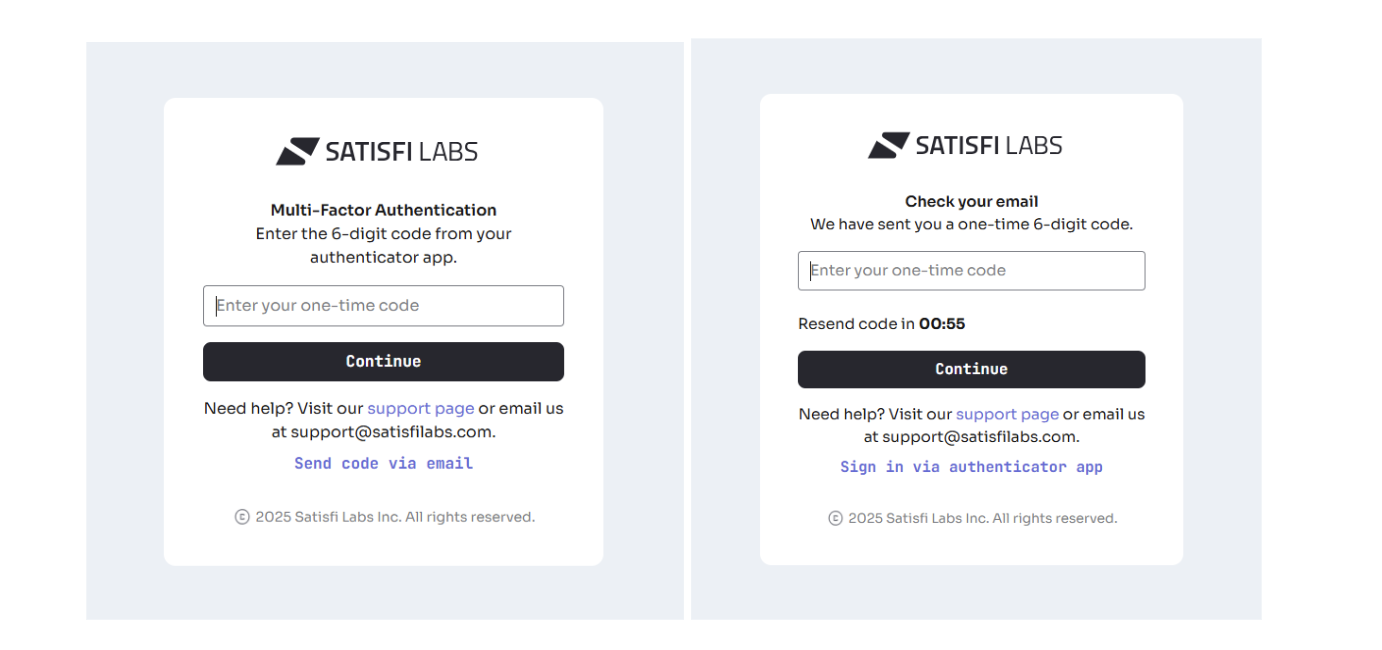
To enhance the security of your account and proprietary data, we've implemented a mandatory Multi-Factor Authentication (MFA) system. MFA is an important measure that SaaS companies implement to protect their users' accounts from unauthorized access. It adds an extra layer of security at sign-in by requiring users who do not have an active session to verify their identity by entering a one-time code delivered via authenticator app or email.
### Signing in with MFA
Start by following these steps:\
\
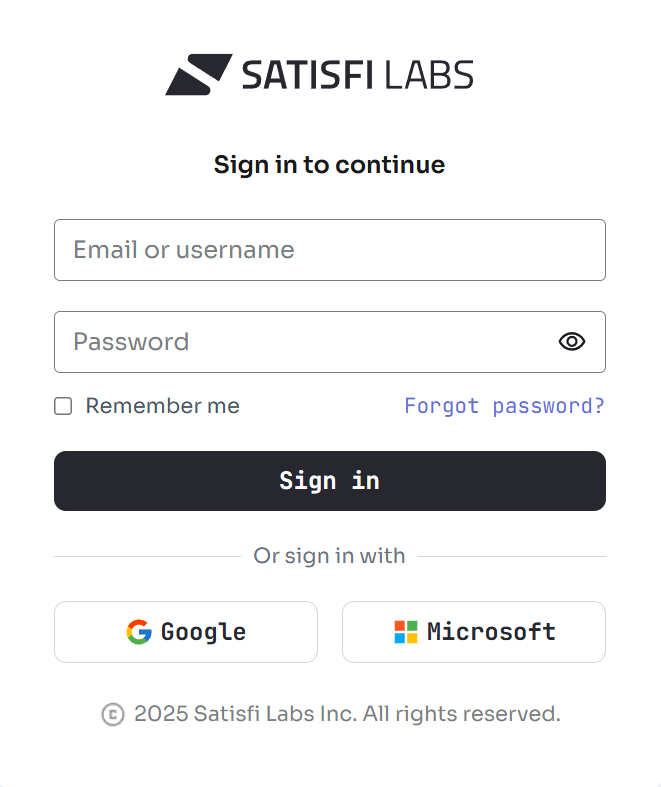
1\. Navigate to[ https://dashboard.satis.fi/](https://dashboard.satis.fi/) and log in using your username and password, or social login.
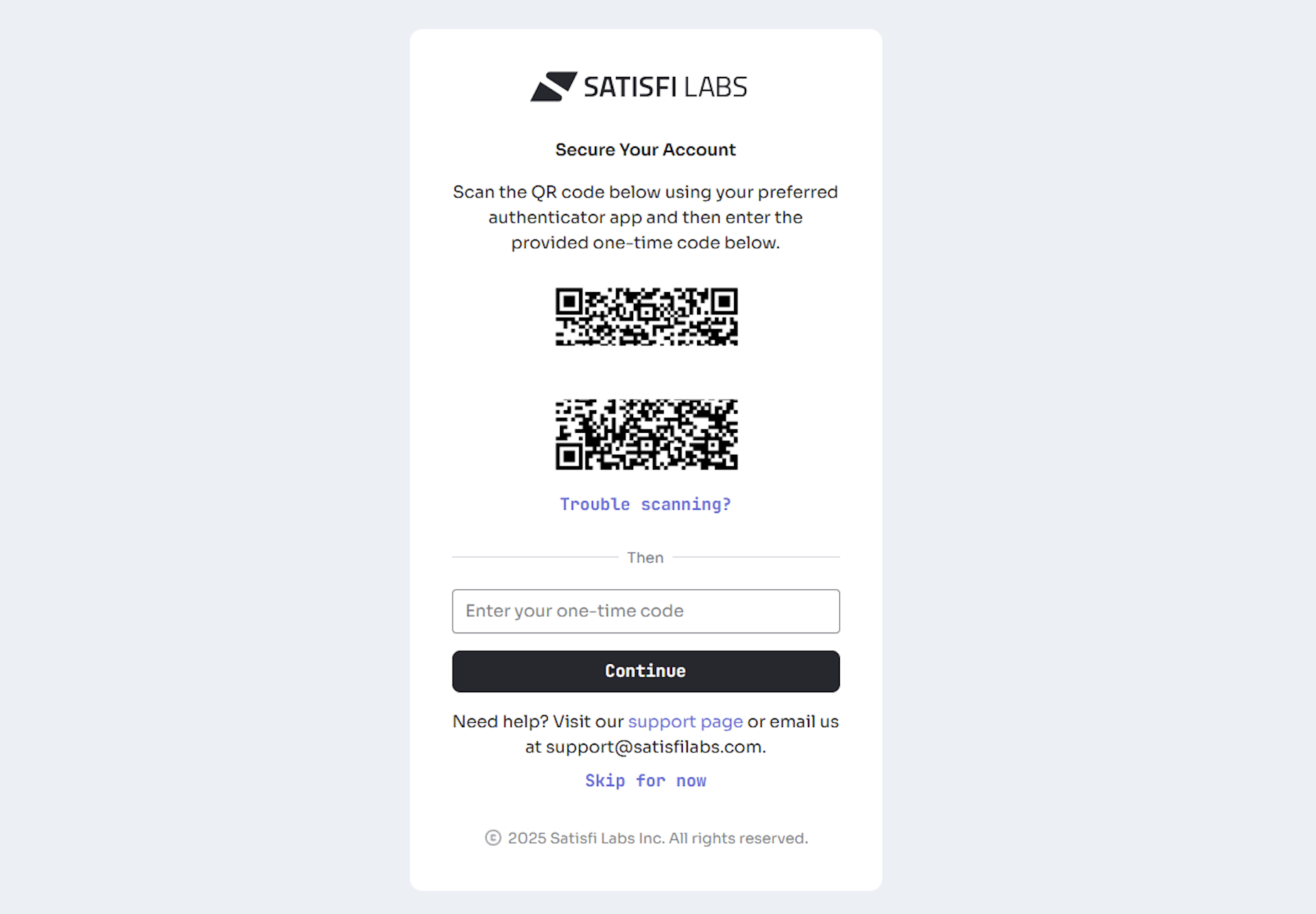
2. If you have not already registered for MFA via authenticator app, **you will be prompted to retrieve your one-time code from your email**. From this screen you will have the option to go straight to the dashboard, or first register via authenticator app for enhanced security.
3. During MFA set-up via authenticator app, you will need to scan the QR code using your preferred authenticator app (ex. Authy, Duo, Google Authenticator etc.) or the built-in iOS passwords app.
4. If you don’t already have one, download **Google Authenticator** from below:
* [iOS Download](https://apps.apple.com/us/app/google-authenticator/id388497605)
* [Android Download](https://play.google.com/store/apps/details/Google_Authenticator?id=com.google.android.apps.authenticator2\&hl=en_NZ\&pli=1)
5. Once the app is downloaded, open the app and click (+) in the bottom right corner. Scan the QR code to add Satisfi Labs to your list of accounts. Then it will prompt you to enter the 6-digit code as shown below.
6. After you’ve registered, MFA via authenticator app will become your default sign-in method, but you will still have the option to instead send a one-time code via email.\
#### Additional Notes
* One-time codes sent via email will expire after 5 minutes.
* MFA verified sessions are specific to each user + unique device. Logging in on incognito, phone, new device, etc, will result in your identity needing to be reverified.
* By default, users will need to re-verify once every 30 days. However, this can be modified to meet your company’s security requirements.
* Satisfi Administrators will adhere to the client account settings. For example, if a client account is configured for MFA verified sessions to expire daily, Satisfi Administrators will also need to reverify each day when signing-in to that client’s account.
### **Need Assistance?**
If you are having issues signing in via authenticator app, don’t worry. Please reach out to us at ****, and we’ll reset your MFA so you can restart the setup process
.png?alt=media&token=dce3d944-cacd-49a3-bd9a-20093f35b255)
.png?alt=media&token=b3d842c4-c245-4b60-bff4-67baee0192e5)